
The site is divided into a few main sections that can be accessed from the Menu.
Or Just search the main help articles:
The Site Map gives a one page overview of the help.
And you can see the Recent Changes listed together.
Latest News
-
Glow Blogs – Essential Maintenance
We will be carrying out essential maintenance on Glow Blogs Thursday 5th March 04:00PM GMT – 06/03/2026 08:00AM GMT
-
Recent Help & Information Updates
Some recently added and updated pages across our help and information sites this year: Glow Blogs Tips: Add to Your Phone’s Home Screen; Glowing Posts: Digital Influencer Award – Callum Croughan; Tip: Selecting Blocks; A guide to the top toolbar;
Read all the News on Glow Blog Help
Latest Tip
-
Add to Your Phone’s Home Screen
This is a really useful tip to share parents and others who want to follow your Glow Blog site. A one-tap access to the site, just like an app, so you never miss important updates.
Random Tip
An introduction to Glow Blogs
Other Help for Glow Blogs
Here are a few other sites you can find help on Glow Blogs on:
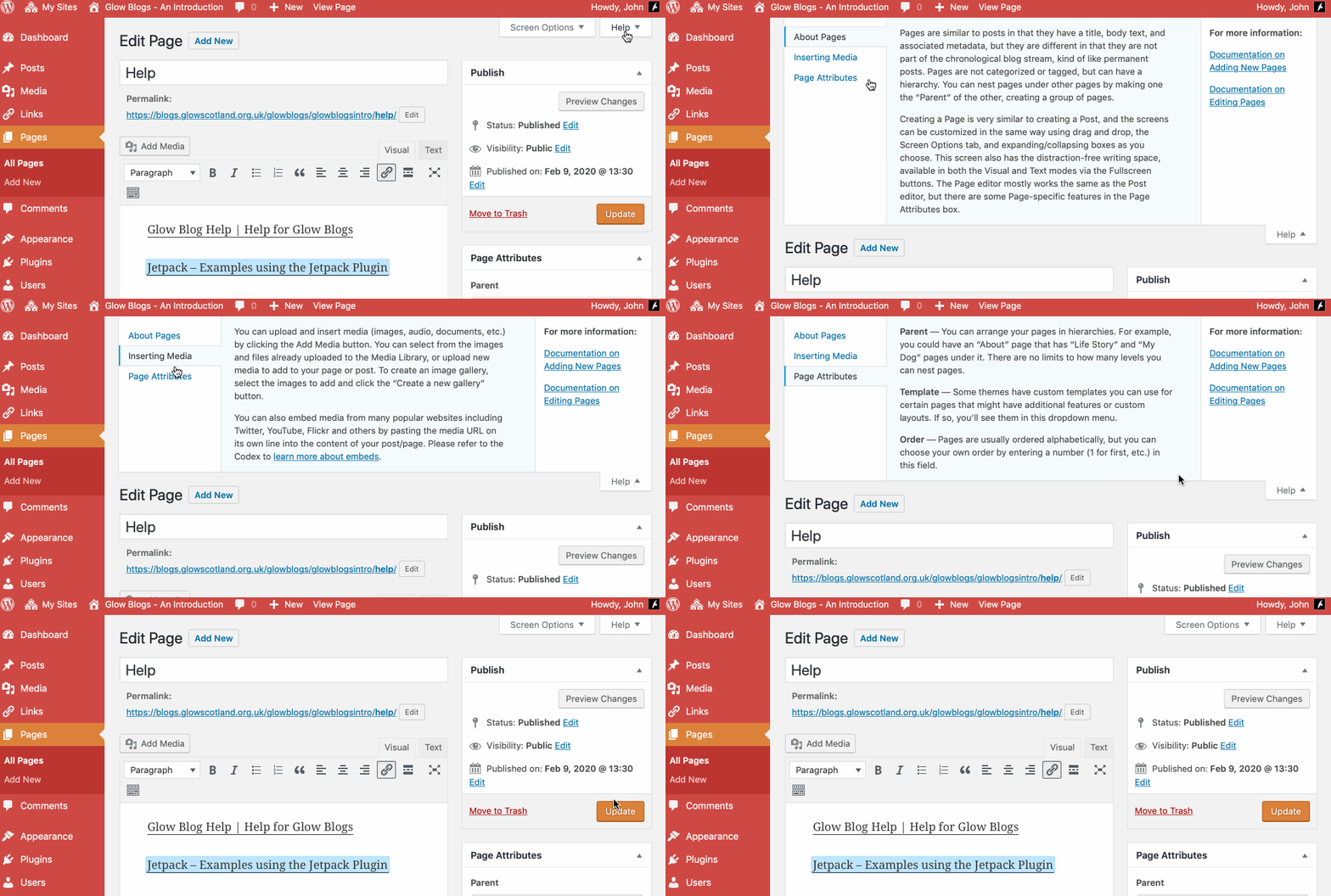
Remember WordPress has some really good built in help:

HI,
John Bain here at Berwickshire High School. I am in the process of setting a new Library blog. I am having issues displaying Menus on my blog front page. Can you advise?
Hi John,
I’ve sent you an email, we have a page on menus on this site which might help.
Hi, I’m looking for instructions to create a rolling banner at the top of website.
I am not exactly sure what you mean by rolling banner.
Some of the themes support ‘slideshows’ in different ways.
If it is a scrolling line of text Glow Blog does not support this. There is probably a footery way to do this with some customs styles. You could also use an animated gif.
Let me know a bit more of what you are trying to do and I’ll let you know if I can see a way to do it. I’ve sent an e-mail to your glow address.
Hi John
I made a blog and I send the link to my manager to check it but the link does not give access to her. I went to settings and I made it visible to Glow users but still she has no any access to it. Probably I’m doing something wrong. I would be grateful if you can help me.
Thank you
Hi Christina,
I’ll drop you an email, we would need to know the url you sent to be able to check it out.