
Classic Themes
If you change themes your widgets and settings might not be preserved. You can drag your widgets to the Inactive Widgets section of the widgets page in your dashboard to preserve their settings.
This blog has just been created with a standard set of widgets: Search, Recent Posts & Recent Comments.
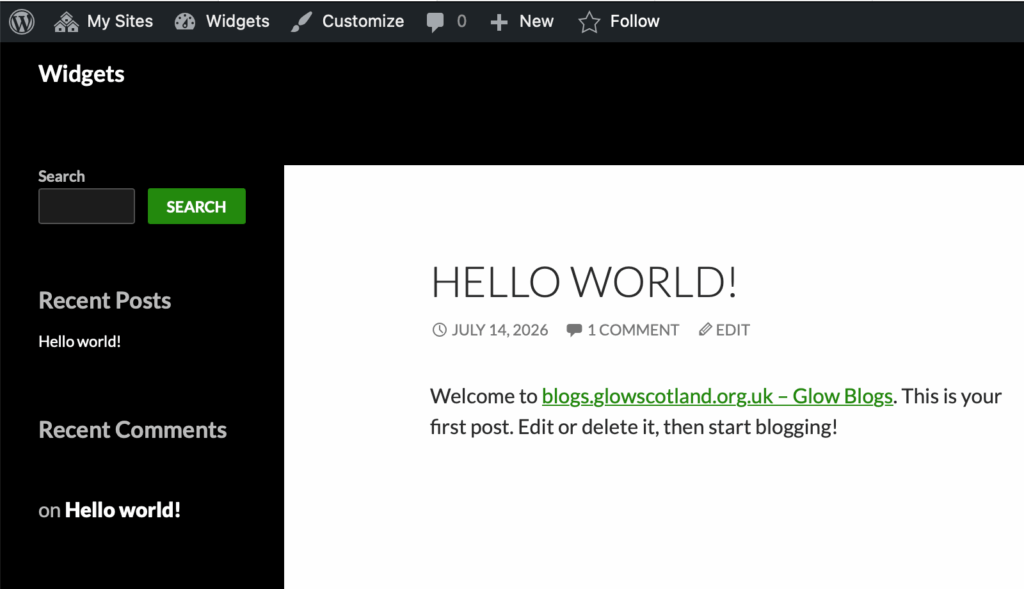
Widgets Dashboard
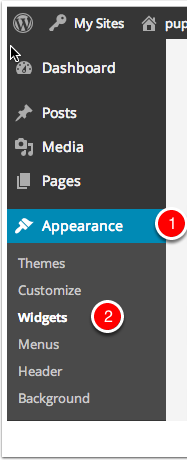
You can access the widget dashboard from the Appearance section. You may have to show that section using the drop down disclosure arrow.
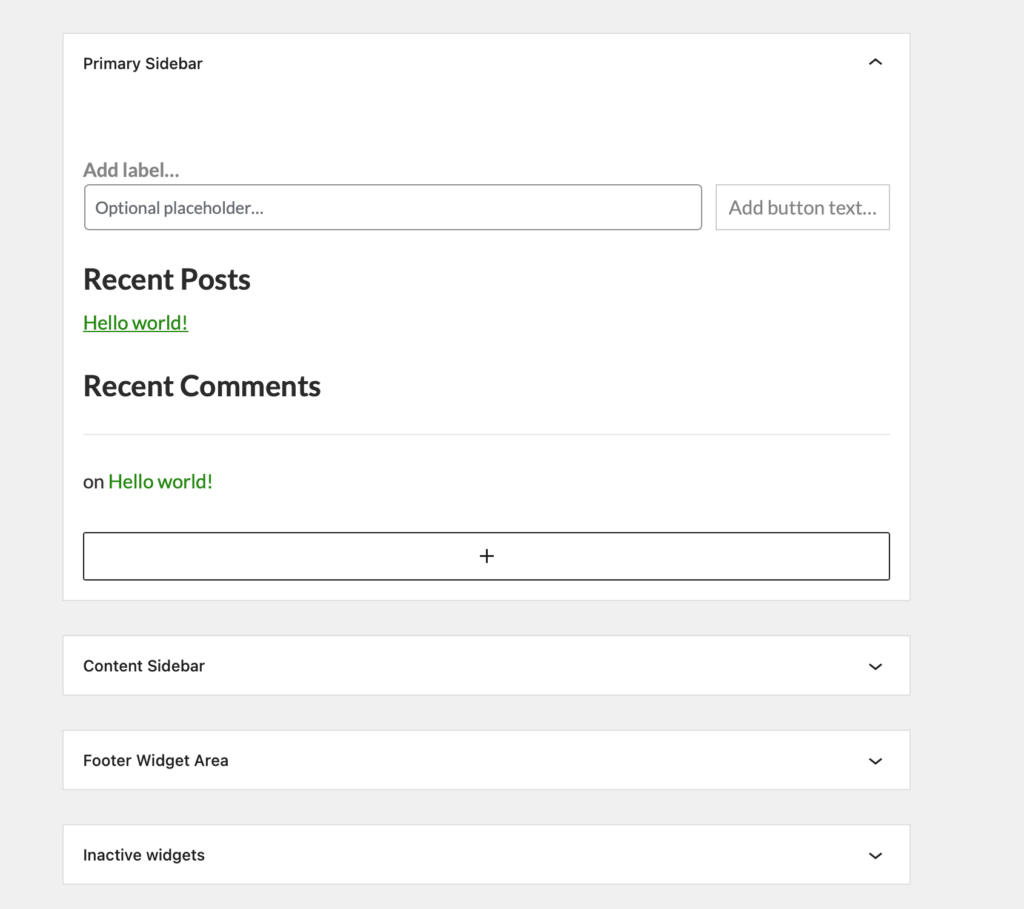
On the Widget page you can see the different Widget Areas, and if the areas are opened a preview of the widgets in place.
Adding Widgets
On the Widget page of your dashboard you add by clicking the Add Widgets + and choosing a widget. In this animation we add an Archive widget.
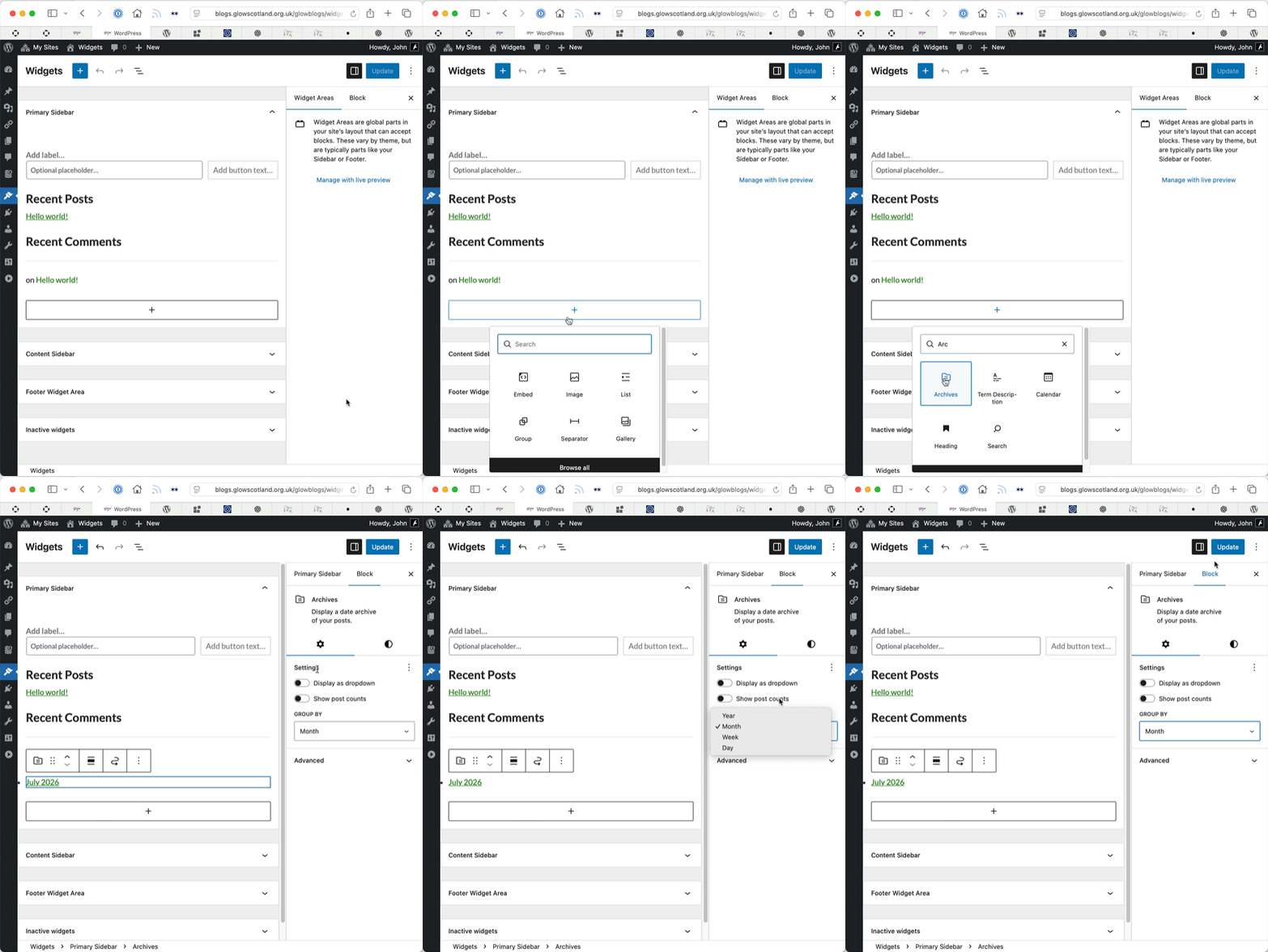
You can adjust the widgets setting in the right hand sidebar and Update with the top right Update button.
Legacy Widget Block
Some of the widgets in Glow blogs do not have blocks. On a classic theme these can be added by using the Legacy Widget Block.
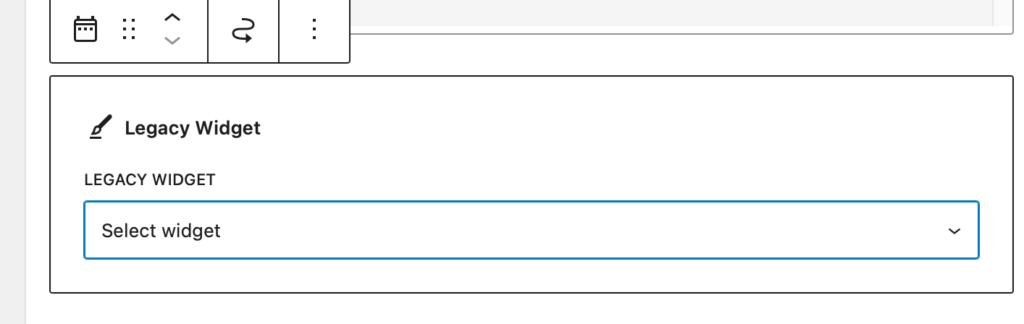
The Legacy Widget simply presents a list of widget which you can choose from:
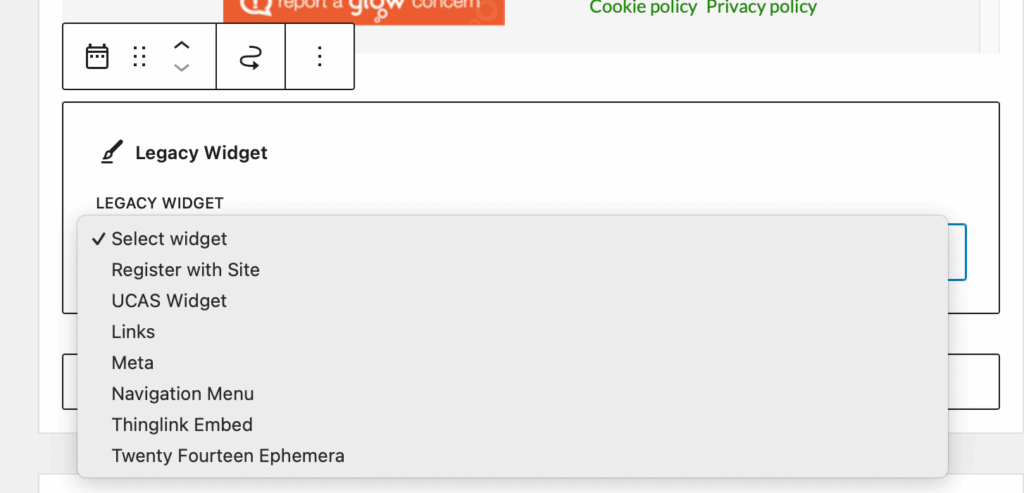
The Legacy Widget choices may include widget provided by Themes and plugins, the Twenty Fourteen Ephemera one shown above comes from the theme, Jetpack provides the following ones:
- Authors
- Facebook Page Plugin
- Google Translate
- Gravatar Profile
- Image
- Display WordPress Posts
- Milestone
- Navigation Menu
- RSS Links
- Upcoming Events
Widget Pages.
We have a site, Glow Blog Widgets, that demonstrates all of the standard widgets and ones developed for Glow. Here are links to individual pages.
Note as of 15 Jul 2026 the site is being updated due to or move from classic to block widgets.

I was looking to find a way to add a countdown widget to my page. Every time I tried the iframe was blocked or JScript wasn’t allowed.
is there a quick fix for this?
https://blogs.glowscotland.org.uk/gc/skikpss/
Hi,
There is a Milestone Widget that will let you do exactly that. I’ve just added an example to the righthand side of this site.
You need to:
1. Activate the Jetpack Plugin if it is not active
In Jetpack settings (which will be in the dashboard once the plugin is active) Turn on extra sidebar widgets.
In Appearance->Widgets add the Milestone Widget and configure.
I’ll drop you an emai lwith this information too.