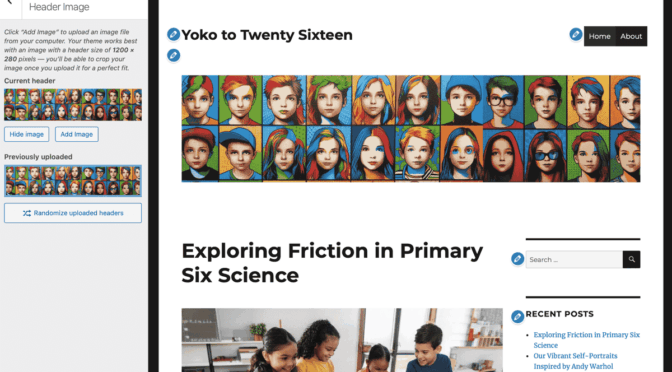
The Yoko Theme is now very old and has been abandoned by its developers. We recommend that you switch to another theme.
The Twenty Sixteen theme is a good choice for updating Yoko.
Yoko has two columns of widgets on the right hand side.
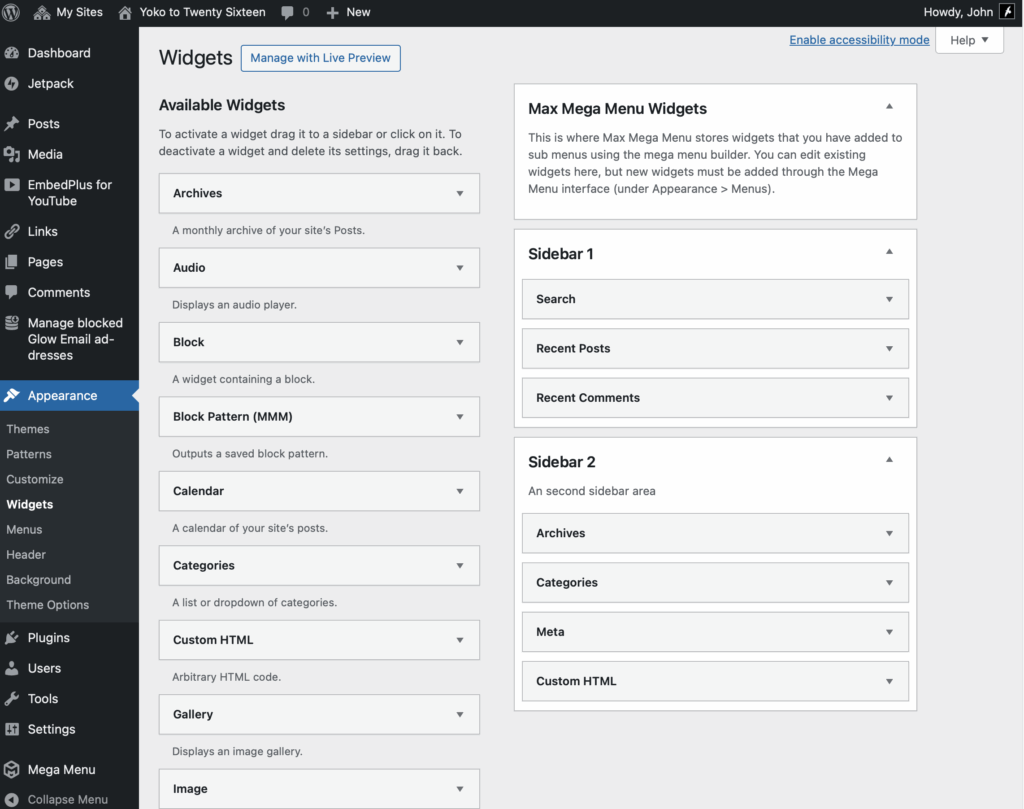
Twenty Sixteen is a good match for Yoko. It only has one Widget Area as a column, and other widgets at the bottom. Yoko has two columns of widgets. We will take all of Yoko’s Widgets and put them on the main sidebar in Twenty Sixteen. We will use the same Header.
In the example we have been using the Mega Menu plugin to improve the behaviour of Yoko on mobile.
Before
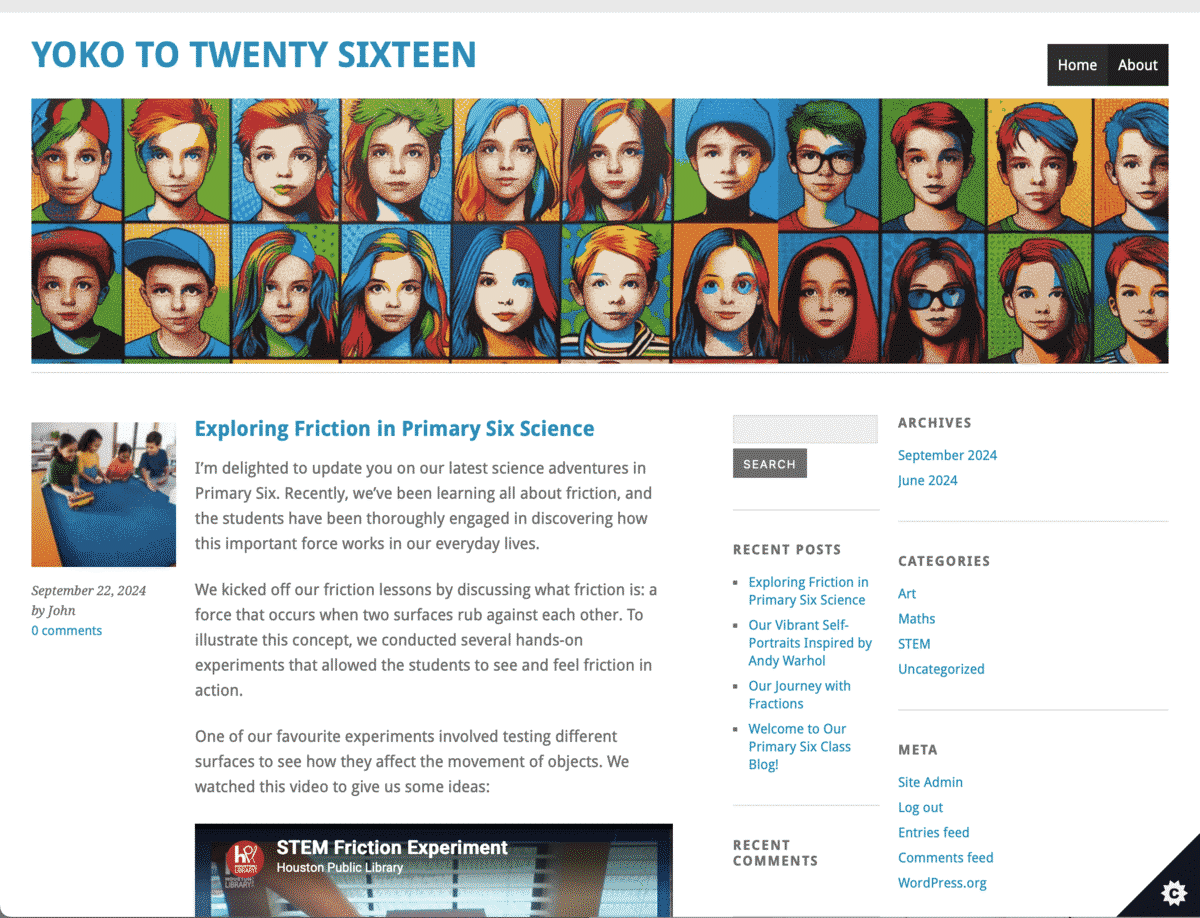
You might like to take a screenshot before you start. If you have added a lot of widgets you might like to take a screenshot of the widgets area too.you can get to the widgets area quickly from your Admin toolbar:
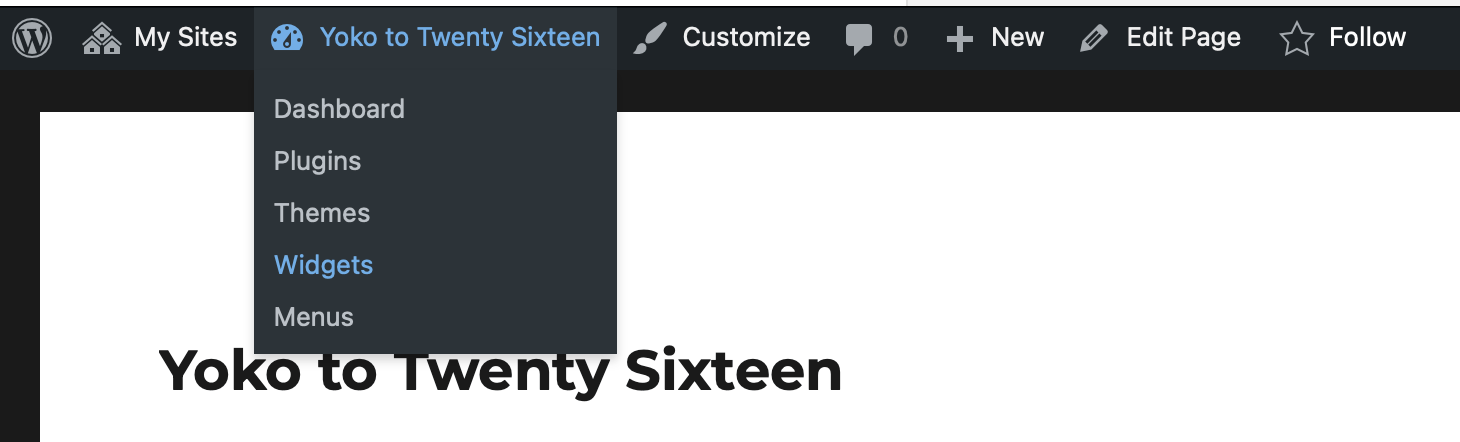
Changing Theme
Step 1 Open the Customiser from the Admin toolbar:
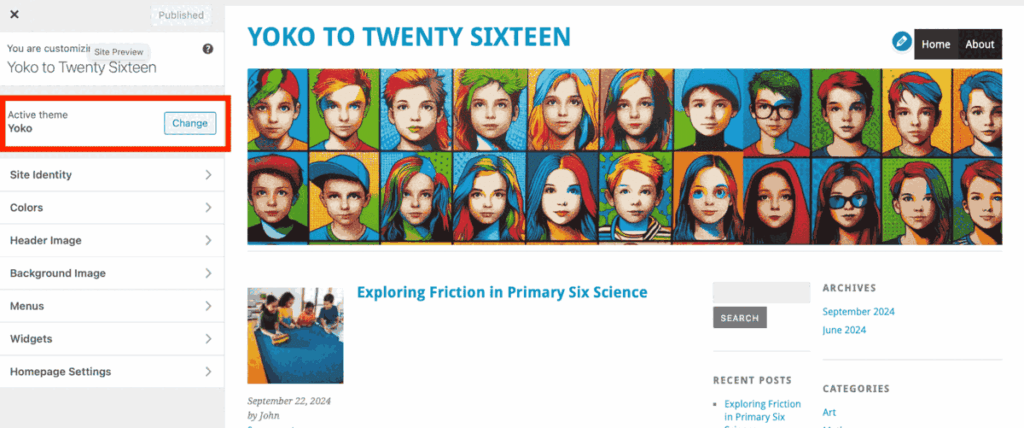
Click Change in the Active theme section, marked with a red box above. The Theme picker will open:
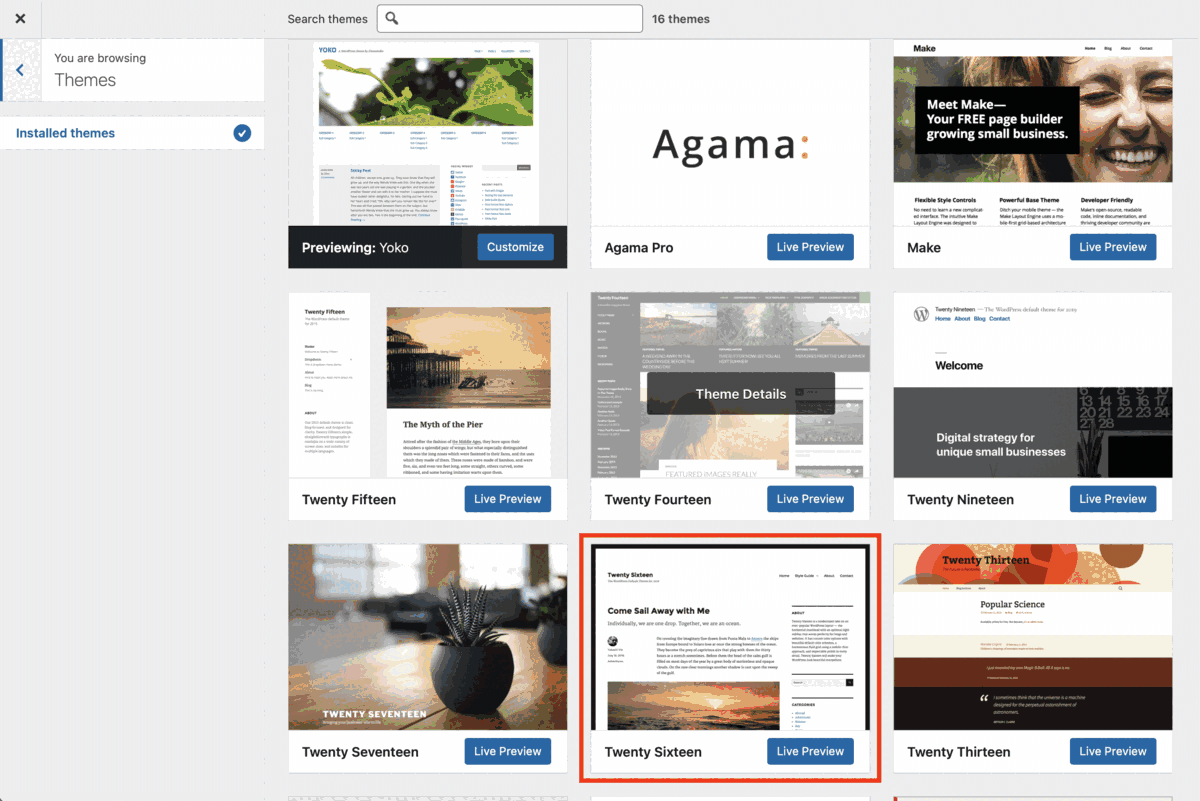
Click Live Preview on the Twenty Sixteen theme, marked with a red box above.
The Theme changes, note your header image is missing and some of the widgets are not in the sidebar:
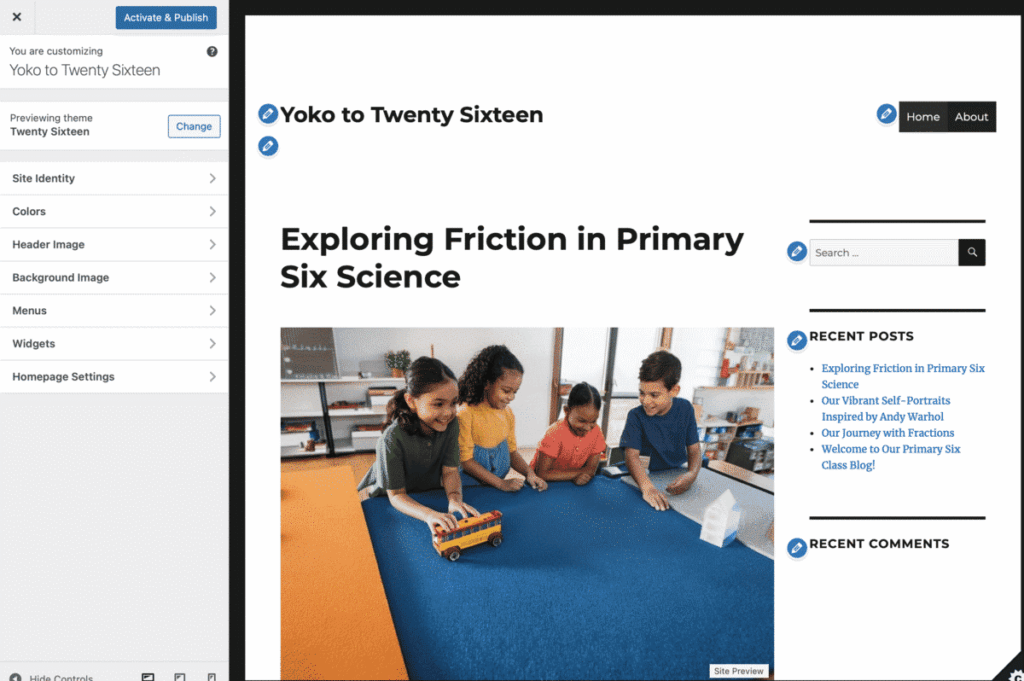
Next replace the Header
Click on the Header section in the customiser sidebar:
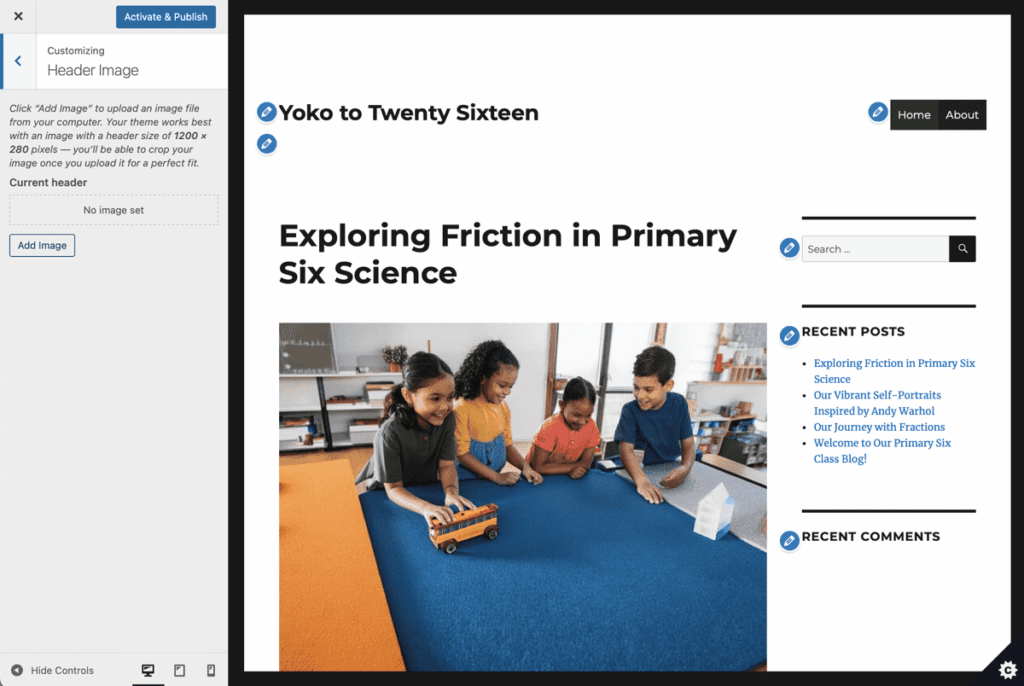
Use the Add Image button, this opens the media library.
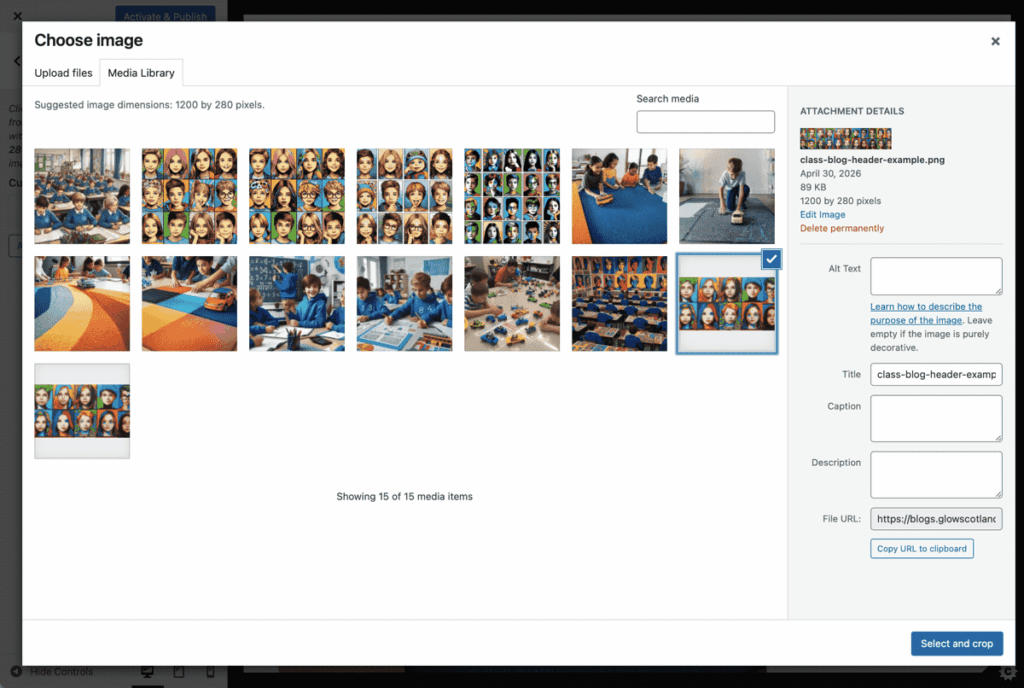
When the media library opens you can upload a new header or, as in the screenshot above, select the previous header. You then click the Select and crop button at the bottom left. You will get the chance to crop your image if necessary. You will then see the new header in Preview.
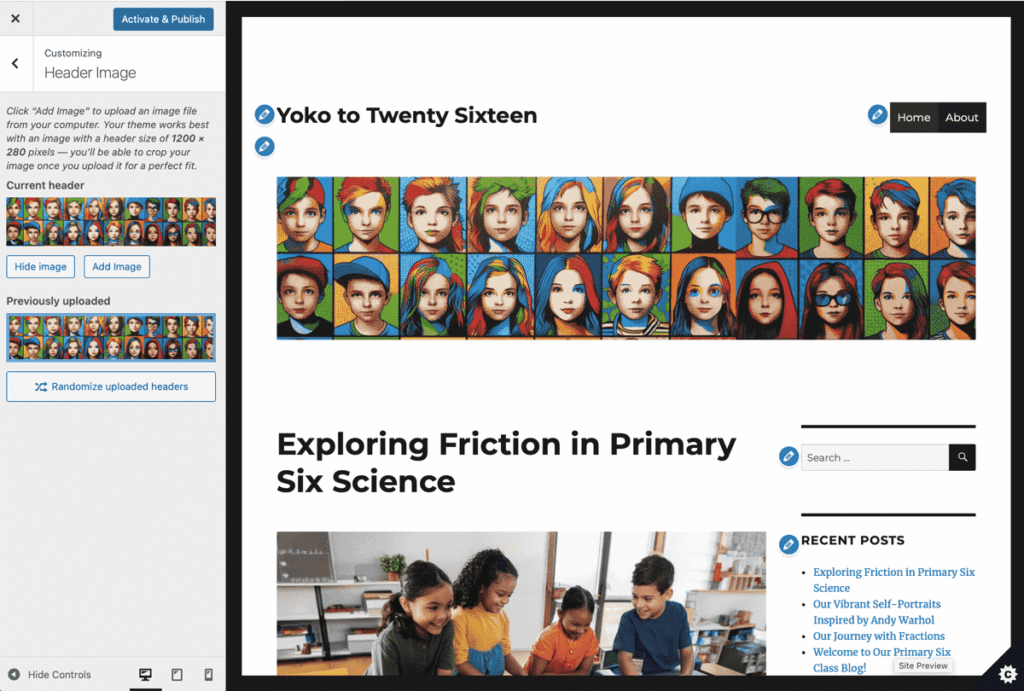
If you are happy with what you see press the Activate & Publish button at the top of the customiser and then close the customiser.
Widgets
You will notice the widgets that were in the two columns on yoko are now split between the right side bar and the bottom of the page in Twenty sixteen. We need to revisit the widget area and fix that. It is as simple as dragging the widgets from the bottom area to the sidebar:
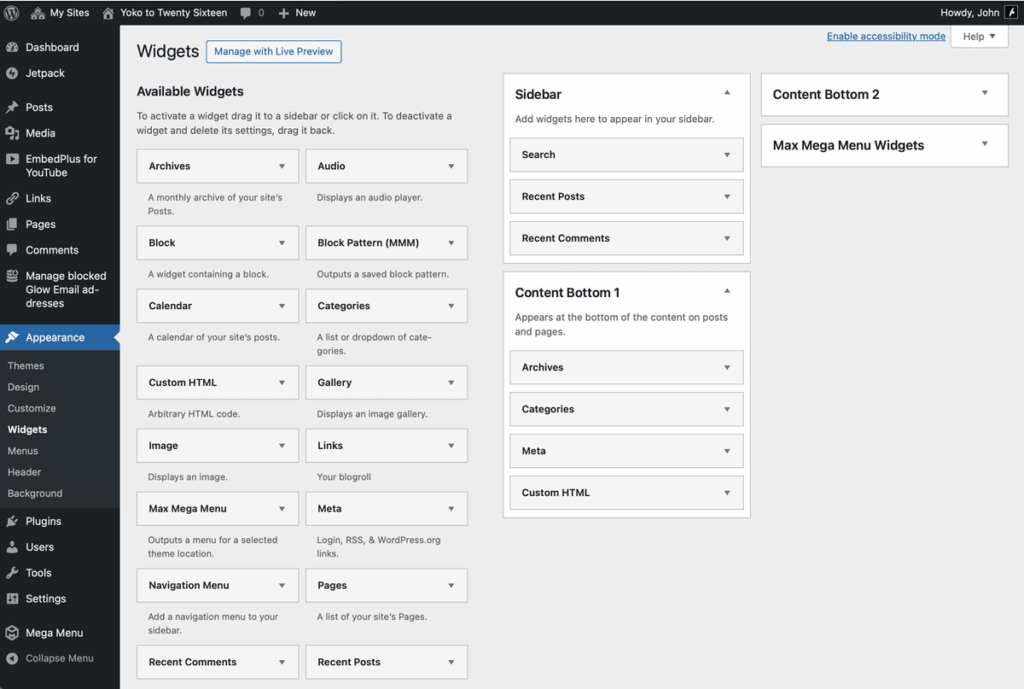
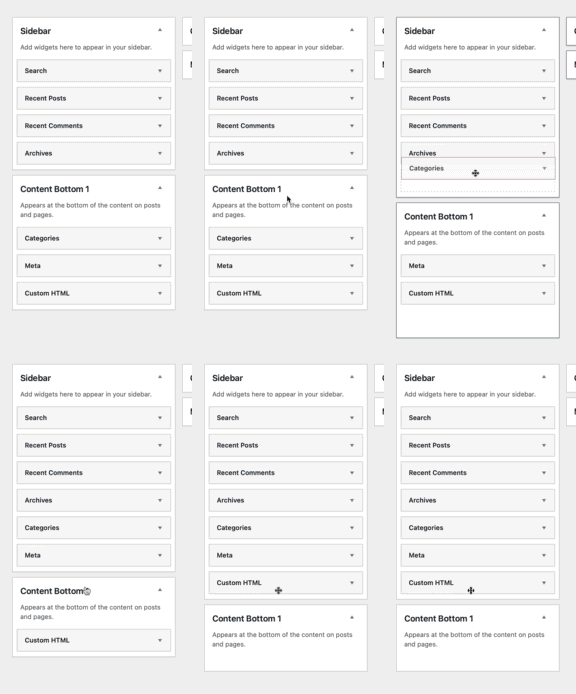
After you have move the widgets you can check the site looks like you want it too.
In our example the menus have stayed the same. In some cases you might need to visit the Appearance -> Menus screen and sort the menus out. You can read more about classic menus if you need a refresher.