Engaging with Learning Activities using QR codes & mobile devices

Malcolm Wilson, ICT Curriculum Development Officer within the Curriculum Support team of Service and School Improvement, Falkirk Council Education Services, presented a professional development session to teachers from several educational establishments on engaging with learning using QR codes and mobile devices. This session was supported by Yvonne Manning, Principal Librarian, Service and School Improvement Team of Falkirk Council Education Service, and colleagues within the Learning Resource Service of Falkirk Council Education Services.

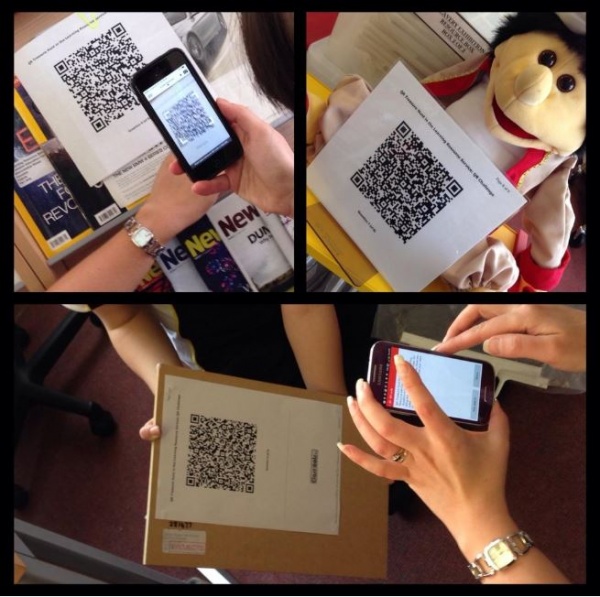
Participants first took part in a pre-created activity trail to interact with Falkirk Council Education Services Learning Resource Service based in Camelon Education Centre​. This involved participants making use of their own mobile device to scan the QR codes which were located within various parts of the building, each of which revealed a task to complete, and then provided a clue to find the next QR code and associated task.

This particular activity trail had been created using the QR Code Treasure Hunt Creator from Classtools.net​ http://www.classtools.net/QR/index.php​ – which provides a step-by-step guide for use by educators creating their own learning trail for their own pupils.

The session demonstrated that QR codes used with mobile devices can be used across the curriculum and for all stages, and provide a quick way to present information or tasks in a form which engages learners in their learning. Examples were described including using QR codes for Class trails​, linking to audio feedback​, pupil videos talking about their artwork​ or practical work, teachers adding links to support resources on labels stuck on pupil work.

The session provided advice about what to consider when making use of mobile devices in an educational context (taking into account the AUP which can be found here https://blogs.glowscotland.org.uk/fa/mobiledevices/documents/ and availability of wireless and mobile devices).

Rather than simply linking to information the features of the mobile device can also be harnessed when linking from a QR code. An example of how this was used in an outdoor learning context was shared, and a description of this can be found here:​https://blogs.glowscotland.org.uk/fa/CurriculumSupport/2014/05/12/taking-ict-outdoors-with-mobile-devices/

The session provided guidance on a range of free QR Code ​Creators which are available​. Some provide different options (such as www.unitaglive.com/qrcode), some provide tracking and automatic shortlinks (e.g. http://goo.gl/), some provide step by step guide to creating different types of link (to text message, URL, text-only, etc)​.

For more about how they can be used, how to create QR codes and more click on the following link: 

https://blogs.glowscotland.org.uk/fa/ICTFalkirkPrimaries/2012/03/13/qr-codes-what-are-they-and-how-can-they-be-used-in-and-out-of-the-classroom/

Falkirk Staff Online Spaces for Sharing Resources and Collaboration

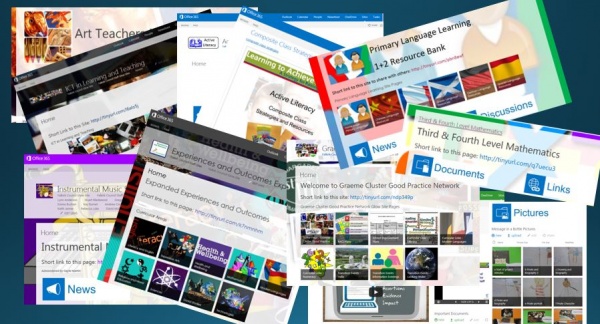
Malcolm Wilson, ICT Curriculum Development Officer within the Curriculum Support team of Service and School Improvement, Falkirk Council Education Services, has been supporting many central staff and staff within educational establishments across Falkirk Council to set up shared online spaces for making available resources to colleagues working in Falkirk Council, and to provide them with tools to collaborate.

These online spaces provide a means to share resources within the education community of all Falkirk Council establishments and can be accessed from here: http://tinyurl.com/pvmjx92

Each site provides at least one document store, and in many cases multiple document stores for making accessible resources in different formats, as well as picture galleries for sharing examples of practice, a discussion area for asking questions or sharing ideas, a news area for updates, and a weblinks area for quick access to related material elsewhere online.

Some of these sites are for sharing centrally sourced resources, some are for providing the means for staff in establishments to share with others, some provide a means to share with specific colleagues in different establishments, some provide structured professional development combining reading material, presentations and video, space for reflective comments with colleagues undertaking the same professional development and making use of video-conferencing spaces, and some provide a common space for clusters of schools to plan together and to pool resources for activities across multiple establishments.

These shared online spaces include Active Learning, Active Literacy, Art Teachers Network Falkirk, Bilingual and Traveller Pupil Support Service, Denny Cluster (including for Mathematics and for Outdoor Learning Network), Education Communications, Education Matters, Employee Review and Development, Curriculum for Excellence Experiences and Outcomes Expanded for all curricular areas and for all levels, Falkirk Confucius Classroom Hub, Falkirk Headteachers, Good Practice Network, Graeme Cluster Good Practice Network (including cluster transition event planning), ICT in Learning and Teaching, Instrumental Music Service for Falkirk Council, Interdisciplinary Learning in Falkirk Council, Numeracy and Mathematics, Physical Education, Primary Language Learning 1+2 Resource Bank, Specific Learning Differences, Storyline, Teaching for Deep Learning, and the To Lead or Not to Lead programme, amongst other online spaces specifically for staff working in Falkirk Council.

Staff within Falkirk Council Education Services can access the above spaces by clicking on this link.

Pupils as Digital Leaders at Shieldhill Primary School

Malcolm Wilson, ICT Curriculum Development Officer within the Curriculum Support team of Service and School Improvement, Falkirk Council Education Services, supported a session with the Digital Leaders group of pupils in Shieldhill Primary School.

These pupils are being supported for them to then support classes around the school in the use of technologies in their classrooms. They are led by teacher Chiara Sportelli. This session let the pupils explore different apps within a specially created SharePoint site for them in Microsoft Office 365 (which is accessed via their Glow username).

This included the use of a picture gallery, a discussion app (which provides the facility for pupils sharing work with the teacher who has set the work, and for asking questions in a controlled class environment – that’s the point of the discussion page in Glow for each class, where the teacher can set the task, the pupils can attach their work, ask questions, and peers or the teacher respond in the confines of a private class area), weblink sharing, and a document store (where documents were created using Microsoft Word Online as part of Office 365, meaning that the document can be created online without need for the software to be installed on the PC or mobile device).

The pupils then shared their documents with each other, inviting their peers to comment and add comments to the documents online. Then they all collaborated on the same document online all at the same time from their own PCs – and there were squeals of surprise when they could all see the same document being edited in front of their eyes with different coloured flags appearing on screen to show who was editing the different parts of the document!

The pupils then used a collaborative OneNote file which had been created in their online space – each pupil created their own page within this online ring-binder tool and added their thoughts on what they felt their contribution could be in taking the group forward in supporting the use of technologies in Shieldhill Primary School. OneNote works online or via a deskop PC or a mobile device (and is also part of the suite of tools included for all users of Glow). For more information about OneNote click here.

More information about Digital Leaders can be found here: https://blogs.glowscotland.org.uk/fa/ICTFalkirkPrimaries/2014/04/23/pupils-as-digital-leaders/

Primary ICT Co-ordinator Support – OneNote to Wikipedia

Malcolm Wilson, ICT Curriculum Development Officer in the Curriculum Support team of the Service and School Improvement division of Falkirk Council Education Services provided guided hands-on support to primary ICT Co-ordinators (and to which secondary colleagues were also invited to participate).

These sessions are designed to ensure that ICT Co-ordinators are provided with guided hands-on experience in a range of tools so that they are better placed to support colleagues in their education establishment using technologies across learning and teaching, and are kept abreast of latest developments in this ever-changing field.

Here’s what was covered in the recent session:

1. Wikipedia for schools – resources and tools of which you may not be aware. http://goo.gl/BAKMDl including Wikipedia for Schools site (checked by educators and downloadable​ to a USB drive); Young Editors section​; Simple English Wikipedia​; Scots Wikipedia – Wikipedia in Scots language​; Historical anniversaries; School template for pages about school​; Wikipedia search & help for better searching; Wikipedia Community Portal – what needs added/edited​; Student Assignments section​

2. OneNote Online – a free tool either for use online or as an app on a mobile device or via a web browser on a desktop PC or mobile device. It is a ring-binder online – multiple sections with multiple pages​. It can be used for a whole variety of purposes from pupil topic research tool to a learning journal shared by pupil with teacher. Microsoft OneNote is part of Office 2013​ and part of the suite of tools available free to all users via Glow in Office 365. OneNote online is available via Glow and works with mobile devices​. For more information about how to go about using OneNote click here.

3. Office 2013 for pupils – Student Advantage Licence – advance notice of a scheme which will become available to local authorities signed up to a Microsoft licensing scheme. Details will follow once the scheme is in place way to apply these licences. Click on the following link for helpful quickguides to various tools within Office 2013​: http://goo.gl/pP4wg6  ​

4. Making use of an online classroom space in Microsoft Office 365 within new sharepoint environment – users can create a class space from scratch themselves or request a class site to be set up for them. Click on the following link for ideas of how to use with pupils: http://goo.gl/Jp4NUi. See the following ebook free download on Microsoft Office 365 in Education for classroom scenarios and examples of use of Microsoft Office 365 as an online classroom space: http://glo.li/1lEMo6C. See video tutorials from ITHeadsUp Microsoft in Education UK for using Office 365 – tutorials and classroom-specific examples: ​http://glo.li/1k30f92

5. Management of passwords in new Glow via RM Unify – showing how to reset yeargroup in one go to same password for getting youngest pupils started, and showing how users can also enter alternative email address to avoid future reset need by teachers. http://goo.gl/i0Kofb – video guide to steps. ​

6. Video-conferencing via Microsoft Lync (for staff member to staff member or up to ten participants, not available to pupils) set up by staff member themselves http://goo.gl/6zDeKV for step-by-step guide to using Lync; and Adobe Connect for presentations with greater numbers and with varied roles with different permissions. Request to be host made for named staff to Education Scotland​ via Jennifer.McDougall@educationscotland.gov.uk

7. WordPress blog set up and management now via new Glow RM Unify Tile, no longer tied to a Glow group – with dedicated support blog http://goo.gl/4946Lg Can vary permissions for different users​; Can be used for public collaborative activity, website or individual project​.

8. TigTag Primary Science videos and teaching materials matched to CfE and available free through Glow via Glow tile on RM Unify or direct to website​ http://www.tigtagworld.co.uk/ – then login via Glow for full access​. Printable pdf guide to using TigTag ​http://goo.gl/ZzDy2h. Free online teacher CPD via a partnership between Tigtag and Imperial College London​ http://www.reachoutcpd.com/

9. Live interactive Glow Help & Support sessions through Glow TV every Tuesday at 8.15am and 3.45pm, followed by Facebook & Twitter Q&A sessions at 7.30pm. To sign up and find out more: http://goo.gl/3VqPIj

Video-conferencing between classes using Adobe Connect

Malcolm Wilson, ICT Curriculum Development Officer in the Curriculum Support team of the Service and School Improvement division of Falkirk Council Education Services has been providing support to schools on making use of the video-conferencing tool Adobe Connect to connect classrooms. Adobe Connect is one of the suite of tools included to Glow users, referred to as Glow Meet within Glow.

How to set up a Glow Meet video-conferencing session using Adobe Connect through Glow:

1. You will require to have a Glow username and password to access this tool. Log into Glow at https://glow.rmunify.com. Scroll through the tiles on RM Unify until you find the tile called Glow Meet (for Hosts). Click on the tile called Glow meet (for Hosts). Note that you may see prompts to update software on your PC if updates or add-ins are required – accept these prompts.
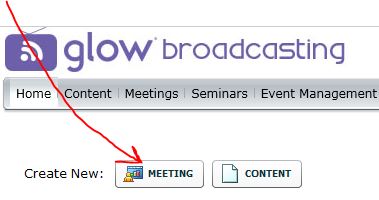
2. You will require to have been granted host rights to be able to create a new meeting. Click here for details of how to request this if, having clicked on the Glow meet for Hosts tile, you do not see “Create New Meeting” button at the top left of the Glow broadcasting window which opens. Click on “Create New Meeting” button if you are setting up a meeting. If you are accessing a previously set up meeting then you click on the “open” button beside the name of the meeting previously created).
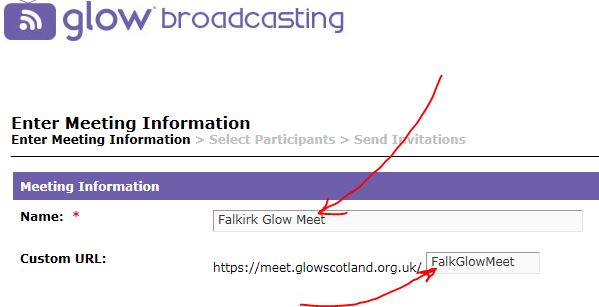
 

3. Enter a name for the video-conferencing session beside the title “Name*” e.g. Falkirk PS Glow Meet. Enter a short version of this in the box marked “Custom URL” – this will be the web link you share with others. This will require to be unique so be aware the system may prompt you with an alternative URL. Leave all other settings as they appear without adding or making changes. Click the “Next>” button at the foot of the page.

4. This will display the “Select Participants” screen. At the bottom left click on the “Search” button. In the search box which will then appear above the Search button enter the Glow username of others to whom you wish to assign access to this meeting. Since you can also grant access during a meeting to people who have the link this can be left to be only for those with whom you may share administration of the video-conferencing session, or presenter during the session. You can find usernames of others by going back to the RM Unify tiles webpage and finding them by searching on via the RM People Directory tile. When the sought username appears on the “Select Participants” page then click on the “Add” button at the foot of the page. Your new user will now appear on the right-hand panel “Current Participants” for the meeting you are creating. You can assign the appropriate role level of permissions to each user by clicking on the username on the right-hand panel, then clicking on the “Permissions” button. Once complete then click the “Next” button.

5. On the “Meeting Information” page which then appears, highlight the URL which is displayed (such as the example https://meet.glowscotland.org.uk/falkglowmeet/), right-click and copy your meeting URL. This will mean you will require to share the link to the Glow Meet with other users by sending it via email or adding it to a page others will be able to access.

Using Glow Meet Adobe Connect

1. Click on the link to the Glow Meet which you previously created (or which you shared by email with others, or shared on an online space elsewhere which others can access). First time you may need to allow any plugin as required or updates to software.

2. If you are the host of the meeting you will be able to accept the prompts which will pop up as guests to the meeting request access. You can assign different roles  to participants by clicking on their name and choosing to enable their webcam, or microphone, or to increase their rights to be presenter (or joint host). You can change these rights again in the same way.

3. To broadcast your webcam click on “Start my webcam” and “Start sharing”

4. To be heard by others you will need to ensure you have clicked on the microphone icon along the top of the screen (you can mute it by clicking on the same icon – this will then show a diagonal line across the microphone icon. Note that other users will not automatically have this option unless you have enabled their microphone, or they are presenter or host.

5. To check audio settings (always worthwhile doing this in advance of a meeting) then click on “Meeting” on the top-left menu and then “Audio Setup wizard” and follow through the steps.

6. Click on the video camera icon to broadcast video (or leave off if you are simply watching a presenter).

7. Click on the microphone icon to control whether audio is broadcast or muted. Note that participants will not automatically have the option to switch on their microphone. All participants will be able to send text messages using the “Chat” window.

8. At the end of a meeting, to finish the meeting, and to disable future access to participants without a host opening the meeting, then click on Meeting – End Meeting

To Record a Glow meet in Adobe Connect

1. To record a Glow Meet in Adobe Connect click on “Meeting” – “Record Meeting”

2. This will display a message to all participants that the meeting is being recorded, and a red circle at the top-right of the screen, until the recording is stopped.

To View a recorded Meeting

1. Go to the Glow Meet (for Hosts) tile on the RM Unify tiled screen.

2. Click on “Meetings along the top of the screen. Note that only hosts will be able to view this.

3. Click on the link to the Meeting you created

4. Click on “Recordings” along the top of the screen

5. Click on the link to the recording of your meeting. The page which is then displayed will show a “URL for Viewing” – this will be the link you should copy and share with others, wither by email or by adding to an online space accessible by others to whom you wish to share the link.

Tips

1. Don’t try to share video which is hosted elsewhere by sharing your desktop – instead share the link to that video in the chat box so that others can watch it straight from the link.

2. Try out your PC setup before a proper arranged video-conference session by ensuring your webcam has been plugged into the PC beforehand, that it is recognised as the webcam and the microphone. Check your speakers all work – going through the “Meeting” – “Audio Setup wizard” is essential for all taking part, in advance of the pre-arranged meeting.

Further information from Education Scotland to support the use of Glow Meet Adobe Connect can be found here: https://glowhelp.wikis.glowscotland.org.uk/Glow+Broadcasting

More than just video
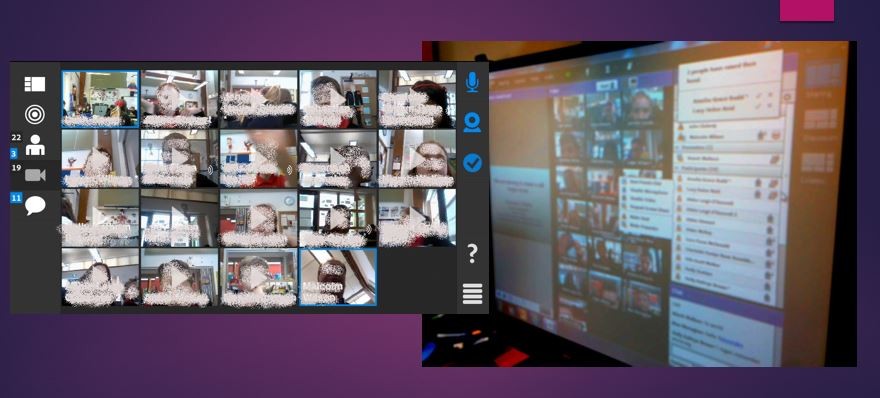
SD_AdobeConnect3Adobe Connect is more than just conferencing by video – you can share uploaded files (such as a Powerpoint presentation, which a presenter can then guide viewers through); there’s a chat facility to get text message feedback throughout a presentation (and that includes the facility for messaging between individuals or to the whole group); there’s a polling tool to seek responses on specific questions (and this can include multiple choice, many choice responses and free text responses); there’s a facility for quick yes/no responses; and hosts of meetings can vary rights of participants as they enter the room or at any time in the meeting so that microphone and/or webcam can be enabled; there’s a “raise hand” tool to give the opportunity for participants to attract the attention of a presenter (it presents a pop-up box to the presenter); there’s a whiteboard tool to draw or share ideas in visual form; and there’s the option to share the desktop of a presenter to demonstrate something such as how a piece of software on the host PC works.

Available on Mobile Devices

There’s mobile device apps available to provide the facility for participants using mobile devices to access Adobe Connect meetings – this may open automatically when clicking on the shared meeting room web address (URL) or simply by copying that web address and pasting in the URL box within the app.
 

Falkirk Teaching for Deep Learning – A new cohort of facilitators

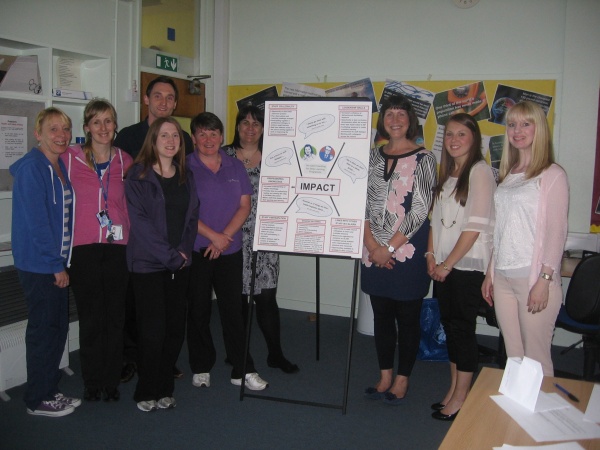
On 29th October Yvonne McBlain led the second training meeting for our newest cohort of Falkirk Teaching for Deep Learning programme facilitators. There are 20 facilitators from 13 schools – 11 primary establishments and 2 secondary.

All of these teachers have chosen to make their development of the facilitator role part of their professional learning for the next two sessions.  Most of them are choosing to challenge themselves by taking on a distributed leadership role for their school colleagues. Some are helping build their whole school community and supporting their school improvement plan by using the programme as collaborative whole staff development.

After training session 1, the facilitators used the TfDL Glow group (click to visit) and their private facilitator group to complete follow up tasks. One of these was to say which TfDL session they would like to get to know/experience first. The majority decision was session 9 – Teaching for Deep Learning in an Active and Engaging Way. Click here to view the power point presentation for this session, and here to see hand out 1.

Yvonne was excited to hear how the facilitators are already using the programme with colleagues. They are enthusiastically applying their knowledge and experience  to support colleagues with their ongoing quest to improve classroom practice. Our vision is to move Falkirk schools from good to great!

Video-conferencing between classes with Skype or Lync via Glow

Malcolm Wilson, ICT Curriculum Development Officer in the Curriculum Support team of the Service and School Improvement division of Falkirk Council Children’s Services has been providing support to schools on making use of the video-conferencing tool Skype for Business (formerly called Lync) to connect classrooms. Skype for Business (formerly called Lync) is one of the suite of tools included in Microsoft Office 365 through Glow.

How to use the Glow Lync Video-conferencing tool:

1. Log into Glow

2. On the RM Unify tiles click on Office 365 (Calendar)
3. Navigate to the date and time on the calendar when you want to have a video-conferencing session take place – double-click on the space in the calendar for that date and time.
4. Enter a name for the video-conferencing session beside the title “Event” e.g. Event: Video-conference with all classes
5. Next to the title “Attendees” type in the Glow usernames of those with whom you will be video-conferencing (select the user from the prompt which then appears.
6. At the top of the screen click on “Skype meeting” then “add Skype meeting”– that will enter the necessary links into the body of the calendar entry at the foot of the screen (don’t edit or amend that)
7. Now click “SEND” at the top left of the screen – that sends an email to the participants whose Glow usernames you have entered into the Attendees box.
8. When it comes time to present the meeting (actually it can also be done at any time) participants click once on date in calendar – and click “Join”
9. Click on “Join Using Lync Web App”
10. Enter your name (or class name if it’s a class participating – it’s the name which will appear on screen for everyone else to see) then click “Join the Meeting”
11. First time you may need to click “Run” at the foot of the screen (it may remember that next time you use it). “Allow” any plugin as required
12. Click on the video camera icon to broadcast video (or leave off if you are simply watching a presenter).
13. Click on the microphone icon to control whether audio is broadcast or muted.

NB In the event that you or a previous user on that PC has used an installed desktop version of Lync you may need to force the use of the Lync Web App. Here’s the “fix” to do so (there is no simple button to do so):

1. Open a web browser window
2. Copy & paste the URL for joining the meeting that you received.  Do NOT press ENTER
3. Add the following to the URL: “?SL=1” (without the quote marks)
For example, if the URL to join the Lync meeting is:
https://meet.lync.com/glowscotland-glowmail/gw09wintermerry/2FJSJ85F
Change it to:
What to do if you are broadcasting to others who do not have a webcam
If a “viewing-only” user does not have a webcam connected then ensure a headphone or microphone is plugged into the audio socket otherwise Lync may not permit a user to view a meeting

Using ICT to develop creativity and innovation in the classroom

Malcolm Wilson, ICT Curriculum Development Officer within the Curriculum Support team of Service and School Improvement, Falkirk Council Education Services presented hands-on practical sessions for all probationer teachers in Falkirk primary schools, on using ICT to develop creativity and innovation the classroom.

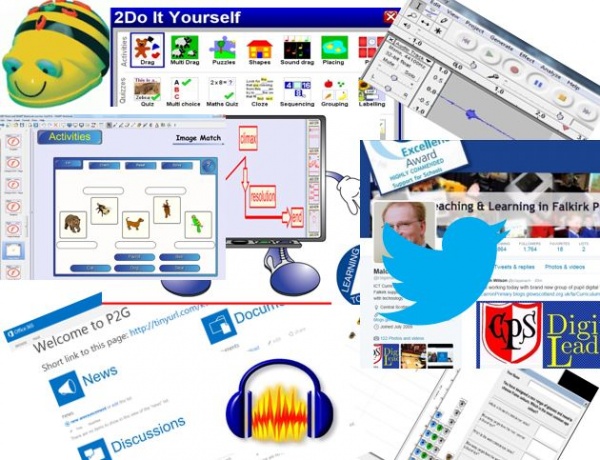
There was a guided exploration of the wide variety of open-ended software installed on all PCs across all Falkirk primary schools, which can be used to support learning and teaching across the curriculum at all stages – and a reminder that resources to support every piece of software (providing examples as well as guides and tutorials) could be found online here: ICT for Teaching & Learning in Falkirk Primary Schools

There were practical activities related to how the free audio-editing tool Audacity might be used to support learning and teaching across a range of curricular areas. Recording voice, moving sections of recorded sound to different parts just like a word-processor, adding special effects (robotic and raising the pitch just being some) to create interest for pupil-read texts, adding a music soundtrack and varying the volumes of spoken word and music. More can be found here: https://blogs.glowscotland.org.uk/fa/ICTFalkirkPrimaries/2013/03/25/school-radio-podcasting-pupils/

There were practical activities making use of one of the spreadsheet/graphing programs on all Falkirk primary school networked PCs, RM Starting Graph to show how such tools can enhance engagement with information handling both in mathematics and across the curriculum, so that the learning can be focussed on the questions being asked rather than on recording the information. More information about spreadsheets/graphing software for primary schools can be found here: https://blogs.glowscotland.org.uk/fa/ICTFalkirkPrimaries/2011/03/30/spreadsheets/

The session provided a guided exploration of the tools and resources available for use with Smartboard interactive whiteboards (which are in almost all Falkirk primary school classrooms) to support teachers and learners across a wide range of classroom activity, including a host of pre-created Smart Notebook resources created and shared by teachers in Falkirk schools, as well as pointing out access to the worldwide network of educators who have shared resources in Smart Exchange: https://blogs.glowscotland.org.uk/fa/ICTFalkirkPrimaries/2011/08/18/smart-exchange/

The session provided hands-on guided opportunity to explore the software 2DIY from 2Simple which provides the means for teachers and primary pupils to create their own interactive resources, activities, games, puzzles, quizzes. More information about this software can be found here: https://blogs.glowscotland.org.uk/fa/ICTFalkirkPrimaries/2010/11/11/game-making-in-the-primary-classroom-with-2diy-from-2simple/

Guided hands-on practical activities were provided in the use of collaborative tools within Microsoft office 365 through Glow, using Word online to create and share a document in either a user’s online store space OneDrive (or from a class space), jointly edit at the same time as other users, add encouraging comments to the work of another (and all which can be done on a mobile device), use Outlook to share with others in the room, and to see possibilities for using the Lync video-conferencing tool – all within the Glow environment. More information about Office 365 can be found here: https://blogs.glowscotland.org.uk/fa/ICTFalkirkPrimaries/2012/07/10/microsoft-office-365-for-education/

Practical activities were provided in making use of the programming robots (whether the robot or the software versions) making use of Roamerworld software (including the pre-created scenarios such as subway and storks which provide a learning context for the logical thinking, collaboration, maths of shape, position and movement and much more). More information about these programming tools can be found here: https://blogs.glowscotland.org.uk/fa/ICTFalkirkPrimaries/2011/04/20/beebot-to-logo/

To help with classroom engagement some free tools were also used in the session which can be used in the classroom, including timerr and random-name-selectors. More can be found here: https://blogs.glowscotland.org.uk/fa/ICTFalkirkPrimaries/2010/08/19/countdown-timer-from-classtools/

Encouragement was given to make use of Twitter both for sharing classroom activity and as a professional to develop a professional learning network to share ideas and benefit from the collective knowledge and skills of colleagues worldwide. More information about setting up and using a class twitter account can be found here: https://blogs.glowscotland.org.uk/fa/ICTFalkirkPrimaries/2013/03/05/twitter-for-schools-and-classes/. More information about using twitter to develop a professional learning network can be found here: https://blogs.glowscotland.org.uk/fa/ICTFalkirkPrimaries/2011/08/16/personal-learning-network/

Falkirk Teaching for Deep Learning Facilitators

On 9th October members of the initial cohort of facilitators for the Falkirk Teaching for Deep Learning programme had their first network meeting for  session 2014/15. The main agenda item for this meeting was a general catch up on how each facilitator was using the programme to facilitate professional learning for colleagues.

The whole Falkirk Teaching for Deep Learning programme is available in Glow (click to visit) and is being used in a variety of ways by teachers and schools across the authority to impact on teaching and learning. Here is a brief outline of what the facilitators are doing now that their initial training is complete.

  • As a result of using session 6 Using Higher Order Taxonomies as part of Teaching for Deep Learning (click to view power point) Iain Farrington and colleagues at Antonine PS have developed this (click to view) High Order Skills poster for their classrooms. Staff will use the chart to help them explicitly plan HOS for one curriculum area per term. Their eventual aim is for pupils to be able to identify the higher order skills they are developing and applying. Iain’s TLC is a voluntary one which he and colleagues choose to attend.
  • Sharon Welsby at Stenhousemuir PS also facilitated session 6 for colleagues and will deliver session 7 Planning Higher Order Skills into Teaching for Deep Learning (click to view) next. Teachers at Stenhousemuir are trialling and sharing how they are building HOS into their practice and are also aiming to build pupil awareness and understanding of which skills they are using when.
  • Charlaine Simpson is very interested in session 3 – Effective Questioning as part of Teaching for Deep Learning. A new Learning and Teaching policy for Grangemouth HS has been launched which gives opportunities to integrate many elements of the TfDL programme.
  • Kim Davidson and colleagues at Bo’ness Public PS particularly enjoyed session 6 in early October and have used all of their sessions so far to engage in really valuable professional dialogue. Kim is skillfully adapting the session materials to tailor them for her TLC and feedback from her colleagues is very positive.
  • Susan Macleod at Bankier PS also had very positive feedback from colleagues following her facilitation of sessions last year. She and colleagues want to take more time over fewer sessions from the programme this year in order to delve deeper into specific areas of classroom practice. Their chosen sessions are built into their SBNC and linked to the school improvement plan.
  • Fiona Caygill facilitated 2 sessions in Bowhouse/Victoria PS last year and will also be using session 6 this year to support development of classroom practice around HOS.
  • Pamela Webster intends to work with her colleague Rosemary McGaw to offer voluntary TLC sessions (1 per term over this session) using the programme. They will consult colleagues in Larbert Village PS about which sessions from the programme would be the most valuable.

Yvonne McBlain is the curriculum support officer with accountability for the ongoing development of the programme. She will add further posts sharing detail and evidence of impact of the programme, and the next facilitator network meeting will take place on 5th February 2015.