Advice for P4-7 on How to Access Microsoft Glow Apps

We would request that if children have access to a phone or tablet they download the following free apps to support with learning through glow:

  • Microsoft Teams – This is their online classroom.
  • Microsoft One Drive – This enables the children to save work to upload to their team. It also allows them to access their documents at home and school.
  • Microsoft Word
  • Microsoft One Note
  • Microsoft Powerpoint

Downloading Microsoft Apps and Logging in for the First Time

The instructions on the link below will show you how to log into the apps.

To download Microsoft Office 2016 from the Glow Application Library, search for the ‘Office 365’ tile, shown here. It can be found on the National (Scotland) Launch Pad or you can add it to your own Launch Pad. Further help on the App Library is available here.

To download the software to a PC or Mac, click on the Office 365 tile and follow the instructions. More information from Microsoft is available here.

If you are downloading to an iPad or iPhone, you will need to download the apps from the App Store then log in using your Glow username. More information from Microsoft is available here.

It is also possible to download the apps from within Microsoft O365. To do so, click on the Office 365 link in the top left of your screen. This will take you to the O365 home page. Click on ‘Install Office 2016’ and follow the instructions.

Entering your username

When logging in, you will be asked to enter your username – this is your Glow username plus the domain e.g. gw15examplejames@glow.sch.uk. You will then be transferred to the Glow login screen.

Once you have entered your login details here, your registration will be complete. The Glow username will only activate the software for as long as that account is active in Glow.

Saving their work using an app

When using an app such as word or powerpoint, children should save their work to one drive.

When uploading their work to a team:

  • Within a post
  • Click the paperclip icon
  • Search in their one drive folder
  • Click on the document
  • You will see it upload

Saving their work using a netbook/ laptop

When using an app such as word or powerpoint, children can save their work to one drive/ or the computer.

When uploading their work to a team:

  • Click on files
  • Click on a folder
  • Click on upload
  • Search in their one drive folder/ or the computer
  • Click on the document
  • You will see it upload

P4-7 Guidance for Glow

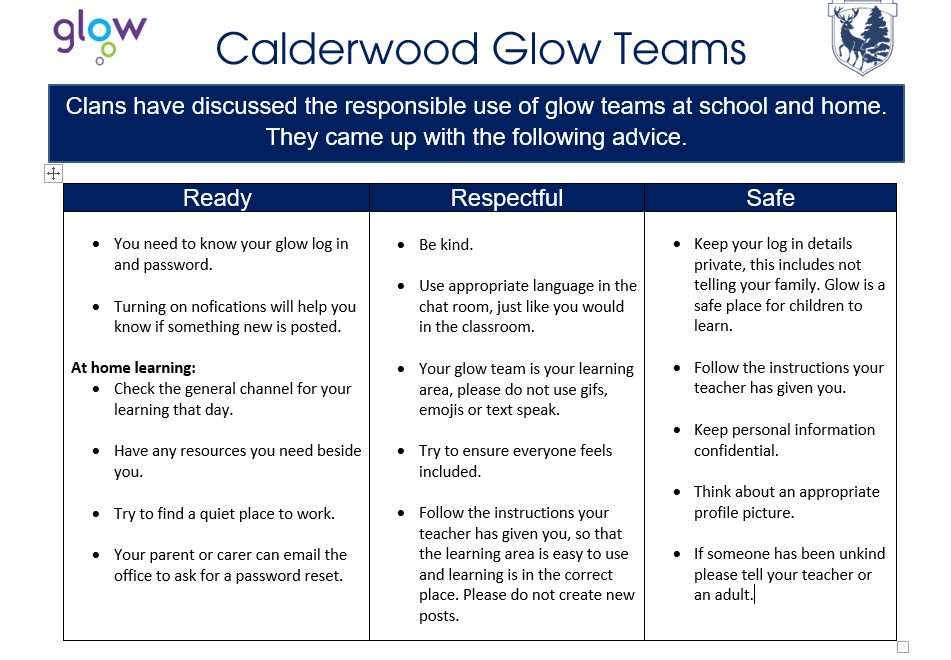
Please find below some information about glow and how you can support your child to use it at home:

School responsible use:

Here’s an example of some of the features we have been learning about:

Digital Skills in the Bens

West Lothian Advice:

Scottish Government Advice:

https://glowconnect.org.uk/security-and-privacy/glow-community-rules/

Advice on how to access Glow apps: https://blogs.glowscotland.org.uk/wl/calderwood/2022/01/07/advice-for-p4-7-on-how-to-access-microsoft-glow-apps/

Accessing Teams on Xbox:

Accessing Teams on Playstation:

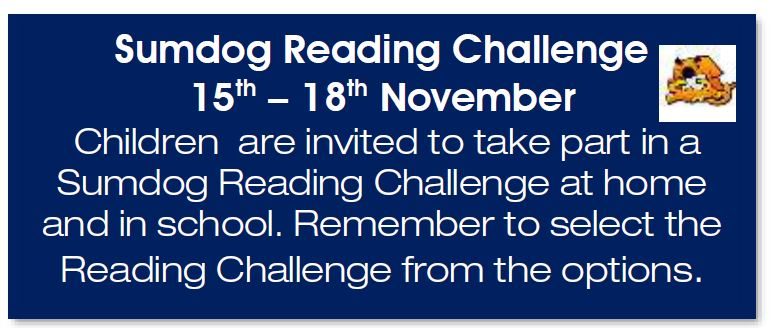
Scottish Sumdog Holiday Maths Contest!

A huge good luck to all the Calderwood Primary children as they have now been entered into the Scottish Sumdog Holiday Maths Contest!

The contest will run between today (17th December) and 23rd December. Your child can access the competition by logging in via the following link and using their unique username and password along with the school code Calderwood2:

https://www.sumdog.com/user/sign_in

This competition is a fantastic way to compete against lots of other Primary students, have fun and develop numeracy/maths skills at the very same time. Good luck and we hope you all really enjoy the holidays when they come. If your child has forgotten their details, please do get in touch with the school office as we’d be more than happy to assist.

Tay Clan’s Christmas Craft Sale

Tay clan have been making Christmas baubles for our Christmas craft fundraiser. We got to decide on the creation we wanted to make and what treats we wanted to put inside. Some of our clan have created baubles for their pets. To advertise our Christmas baubles we have created sways. Please take a look at our Sways below.

You can purchase them on Friday 17th December at a price of £2.50 each.


Calderwood Counts – West Lothian Sumdog Competition!


Today a member of our Ben Lomond Clan had the special privilege of announcing the start of the Sumdog Maths Competition to all our Clans during our Calderwood Connects.


This Competition is open to all primary aged children in West Lothian Council. It began today (26.11.21) and will run until Thursday 2nd December. All members of our Calderwood Community can access Sumdog by clicking here and using their unique username and password. Our School Code is calderwood2.


Within minutes of the competition opening we had a member of our Ben Lawers Clan on the leader board! We very much hope this was the start of a very exciting trend for our Calderwood Community – good luck and happy competing.

Book Week Scotland Sumdog Competition – Results So Far!


Leader board so far …

Mull, Shetland & Orkney

1 – Dylan S

2 – Max

3 – Leah


Bluebell & Bramble

1 – Rachel

2 – Euan

3 – Poppy S

3- Amel


Ness, Rannoch, Tay

1 – Cameron Fe

2 – Max

3 – Ananya


Bens

1 – Belle

2 – Mateo

3 – Jaxon

Report a Glow concern
Cookie policy  Privacy policy