Category: Information for Parents/ Carers
Calderwood Communicates: School Improvement Planning: Virtual Drop In
| 4th October: 5pm
Calderwood Communicates: School Improvement Planning: Virtual Drop In Join on your computer or mobile app Click here to join the meeting Meeting ID: 324 030 246 784 Passcode: wYNtQo |
Christmas Fundraiser
Dear parent/ carer,
Apologises for an email that was sent in error earlier, please find the correct information below.
Primary Children
The Parent Council have organised for the school children to design their own Christmas cards and products again this year. The pupils have completed their design in school which they will bring home today. If you wish to purchase any cards or items, please follow the instructions provided on the form and return your child’s design back to school by Thursday 20th October. Unfortunately, we can’t process any designs after this date.
Nursery Children
The Parent Council have organised for the nursery children to design their own Christmas cards and products again this year. The pupils are completing their designs in nursery this week which they will bring home next week. If you wish to purchase any cards or items, please follow the instructions provided on the form and return your child’s design back to nursery by Thursday 20th October. Unfortunately, we can’t process any designs after this date.
Last year we raised over £300 through these online sales. Many thanks for all your support and we hope you’ll enjoy doing this again this year. This money helps to fund festive fun for all the children each year, such as our Christmas parties and Christmas lunch decorations.
Kind regards,
Parent Council
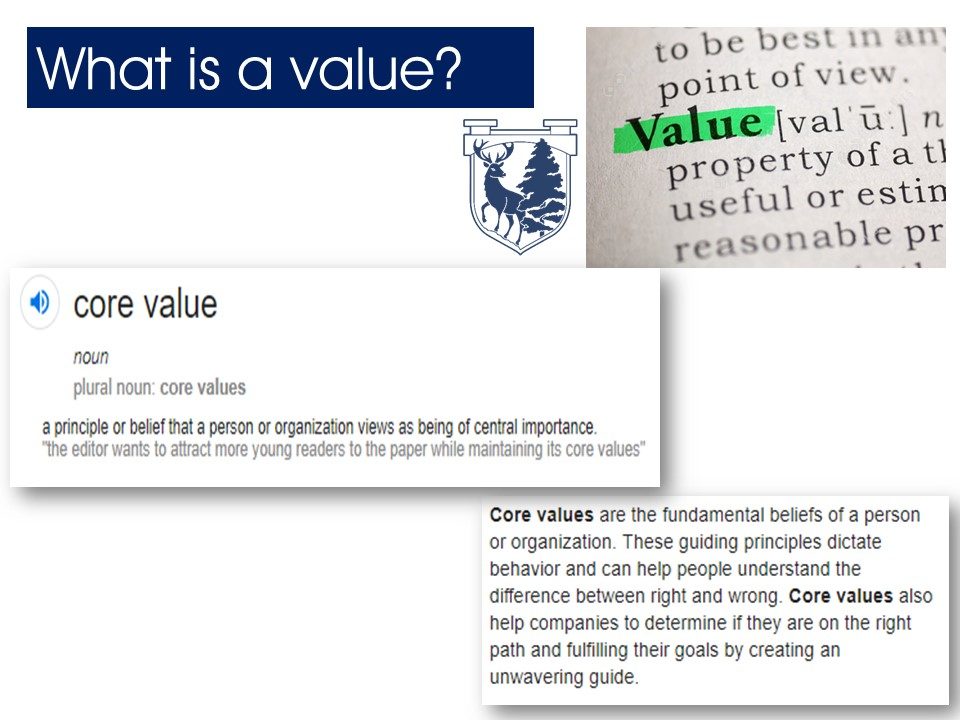
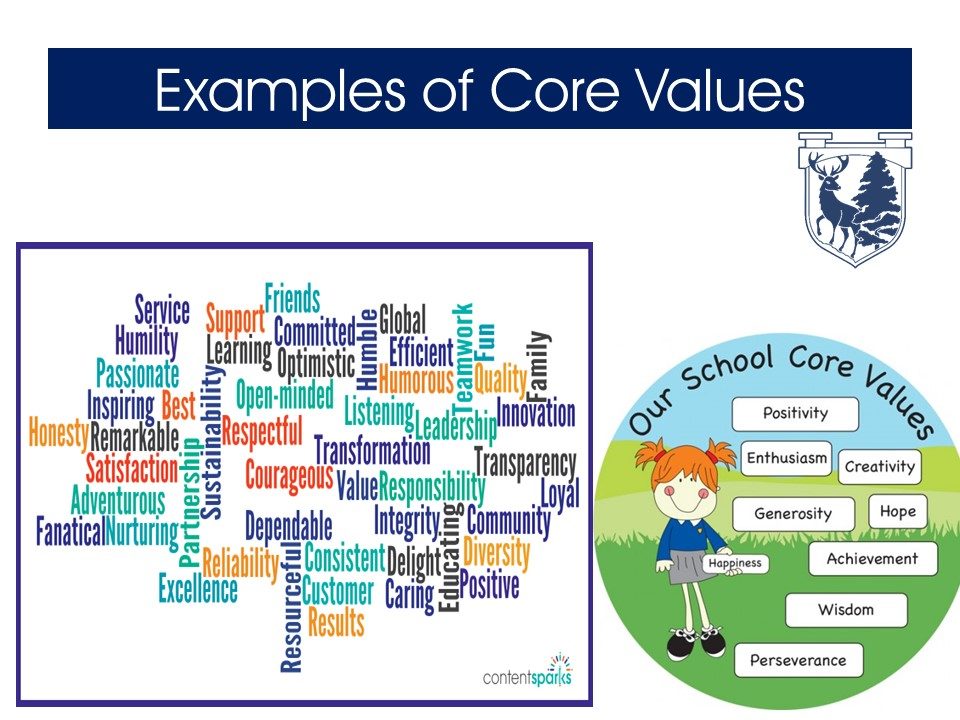
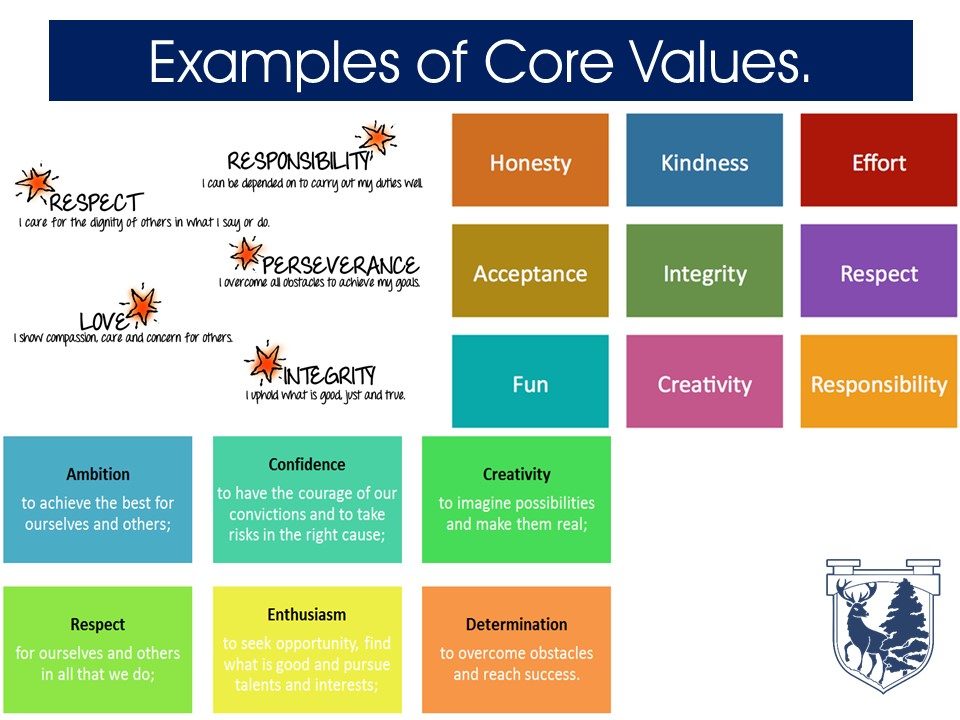
Values Consultation
At our recent Champion Conversations we launched our values consultation with our families. Please use the padlet below to add your views.
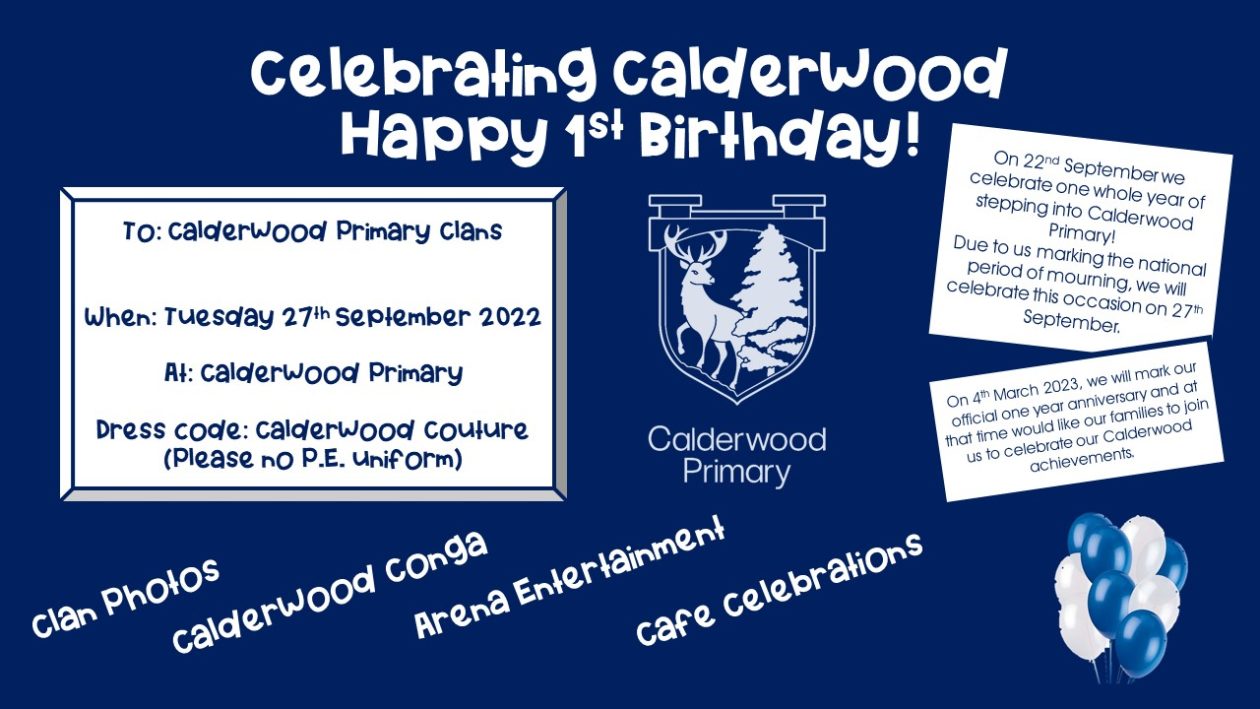
Happy First Birthday Calderwood!
After School Clubs at Calderwood 2022/2023

Ben Lomond’s Fundraising Day
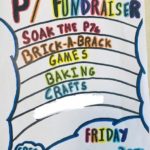
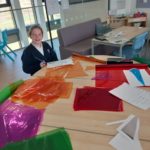
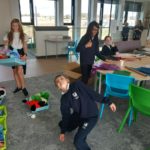
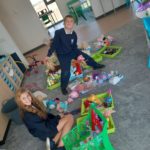
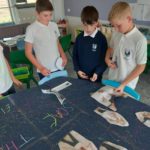
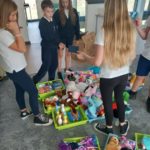
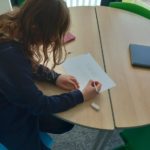
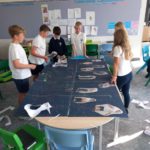
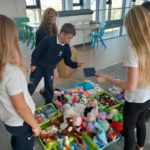
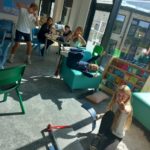
Ben Lomond have been working incredibly hard over the last few weeks to plan their fundraising event to raise money for their P7 jumpers.
They have taken full responsibility to plan, decision make, calculate costs
and delegate tasks to ensure everything has been covered.
In their own words, here is what they have been up to:
Jude, Aiden & Matthew have been in charge or the games section out in the field. We created a timetable for each class, decided what games the children most wanted to play and picked spaces for them all. We also helped make signs and poster advertisements for the day.
Rosie and Amy have been in charge of Soake the p7 it when you throw a sponge at a P7 it can be any of the P7s or some teachers. It’s £1 per throw. We had to do market research and source buckets and sponges from the parent council.
Tyler and Zack have been in charge of the Brick-a-Brack stall for the fundraiser. Some of the things that people have brought in are teddy bears, action figures and books. we are very happy with the amount of stuff that has been donated, thank you for bringing things in
Saskia and Jack are in charge of the baking and selling. We have been going around classes to ask what allergies students have. As well as finding the students favourite desserts. We will be following popular demand by selling chocolate cake, cookies, etc. We have booked the stem room for 2 days prior to the date September 30th to bake. Our favourite part was the market research, where we asked students about their allergies. However, we still need to bake the food, I think we’ll have a good time doing so.
Georgie & Elle: We are in charge of the staff car wash. We needed to write loads of emails, checked where we could do it, decide on price, get some of the teachers registration plate, make a register and make signs. We both really enjoyed organising and planning the car wash.
Lacey, Sanaya & Lexi: We are doing an arts and craft stall and it will have, Bookmarks, twinkle pictures and a white board task. this stall all for free so everyone can join in. so far we have done some market research, we made a sign and got a list of materials. Thank you for reading this.
I’m sure the day will go down brilliantly, it has been amazing to watch them take ownership of the project.
7 days to go!
.
Scholastic Book Fair at Calderwood
On Monday 26th to Friday 30th September we will have the Scholastic Book Fair in our school. This will be held in the discovery den where a selection of fiction and non-fiction books will be on offer. All pupils will get the chance to visit the book fair with their clan during the school day between Monday-Wednesday. This is an opportunity for the pupils to explore and browse the different books that are available. All books can be purchased during our Champion Meetings in school on Wednesday 28th and Thursday 29th September.
Important Information
- Books can only be purchased on the evening of our Champion Meetings.
- The book fair will be held in our discovery den.
- Books should be paid for online by scanning the QR code at the Book Fair. You should complete the online payment system and show your receipt to the champions hosting the fair.
- If a book has sold out or is unavailable, extra copies can be ordered and paid for on the night of the book fair. These will then be delivered to the school and handed out to the pupils.
- Pupils will get the chance to browse the books before the Champion Meetings and let you know of any books they like.
How does the book fair help Calderwood?
Every book purchased at the fair gives Calderwood Primary School rewards. These rewards allow us to get books for our school!
book-fairs-september-invite-2149206

Calderwood Routines: Break and Lunch
Break Time
We have made some changes to our break times at Calderwood. This change will take place from Wednesday 21st September. Please see the following changes below:
P1-P3 will have break together from 10:30am-10:45am.
P4-P7 will have a break together from 10:45am-11:00am.
Lunch Time
Our Calderwood Careers has launched! All of the pupils have had a fantastic first week in their new job. They have nurtured, encouraged and created a happy and safe environment in our playground. They are in the process of creating a timetable for their different areas of the playground- this is a chance for them to lead learning and activities. They will be sharing their careers at our Calderwood Connects on Friday!
Celebrating Calderwood: Happy 1st Birthday!