Glow and Digital Learning Platform – End of Year Considerations

As the summer holidays grow closer here is a follow up to our earlier post on end of year preparations.  Please review this important information to ensure you take any appropriate actions.

All staff

  • Leaving MS Teams and Google Classrooms you don’t want to be a member of –  Leave the team, don’t Delete it.  Click here for instructions on Teams and here for Google Classroom.  If you delete a team, you are not just deleting it from your view/Teams, you are deleting it for everyone.  Deleted Teams have to be restored by RM Unify which they can only do if they have the exact team name along with other details such as deleted time/date and Glow usernames of the team owners.
  • Learners can be removed from the Team or Classroom if you wish to use them again for the new academic year; however you may prefer to create a new Team or Classroom.  For details on how to copy existing Teams click here and here for Google Classrooms.  Please not that there are differences between Teams and google Classroom in what is copied to the new space.
  • Archive MS Teams and Google Classrooms that are no longer needed.  Only delete when you are sure you will never use it again.  Click here for instructions for Teams and here for Google Classroom.
  • If you intend to use your existing Teams or Google Classrooms again in the new year you may wish to mute all learners to ensure there are no unmonitored posts or comments added to the team during the summer holidays.  Click here for guidance on muting in Teams and here for Google Classroom.
  • Cleanse data from any other systems where learner data has been stored as per the retention policy or guidance provided when a new product is signed off for use.  Personal data should either be deleted or anonymised as appropriate for the system in question.

Staff moving to another school, role or local authority

    • If you are the sole owner or administrator of any of the below, you should transfer ownership to another Glow staff user(s) before you leave your post.  It is always best practice to have more than 1 owner/administrator.
        • MS Teams and Google Classrooms
        • Glow Blogs
        • Google Sites
        • SharePoint sites
        • Stream video channels
        • MS or Google Forms and Surveys
    • Staying within the Local Authority – Your Glow account will move to your new school however it will be inactive from the end date in your old school until the start date in your new school.  If you will need access over the summer, you should request a grace period via missupport@moray.gov.uk.
    • Moving to another Local Authority – staff Glow accounts cannot be transferred to another LA.  You will get a new Glow account in your new LA.  Your existing Glow account will be inactive from the end date in your old school.  If you will need access over the summer, you should request a grace period via missupport@moray.gov.uk.  Also, refer to Glow Connect website and scroll to section “Content that is associated with your account and will be deleted” to ensure you back up everything you require to keep before your account is deleted.
    • Teaching and Non-Teaching SEEMiS generated Glow accounts cannot be transferred to a non-school based establishment in Glow.  If you are taking up a role in Moray outside of a school e.g. in a supporting Education Team based in HQ, Beechbrae, etc. a new Glow account will be required.  School based Glow accounts are generated via your record in SEEMiS and when a leaving date is added your Glow account will be closed.  As per the advice above back-up anything you do not wish to lose and transfer ownership of Teams, Blogs, Google Sites etc.  New Glow accounts for non-school based staff should be requested from MIS Support.

Learners

    • P7 learners going to S1 – learners Glow accounts will become inactive from their end date in SEEMiS in primary school (last day of school) until their start date in SEEMiS in their secondary school.  If they will need access to Glow over the summer you should request a grace period for them via missupport@moray.gov.uk.
    • Any learner moving to another school within or outwith the Local Authority – learners Glow accounts will be transferred with them.  However learners Glow accounts will become inactive from their end date in SEEMiS in their current school until their start date in SEEMiS in their new school.  If they will need access to Glow over the summer you should request a grace period for them via missupport@moray.gov.uk.

We have put together an end of year checklist to help guide you through the tasks detailed above –  click here.

If you have any questions on the above please contact digilearnmoray@moray.gov.uk or attend the CPD session we have scheduled on 15th June at 4:30pm (places can be booked on CPD Manager).

Previously issued guidance – here.

Are you using Internet Explorer to access Glow?

As of mid-August 2021 Glow users will no longer be able to use Internet Explore and the Edge legacy browsers to access some services in Glow, such as Office 365.  We recommend using Chrome to access Glow when in school to have access to all your applications.  Using your Windows devices at home you can chose between Chrome or an up to date version of the Edge browser, if you have them available, as both will work with with your Glow account.

More information on how support for IE and edge legacy are being phased out can be found here: Microsoft 365 apps say farewell to Internet Explorer 11 and Windows 10 sunsets Microsoft Edge Legacy – Microsoft Tech Community

Digital Learning Support Offer for Moray Educators

The Moray Digital Learning Team are continuing to provide support and training opportunities to educators and schools move into a phased return.  Below are details of all the primary resources we have available to educators to help them develop their own digital skills.

SharePoint Site – The Moray Digital Learning Team site has lots of resources for Glow, the software within and more in their site.  It contains short how to videos, guidance documentation and links to our previous digital learning webinars.  We also post daily digital learning tips, updates and more.  Please note you must be logged on to Glow to access this SharePoint site


Moray Digital Drop In Team – This is a Microsoft Team community where we post

  • relevant updates to functionality within Glow or other approved software
  • links to new resources
  • details of any known issues

You can ask for support on anything Digital Learning and Teaching related in the Ask the Team channel.

The Drop In Sessions channel is where we run our webinars – the upcoming schedule and places should be booked on Gateway CPD Manager.

Moray Educators can request to join the Team by clicking – here


Blog – This blog is where the Moray Digital Learning Team post our updates, announcements, details of upcoming CPD and other useful information.


Other great sources of information and support are available from the Education Scotland Digital Learning Team.

DigiLearn Scot blog – This is a fantastic resource from the Digital Team at Education Scotland. Here you can find all of their upcoming webinars and previous recorded webinars as well as other really useful resources for Glow and the software within.

Glow Connect– this is the national Glow website with additional information about Glow, what it offers and details of any service interruptions can be found here.


It is also worth remembering that there is lots of information and guidance available outside of Glow, so it is accessible for parents/carers or educators on the fly via any device with a internet access –

Digital Support Site – The website created to help parents/carers support learners in accessing Glow and staying safe online has recently been updated. The aim of this resource is help understand what Glow is and what it offers and how learners can access their learning in Microsoft Teams or Google Classroom.


Sill can find your what you are looking for?

If you still can’t find the answer to any of your queries please make sure that you direct your question or request to the correct team.

The graphic below lays out which teams deal with different types or issues or requests related to Glow and Technology. 


Updated Glow Connect Guidance

Information for parents and carer on Glow Connect has been updated recently to clarify the guidance around accessing their child’s Glow account.

You can find the updated information – here.  

The guidance makes it very clear that parents and carers should support users in their use of Glow but should not be logging into to the child’s Glow account independently.

As a reminder below is the guidance which was previously issued  –

It is important for all Glow users, both learners and staff, to remember that their account details should be kept private.  School staff should remind learners and parents/carers that Glow is for the use of learners and teachers/support staff with the appropriate security checks only.  We ask that parents/carers do not access Glow directly by logging in with their child’s details, but would encourage them to engage with their children to find out about and support the learning they are doing within Glow.

To meet the requirements of the Glow agreement that allows our users to access Glow,  login details should only be provided to the user themselves.  This can be done either in person, over the phone or other agreed alternative methods of communication with the appropriate checks to verify the users identity.   This is in order to maintain the security of the system and safety of all users.  Providing log in details to non-Glow users, including parents/carers could put the Glow environment and users at risk.

In the event of a security breach Glow passwords for the whole school have to be reset and if action was not taken quickly, every pupil in the school could have their Glow account disabled.  If a reset is required learners should be assigned unique passwords to ensure that there is no possibility of learners accessing each others accounts.

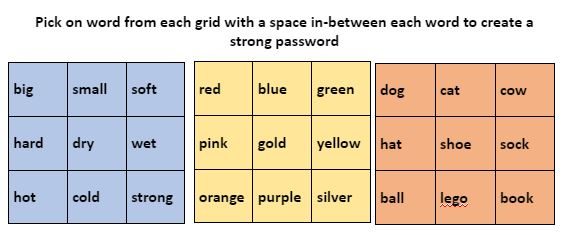
You can find Password Guidance on the Glow Connect.  Staff should be aware that if they are supporting pupils to choose a new password that it should be unique to each pupil and should not be shared or duplicated, this includes creating a single password for a whole class/year group.

The use of password grids like the one below could be helpful in assisting younger learners to choose a password and can be send home as a reminder for home access.  Written codes or reminders can also be helpful.


Support for hearing impaired and deaf learners

Offer for Moray Educations from the Moray Sensory Education Service.

If you have a hearing impaired/deaf child in your class it will be really difficult for them to hear you effectively when you are talking to them via a video or using a Loom; even if they can see your face! This is because the quality of sound output from computers etc is poor when listening through hearing aids and cochlear implants.

Sensory Education Service (SES) works with children who have hearing loss, and visual impairments, and most of our young people will use subtitles in the home when watching television. We are now adding subtitles to videos, and Looms, for pupil’s online home learning and then sharing it with them, using a link to our private YouTube channel.

If you intend making a loom or video and know you have a hearing impaired child in your class; please send us the link and it will allow us to support you in ensuring equality of access.
Our contact email address is – mses@moray.gov.uk


For more details on the Moray Sensory Education Service click – here

You can also find details on the accessibility tools in Microsoft Office 365, which we use in Moray through Glow  –

Teams Breakout Rooms

Microsoft have released breakout room functionality within Teams Meetings.  This allows meeting organisers to create breakout rooms, and allocate meeting participants for small group working within the main meeting.


Glow’s guidance (https://glowconnect.org.uk/teams-in-glow/teams-meetings-with-learners/) is that for learner safety we recommend that additional staff members are present within meetings and that learners should not be unsupervised within Teams meetings.  The introduction of breakout rooms makes this more challenging to achieve, and there is the increased risk of learners being unsupervised with video enabled within breakout rooms.  On that basis we strongly recommend that breakout rooms are not used with learners unless staff members are able to constantly be present in all breakout rooms created.


The existing guidance (https://glowconnect.org.uk/teams-in-glow/managing-a-teams-meeting/) is also that the end meeting option should be used by the meeting organiser to remove all participants at the end of a Teams meeting.  Please note that this will not end any associated breakout rooms.  The separate ‘close rooms’ option within the Breakout room control panel must be used to close the rooms, and remove participants from the breakout rooms before ending the main meeting.


Details on the Breakout Room functionality and how to assign attendees to different rooms can be see in the video below-


Please remember that currently in Glow learners do not have access to Chat functionality after the meeting has ended; however the organiser will be able to view everything.

Glow Teams Functionality Update

Insights

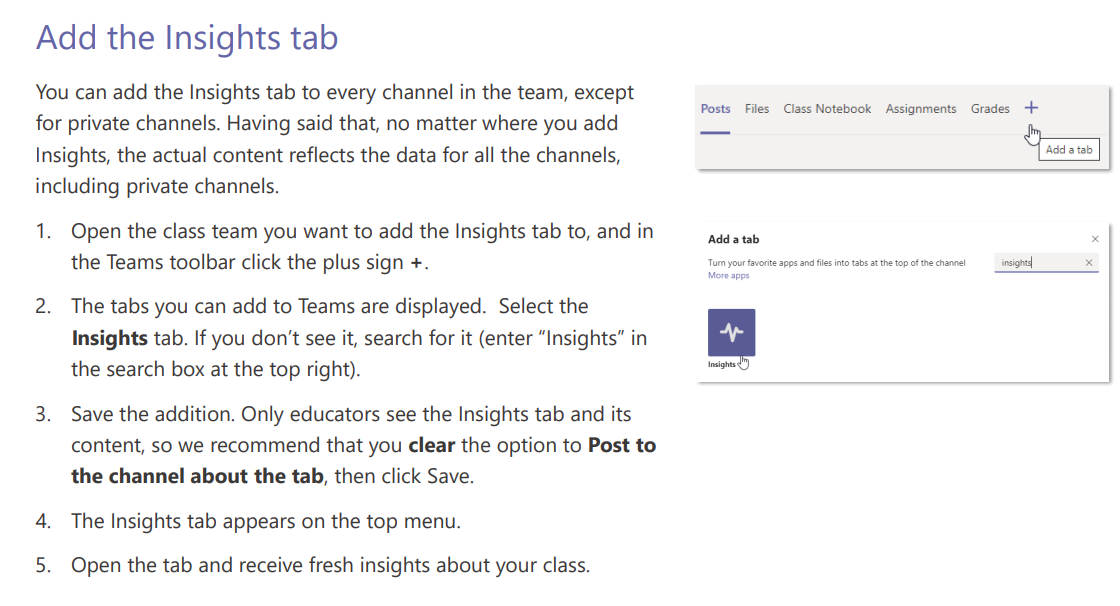
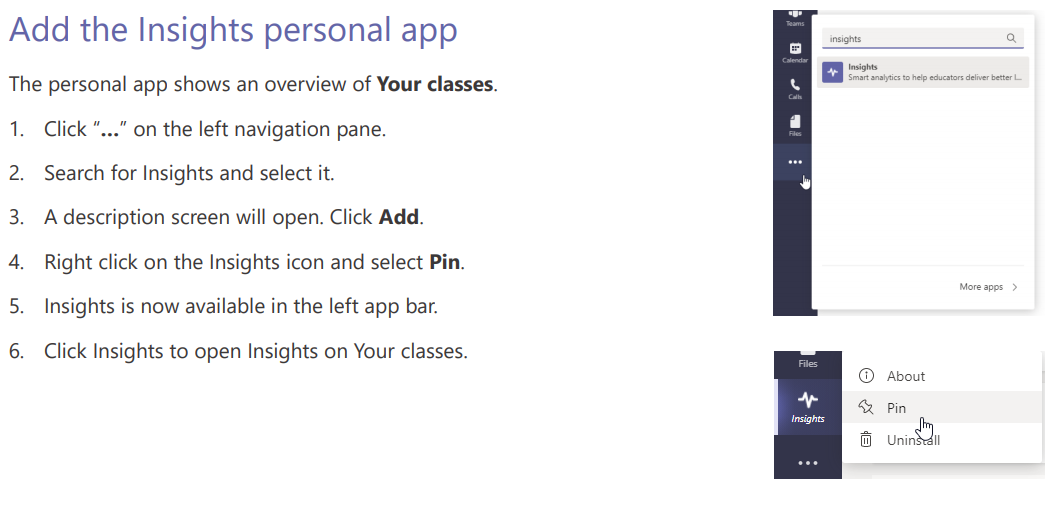
Insights is an app available within Teams which allows educators to see how and when students are engaging with you, course materials, and their peers, as well as how they are performing on assignments.  After feedback from educators the a Class Overview is now available within  the Insights app in Glow Teams.  This new functionality allows teachers to add a personal app to their left app bar menu that provides an overview of all their Class Teams all in one place.  The insights app must be added to each Class Team via the top navigation for them to appear in the overview.

You can find a full guide on Insights for educators – HERE


Only Me Lobby Functionality in Teams

The ‘Only Me’ lobby will be the default option for creating Teams meetings using Glow from Thursday 26th November. For any meeting arranged with colleagues where you may wish attendees to be able to join the meeting prior to the organiser you may need to update the meeting options.  For any meetings with learners please ensure that the default is unchanged to ensure learners do not enter the meeting prior to their teacher.  More advice can be found on the Glow Connect website – HERE.


Public Teams

Please be aware that some other local authorities or Glow users may have made the decision to leave a number of their Teams public so anyone can join at will.  If learners are joining these Teams they should be reminded that any posts will have their Glow username logged and are easily traceable.

By default Class Teams are created as private Teams; however other templates used to create Team may have public as the default.  The creator of the Team should ensure the setting applied is what they intended.


Professional Learning Opportunities

Please see below some professional learning opportunities that are now available from the Education Scotland Professional Learning and Leadership Team

Coaching & Mentoring

The 1:1 coaching for headteachers matches them to a professional coach for a series of online coaching conversations at a time of their choosing. The social enterprise organisation KnowYouMore are coordinating this work.  For further details about this visit ‘Coaching and Mentoring Matters’. This online resource provides a link to the 1:1 coaching offer as well as to the other professional learning opportunities around coaching and mentoring

https://professionallearning.education.gov.scot/learn/coaching-and-mentoring-matters/

Support for teachers in their first four years post probation

The Stepping Stones programme supports teachers in their first four years post probation. It includes a calendar of online events including webinars and informal ‘blethers’ as well as a dedicated Stepping Stones Teams space for participants to network with each other and share resources. The teachers on the programme are also offered a series of online 1:1 coaching and mentoring conversations with a current middle leader to support them through this time, again supported by KnowYouMore.

Further details about the programme can be found on the dedicated programme area

https://professionallearning.education.gov.scot/learn/programmes/stepping-stones/

Reflective supervision support for school staff

Place2Be are offering its Place2Think programme to teachers and school leaders across Scotland. Participants will join a small group of peers remotely on a monthly basis, to reflect on how they are impacted by their work in school, and how emotional factors can impact learning for some young people.

Place2Be will also be supporting schools staff wellbeing through a series of webinars covering a range of topics including ‘recovery and self-care’ and ‘understanding and managing anxiety in uncertain times’.

https://education.gov.scot/improvement/learning-resources/strengthening-support-for-school-staff/

Barnardo’s Scotland are offering a workshop programme for school staff who wish to develop Spaces for Wellbeing, which will support the mental health and wellbeing of staff.

Links to this support will be added to the following webpage as they become available:

https://education.gov.scot/improvement/learning-resources/strengthening-support-for-school-staff/

There is also an offer to headteachers to join the Columba 1400 programme. This is currently sold out so we have started a waiting list

For further details on all the above information here’s the link:

https://education.gov.scot/improvement/learning-resources/strengthening-support-for-school-staff/

Updates to Loom account for Educators – screencasting service

Loom have announced some changes to educator accounts which were upgraded to Loom Pro during the initial stages of lockdown.  Loom have created a specialised Education account which all previously verified accounts will be migrated over to automatically.  The next time existing users log in they may see pop-ups explaining the changes.  Loom will remain free for verified educators to use and new Loom Education accounts will also be free.

Loom is a screencasting service which allow educators to record their computer screen, webcam and audio simultaneously to created pre-recorded lessons, greetings or presentations.  These can downloaded or be shared via a link in a Team, Google Classroom or other platform.  Screenscating is a technique that can be used for in flipped, blended, hybrid or remote learning.  For  examples of how Loom could be used click – here 

Just as a reminder Loom has been signed off for use by educators in Moray; however only via the Chrome extension.  The desktop application can not be used on the network; however educators may chose to use it on their own personal devices.  Please remember an education email must be used to create your account, this can be either your Edunet or Glow email address.  You can find details on how to create and verify your Loom account, and install the Chrome extension – here.

Foe existing account holders the main changes educators should be aware are –

  • 45 minute video recording length
  • New Teams libraries
  • Ability to capture screen shots

The new Loom for Education accounts will continue to have

  • Unlimited videos
  • Unlimited Viewers
  • Calls-to-action functionality
  • Face, Cam and audio recording
  • View insights

Loom have also updated their branding, including the new Loombeam logo.  You may notice the change of symbol in your Chrome browser if you have installed the Loom extension.  More details about all the changes being made to Loom can be found – here.

Glow Update – Password reset, potential copyright infringements, Google Meet and SharePoint

Glow Password Change Reminder

The national learner Glow password reset began on the 24th August and staff will be prompted to reset their passwords from 7th September.  Please note you will be prompted to change your password on login so no action is required prior to this.

It is recommend that staff encourage, where possible, learners to update their passwords to ensure they know them in the even of a local lockdown or requirement to learn remotely.  As part of the password reset we would encourage everyone when they are updating their password to review  the Glow Community Rules .

For full detail on the password reset and advice on setting up strong passwords see our previous blog post – here or visit Glow Connect – here


Changes to Google Meet functionality for external guests

Google have made some changes to the G Suite for Education offering within Glow which impacts staff’s ability to conduct Glow Meet sessions with non Glow users.  Full details on how this could affect meetings with external guest (non Glow users) can be found in our previous blog post – here


Storage and publishing of Copyright Material in Glow

Education Scotland have reported that they have received concerns from publishers and content providers that some Glow users in Scotland may have contravened copyright legislation by storing or publishing non-licensed materials through Glow.  This included the posting entire books on publicly available websites/social media.  While it is recognised this was done with the best of intentions to assist in teaching and learning it does contravene copyright regulations.

Please be aware copy written materials should not be published or shared on blogs, Google Sites or social media without a license or permission to do so.  Unlicensed materials should not be stored in Glow if they fall outside of the fair dealing requirements which allow extracts of licensed material to be used for “giving or receiving instruction”.

More details can be found in our previous blog post – here on the content providers website or the CLA (Copyright Licensing Agency) website – here


Moray Glow SharePoint Site Updates

Following an audit of the Moray Glow SharePoint site we have identified a large number of document storage sites which have no content in them and have not been accessed in the last 12 months.  These sites will be made read only from 31st August and deleted during the Autumn holiday.  If you wish to retain any of these sites contact details will be posted at the top of each site with instructions on what action is required.  This is the initial phase of a larger SharePoint project intended to create a more user friendly document storage space, the design of which will allow for flexibility, security and longevity.


What Glow should be used for?

The Digital Learning Team are receiving increased requests and queries with regards to creating Glow accounts for non-teaching/non education staff, the storage/sharing of sensitive information through Glow and allowing external users to collaborate using application accessed through Glow, such as Teams.  We would like to remind everyone that Glow’s remit is as a tool to enable learning and teaching with stringent guidelines on account eligibility.  Non Glow users can not be added to Teams or access SharePoint sites.  More details on what constitutes appropriate uses of Glow can be found here – Glow Appropriate Use .

Report a Glow concern
Cookie policy  Privacy policy