Category: Support

Adobe Express: Logging In

Adobe Express is available to use for all Falkirk staff and pupils via Glow. This article takes you through how to access Adobe Express on Connected Falkirk iPad and the sign in process. You can share this with learners to support their login. Once you have logged in on your iPad your app will stay logged in unless you delete the app or choose to sign out – for this reason the app can only be used on 1:1 iPads at the moment or in a browser on a desktop computer.

Please note that your iPad must be on iOS17 or above to run the Adobe Express app.

.

Before you start

The Adobe Express app is required on iPad. Although you launch Adobe Express from Glow on a browser (via the tile in Glow) you cannot use Adobe Express in Safari, Chrome or any other mobile browser on a mobile device including tablets. Adobe Express is available via Glow on desktop and laptop computers through the internet browser – there is more on this at the end of the article.

Teachers in Falkirk should request the iPad app for their pupil and staff app portals by emailing connectedfalkirk@falkirk.gov.uk as per the usual process.

.

Logging in

  1. Ensure you have downloaded the Adobe Express app from the Connected Falkirk App Portal. Open your Adobe Express app.


.

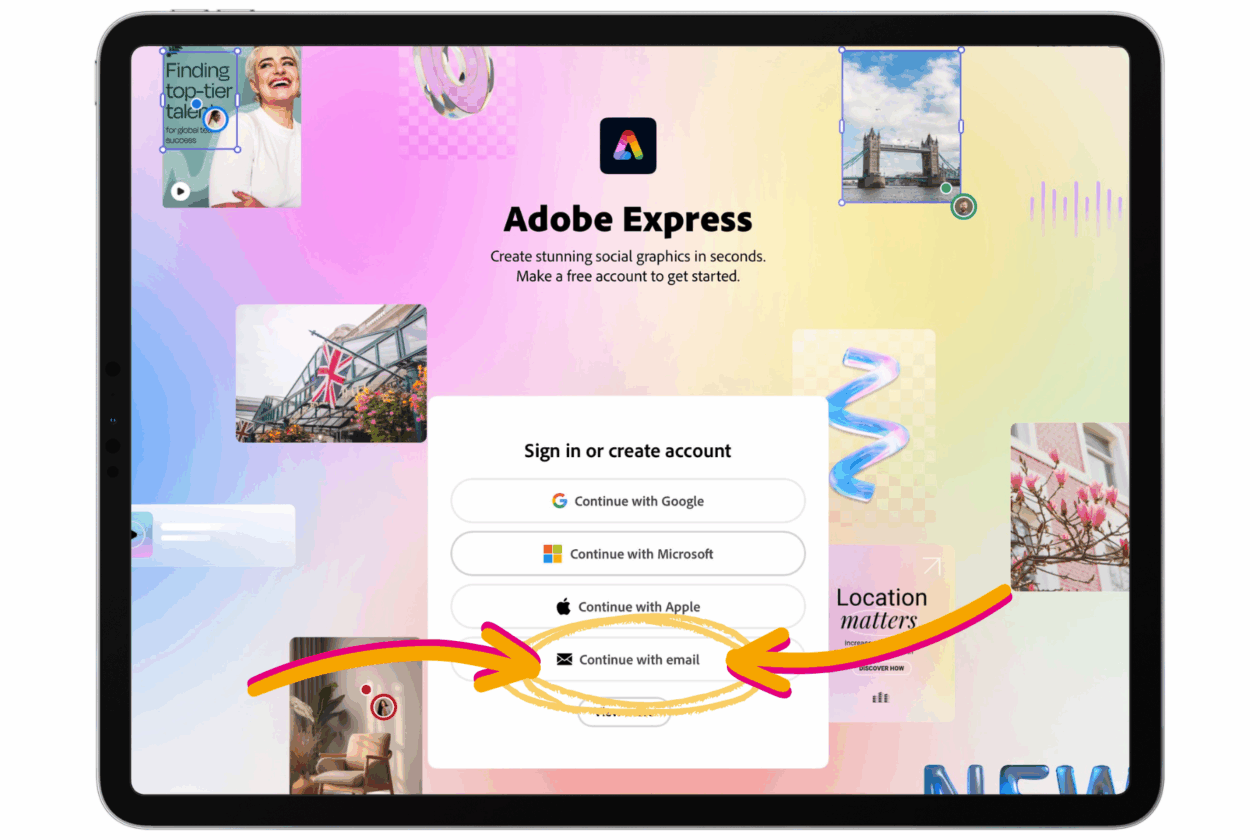
2. Choose ‘Continue with email’ to access your education Adobe Express account via Glow email.

.

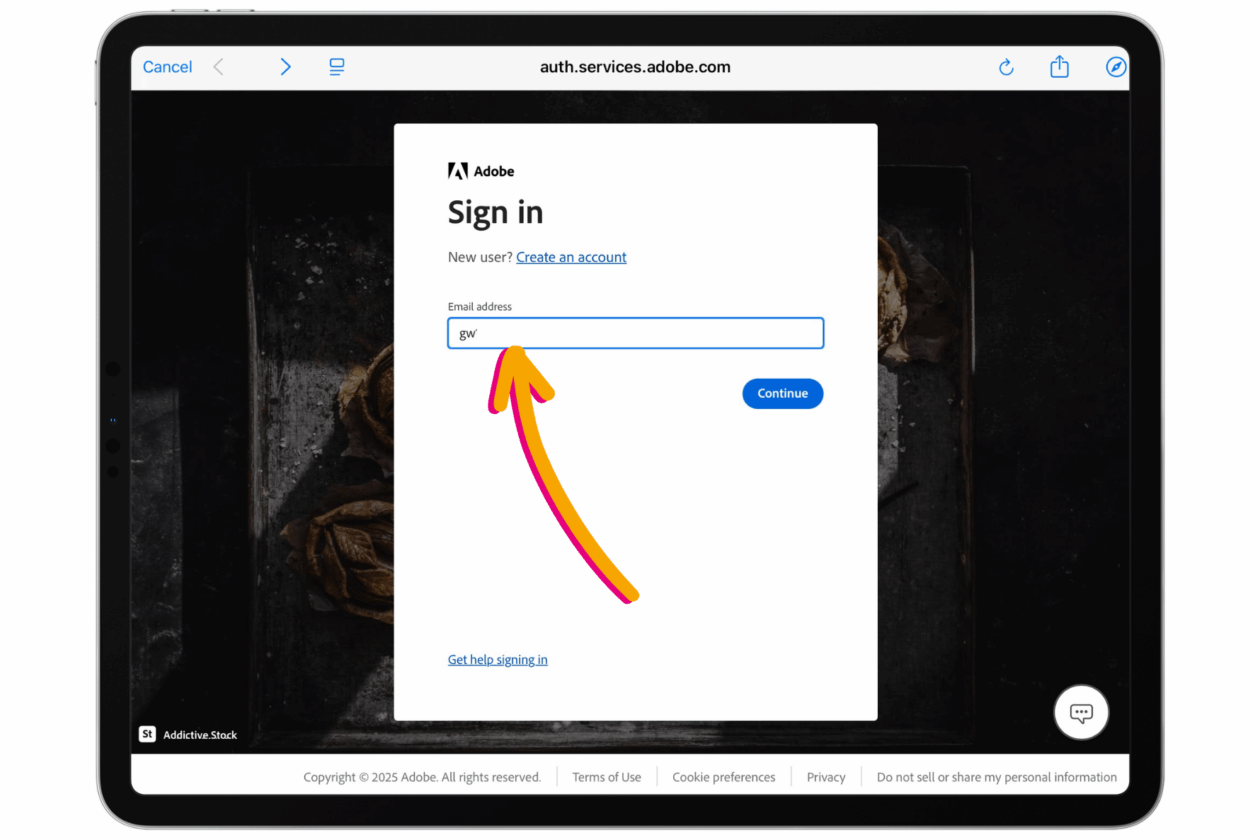
3. Type in your Glow email address. When you hit ‘Continue’ the Glow login page will launch, type in your Glow username and password.

.

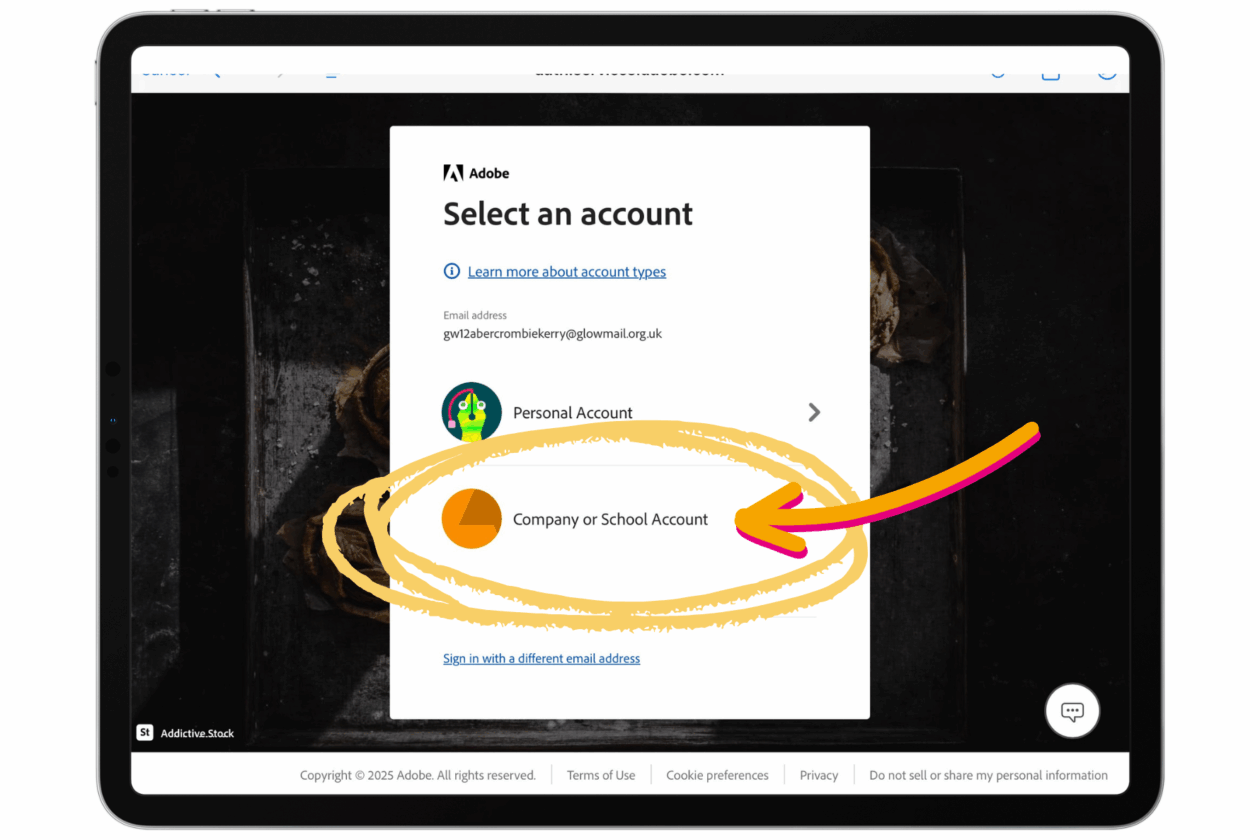
4. When prompted choose ‘Company or School Account’. Do not choose ‘Personal Account’, if you choose personal account you will not have access to the Adobe Express Education benefits and features. 

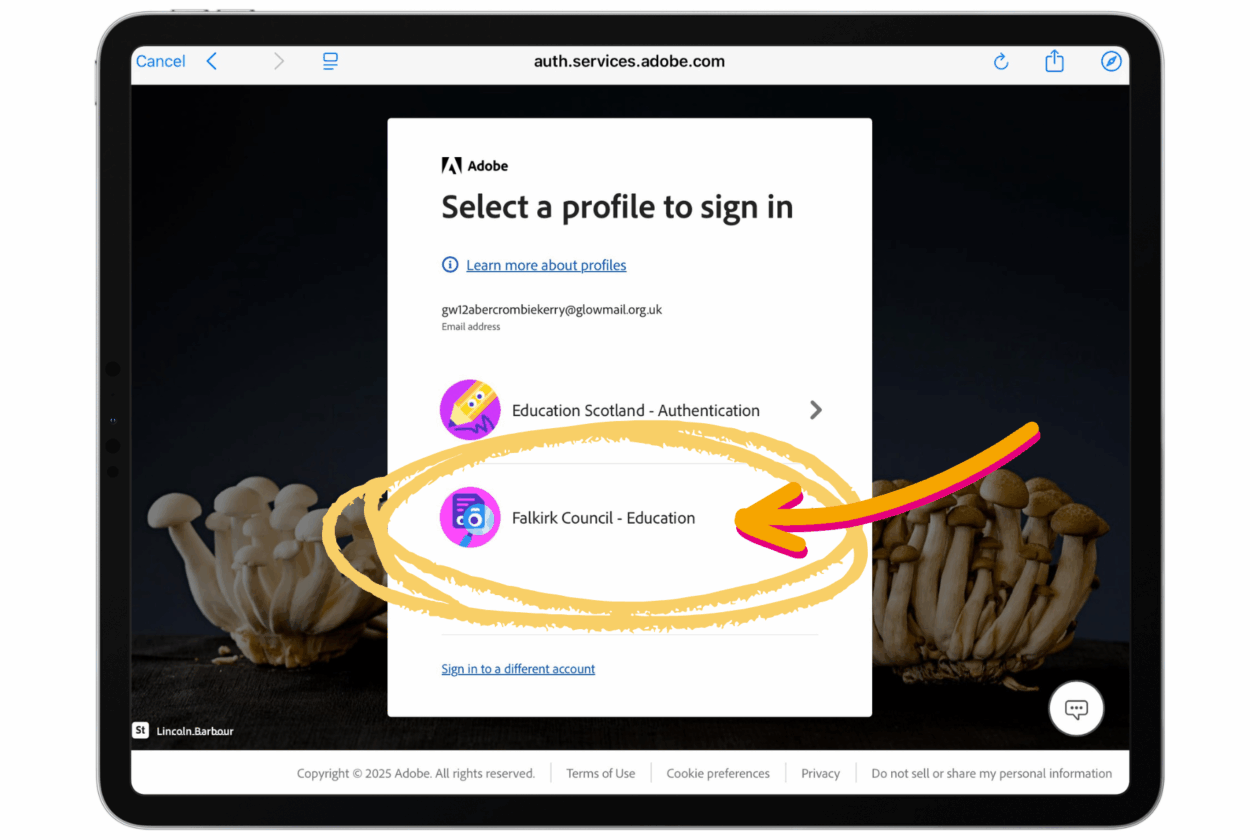
5. When prompted choose ‘Falkirk Council – Education’. Do not choose Education Scotland, if you choose Education Scotland accidentally you should log out using the profile button in the top right hand corner and begin the log in process again.

.

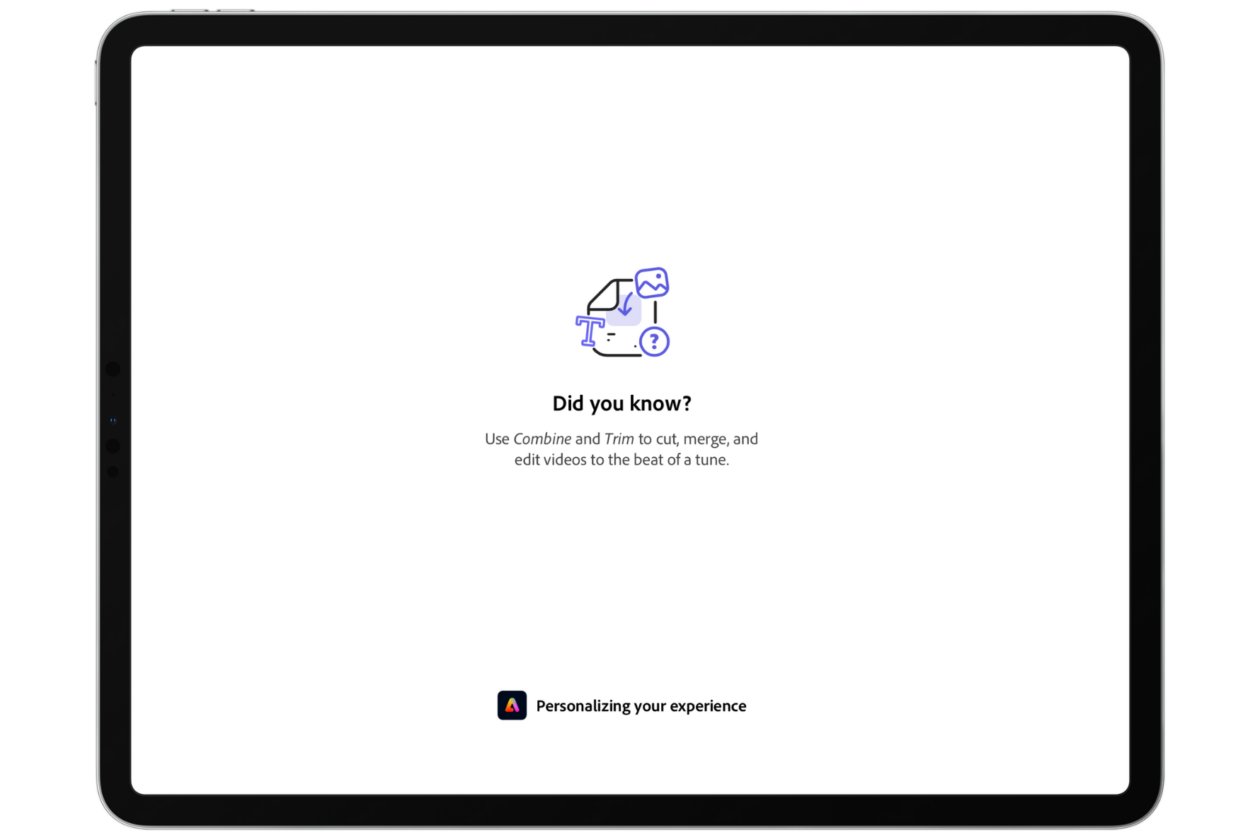
5. Wait for the loading screen to pass. 

.

6. When you first log in there will be two pop ups to resolve by hitting ‘ok’ and ‘continue’.

.

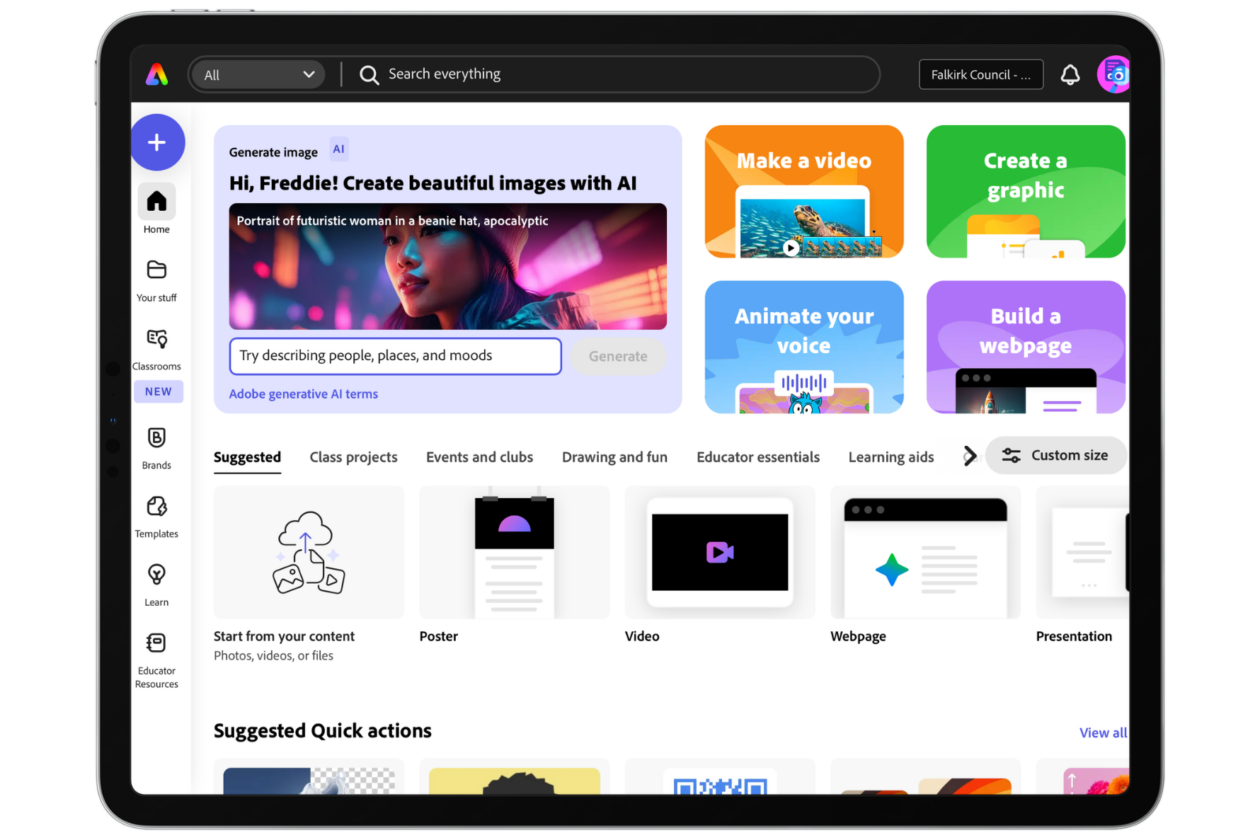
7. You are now logged into Adobe Express and you can begin creating!

Using Adobe Express on desktop or laptop

Adobe Express is also available on desktop and laptop computer via internet browser. To log in:

  1. Open your web browser
  2. Go to Glow
  3. Log in to Glow using your Glow username and password.
  4. In the Falkirk Council launch pad click on the Adobe Express tile.

Support: Changes to Microsoft Desktop Apps Download

Due to Microsoft global licensing changes, from the 1st August 2024 Glow users will no longer be able to download the desktop applications through their Glow account. This page provides information on how to download Microsoft Office Apps via your Falkirk Council credentials. It also provides alternatives to Microsoft products that you may wish to consider. For more information from Glow directly please visit this post on the Glow Knowledge Hub. 

Read more

Falkirk Council Leadership Forum

This temporary page is designed for those attending the Falkirk Council Leadership Forum on 12th December 2023 who do not have access to a device which can easily scan QR codes. 

This page will give you (where possible) links and join codes for the various ‘Big Question’ inputs.

Big Question 1

What do you think Science, Technology, Engineering and Maths(STEM) looks like for 3-year-olds?

This question is answered on Mentimeter. You can click here or go to https://www.menti.com/ and use the join code 2302 2966.


Big Question 2

What is your ‘standout’ from what you just saw?

This question is answered on Mentimeter. You can click here or go to https://www.menti.com/ and use the join code 1369 5282.

Big Question 3

What do you think the Dragons’ Den approach is developing?

This question is answered on Quizizz. Quizizz generates a new join code every time a game starts. You can go to https://joinmyquiz.com and enter the join code shown by the presenter in the room.

Big Question 4

Did you see a skill that you could help children and young people to develop in your role?

This question is answered on Quizizz. Quizizz generates a new join code every time a game starts. You can go to https://joinmyquiz.com and enter the join code shown by the presenter in the room.

Big Question 5

How confident are you in your understanding of people with additional support needs and the support they might need to access the workforce?

This question is answered on Mentimeter. You can click here or go to https://www.menti.com/ and use the join code 83 28 21 4.

Big Question 6

What accommodations do you currently make in your team for those with significant needs and what else could you do?

This question is answered on Padlet. Click here to go to the Padlet.

Big Question 7

How does Falkirk develop its young workforce?

This question is answered on Mentimeter. You can click here or go to https://www.menti.com/ and use the join code 1101 8097.

Big Question 8

How can we open up pathways as an organisation? What sector do you work in and how might you facilitate different pathways for young people to get into your sector? 

This question is answered on Quizizz. Quizizz generates a new join code every time a game starts. You can go to https://joinmyquiz.com and enter the join code shown by the presenter in the room.

Big Question 9

Why do you think young people would opt to learn at Forth Valley College?

This question is answered on Mentimeter. You can click here or go to https://www.menti.com/ and use the join code 8855 5652.

Big Question 10

So, what do you think now?

This is the final overall question reflecting on everything you’ve seen this morning. It is a Microsoft Form. Click here to access the form.