
Author: Miss Abercrombie

Falkirk Council Leadership Forum

This temporary page is designed for those attending the Falkirk Council Leadership Forum on 12th December 2023 who do not have access to a device which can easily scan QR codes. 

This page will give you (where possible) links and join codes for the various ‘Big Question’ inputs.

Big Question 1

What do you think Science, Technology, Engineering and Maths(STEM) looks like for 3-year-olds?

This question is answered on Mentimeter. You can click here or go to https://www.menti.com/ and use the join code 2302 2966.


Big Question 2

What is your ‘standout’ from what you just saw?

This question is answered on Mentimeter. You can click here or go to https://www.menti.com/ and use the join code 1369 5282.

Big Question 3

What do you think the Dragons’ Den approach is developing?

This question is answered on Quizizz. Quizizz generates a new join code every time a game starts. You can go to https://joinmyquiz.com and enter the join code shown by the presenter in the room.

Big Question 4

Did you see a skill that you could help children and young people to develop in your role?

This question is answered on Quizizz. Quizizz generates a new join code every time a game starts. You can go to https://joinmyquiz.com and enter the join code shown by the presenter in the room.

Big Question 5

How confident are you in your understanding of people with additional support needs and the support they might need to access the workforce?

This question is answered on Mentimeter. You can click here or go to https://www.menti.com/ and use the join code 83 28 21 4.

Big Question 6

What accommodations do you currently make in your team for those with significant needs and what else could you do?

This question is answered on Padlet. Click here to go to the Padlet.

Big Question 7

How does Falkirk develop its young workforce?

This question is answered on Mentimeter. You can click here or go to https://www.menti.com/ and use the join code 1101 8097.

Big Question 8

How can we open up pathways as an organisation? What sector do you work in and how might you facilitate different pathways for young people to get into your sector? 

This question is answered on Quizizz. Quizizz generates a new join code every time a game starts. You can go to https://joinmyquiz.com and enter the join code shown by the presenter in the room.

Big Question 9

Why do you think young people would opt to learn at Forth Valley College?

This question is answered on Mentimeter. You can click here or go to https://www.menti.com/ and use the join code 8855 5652.

Big Question 10

So, what do you think now?

This is the final overall question reflecting on everything you’ve seen this morning. It is a Microsoft Form. Click here to access the form.


Pages

Pages: your digital publishing house. Create everything from simple essays to interactive e-books.


🔍 What does it do?

Pages is a flexible app that works in two ways: as a traditional word processor (like Word) and as a page layout tool (like Publisher). It allows pupils to combine text, photos, videos, and even audio recordings into a single document. Because it can export as an EPUB, it is the primary tool for pupils to become published authors of their own digital books.


🎓 Why is it useful?

  • Interactive Media: Unlike a printed sheet, a Pages document can “talk.” Pupils can record their own voice explaining a concept and embed that audio button directly next to their writing.

  • Smart Templates: Pages includes beautiful, education-specific templates for posters, research journals, and books, giving pupils a professional starting point.

  • Accessibility: It features a “Reading Mode” that hides all the editing tools, allowing pupils to focus entirely on the content without distractions.


⚙️ How does it work?

  1. Launch: Open the Pages app (Orange icon with a white pen).

  2. Choose a Mode: When you start a new document, you can choose to ‘Start Writing’ to enter a simple word processing layout (for essays) or you can ‘Choose a Template’ to make posters and books.

  3. Add Content: Tap the icons at the top to add Photos, Videos, Web Links, or Audio Recordings.

  4. Format with the Brush: To change fonts, colors, or how text wraps around an image, tap the object with your finger and then tap the Format (Paintbrush) icon.

  5. Publishing: Tap the ‘Share’ button and select ‘Export’ to save your work as a PDF or an EPUB (e-book) that can be read in the Books app built into iPad.


🚀 Beyond the Basics

  • Talking Books: Pupils can write a story and then use the ‘Record Audio’ feature to add sound effects or read their story aloud. This is a fantastic way for pupils to practice fluency and expression.

  • Digital Field Journals: Take the iPad outside. Pupils can snap photos of plants or insects and drop them straight into a Pages journal, adding text boxes with their fingers to label what they see.

  • Vocabulary Posters: Pupils can create a poster with images of common objects. They can then embed audio clips of them saying the word in another language, creating a “soundboard” for their peers.

  • Interactive Newsletters: Use a newsletter template to report on a historical event. Pupils can embed a YouTube link or a video of a mock “interview” with a historical figure to bring the report to life.

  • Image Descriptions: Teachers can show pupils how to add “Alt Text” to images within Pages. This ensures that if a visually impaired student uses a screen reader, the iPad will describe the image to them.


🔗 Teacher Quick Links

Get Started with Pages for iPad

Pages User Guide for iPad

Jacob’s Quick Tips – Pages

AR Makr

AR Makr, the creative toolbox for Augmented Reality. Bring your drawings and photos to life in the real world.

🔍 What does it do?

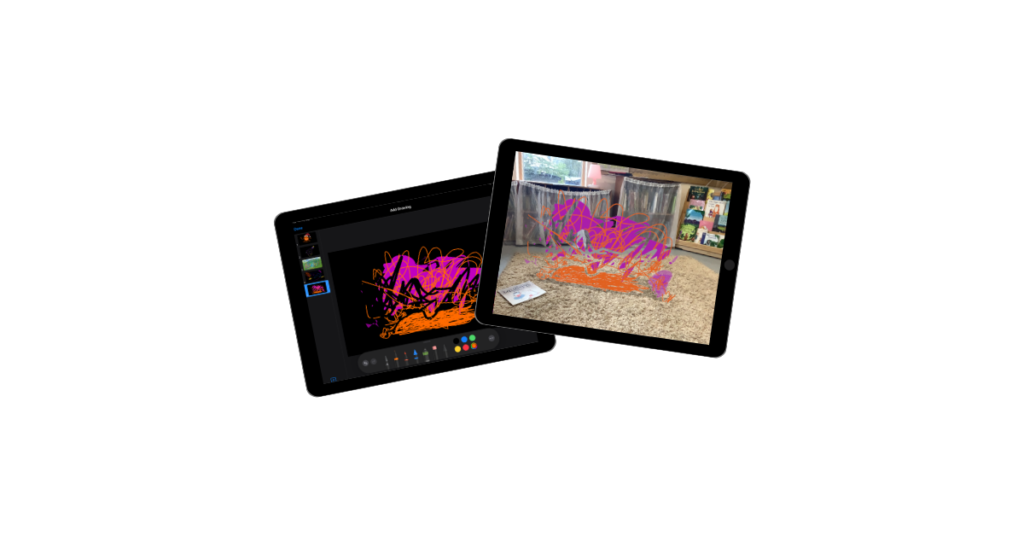
AR Makr is an app that lets learners create virtual objects and place them into the world around them using the iPad camera. Pupils can “scan” a 2D drawing they have made on paper or in another app and transform it into a 3D virtual object that they can walk around, resize, and even animate within their own classroom.

🎓 Why is it useful?

  • From 2D to 3D: It helps pupils understand spatial awareness by taking flat images and placing them in a 3D environment.

  • Storytelling in the Real World: Pupils can build “AR Scenes” for example placing characters from a story onto their school playing field to film a digital retelling of a story.

  • Interactive Models: It allows for the creation of virtual museums or science models (like the solar system) that pupils can interact with without needing physical materials.

  • Built-in Recording: The app has a simple “Record” button, allowing pupils to film their AR creations and narrate their learning as they move around their virtual objects.

⚙️ How does it work?

  1. Launch: Open the AR Makr app and tap ‘Start’.

  2. Surface Scan: Move the iPad slowly to let the camera “find” a flat surface (like a desk or the floor). You will see a grid appear when it’s ready.

  3. Create an Object: Tap ‘New’ to either draw something directly with your finger, or tap the folder icon to import a photo or a drawing from your Photos library.

  4. Place: Once your object is ready, aim the circle at the grid on your desk and tap ‘Place’. You can now use your fingers to pinch and zoom to resize it.

  5. Record: Tap the camera icon on the side to take a photo of your scene, or hold the record button to capture a video of your virtual world in action.

🚀 Beyond the Basics

  • Retelling Fairy Tales: Pupils can draw the “Three Little Pigs” on paper. They use the camera to “scan” the pigs and their houses into AR Makr, then place them on the classroom floor to film a puppet show where they provide the voices.

  • Shape & Measure: Use the built-in 3D shapes in AR Makr to build a virtual tower. Pupils can use their fingers to stack cubes and spheres, discussing the properties of the shapes as they build.

  • The Solar System: Pupils can create or import images of the planets. They can place the “Sun” in the centre of the classroom and position the planets at relative distances, walking between them to understand the scale of space.

  • Virtual Timelines: Create a “Walking Timeline.” Place images of historical events in a line across the hall. As the pupil walks along the line, they film themselves explaining each event in chronological order.

  • Digital Galleries: Pupils can take photos of their physical paintings  or drawings and “hang” them on the virtual walls of the classroom, creating a digital art gallery that parents or peers can walk through using the iPad.


🔗 Teacher Quick Links

Create your own Augmented Reality Book Scene in AR Makr | iPad

Create your own Augmented Reality Snowstorm in AR Makr | iPad