Materials to support the 2026/2027 ‘Digital Learning: Your Classroom, Your Practice, Your Journey’ probationer teacher session. Read more


This page is for session resources from our Planning for Effective Digital Experiences session. This session explored planning for digital learning from both a documentation and a practical application point of view.
You can view a copy of the slides below.
Canva for Learners: Igniting Student Agency by Mrs Wilcox
Here is a recording of the session for those who wish to watch it again or who missed it. Please be aware that the sessionrecordingis edited to protect the privacy of our participants and ensure everyone feels comfortable speaking freely on mic and in the chat without worry that their comments will be made publicly available.

Digital scavenger hunts can be a great way to familiarise learners with using technology for learning. Find out how to make your own or download our premade templates!

Digital scavenger hunts offer a fantastic, engaging entry point for familiarising our learners with essential technology skills. Learn how to use Keynote’s simple “Take Photo” feature to allow learners to document their finds and create an easily shareable, permanent record of their success.To create your own digital scavenger hunts, you can visit this guide where there are full instructions and downloadable pre-made templates to support you to get started.

What does it do? Curipod is a platform designed to assist educators in creating engaging and interactive lessons. It combines elements like polls, word clouds, and drawing activities to make learning dynamic and participatory. Curipod’s built in AI features allow educators to generate interactive lessons quickly and easily. All AI output is customisable. Additionally, Curipod’s AI adapts content to suit different teaching styles and student needs, streamlining the lesson material creation process while making learning more interactive and engaging.
How do I get access? Teachers can access Curipod by signing up for a free basic account on the Curipod website.
Pupils do not need accounts to participate in Curipod lessons.

Garageband is an app built into all iPads that allows you to record audio using the Audio Recorder feature. It’s the ideal tool for creating pupil-read audiobooks, capturing dramatic dialogue, or recording instructions. It includes features such as fun voice effects like ‘Robot’ or ‘Alien’ to inject creativity, and gives pupils a real purpose for using their device. Best of all, converting the final recording into a shareable file is simple, allowing you to easily turn their audio into a QR-code linked resource for the whole class to enjoy!
.

This free online tool serves two purposes: it’s a super easy-to-use voice recorder—just hit the record button right in your browser—or it can act as a handy host site for audio files you’ve already created (like those from GarageBand).
Once your audio is on Vocaroo, it instantly generates a shareable link and a QR code, making it effortless to distribute your audiobooks, instructions, or feedback to anyone.
This video shows you a quick how-to for recording audio:

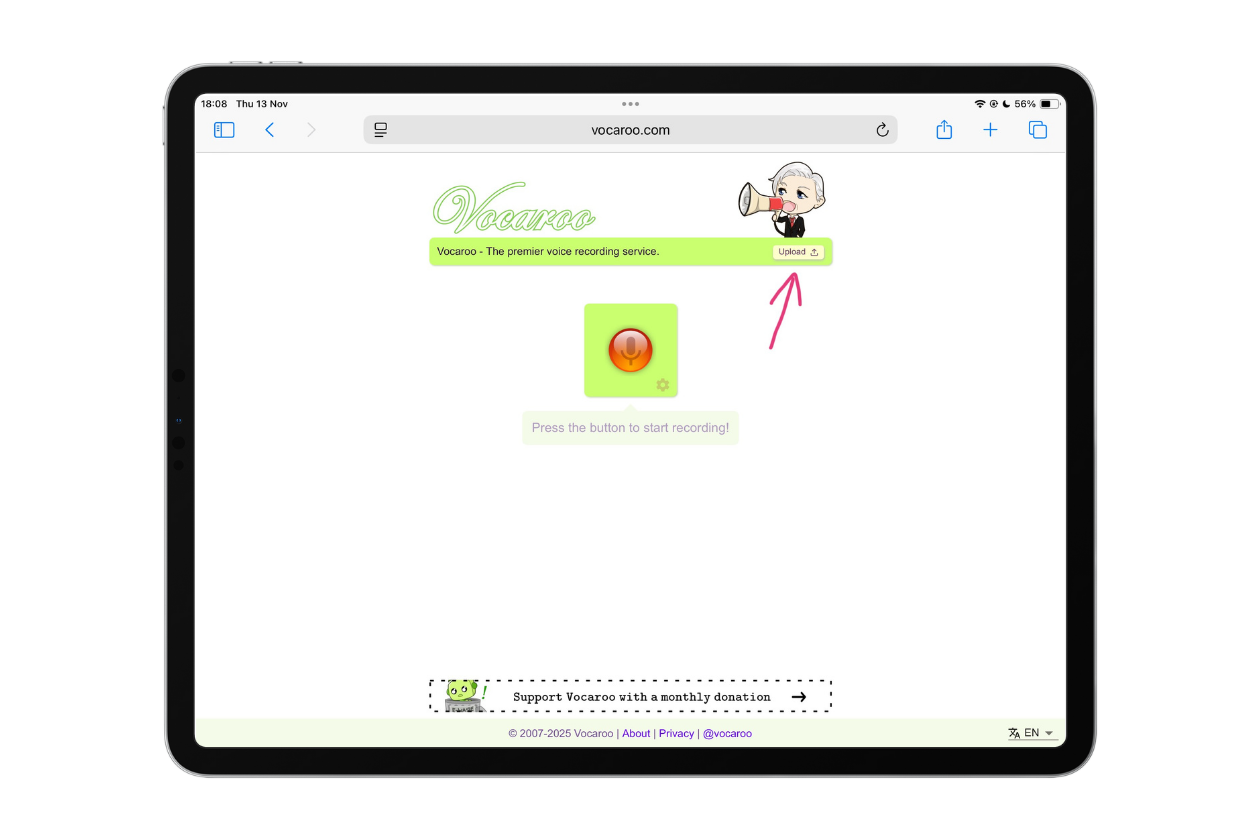
For audio files recorded elsewhere, like in Garageband, you can upload them to Vocaroo as a host site. Type www.vocaroo.com into your browser.
Tap upload file in the top right corner.
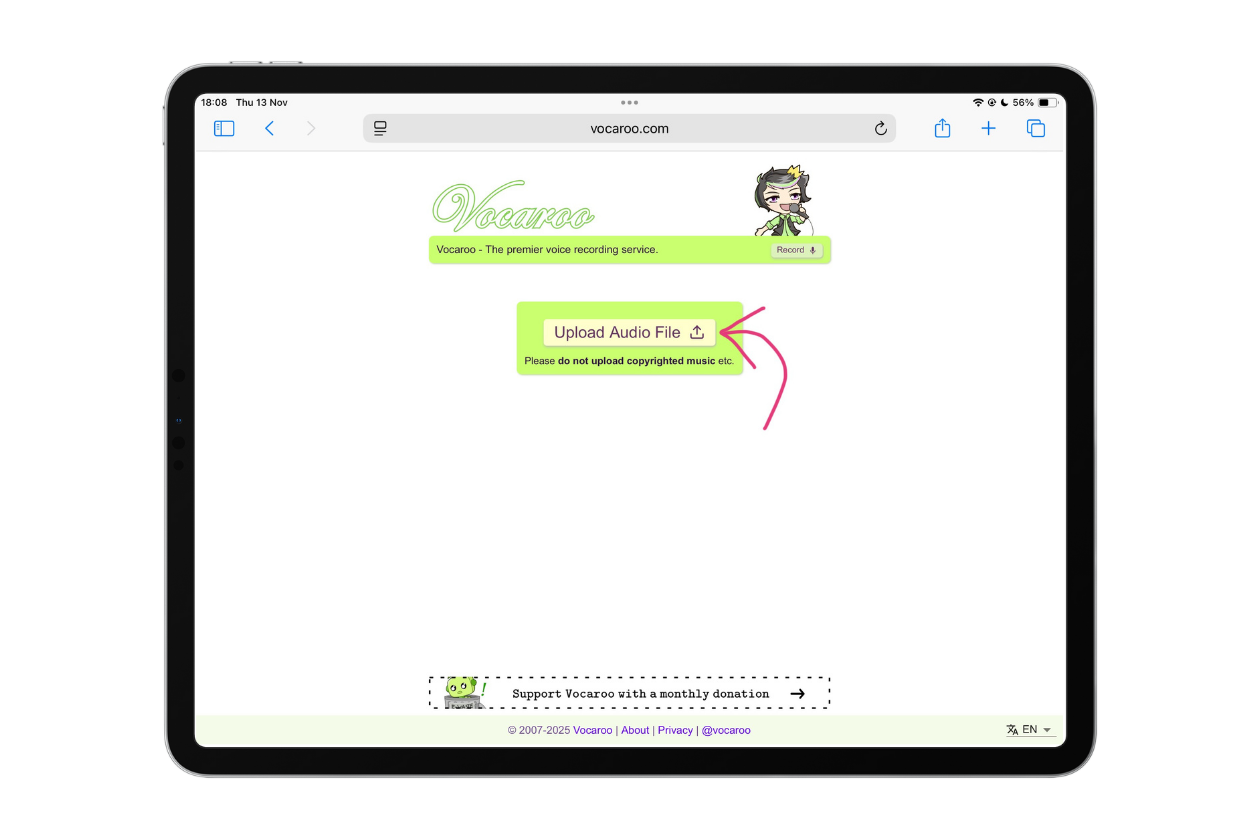
Tap upload audio file:
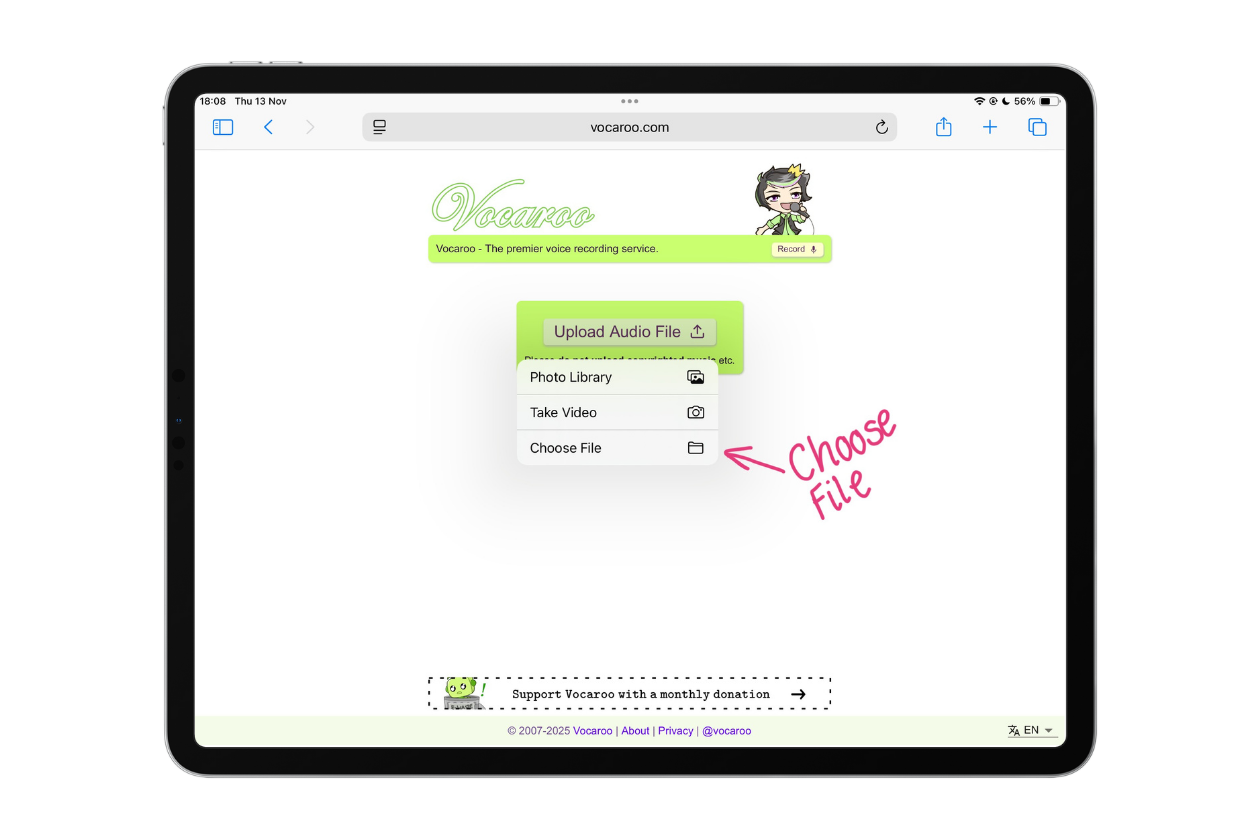
Choose where the audio file is uploading from.
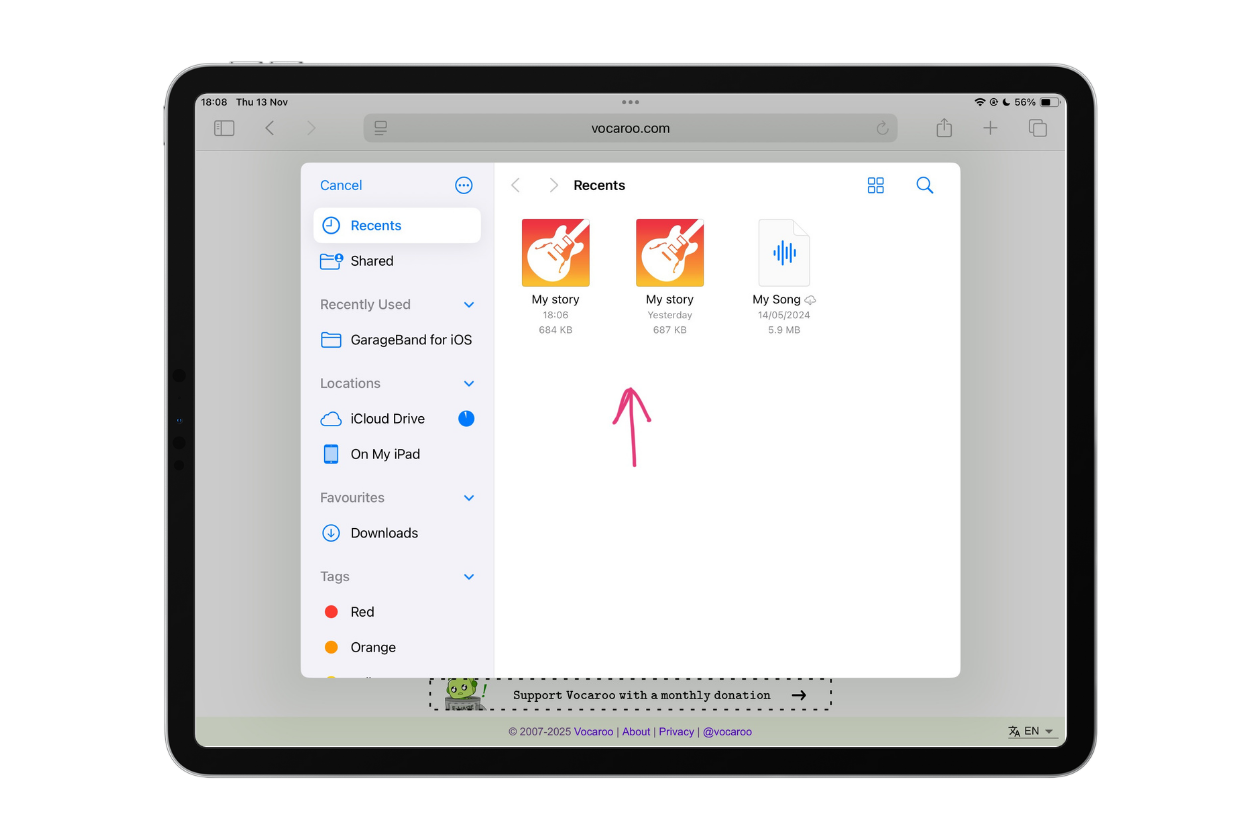
Choose the file you want to upload.
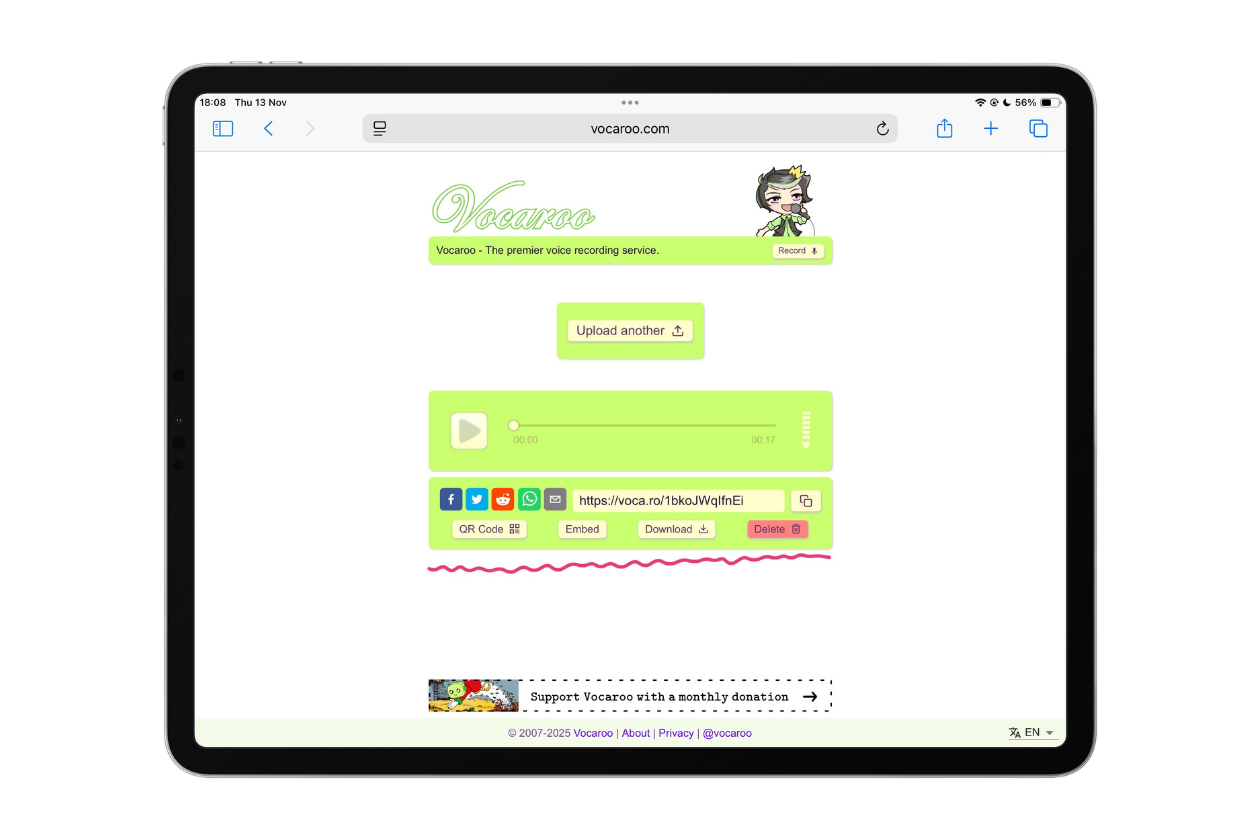
Once the audio is uploaded, you have the following options to share from: QR code, Embed and Download.

This page is for session resources from our Planning for Effective Digital Experiences session. This session explored planning for digital learning from both a documentation and a practical application point of view.
You can view a copy of the slides below.
Here is a recording of the session for those who wish to watch it again or who missed it. Please be aware that the session recording is edited to remove all discussion and task sections and in this case the stories from the Redefinition section of the session. This is to protect the privacy of our participants and ensure everyone feels comfortable speaking freely on mic and in the chat without worry that their comments will be made publicly available.

This page is for session resources from our AI in Education Refresher session. This session built on the success of last session’s AI in Education series, this refresher session is explored tools from the Falkirk AI in Education Starter Suite and introduced Canva Code.
You can view a copy of the slides below.
Our sessions tend to have a lot of live demonstrations within them. This section of the page outlines some of the digital tools covered in the session or signposting to some of the resources shown or mentioned in a format which can be easily revisited or passed along to colleagues who were unable to attend the session.
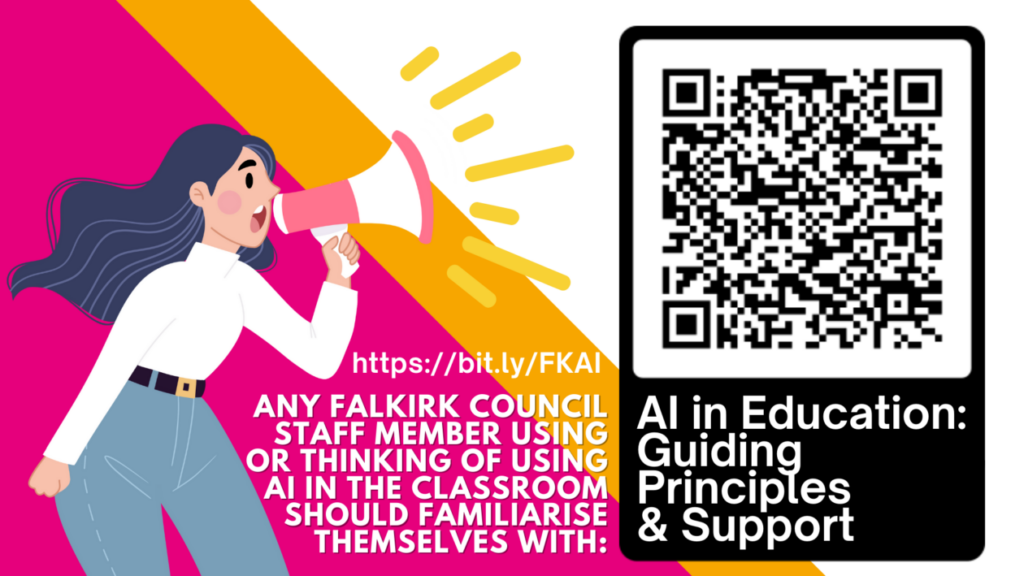
All Falkirk Council education staff using or considering using AI in education should familiarise themselves with the AI in Education: Guiding Principles and Support information.
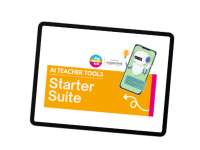
Navigating the rapidly evolving landscape of AI in education can be overwhelming for busy educators. Our starter suite offers a carefully curated collection of nine free AI-powered tools which have been assessed to ensure their educational value and ease of initial use. The hope is that this provides a practical entry point for teachers and establishments embarking on their AI journey. The document sorts the tools by educational function, gives an education focused use overview and provides quick guides for each tool.
Are you interested in exploring the potential of AI in education? Express your interest in joining our AI Teacher Network. By filling out this form, you’ll help us connect with like-minded educators and keep you updated on exciting opportunities, resources, and events. You will also have the opportunity to influence the use if AI in education within Falkirk. We’ll be in touch with details of how to join the Microsoft Teams space.
Here is a recording of the session for those who wish to watch it again or who missed it. Please be aware that the session recording is edited to remove all discussion and task sections. This is to protect the privacy of our participants and ensure everyone feels comfortable speaking freely on mic and in the chat without worry that their comments will be made publicly available.

These resources from Fortinet provide a curriculum which helps students learn how to apply cybersecurity skills to their digital interactions at school, at home and everywhere they go. They are available free to Falkirk schools – you simply have to log into Glow to access them.
Use this link or click on the image below to access the folder which is stored in the DigiLearnFalk Team. You must be logged into Glow to access both the Team and the Folder, you must also be a member of the DigiLearnFalk Microsoft Team.
Respecting Work Online
Ethical Integrity
Students will learn the importance of respecting others’ work online and explore strategies for safely and appropriately accessing and sharing digital content. They will reflect on how creative thinking can help them express their ideas and share knowledge responsibly.
Making Sense of Social Media
Online Information
Students will learn about social media, its purpose, and how family boundaries around social media use can help them stay safe online. They will develop communication skills by discussing these boundaries and learning to advocate for their personal and family choices regarding social media use.
Online Identity
Online PresenceStudents will learn about online identity, including how people represent themselves positively and negatively in digital spaces. They will develop strategies to protect their online identities. Students will grow as compassionate individuals as they focus on treating others kindly through their online interactions.
History of Computing Innovations
Digital Impact
Students will learn about important figures in computing history, their collaborative efforts, and innovations that have shaped cybersecurity and society. Students will develop collaboration skills and reflect on how to use technology as a tool for working together and sharing ideas safely and securely.
Introducing Cybersecurity
Students will learn about common cyberthreats and practice strategies to avoid scams and prevent computer viruses from infecting their devices. They will explore cybersecurity as a field and will build computational thinking skills by defining threats and analysing real-world examples of online scams.
Building Password Essentials
Students will learn why strong, unique passwords are important and how password breaches can put their accounts and devices at risk. They will build computational thinking skills as they explore different strategies for creating and remembering strong passwords.
Recognising Cyberbullying
Students will learn to identify the differences between bullying, cyberbullying, and unkind behavior. They will also practice strategies for reporting and coping with cyberbullying. Through examples and discussions, students will build compassion and learn how to stay safe online.
Securing Data and Keeping it Private
Secure Privacy
Students will learn about the importance of data privacy and data protection and their role in protecting privacy. They will develop communication and computational thinking skills while discussing how password hygiene, multi-factor authentication, and encryption can keep their online information safe.
Cyberbullying
Digital Safety
Students will learn to identify signs of cyberbullying, explain its harmful effects, and explore ways to respond to cyberbullying and support others. They will develop greater compassion and improve their communication skills by analysing various scenarios and discussing statistics related to cyberbullying.
Understanding Cybersecurity
Cybersecurity Landscape
Students will learn how cybersecurity affects their personal safety and will explain strategies to protect, detect, and respond to common cyberattacks such as phishing and malware. They will build computational thinking and collaboration skills as they analyze cybersecurity challenges and devise solutions.
Computing and Culture
Digital Impact
Students will learn to use technology responsibly to help create a safer digital world, while also balancing their time and resources to foster their digital well-being. They will develop as creative and critical thinkers as they debate the positive and negative impacts of computing innovations on culture and the environment.
Respecting Intellectual Property
Ethical Integrity
Students will learn the benefits of using creative content and digital tools appropriately, as well as the risks of illegal downloads. They will also explore strategies for safely accessing and using others’ intellectual property online. By thinking critically and acting with compassion, students will make ethical and responsible decisions when using online content.
Social Media Influence
Online Information
Students will learn about the benefits and risks of social media use and discuss its impact on emotional and cognitive well-being. They will enhance their communication and critical thinking skills by considering manipulation and commercialisation tactics, as well as strategies for maintaining and restoring personal boundaries while using social media.
Identity in the Digital World
Online Presence
Students will learn to create and protect their identity in the digital world and analyze online content that influences their sense of self. They will grow as compassionate and critical thinkers by applying strategies to curate their online identity and build a positive online presence.
Lesson 1: What is Cybersecurity?
In this lesson, students will take their first steps toward becoming cybersecurity professionals. They will learn what cybersecurity is and will consider its impact on personal safety and organisational security. Students will envision future careers and explore the skills and competencies required to be successful in the cybersecurity field.
Lesson 2: The Impact of Cybersecurity
During this lesson, students will learn about technological advancements, how bad actors exploit them and the efforts of cybersecurity professionals to combat emerging threats.
Lesson 3: Principles of Information Security
During this lesson, students will learn about the principles of information security, the importance of confidentiality, integrity, and availability (CIA) and different types of data.
Lesson 4: Cybersecurity Ethics
During this lesson, students will examine the ethical responsibilities associated with working in cybersecurity and explore the layers of ethical decision-making, from personal values to professional standards to regulations and laws.
Unit 1 Assessment Guide
The assessment guide includes an outline of formative and summative assessments for the unit, with a unit test and answer guide, a project outline and an accompanying rubric.
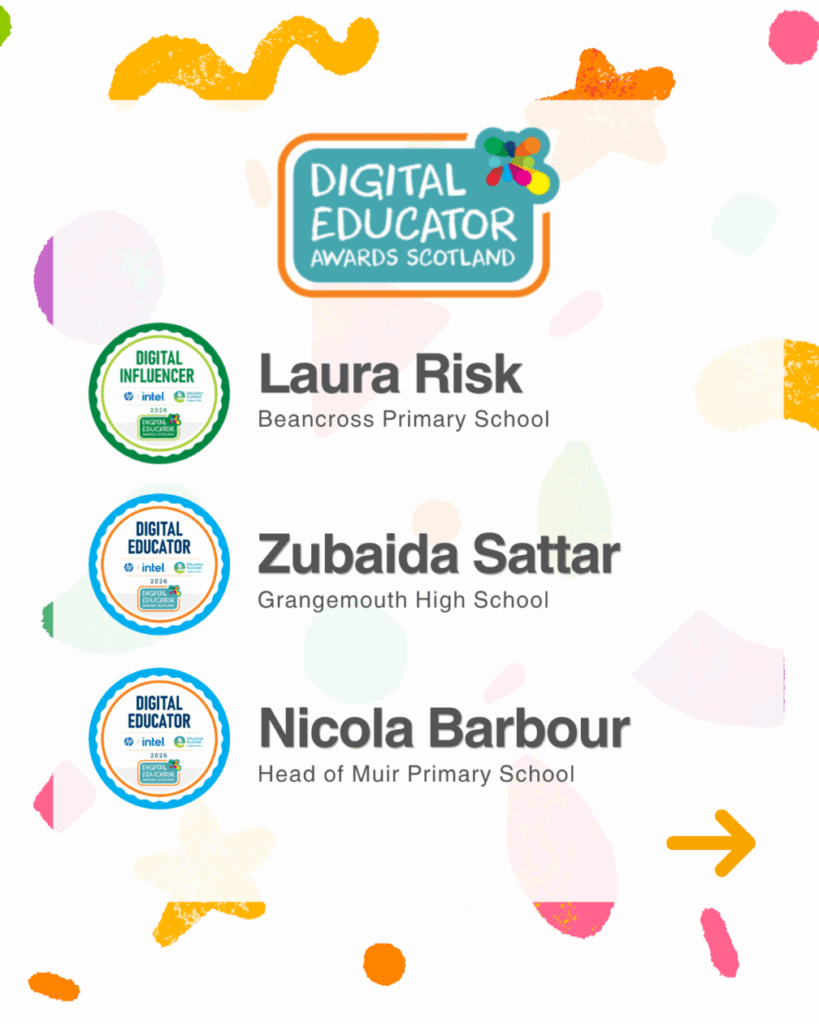
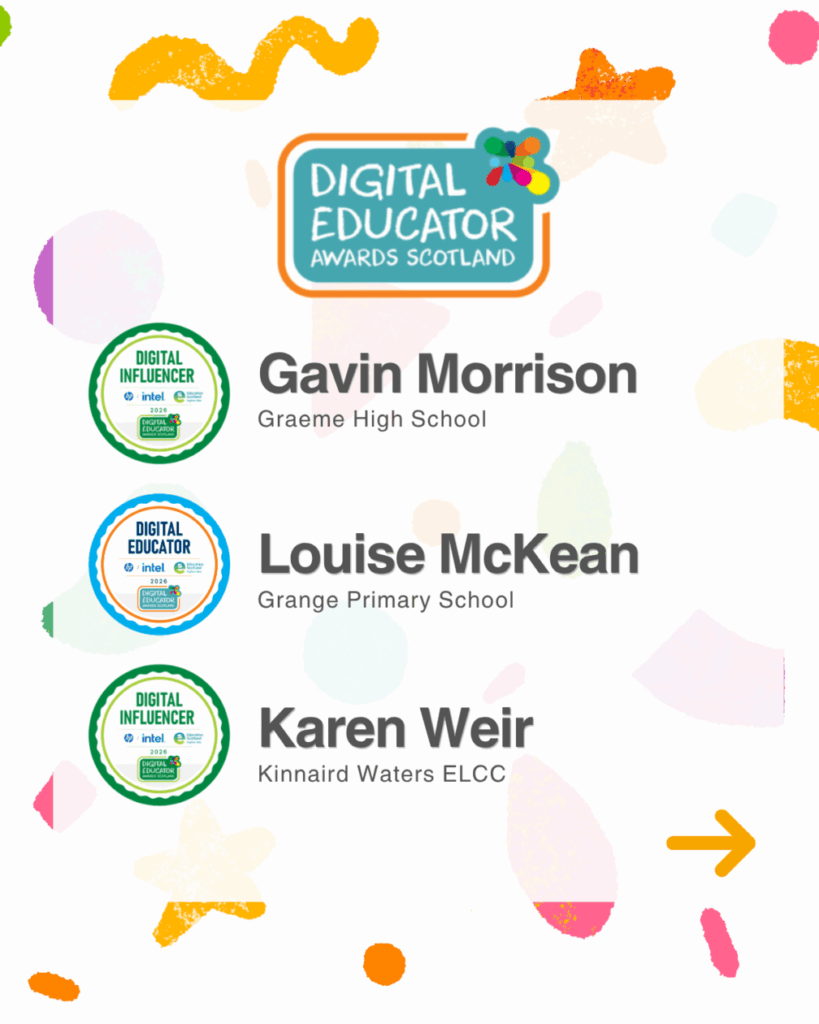
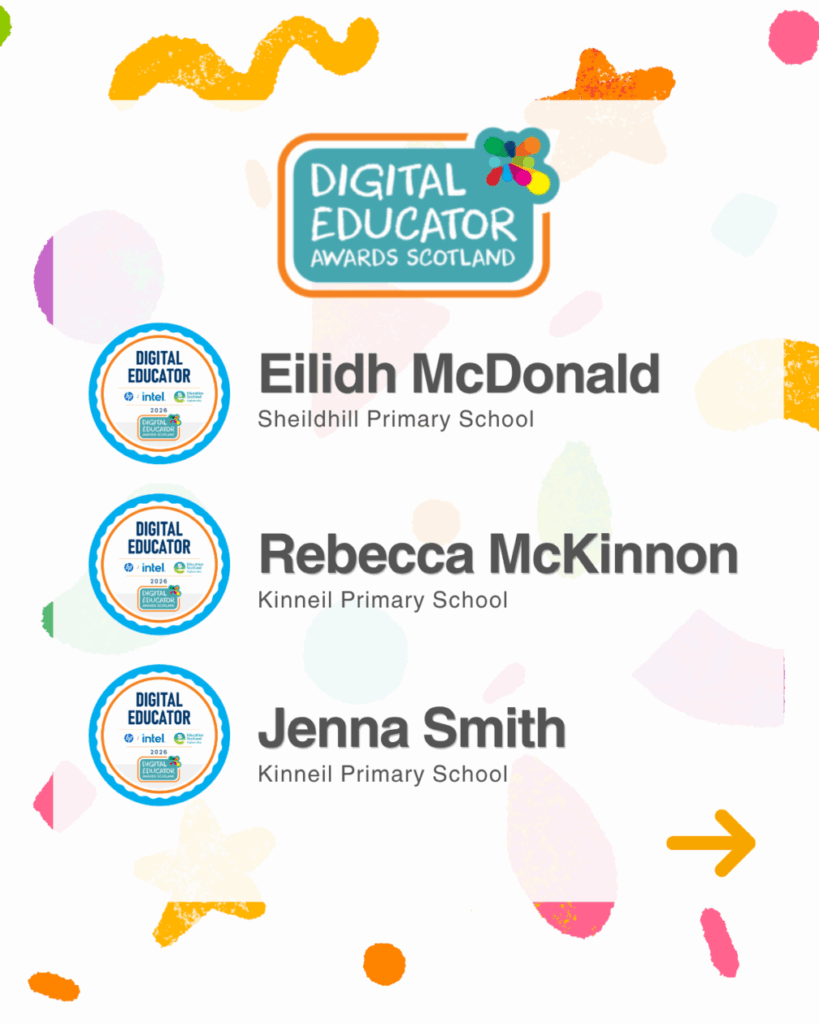
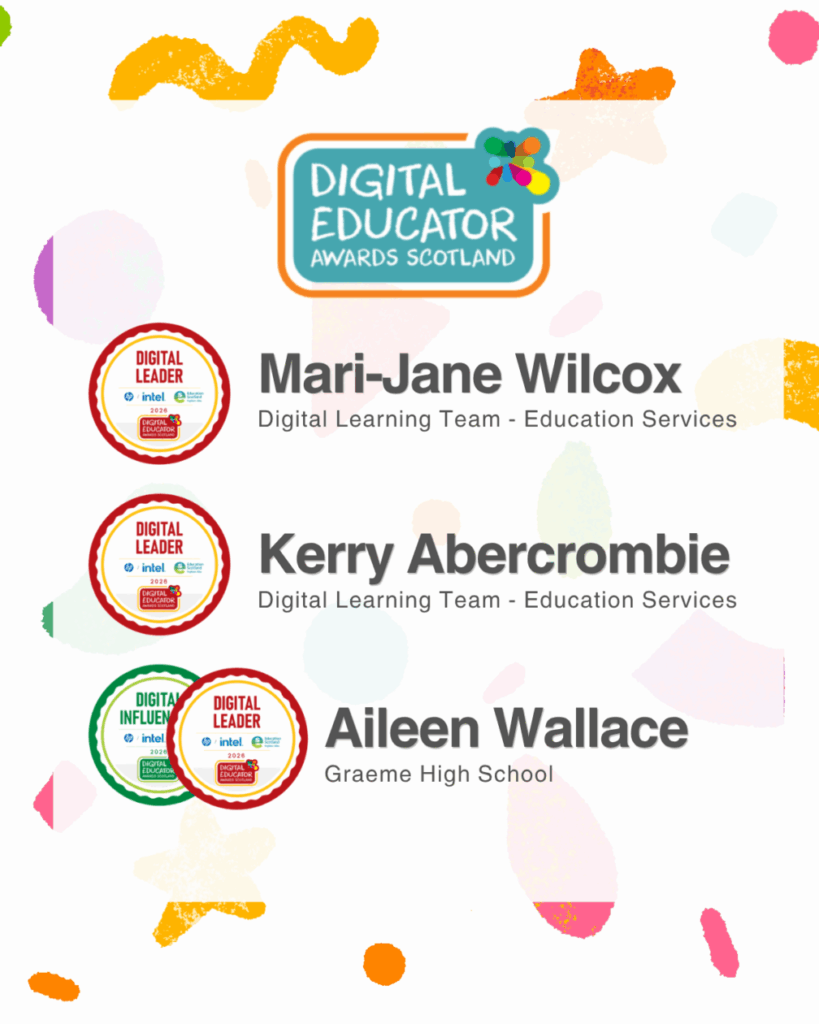
If you are in Falkirk and are interested the Digital Educator Awards you can find out more below or by visiting our DEAS Falkirk Hub.
DEAS Falkirk Hub by Miss Abercrombie
Falkirk’s Digital Learning Leadership Week returns this year on May 25th to 29th 2026 and we’d be delighted to see you there!
Across the week there are a range of valuable sessions focused on leadership in digital education, practical tools for implementation, and opportunities for our key networks to come together.
We are pleased to bring you a very special guest for Wednesday’s SAMR Compass and Pupil Digital Leader Lab session on the 27th. Apple Distinguished Educator and the master of Quick Tips, Jacob Woolcock! Jacob is a UK-based primary school teacher, Apple Distinguished Educator and digital learning advocate who has built a reputation for making technology both accessible and inspiring in the classroom. Best known for his QuickTips YouTube channel, Jacob has shared over 500 bite-sized tutorials that have reached nearly ten million views worldwide, helping teachers, students and everyday iPhone and iPad users unlock the potential of their devices. Alongside his classroom work, he leads training and workshops across the UK and internationally, focusing on creativity, accessibility and innovative teaching practices that empower learners of all ages. Beyond the classroom, Jacob is passionate about community and STEM education. He has mentored award-winning LEGO robotics teams, spearheaded large-scale fundraising campaigns and championed opportunities for young people in Cornwall to engage with technology on a global stage. Combining his background in teaching with a creative, hands-on approach to digital tools, Jacob’s work demonstrates how technology can bring learning to life, foster collaboration and build confidence in both students and educators.
Explore the schedule and secure your spot by visiting the DLLW page:
Digital Learning Leadership Week 26 by Miss Abercrombie