






Staff Use
Teachers are permitted to use generative AI tools for a variety of educational activities, provided they adhere to established professionalism and data protection legislation.

Tool Approval and Risk Assessment
Currently, no generative AI software requiring pupil login credentials is approved for pupil use. As with any digital tool, teachers must conduct an appropriate risk assessment before implementation as outlined in Falkirk Council’s Service Circular 50, available on the Intranet.

Professionalism
Teachers using generative AI to create content are reminded of their professional responsibility to thoroughly review any AI-generated material before sharing it with pupils or the wider school community. Just as with any other resource, teachers must ensure content accuracy and appropriateness.

Data Protection
Under no circumstances should sensitive or personal information about pupils, staff, or other stakeholders, including the school itself, be submitted to AI tools or software. This is a critical GDPR compliance issue. Only data already in the public domain may be used, and no personally identifiable information should be shared with AI models.
Digital Scotland
SCOTLAND’S ARTIFICIAL INTELLIGENCE STRATEGY
Scotland’s AI Strategy focuses on building a trustworthy, ethical, and inclusive AI ecosystem. While the strategy isn’t exclusively education focused, for educators it highlights the importance of AI literacy and education to equip both students and teachers with essential AI skills. The strategy encourages integrating AI into education to enhance learning while preparing students for an AI-driven future. It also discusses the importance of teaching ethical AI use, ensuring technology benefits society fairly and inclusively.
You can access the full document here.

UK Government Department for Education
GENERATIVE ARTIFICAL INTELLIGENCE (AI) IN EDUCATION
The UK government’s document on generative AI in education provides guidance on using AI tools responsibly in educational settings. It mentions the potential benefits of AI for personalised learning and administrative efficiency while highlighting the importance of ethical considerations, data privacy, and avoiding reliance on AI-generated content for assessments. The document encourages educators to develop AI literacy among students and to integrate AI in ways that support, rather than replace, traditional human led teaching methods.
For more details, visit here.

Llywodraeth Cymru (Welsh Government)
GENERATIVE ARTIFICIAL INTELLIGENCE IN EDUCATION
Hwb’s* guidance on generative AI in education focuses on fostering AI literacy, critical thinking, and creativity within Wales’ Curriculum. It emphasises safeguarding against online risks, equitable access, and supporting educators with resources. Estyn (education and training inspectorate for Wales) is reviewing AI use in schools to explore its benefits and challenges, with findings due this summer.
*(Hwb is a digital learning platform provided by the Welsh Government to support education across Wales)
Access the full guidance here.
Education Scotland
MACHINE LEARNING AND AI WITHIN GLOW
The “Machine Learning and AI within Glow” guide outlines the use of AI and machine learning tools within Scotland’s Glow platform. It explains how educators can leverage these technologies to enhance teaching and learning, while also touching on ethical considerations and data privacy. The resource highlights the importance of AI literacy for both students and teachers, providing guidance on responsible AI use in educational settings.
For more details, you can visit the full document here.

WEST Partnership
AI IN EDUCATION SCOPING REVIEW
The AI in Education Scoping Review explores the potential of AI in educational settings, examining its benefits, challenges, and ethical considerations. It emphasises the importance of teacher training, data privacy, and the need for careful implementation to enhance learning outcomes. The review calls for ongoing research and collaboration to effectively integrate AI into education.
You can access the full document here.

Goodison Group
21ST CENTURY SKILLS: AI AND EDUCATION REPORT
The report from Scotland’s Future Forum explores the impact of AI on education, discussing its potential to transform teaching and learning. It highlights the need for ethical considerations, teacher training, and equitable access to AI tools. The report emphasizes collaboration between educators, policymakers, and technologists to harness AI’s benefits while addressing challenges.
For more details, you can access the full report here.

OECD (Organisation for Economic Co-operation and Development)
GENERATIVE AI IN THE CLASSROOM: FROM HYPE TO REALITY?
The OECD document discusses the role of artificial intelligence (AI) in education, focusing on its potential to enhance learning outcomes, address educational challenges, and support personalized learning. It also emphasizes the need for ethical guidelines, data privacy, and teacher training to ensure responsible AI integration. The report provides recommendations for policymakers and educators on effectively using AI in education systems.
For more details, you can access the full document here.
Daydream Believers and Education Scotland
GenAI IN EDUCATION EXPLORATION HUB
The GenAI in Education Exploration Hub is a website in joint partnership between Daydream Believers and Education Scotland to help make sense of the Generative AI advancements and how best to utilise them in learning environments to be helpful tools for educators and students.
You can access the website here.
DigiLearnScot (Education Scotland)
ARTIFICIAL INTELLIGENCE IN SCOTTISH EDUCATION
This blog post explores the burgeoning presence of artificial intelligence (AI) within the Scottish education landscape, outlining key considerations for educators and stakeholders. It highlights the potential of AI to transform teaching and learning practices, including personalized learning experiences and streamlined administrative tasks. However, it also underscores the critical importance of addressing ethical implications, data security, and the necessity for professional development to equip teachers with the skills required to navigate and leverage AI tools effectively. The article serves as an informative resource for understanding the current and future impact of AI on Scottish education, promoting informed discussions and strategic planning.
Read the full post here.

Children’s Parliament
EXPLORING CHILDREN’S RIGHTS AND AI
This webpage details the Children’s Parliament’s project “Exploring Children’s Rights and A.I.” conducted in partnership with the Scottish A.I. Alliance and The Alan Turing Institute. This programme investigates how children in Scotland interact with Artificial Intelligence, focusing on their views concerning the potential opportunities and risks of A.I. use, while also exploring ways to involve them meaningfully in policy development. A key outcome of this work is the children’s development of twelve powerful ‘Calls to Action’. The project has produced educational resources to help bridge the knowledge gap highlighted by national surveys of both pupils and school staff on this important technological and ethical landscape.
For more details, you can access the full page here.
SQA – Generative Artificial Intelligence (AI) in Assessments UPDATED 12 JULY 2025
The SQA have produced a new position statement for academic session 2025-26 on the use of Generative AI in assessment. Broadly speaking, it is permissible to use GenAI if it doesn’t undermine assessment integrity or a learner’s ability to show their skills, or if the course explicitly allows it. However, AI-generated content cannot be used as an independent source or submitted as a learner’s own work, as this constitutes malpractice. They stress the importance of following assessment conditions.
- Generative AI in assessment: academic session 2025-26 (207 KB)
- The use of generative artificial intelligence (GenAI) tools in SQA assessments – practitioner information and exemplification document (247 KB)

For full details on the official SQA stance, visit this page.
You can also view the SQA’s Generative AI Consultation Results on this page.
SQA – Authenticating Learner’s Work Good Practice Advice for Centre Staff
The SQA’s document on authenticating learners’ work provides guidance to ensure the integrity of assessments. The advice includes strategies such as supervising assessments, using plagiarism detection tools, and encouraging learners to maintain a reflective log. It also highlights the need for clear communication between educators and students regarding expectations and the consequences of academic misconduct.
For more details, you can access the full document here.
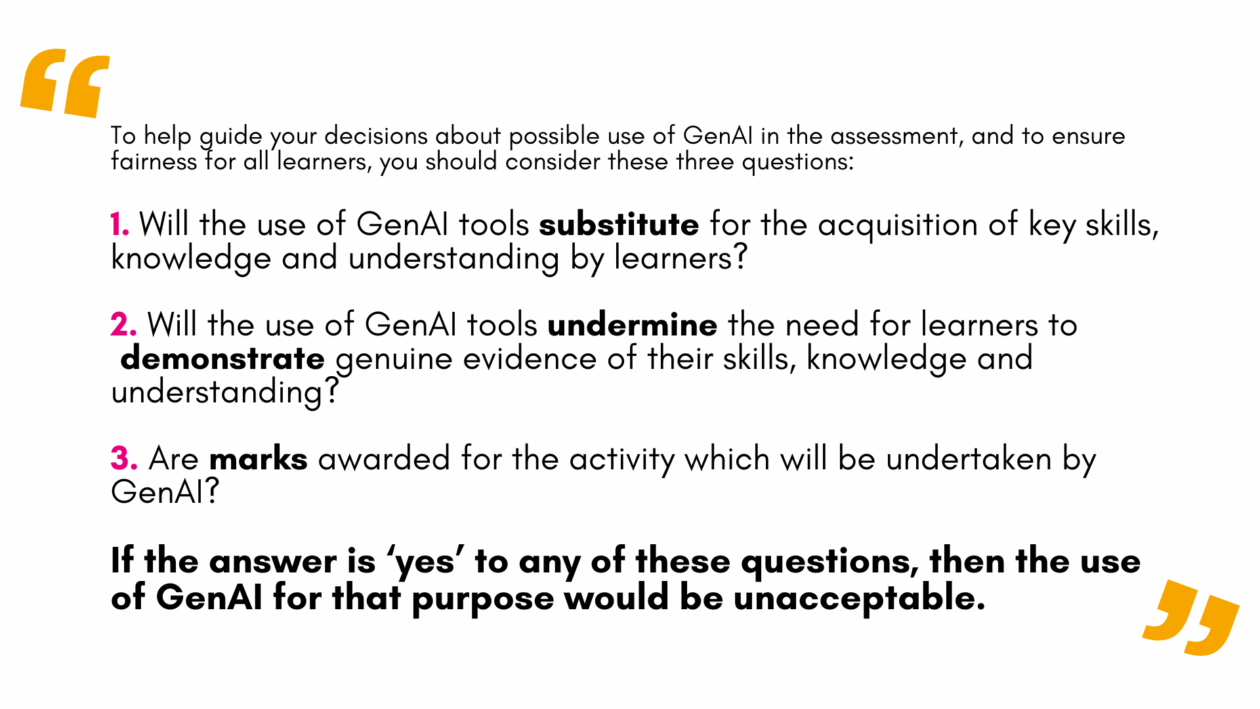
Within their AI Exemplification document the SQA outline three critical questions that are useful for all teachers when considering learner use of AI:

Forth Valley College – Introduction to Artificial Intelligence (AI) – Online
Artificial Intelligence (AI) is revolutionising the world, and this free short course provides you with an exciting opportunity to learn the fundamentals of AI. Whether you’re a beginner or seeking to expand your skills, the Introduction to AI course offers a flexible and accessible pathway to learn more about this transformative field. Applicants for this course must reside in Scotland. The course is online and self paced.
For more details and how to apply, see the FVC website.

Google Cloud Skills Boost – Introduction to Generative AI Learning Path
This Google Cloud Skills Boost pathway offers a series of courses designed to help learners develop an understanding of artificial intelligence. We recommend the first three short courses in this pathway to professionals looking to deepen their knowledge of Generative AI, Large Language Models and principles of responsible AI. Courses are free and award badges at the end upon successful completion of a quiz.
For more information, visit Google Cloud Skills Boost

University of Helsinki – Elements of AI
Elements of AI is an online course designed to make AI accessible to everyone, regardless of their background. Part one of the course, ‘Introduction to AI’ covers what AI is, what is possible (and not possible) with AI, and how it affects our lives – with no complicated math or programming required. The course is free, self-paced, and suitable for learners of all levels, helping them understand and engage with AI technology responsibly.
For more information, visit Elements of AI.
University of Helsinki – Ethics of AI
The Ethics of AI is a free online course created by the University of Helsinki. The course is for anyone who is interested in the ethical aspects of AI – we want to encourage people to learn what AI ethics means, what can and can’t be done to develop AI in an ethically sustainable way, and how to start thinking about AI from an ethical point of view.
Google – Making Friends With Machine Learning
Making Friends With Machine Learning was a 6 hour internal-only Google course specially created to inspire beginners and amuse experts. It has now been made available to everyone and this article by presenter Cassie Kozyrkov gives the links to watch the videos. Part one of the course, Introduction to ML and AI simplifies AI concepts and gives real-world examples, it is ideal for those looking to better understand how AI works without diving into too much technical detail.
For more details, you can read the full article here.
Children’s Parliament – Why Children’s Rights Matter in AI: A Resource for Professionals
A series of five free eLearning modules aimed at giving adults who work in the AI, digital, and data space an introduction to children’s human rights and how to best ensure that their work in developing, deploying or making decisions around AI technologies can respect and protect children’s rights.
For more details and to access the course visit this page.
Tools for Educators
Discover some AI tools, or services which use AI models, handpicked for their ability to either assist teachers in planning and delivery of learning or to allow learners to explore and work with AI in a controlled manner.
.
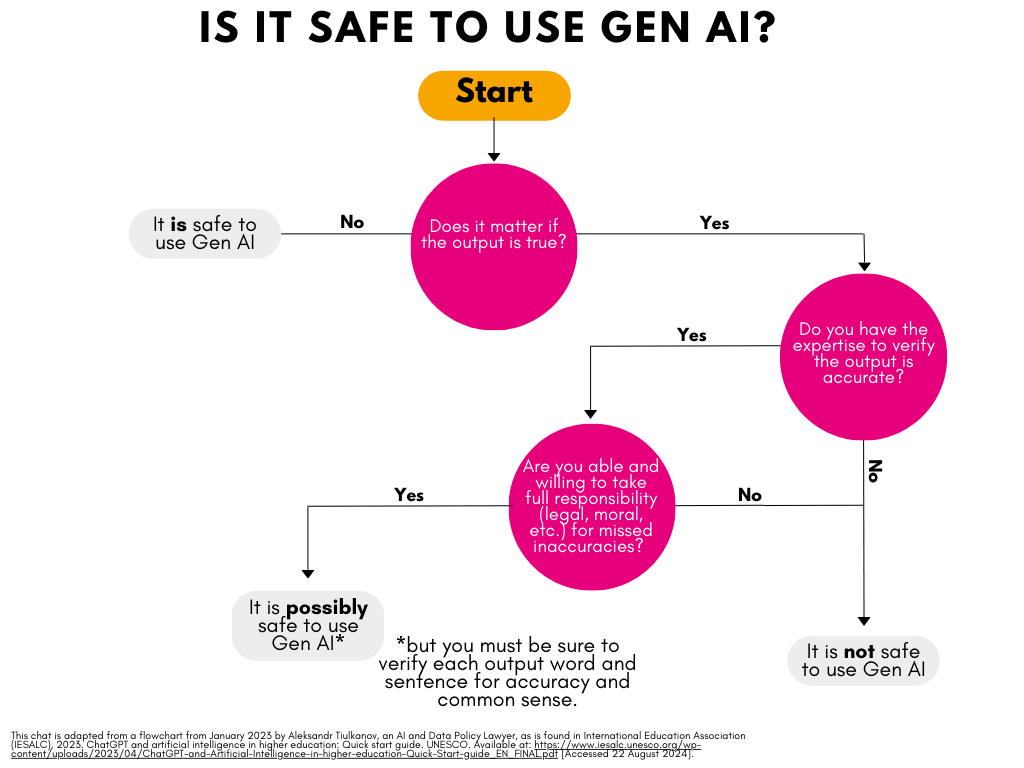
Before you take a look at the tools please remember that there are many tasks that Generative AI can be used for, educators and learners should use the chart below to assess whether it is safe to use Generative AI for a task.
In addition, anyone using Generative AI should remember:
- Check for Bias and Accuracy: AI may produce biased or incorrect content. Always double-check your output thoroughly before sharing.
- Human Judgment Matters: See AI-generated content as a starting point, not a final product. AI outputs can be helpful, but they should not be used to replace human/professional judgements.
- Protect Privacy: Do not give any personal or sensitive information about people or organisations to the AI model.
.
Education Prompt Library
Looking for some help with AI prompting for education? Visit our new education prompt library. Designed to help educators boost their prompting to get better outputs and save valuable time.
The education prompt library is a collection of pre-prepared, high-quality prompts covering a wide range of planning and preparation tasks and pedagogical approaches for use with Large Language Models. Educators can browse the prompts, copy and paste their selected prompt directly into Google Gemini, then customise it to suit their specific context and needs.
The education prompt library is an ongoing piece of work and will continue to grow over time.

AI Teacher Tools: Starter Suite
Our Starter Suite offers a carefully curated collection of free AI-powered tools to provide a practical entry point for teachers and establishments embarking on their AI journey. Covering a range of essential functionalities, from lesson planning to differentiation, this suite provides accessible and valuable tools to explore and integrate AI into teaching practices.
Each tool has been assessed to ensure its educational value and ease of initial use, allowing you to confidently begin harnessing the power of AI to enhance learning outcomes. View the Starter Suite embedded below or use and share the short link: https://bit.ly/aistartersuite
AI Starter Suite by Miss Abercrombie

Google Gemini
Gemini Quick Guide by Miss Abercrombie
What does it do?
Google Gemini chatbot is a large language model (LLM) developed by Google. While Google Gemini describes a family of LLM tools integrated throughout Google Workspace, the Google Gemini standalone chatbot is available to all staff via Glow login to the Google Workspace tenancy operated by Glow/Education Scotland. Its ability to process and generate diverse information aims to create more natural and helpful AI interactions. Google Gemini is an 18+ product and is only available to staff users within Glow. It is designed to be multimodal, meaning it can understand and operate across text, code, images, and more.
How do I get access? Staff can log into Google Gemini for free via their Glow account. Learners do not have access to Google Gemini via Glow as it is an 18+ product.

NotebookLM
NotebookLM Quick Start Guide by Miss Abercrombie
What does it do?
NotebookLM is a specialised mini-LLM (Large Language Model) from Google. Unlike LLMs like Gemini, ChatGPT and Copilot, Gemini interacts only with the content you provide. You can upload up to 50 sources, including web links, YouTube videos, and various file types (PDF, .txt, Markdown, audio, images). You can use NotebookLM to question, summarise, and interact with your materials in the chat, or utilise the “studio” to create new assets, even generate downloadable AI podcasts. It’s like having a dedicated AI research assistant focused solely on your specific documents.
How do I get access? Staff can NotebookLM via their Glow account. Learners do not have access to NotebookLM via Glow at the moment.

Wayground (Quizizz)
Wayground Quick Start Guide by Miss Abercrombie
What does it do? Wayground (formerly Quizizz) is an online learning platform that enables teachers to create and share interactive quizzes, polls, and lessons. Wayground has integrated AI features that allow teachers to automatically generate quizzes, worksheets, and questions based on specific topics or curriculum needs. By using AI, Wayground can suggest questions tailored to different skill levels, provide instant feedback to students, and offer personalised learning paths. This streamlines lesson planning and helps teachers quickly assess student understanding, making the platform more efficient for educational purposes.
How do I get access? Teachers can sign up for a free account at wayground.com
Pupils do not need accounts to participate in Quizizz activities.

Curipod
Curipod Quick Start Guide by Miss Abercrombie
What does it do? Curipod is a platform designed to assist educators in creating engaging and interactive lessons. It combines elements like polls, word clouds, and drawing activities to make learning dynamic and participatory. Curipod’s built in AI features allow educators to generate interactive lessons quickly and easily. All AI output is customisable. Additionally, Curipod’s AI adapts content to suit different teaching styles and student needs, streamlining the lesson material creation process while making learning more interactive and engaging.
How do I get access? Teachers can access Curipod by signing up for a free basic account on the Curipod website.
Pupils do not need accounts to participate in Curipod lessons.
Diffit
Diffit Quick Start Guide by Miss Abercrombie
What does it do? Diffit is an AI-powered tool designed to help educators create differentiated learning materials quickly. It allows teachers to generate customised content at various reading levels based on a given text or topic. By adjusting the complexity of language, Diffit ensures that students with different abilities can engage with the same subject matter, supporting personalised learning and making lesson planning more efficient for teachers.
How do I get access? Teachers can sign up for a free account on the Diffit website.
Pupils do not need to access Diffit.
Magic School
Magic School Quick Start Guide by Miss Abercrombie
What does it do? Magic School is a collection of 70+ AI tools (Magic Tools) to help teachers with a variety of tasks including lesson planning, differentiation, planning group work, generating vocabulary lists, and so much more. It also has 40+ responsible AI tools that can be launched to students to allow them to explore generative AI while the teacher can monitor their interactions with and the outputs from the AI model. Tools for students include study habits, debate partner, multiple explanations and more.
How do I get access? Teachers can sign up for a free account on the Magic School website.
Pupils do not need accounts to participate in Magic School activities.
School AI
SchoolAI Quick Start Guide by Miss Abercrombie
What does it do? School AI allows learners to explore a Large Language Model in a safe environment through ChatGPT powered experiences called Spaces. Teachers can choose from a library spaces, or create their own with custom instructions tailored to learners’ needs. Teachers can manage, moderate and steer as students interact with the machine and receive real time ‘insights’ as well as being able to access live conversations from the teacher moderation screen.
How do I get access? Teachers can access School AI by signing up for a free basic account on the School AI website.
Pupils do not need accounts to participate in School AI spaces.
Padlet ‘AI Image’
Padlet AI Image Quick Start Guide by Miss Abercrombie
What does it do? Padlet’s “AI Image” feature uses a text-to-image AI model to transform users’ written descriptions into images.
How do I get access? Teacher sets up a Padlet and learners access via link or QR code. Pupils do not need to log in.

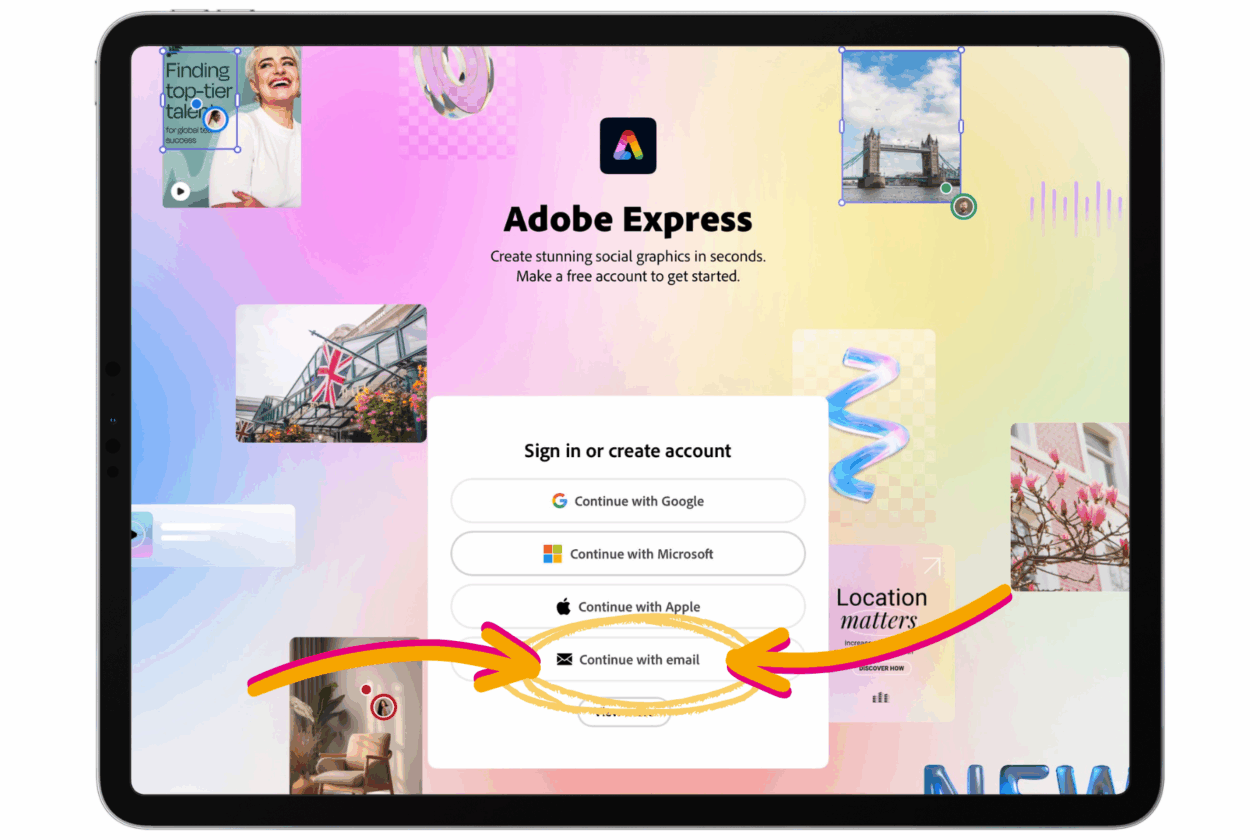
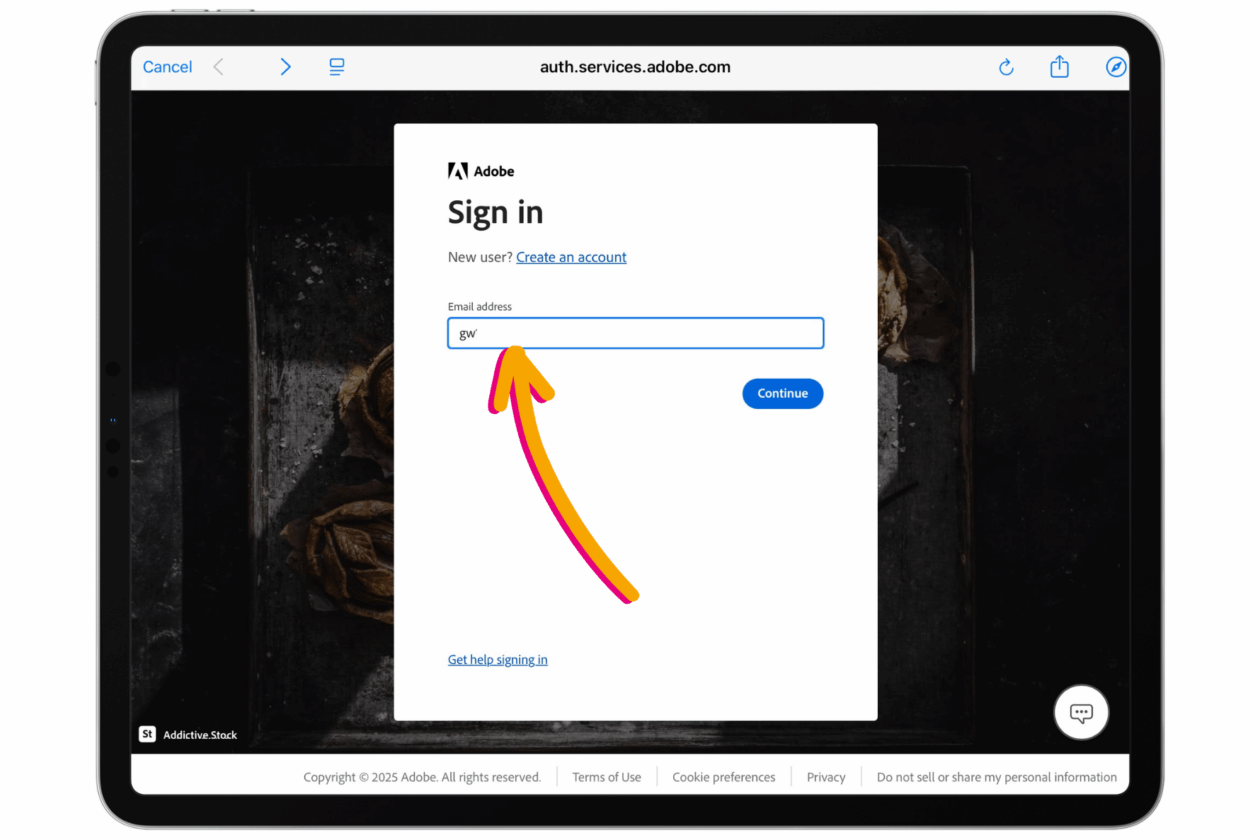
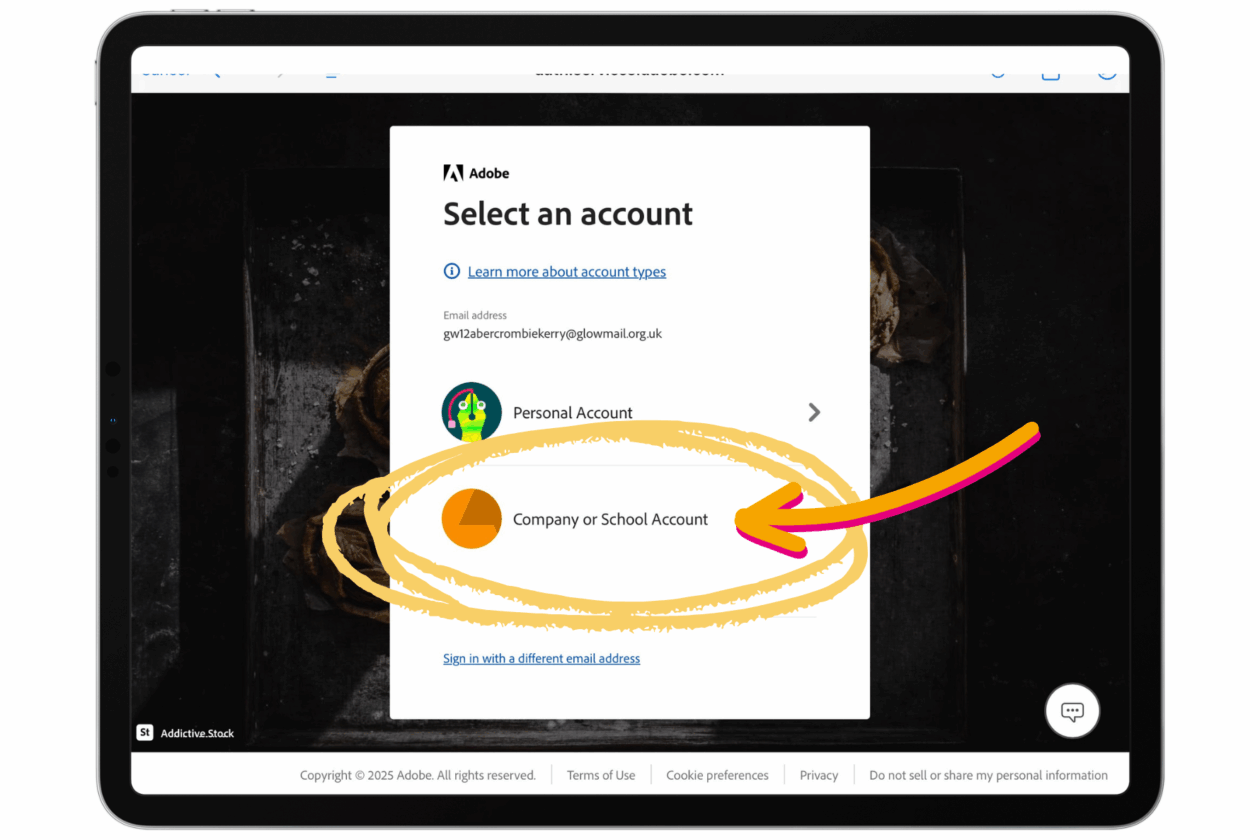
Adobe Express
Adobe Express Quick Start Guide by Miss Abercrombie
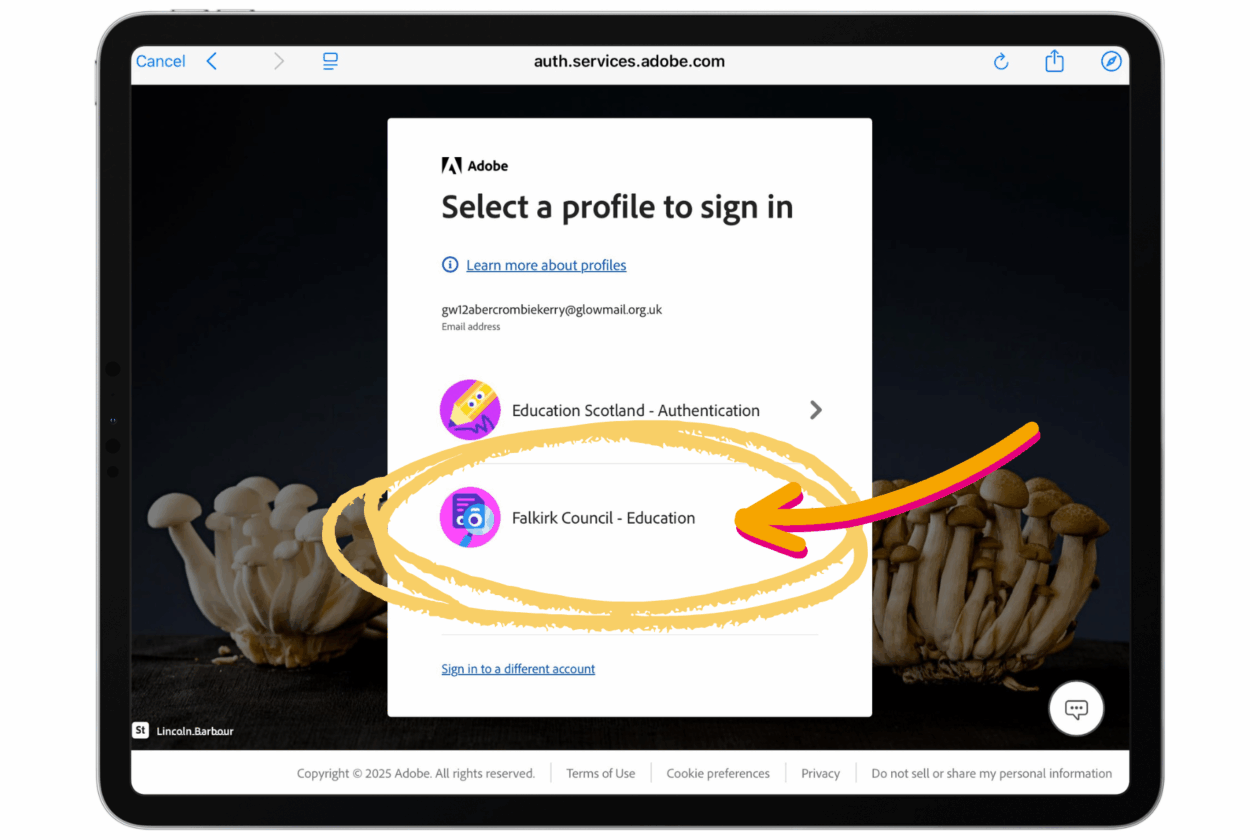
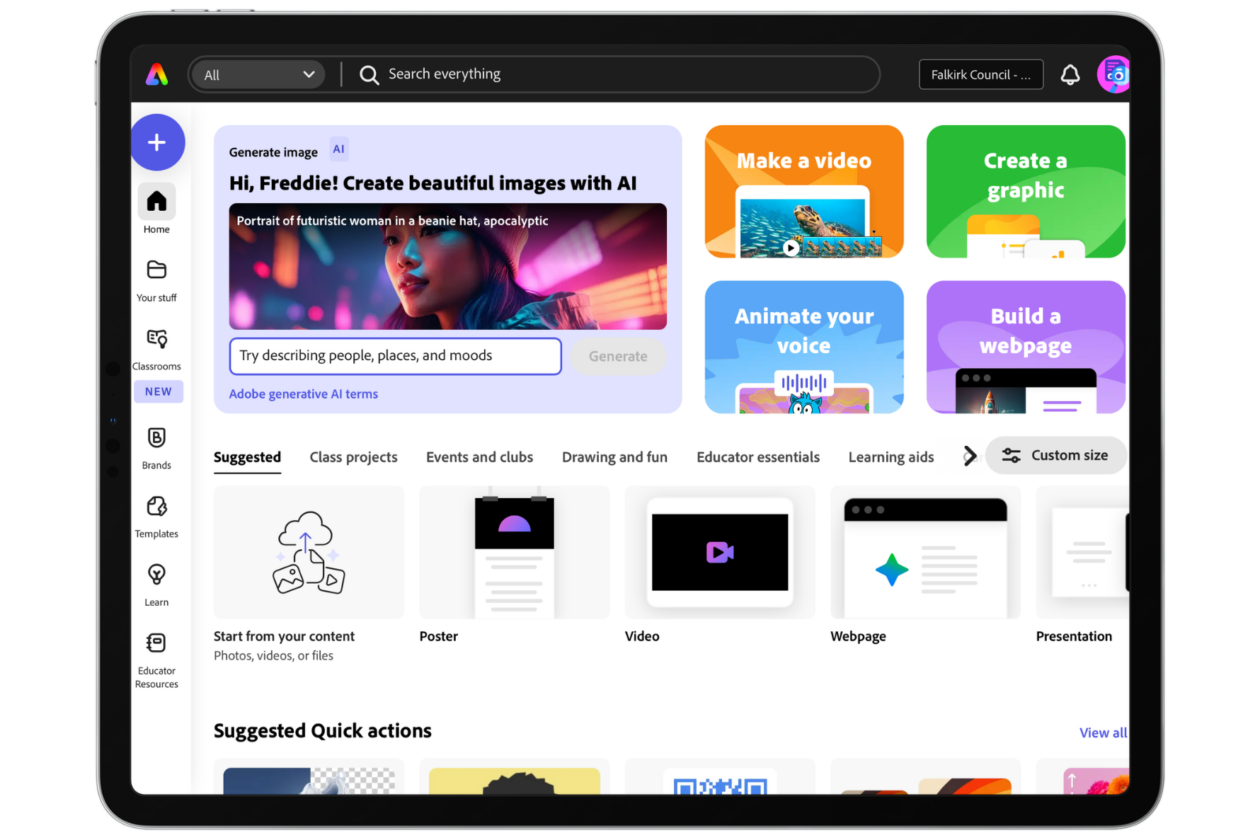
What does it do? Adobe Firefly in Adobe Express is an AI-powered tool that allows users to generate and edit images using text prompts. It enabling users to quickly create designs, add effects, and make creative adjustments to photos, illustrations, and graphics.
How do I get access? Learners have access to Adobe Express via Glow.
Importance of AI Literacy
Learn why developing AI literacy is crucial for both teachers and students, preparing them for a tech-driven future.
.
Developing AI literacy is crucial for both teachers and students as it equips them with essential skills to thrive in a tech-driven future. It enhances critical thinking, problem-solving, and ethical awareness, enabling students to navigate AI technologies responsibly. For teachers, AI literacy allows them to guide students effectively, integrating AI into learning while fostering digital citizenship. This knowledge ensures both educators and students are prepared for the evolving job market and societal shifts driven by AI advancements.
AI literacy as a concept is still evolving because AI technology itself is rapidly advancing and becoming more integrated into everyday life. As generative AI and automation, continue to shift the landscape, requiring ongoing adaptation in educational frameworks and public understanding to keep pace with innovation.
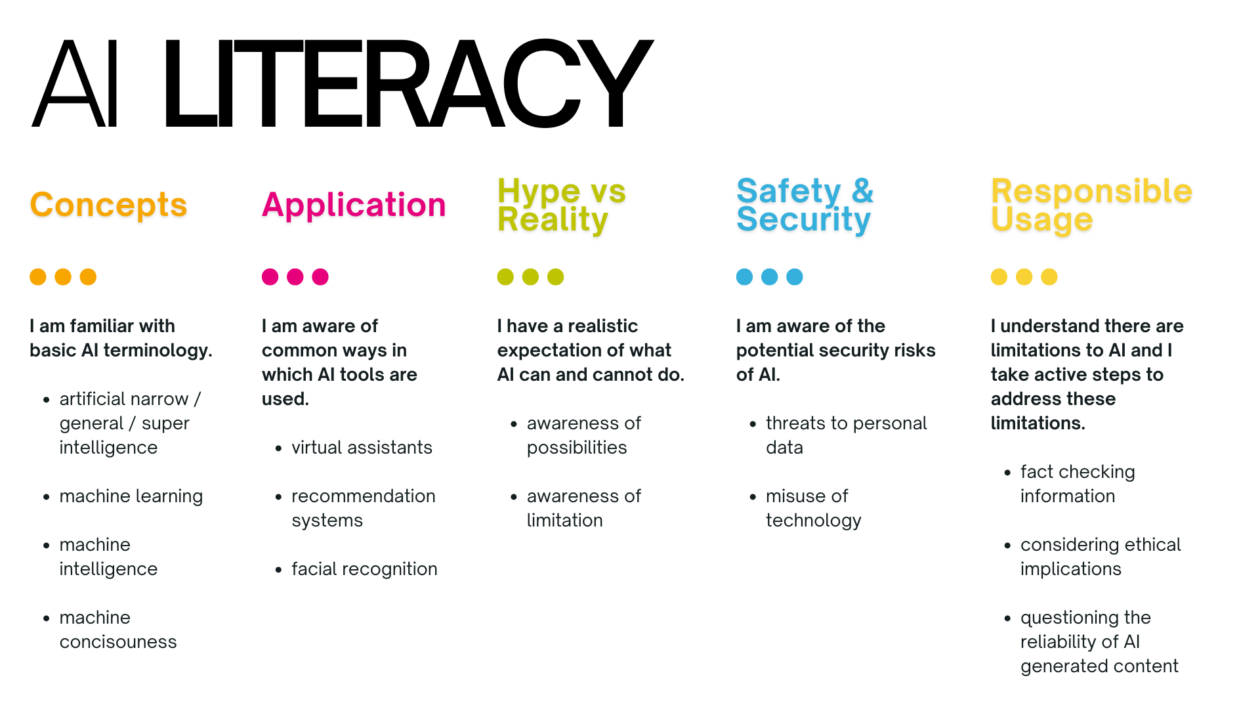
The AI literacy model we will work with in Falkirk Council education establishments is shown below. This is adapted from a model from the University of Hong Kong and includes principles and conceptualisations from across AI4K12 Initiative, ISTE’s AI Education Framework and the OECD’s AI Literacy Principles. It has been adapted to be simple, clear and suitable for children, young people and adults alike.






 .
. .
.