|
West Lothian Council would like to hear from parents/carers about their experiences of supporting their children to learn from home during this period of remote learning. We appreciate all you are doing and your feedback will help us to continue to support our schools and families at this time. For more information or support, please get in touch with your child’s school. They are there to help. Our telephone support service is also available for West Lothian families. We are here to listen and support you – 01506 283130 There are 7 questions and it should take 2-3 minutes to complete. If you have more than one child, please complete a survey form for each of your children in turn. Thank you.

forms.office.com
|

Author: Mr Toner
West Lothian Council Surveys
Find below a survey from West Lothian Council that we would encourage you to complete by Friday 29th January.
West Lothian Council would like to hear from parents/carers about their experiences of supporting their children to learn from home during this period of remote learning.
We appreciate all you are doing and your feedback will help us to continue to support our schools and families at this time. For more information or support, please get in touch with your child’s school. They are there to help. Our telephone support service is also available for West Lothian families. We are here to listen and support you – 01506 283130
There are 7 questions and it should take 2-3 minutes to complete. If you have more than one child, please complete a survey form for each of your children in turn.
Thank you.
Accessing Glow/Teams through a Games Console
Remember those Games Consoles that have web browsers could be used for Online Learning!
Accessing Online Learning via Playstation
First navigate to the far right and select library.
Next select Applications then select Internet Browser.
Click start.
Then press the triangle on the controller and type in Glow RM UNIFY.
Press R2 to search.
Click the first link that you see
This will direct you to the GLOW login page where you can now enter your login details.
Once logged in you will see Microsoft Teams on your Launch Pad click on teams and select your class team.
This is where your daily tasks will be.
Accessing Online Learning via Xbox
Plug a keyboard into the Xbox USB slot.
Go into my games and apps.
Find Microsoft Edge and select.
Type in: Glow RM Unify and search.
This will direct you to the GLOW login page where you can now enter your login details.
You can then access your work through Microsoft Teams where your tasks will be uploaded within your class channel.
Just don’t get distracted by the games until the work is done!
Seesaw – Class App at home.
Primary 1 to Primary 3 has started to use Seesaw in school. This is a new App which we will be using in school and at home.
Your child will bring home a QR code which should be used to log them in – please keep it safe. Try the QR code to get used to using it. Ask your child to use the draw tools to draw a picture or write their name or some words. Upload this to their Journal (Click on the green circle with the tick). As everyone becomes more familiar with the platform you will find more “Activities” set by the teacher.
Below is a link to a video that shows you how to log in and use some of the basic functions. I hope you find this helpful.
|
Introducing www.myon.co.uk
myON is essentially an online library which has some additional tools. It will be the main source of reading material for home and school use.
myON is from Renaissance Learning, the same company that provides Accelerated Reader, a program that has been used in school for a number of years. myON has some integration with Accelerated Reader and Star Reading which is used to help select books at an appropriate level.
Please take some time to look at the Parent Information Sheet and the introductory video. Please take some time to connect Star Reader Scores.
It would also be useful to download the App and set up access on as many devices as possible to ensure easy access.
During the next week or two, it would be really helpful if everyone becomes familiar with the books that are available. Begin to read some books and start to add to the “list” of books you would like to read.
Try the audio function with some books and try just reading others and see your time spent reading add up. Take some quizzes!
Integrate myON into your daily routine!
Watch this video https://share.vidyard.com/watch/6f2MCaN4B1eQNpuVK4QxnF?
Look at this parent guide: Parent-Guide-to-myON-1
Enjoy!
GLOW – Information
GLOW is as safe and secure an environment as we can make it. In order to keep it safe, it is vitally important that pupils always log in to their own account and keep their login details secure. This means that they should not disclose their password to anyone, including friends or family members.
The school does not keep a record of pupil passwords. If a pupil forgets or gets locked out of their account our only course of action is to reset their password. This will impact any devices that have passwords saved on them at home.
If pupils have an additional email account e.g. Gmail, Yahoo, MSN etc – they can set this as their password recovery email. In Glow go to Profile Settings and choose My Profile.
GLOW username
Our Glow usernames all have wl in front of them, some have numbers and they are case sensitive. e.g. wljoe.blogs5
GLOW email
Our Glow email is similar e.g wljoe.blogs5@glow.sch.uk
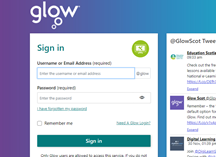
When logging into glow we should use our username or email and password:
A common log in error is to type their username and @glow. This will return an error.
Logging in to Microsoft 365 Apps on devices. (Teams, Sway, Powerpoint etc)
When logging in to Apps we normally only have to do this once but if the password is changed it will need to be changed on the device as well.
When asked to log in to App it normally requires your GLOW EMAIL i.e. wljoe.blogs5@glow.sch.uk this will then take you to “your organisations sign-in page” where your username and password needs to be entered.
Remember
While parents are encouraged to view and discuss learning content at the shoulder of their child, pupils should never share passwords with parents or anyone else.
Cyber security best practice suggests all Glow users should do the following:
- Keep your password to yourself
- Never let anyone else access Glow using your account details
- Never access the system with another user’s login details
- Always choose a password in line with the guidance found here: https://glowconnect.org.uk/password-guidance/
- Always choose “no” when prompted to save your password on a device which you share with others
- Always sign out fully from your Glow session when no longer using it
Pupils should report any concerns related to access to their login details and should understand how to change their password. As with all aspects of Glow use pupils should report concerns to a trusted adult or use, Report a Concern available across all Glow services.
Parents must not use a pupils’ Glow account to contact the school or your child’s teacher.
All communications should be through the school email:
wlstjosephwhit-ps@westlothian.org.uk
Further information on how to use Glow/Microsoft 365 and Teams can be found at bit.ly/wlglowguide
I hope that you find this useful.
RAG BAG – Collection
Our next RAG BAG collection will take place on Monday 23rd November.
Bags should come home on Thursday or Friday – check your child’s bag! (You can also use a regular bag).
Arrangements will be slightly different as bags cannot be brought into school. Arrangements will be made to have a collection point beside the RAG BAG container in the Staff Car Park. (Please do not drive into this car park).
Please bring bags only on this day – Monday 23rd of November.
Thank you once again for your support.
If you want to know more about RAG BAG follow this link https://www.rag-bag.co.uk/
Sumdog West Lothian Competition
Welcome to the contest!
| Sumdog’s West Lothian Maths Contest is now underway.
As it progresses, you’ll find the latest scores on the leaderboards: In case it’s useful, we’ve got some helpful support pages showing you how to play: |
FAO P7 Parents 2019-2020 – Paris Trip
Please bring this to the attention of the parents of last years P7
Dear Parent/Carer,
After further negotiations with the Travel Agent NST, we are delighted…….
Please see the attached letter for more details.
Seesaw Permission Letter – action required P1- P3
Seesaw is a new resource for P1 to P3.
Please check school bags for a permission letter that needs to be completed, signed and returned. Please return as soon as possible.
Further information from https://web.seesaw.me/remote-learning?utm_medium=learnhowbutton&utm_campaign=remotelearning&utm_source=homepage
Find a copy of the permission letter below.