National 5 – Structures and links database (Revision)

Database structure:

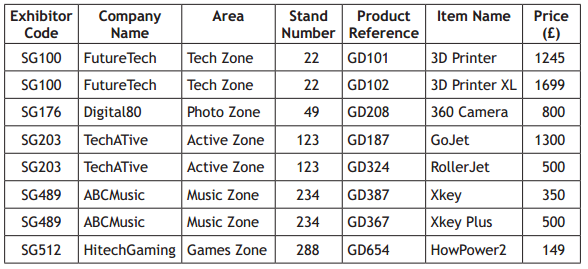
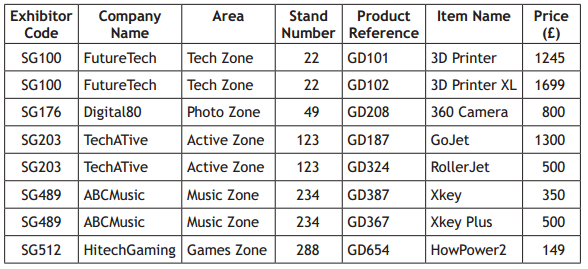
  • field – the fields below; Exhibitor, Company Name, Area, Stand Number, Product Reference, Item Name, Price (£)
  • record – A single row in a table, there are 8 records below
  • file – the entire database

Flat file database

  • flat file all the data is stored in one table
  • DB1
  • Drawbacks Data duplication Data inconsistency or update/ deletion/insertion anomalies Data integrity errors (due to data inconsistency) Inconsistent search results in multi-value fields
  • Flat file databases can lead to errors as shown below

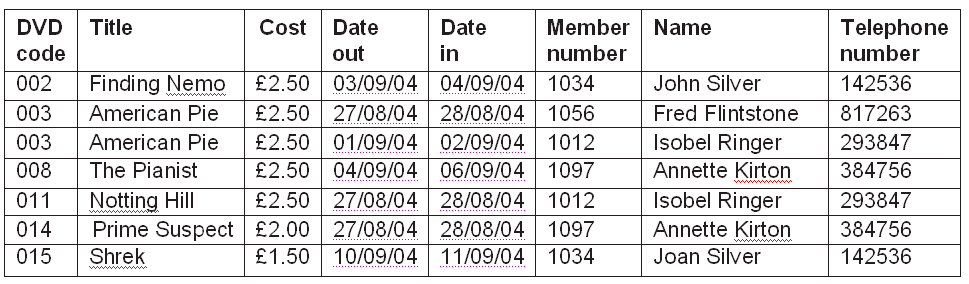
    DB4

    Is it a man John Silver or a woman Joan Silver for member 1034?
Linked tables

  • Table would be split into
    • EXHIBITOR(Exhibitor Code, Company Name, Area)
    • PRODUCT(Product Ref, Item name, Price (£), Exhibitor Code*)
  • primary keys – these are unique identifiers for each row in a table
  • foreign keys – a primary key from a different table

Database operations

  • Simple search – a search on ABC Music would return the following
    • DB2
  • Complex search – Searching on two (or more) fields at once for example Company name = FutureTech and Price > 1500 would return the following
    • DB2
  • Simple sort – Sorting a table by one field, class registers are sorted by surname
    • Allan, Tom
    • Bennet, Gordon
    • Clark, Petula
    • Donaldson, Luke
    • Elliot, Paula
  • Complex sort – same as above but if two people have the same second name they are sorted by first name as well
    • Allan, Tom
    • Bennet, Gordon
    • Clark, Petula
    • Donaldson, Luke
    • Elliot, Paula
    • Ferguson, Alex
    • Ferguson, Sarah
  • This is in an Ascending order

Field types

  • text – A Roberts, ML1 3XF
  • numbers – 124
  • date – 29 April 2012
  • time – 08:30
  • object – Picture, video or sound file.
  • calculated – pay * 20%
  • link – www.bbc.co.uk
  • Boolean – either yes or no

Validation

  • presence check – data must be entered before the user can continue, primary and foreign keys are normally required.
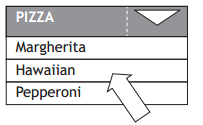
  • restricted choice – please see below, the user can only select one option.
    • DB3
  • Benefits
    • Reduces the chance of human error
    • Does not require the user to type a text response
    • Speeds up the ordering process as inputs are reduced to mouse clicks
    • Allows the use of a touchscreen
    • Good design to avoid data duplication and modification errors (insert, delete, update)
 

Higher – User Interface (Revision)

  • Usability: how useable software is in relation to its intended purpose; usability testing involves a target group of users who are often asked to perform a series of tasks under controlled conditions
  • Accessibility: how easy it is for users with disabilities to make full use of software that has been developed; examples include voice recognition and text to speech software; read out alt attribute on image tags on websites

Thank you to C O’Toole & A Madill from Braidhurst High School for allowing me to edit and publish this here.

National 5 – User Interface (Revision)

User requirements

visual layout –  eye-catching, simple to use and clear of cluttered buttons and text.

navigation hierarchical, with links organised into sub categories, or linear, where pages are visited in one step-by-step order.

selection – options include clicking on a menu or radio buttons or filling in a form.

consistency – using the same font, colours styles & menus

interactivity – using video/audio, allowing users to post comments etc

readability – use white space and short pages to ensure it is easy to read.

Accessibility – Reading text aloud, alt attributes on image tags or having large fonts for users with eyesight issues.

Higher – Contemporary Developments (Revision)

Exemplification of trends in the development of:

  • Software Development Languages: use of pre-processors (allow a programmer to implement code in a language that will be translated into another before becoming machine code); use of frameworks (provides a pre-generated set of code programmers can use for design); app development (web apps used to handle different operating systems, software development kits used to create one app that can be changed for different operating systems); HTML5 (latest version of HTML)
  • Software Development Environments: use of text editors, graphical user interface creation, de-bugging tools, collaboration tools and the cloud, emulators and mini development environments via browser software
  • Intelligent Systems: designed to demonstrate aspects of human intelligence by using a computer system to replicate human decision making and interaction; key features include ability to learn, ability to make decisions without human input, presence of several aspects of human intelligence
  • Online Systems: a system that is interactive (server and client communicate and update data) and fully functional in real time when accessed via the Internet; A ticket ordering web based system or an online shopping site are examples of common online systems

Higher – Development Methodologies (Revision)

  • Rapid Application Development: means that the users should be involved at all stages of the development process and that changes to the design can be made at any time throughout the life of the project; it also means that the development process is faster and more flexible; emphasis is on creating software quickly and efficiently
  • Top-Down/Step-wise refinement: breaking down a problem into smaller more manageable steps

1 Setup Variables

2 Initialise Values
3 Do Calculation

1.1 Create number1 as a global variable
1.2 Create number2 as a global variable

2.1 Set number1 to 0
2.2 Set number2 to 0
2.3 Set total to 0

3.1 Receive number1 from keyboard
3.2 Receive number2 from keyboard
3.3 Set total to number1 + number2

  • Agile Methodologies: a product of RAD; emphasis on small scale developments, and with teams of people who have a flexible approach to change in requirements; it is important to keep the client involved in the process; there should be daily meetings between the clients and the developers, and necessary changes made to the requirements even late in development

Thank you to C O’Toole & A Madill from Braidhurst High School for allowing me to edit and publish this here.

Higher – Low-level Operations and Computer Architecture (Revision)

  • Virtual Machines: an emulation of a complete computer system which can be used to run alternative operating systems, or several copies of a single operating system
  • Emulators: software which duplicates the function of one computer system in another
  • Mobile Devices: features which require different types of software from conventional desktop systems eg touchscreen, pinch
  • Binary Representation of:
    • Integers – 163: 1 0 1 0 0 0 1 1
    • Negative Integers – -93: 1 0 1 0 0 0 1 1
    • Real numbers – 16.25: Mantissa & Exponent
      Stored using a mantissa (Larger = greater accuarcy) and an exponent (Larger = greater range)
    • Characters
      • ASCII (American Standard Code for Information Interchange) stores each letter, number or symbol using a number code from 0 to 127; ASCII uses eight bits (1s and 0s) to store each character
      • UNICODE 16bits, larger pool of characters
    • Instructions – represented by machine code as 0s and 1s
    • Vector Graphics – stored as a collection of mathematically determined shapes or objects; each object in the picture has properties such as width, height, fill colour, line colour eg
      <rect height=”96” width=”128” y=”3” x=”90” stroke-width=”6” stroke=”#cc0000” fill=”#ffcc33” id=”yellowrectangle”>
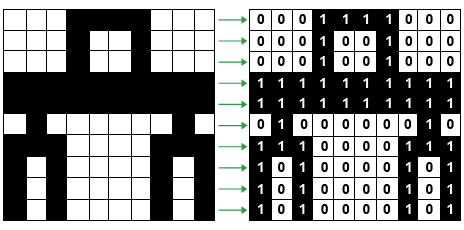
    • Bitmap Graphics – made up of a grid of pixels and stored in memory as a bit pattern of ones and zeros (calculations are mentioned later in this booklet)bm
    • Sound – sample rate (the number of times the value of the signal is recorded) and its bit depth (the number of bits used to store the sample)
    • Video – storing video requires both images and sound to be stored together; files will be very large as a result so compression is always used unless the video is being recorded for editing later; each frame in an MPEG video is compressed as a JPEG; the data that stays the same in successive frames is then removed
  • Processor: consists of several different parts:
    • the Arithmetic and Logic Unit which performs calculations;
    • the Control Unit which loads, decodes and executes instructions,
    • Registers which are small memory locations used by the processor
  • Cache: a faster kind of memory which stores copies of the data from frequently used main memory locations
  • Read Only Memory: Permanent memory; data is not lost when power switched off; this memory is very important and is used to store programs, like the operating system, for a long time
  • Random Access Memory: used to hold all data required for an active program or application to run; data is transferred from backing storage to RAM and held there until it is no longer required by the processor
  • Address Bus: identify the address of the location in cache or main memory that is to be read from or written to; uni-directional
  • Data Bus: will transfer data to/from the address that is held on the address bus; bi-directional; the amount of data that can be carried by the data bus depends on the word size (width of the data bus)
  • Interfaces: used to allow peripheral devices and hardware to connect to a computer system; allow for differences in speed and the way that data is handled by each peripheral device; an example is a USB; responsible for voltage conversion, status signals, data format conversion

National 5 – Low-level operations and computer architecture (Revision)

Units of storage:

8 bits = 1 byte
1024 bytes = 1 Kilobyte
1024 Kilobytes = 1 Megabyte
1024 Megabytes = 1 Gigabyte
1024 Gigabytes – 1 Terabyte
1024 Terabytes = 1 Petabyte

Translation of high-level program code to binary (machine code):

  • interpreters – translates source code to machine code line by line, spots errors more easily but takes longer.
  • compilers – translates the source code to machine code in one step, does not spot errors as line being typed, but more efficient. Creates a run time version (object code) that can’t be edited.

Use of binary to represent and store:

  • Real numbers uses mantissa & exponent – 0.256 X 10⁵
    Mantissa = 256 Exponent = 5
  • Characters – ASCII allocates a different binary code to each letter, A = 00100001
  • Instructions, machine code – Binary instructions the processor can understand 10101011101
  • Graphics bit-mapped and vector
    • Bit-mapped graphics are made up of pixels
    • Vector graphics are described in text <rect width=”300″ height=”100″ style=”fill:rgb(0,0,255);stroke-width:3;stroke:rgb(0,0,0)”>

Basic computer architecture:

  • Processor (CU Ah Luv U Right)
    • Registers – temporary storage locations holding data being processed
    • ALU – deals with comparisons and arithmetic calculations
    • control unit – controls all other parts of the processor, ensures instructions are carried out in the correct order
  • Memory
    • Random Access Memory – temporary data storage only held as long as the computer is switched on.
    • Read only memory – Permanent memory not lost when the computer is switched off, can’t be changed.
  • Buses
    • data – carries data to and from the processor, memory and other devices. Bi-directional
    • address – carries address info from processor to the memory.
    • control – made up of a number of separate wires.
  • Interfaces
    • allows a processor to send and receive data to and from peripherals like printers, scanners, keyboards and projectors.
    • Bluetooth – Wireless
    • USB – Wired

Higher – Design Notations (Revision)

Make sure you read the N5 post on design notations for examples of Structure Diagrams, Flow Charts and Pseudocode.

Wire-Framing: A wireframe can show how a website will look and how its navigations structure works; can be as simple as a rough sketch or can be a detailed design showing colour combinations and images

Entity Relationship Diagrams

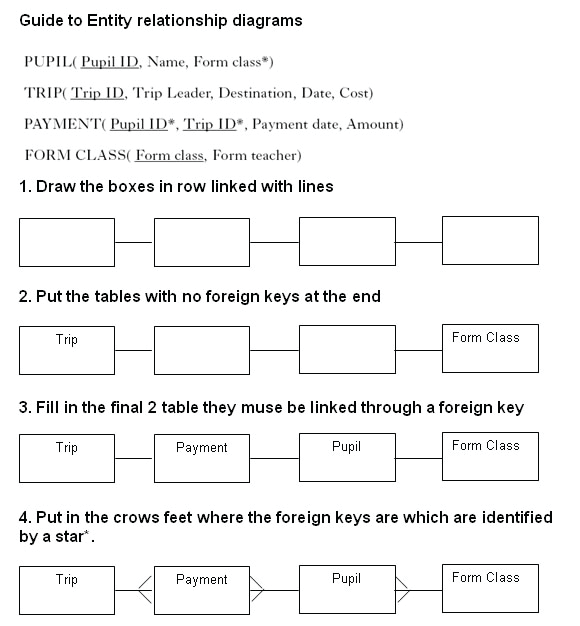
Relationships can be represented graphically using an Entity-Relationship (ER) diagram.

There are many different notations for ER diagrams, we will use crow’s foot notation.
• The names of entities are written in boxes joined by straight lines.
• At the “many” end the line forks.
• At the “one” end the line it judt joins the box.

ERD

Data dictionaries

A data dictionary is a design notation used to show the fields required in each table of a relational database, including field types, validation required, etc.

dd

Thank you to C O’Toole & A Madill from Braidhurst High School for allowing me to edit and publish this here.

National 5 – Design Notations (Revision)

N4

  • graphical to illustrate selection and iteration
  • other contemporary design notations

N5

  • pseudocode to exemplify programming constructs other contemporary design notations


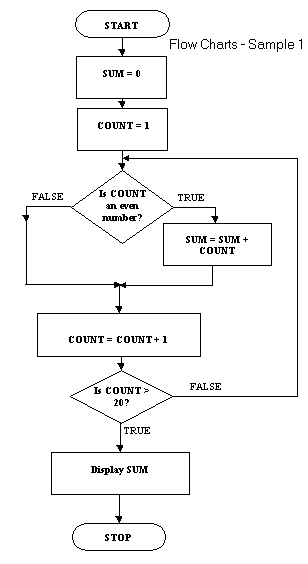
Flow Chart
Flow Chart

You read a flow chart from the START block and follow the arrows (normally downward). In the example above you can see selection taking place in the first diamond, while the second diamond allows for iteration (repetition) to take place.

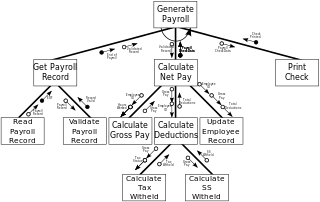
Structure Diagram
Structure Diagram

A structure diagram shows how the program is structured and in some cases how data can be passed from one part to the other.

Pseudocode

Pseudocode is an informal text description of the working of a program it is written using English words but not in a sentence structure. There are no syntax rules due to its informal nature, sometime they are numbered and sometimes they are not.

The SQA can sometimes refer to pseudocode in the exam when describing a program. However, they are often referring to Standard Reference Language. Rule of thumb, if they are asking you to read pseudocode it will be SRL, if they are asking you to write psuedocode then they mean psuedocode. Hopefully they will start using the correct terms in future papers.

Example 1

  1. set total = 0
  2. set count =0
  3. while count less than 10
  4.     get nextInput from user
  5.     add nextInput to total
  6.     add one to count
  7. end while
  8. display total/10

Example 2

get age from user
while age < 0 or age >130
    display error
    get age from user

display age

Higher – Algorithm Specification (Revision)

Input Validation: making sure that the data input by the user is acceptable e.g. in a suitable format and within the upper and lower limits of the data required by the software

RECEIVE userInput FROM (INTEGER) KEYBOARD
WHILE userInput < lowerLimit OR userInput > uperLimit DO
    SEND “Input must be between” & lowerLimit & “and” & upperLimit TO DISPLAY
    RECEIVE userInput FROM (INTEGER) KEYBOARD
END WHILE

Linear Search (efficient): sets a Boolean variable to false initially and uses an unconditional loop to set it to true when the item is found; the loop terminates when the item is found or the end of the array is reached

RECEIVE itemToFind FROM (INTEGER) KEYBOARD
SET found to false
SET arraySize to higestIndex
SET counter TO 0

WHILE counter <= arraySize AND found = false
    SET counter to counter + 1
    IF array[counter] = itemToFind THEN
        found=true
    END IF
END WHILE

IF found = true THEN
    SEND itemToFind & “found at position” & counter TO DISPLAY
ELSE
    SEND “Item not found” TO DISPLAY
END IF

Finding Minimum: sets an initial value to the first item in the array then compares it to the remaining items

SET maxiumValue to numbers[0]

FOR counter FROM 1 TO 9 DO
    IF maximumValue < numbers[counter] THEN
        SET maximumValue to numbers[counter]
    END IF
END FOR

SEND “The largest value was” & maximumValue to DISPLAY

Finding Maximum: sets an initial value to the first item in the array then compares it to the remaining items

SET miniumValue to numbers[0]

FOR counter FROM 1 TO 9 DO
    IF minimumValue > numbers[counter] THEN
        SET minimumValue to numbers[counter]
    END IF
END FOR

SEND “The smallest value was” & minimumValue to DISPLAY

Count Occurrences: sets a total to zero at the beginning and increments it as items are found to match the search item

RECEIVE itemToFind FROM (INTEGER) KEYBOARD
SET numberFound to 0

FOR EACH number FROM numbers DO
    IF number=itemToFind THEN
        SET numberFound to numberFound+1
    END IF
END FOR EACH

SEND “There were” & numberFound & “occurreneces of” & itemToFind & “in the list” TO DISPLAY

Thank you to C O’Toole & A Madill from Braidhurst High School for allowing me to edit and publish this here.