Glow Update – Password reset, potential copyright infringements, Google Meet and SharePoint

Glow Password Change Reminder

The national learner Glow password reset began on the 24th August and staff will be prompted to reset their passwords from 7th September.  Please note you will be prompted to change your password on login so no action is required prior to this.

It is recommend that staff encourage, where possible, learners to update their passwords to ensure they know them in the even of a local lockdown or requirement to learn remotely.  As part of the password reset we would encourage everyone when they are updating their password to review  the Glow Community Rules .

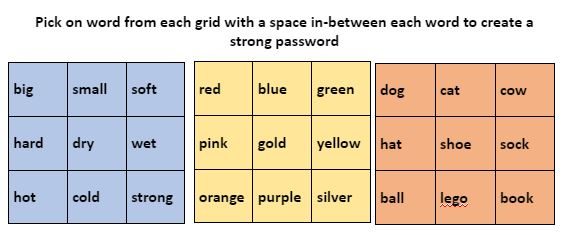
For full detail on the password reset and advice on setting up strong passwords see our previous blog post – here or visit Glow Connect – here


Changes to Google Meet functionality for external guests

Google have made some changes to the G Suite for Education offering within Glow which impacts staff’s ability to conduct Glow Meet sessions with non Glow users.  Full details on how this could affect meetings with external guest (non Glow users) can be found in our previous blog post – here


Storage and publishing of Copyright Material in Glow

Education Scotland have reported that they have received concerns from publishers and content providers that some Glow users in Scotland may have contravened copyright legislation by storing or publishing non-licensed materials through Glow.  This included the posting entire books on publicly available websites/social media.  While it is recognised this was done with the best of intentions to assist in teaching and learning it does contravene copyright regulations.

Please be aware copy written materials should not be published or shared on blogs, Google Sites or social media without a license or permission to do so.  Unlicensed materials should not be stored in Glow if they fall outside of the fair dealing requirements which allow extracts of licensed material to be used for “giving or receiving instruction”.

More details can be found in our previous blog post – here on the content providers website or the CLA (Copyright Licensing Agency) website – here


Moray Glow SharePoint Site Updates

Following an audit of the Moray Glow SharePoint site we have identified a large number of document storage sites which have no content in them and have not been accessed in the last 12 months.  These sites will be made read only from 31st August and deleted during the Autumn holiday.  If you wish to retain any of these sites contact details will be posted at the top of each site with instructions on what action is required.  This is the initial phase of a larger SharePoint project intended to create a more user friendly document storage space, the design of which will allow for flexibility, security and longevity.


What Glow should be used for?

The Digital Learning Team are receiving increased requests and queries with regards to creating Glow accounts for non-teaching/non education staff, the storage/sharing of sensitive information through Glow and allowing external users to collaborate using application accessed through Glow, such as Teams.  We would like to remind everyone that Glow’s remit is as a tool to enable learning and teaching with stringent guidelines on account eligibility.  Non Glow users can not be added to Teams or access SharePoint sites.  More details on what constitutes appropriate uses of Glow can be found here – Glow Appropriate Use .

Answers to the top 10 questions Learning Technologists get asked everyday about Glow

TEAMS

Teams is telling me to download the app, do I have to?

No, you can use Teams in your internet browser, Chrome works best.  Teams will suggest you download the app, which is free and does have some additional features for video conferencing; however it is not available on school computers and is not required.  When working/learning at home you can chose to use the app on your own device if you have permissions to do so.

I can’t chat 1 to 1 with my teacher/learner in Teams, it says this feature is disabled by the administrator can you switch it on?

The chat function in Teams for learners is disabled nationally within Glow and can’t be switched on locally.  Discussions are taking place with Education Scotland, Glow Key Contacts and RM Unify who operate Glow.  Any changes will be communicated. Questions you do not wish to post inside the Team should be sent via your Glow email.

I can’t see my pupils when I am doing a video conference meeting in Teams, can you switch it on?

The video is disabled for learners nationally within Glow and can’t be switched on locally.  Discussions are taking place around two way video conferences with learners and any changes will be communicated.

GOOGLE CLASSROOM

I have tried to email a learner/teacher in Google Classroom and its says it disabled by the administrator, can you switch it on so it will work?

Gmail is disabled for all Glow users nationally, so any emails regarding learning should be sent via your Glow Outlook email address.  Any notifications from G Suite products will be forwarded automatically to your Outlook email account.

I can’t see my pupils when I am doing a video conference meeting in Google Classroom via Google Meet.  It says it’s disabled by the administrator, can you switch it on?

The video is disabled for learners nationally within Glow and can’t be switched on locally.  Discussions are taking place around two way video conferences with learners and any changes will be communicated.

Can I use Microsoft Word/Excel/PowerPoint with Google Classroom?

Yes, but  these documents will have to be added as attachments.  The default programmes used to create new documents within Google Classroom are part of the G Suite such as Doc, Sheets and Slides.

GENERAL

I am being asked to enter my Microsoft account details when I try to get into my email or other Office 365 applications, what do I enter?

When you see the Microsoft sign in pop up box you need to enter your full Glow email address.  Your Glow email is your user name followed by @glow.sch.uk for school users or @glowmail.org.uk for non school users.

When I am trying to use Glow sometime I get an error saying my browser does not support the action, what do I do?

When using Glow it is best to use Chrome as your internet browser.  Some applications accessed within Glow are not comparable with other browsers such as Firefox or Internet Explorer.  It is also worth ensuring that your browsers is update with the latest version of the software.

I have forgotten my password, how to I get it reset?

Contact the school in the first instance and they will be able to reset your password.

Can I use [insert product name] now that we are teaching/learning remotely?

The same data protection procedure is in place even when working remotely and only approved software, apps and websites should be used.  If you wish to use a new product a DPIA form will be required to review the product prior to use.


Remote Learning Support

A website has been created to help parents/carers support learners in accessing Glow and saying safe online.  The aim of this resources is to get learners logged into Glow where they can access long term support resources.

You can access the website using the following link – Digital Support Website

You can also find links for families of children in primary schools to support their child’s learning and development – here.

Signing In to Microsoft account in Glow


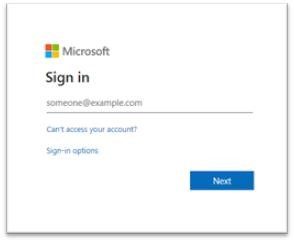
Some users when trying to open Office 365 from their Glow launch pads are being asked to Sign In to Microsoft in order to access Office apps.

If you see the message shown in the picture, simply type in your Glow email address and click ‘Next’ to progress to the Office 365 home page.  Your Glow email is your user name followed by @glow.sch.uk for school users or @glowmail.org.uk for non school users.  Examples for both email formats are below –

gw20bloggsjoe@glow.sch.uk

gw20bloggsjoe@glowmail.org.uk

You may be asked to repeat this action if you log onto a different computer or have cleared your browser’s cache.

If you have any issues logging in to Office 365 via Glow please email learntech@moray.gov.uk

Report a Glow concern
Cookie policy  Privacy policy