
Month: September 2026

Session Resources: Canva for Learners – Igniting Student Agency

This page is for session resources from our Planning for Effective Digital Experiences session. This session explored planning for digital learning from both a documentation and a practical application point of view. 

Session Slides

You can view a copy of the slides below.

Canva for Learners: Igniting Student Agency by Mrs Wilcox 


Session Recording

Here is a recording of the session for those who wish to watch it again or who missed it. Please be aware that the sessionrecordingis edited to protect the privacy of our participants and ensure everyone feels comfortable speaking freely on mic and in the chat without worry that their comments will be made publicly available.

 

Session Resources: Shared Devices – Collaboration and Engagement

This page is for session resources from our Shared Devices – Collaboration and Engagement session. This session explored ideas and inspiration for using Connected Falkirk devices in the 1:5 shared environment.. 

Session Slides

You can view a copy of the slides below.

Shared Devices: Collaboration and Engagement by Mrs Wilcox

Session Recording

Here is a recording of the session for those who wish to watch it again or who missed it. Please be aware that the session recording is edited to remove some interactive sections. This is to protect the privacy of our participants and ensure everyone feels comfortable speaking freely on mic and in the chat without worry that their comments will be made publicly available.

Additional Content

Our sessions tend to have a lot of live demonstrations within them. The remainder of the page outlines some of the digital tools covered in the session or signposting to some of the resources shown or mentioned in a format which can be easily revisited or passed along to colleagues who were unable to attend the session.


Digital Scavenger Hunts

Digital scavenger hunts offer a fantastic, engaging entry point for familiarising our learners with essential technology skills. Learn how to use Keynote’s simple “Take Photo” feature to allow learners to document their finds and create an easily shareable, permanent record of their success.To create your own digital scavenger hunts, you can visit this guide where there are full instructions and downloadable pre-made templates to support you to get started. 

Curipod

What does it do? Curipod is a platform designed to assist educators in creating engaging and interactive lessons. It combines elements like polls, word clouds, and drawing activities to make learning dynamic and participatory. Curipod’s built in AI features allow educators to generate interactive lessons quickly and easily. All AI output is customisable. Additionally, Curipod’s AI adapts content to suit different teaching styles and student needs, streamlining the lesson material creation process while making learning more interactive and engaging.

How do I get access? Teachers can access Curipod by signing up for a free basic account on the Curipod website.

Pupils do not need accounts to participate in Curipod lessons.

Garageband is an app built into all iPads that allows you to record audio using the Audio Recorder feature. It’s the ideal tool for creating pupil-read audiobooks, capturing dramatic dialogue, or recording instructions. It includes features such as fun voice effects like ‘Robot’ or ‘Alien’ to inject creativity, and gives pupils a real purpose for using their device. Best of all, converting the final recording into a shareable file is simple, allowing you to easily turn their audio into a QR-code linked resource for the whole class to enjoy!

.


Vocaroo

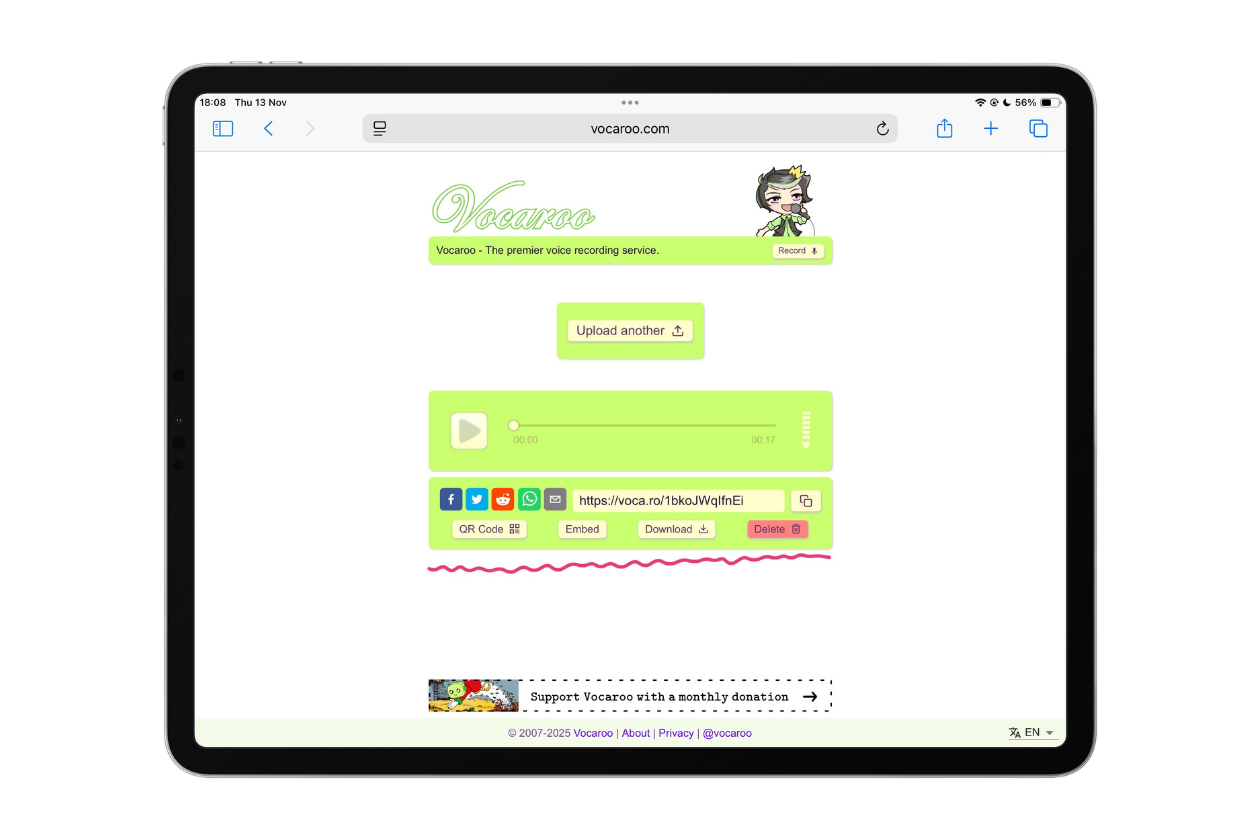
This free online tool serves two purposes: it’s a super easy-to-use voice recorder—just hit the record button right in your browser—or it can act as a handy host site for audio files you’ve already created (like those from GarageBand).

Once your audio is on Vocaroo, it instantly generates a shareable link and a QR code, making it effortless to distribute your audiobooks, instructions, or feedback to anyone.

This video shows you a quick how-to for recording audio:

YouTube player

Uploading Audio recorded elsewhere 

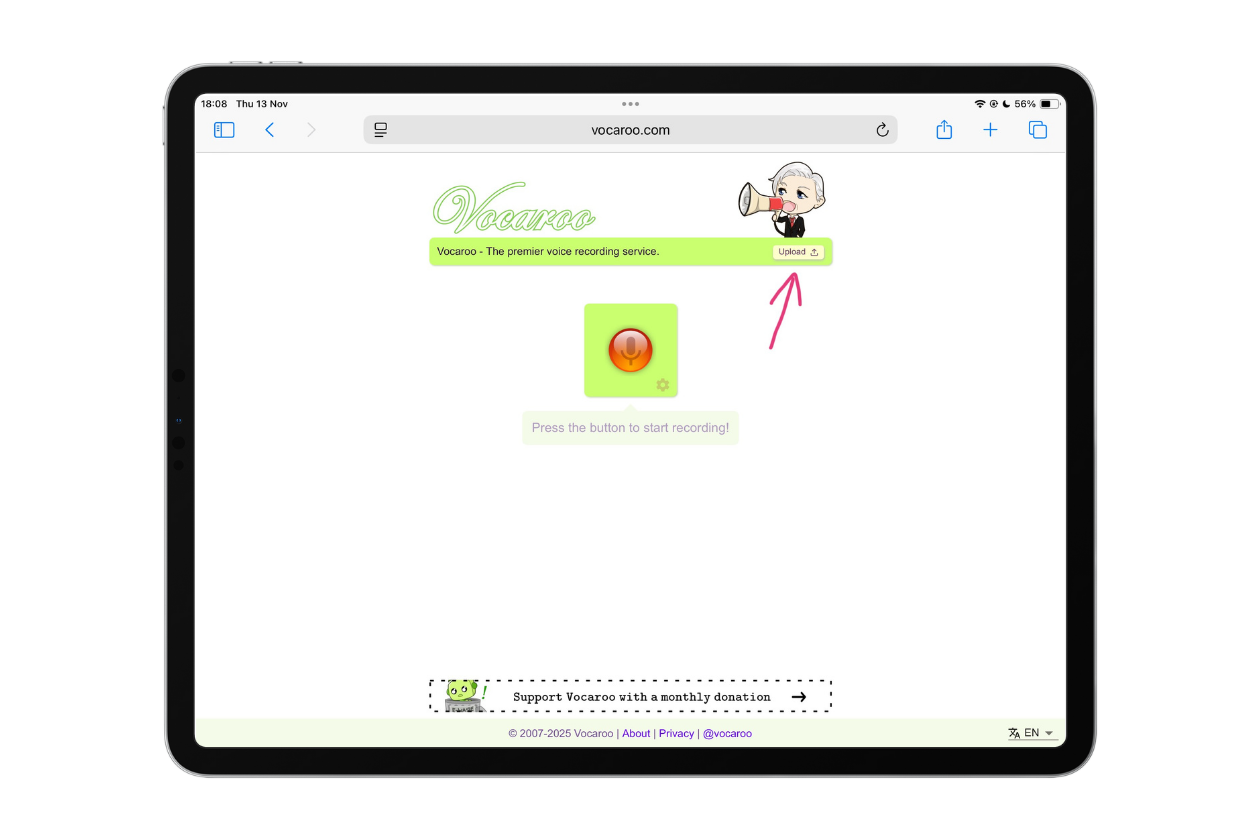
For audio files recorded elsewhere, like in Garageband, you can upload them to Vocaroo as a host site. Type www.vocaroo.com into your browser. 

Tap upload file in the top right corner.


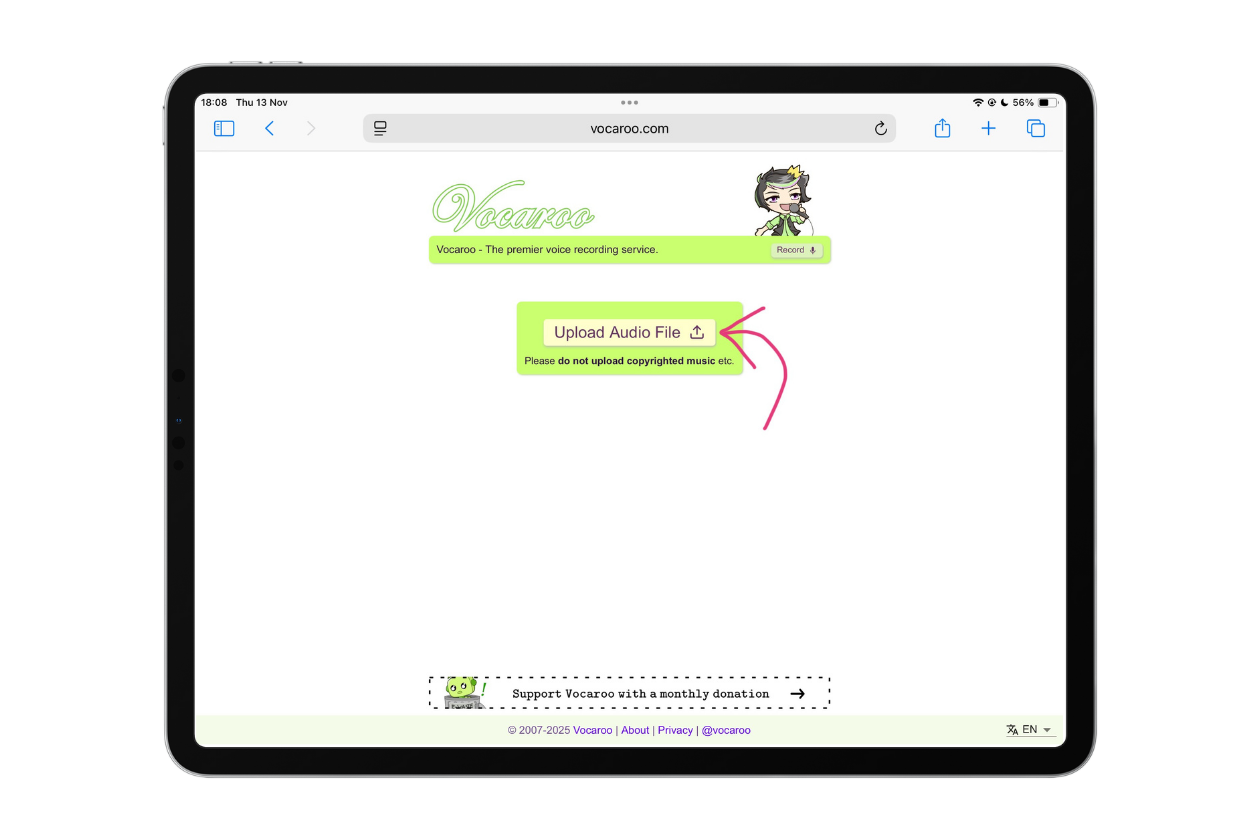
Tap upload audio file:

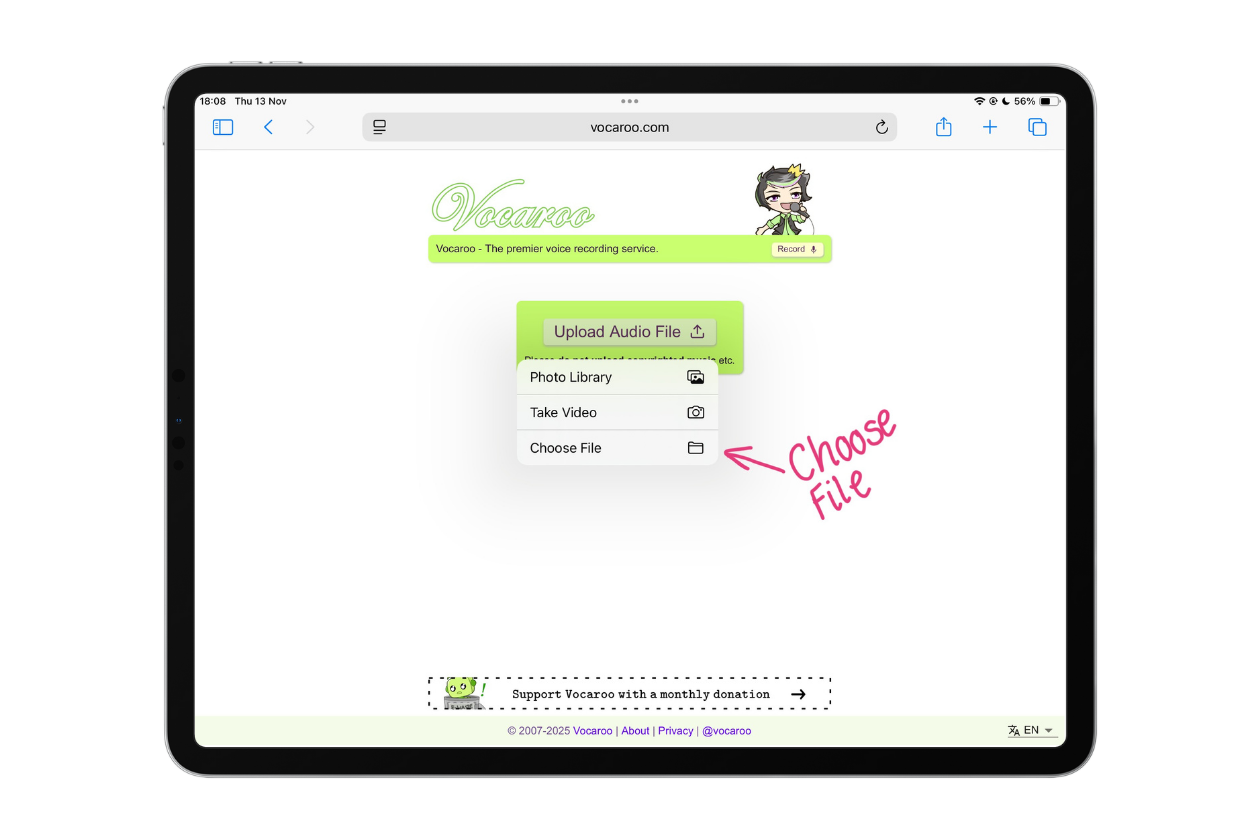
Choose where the audio file is uploading from.

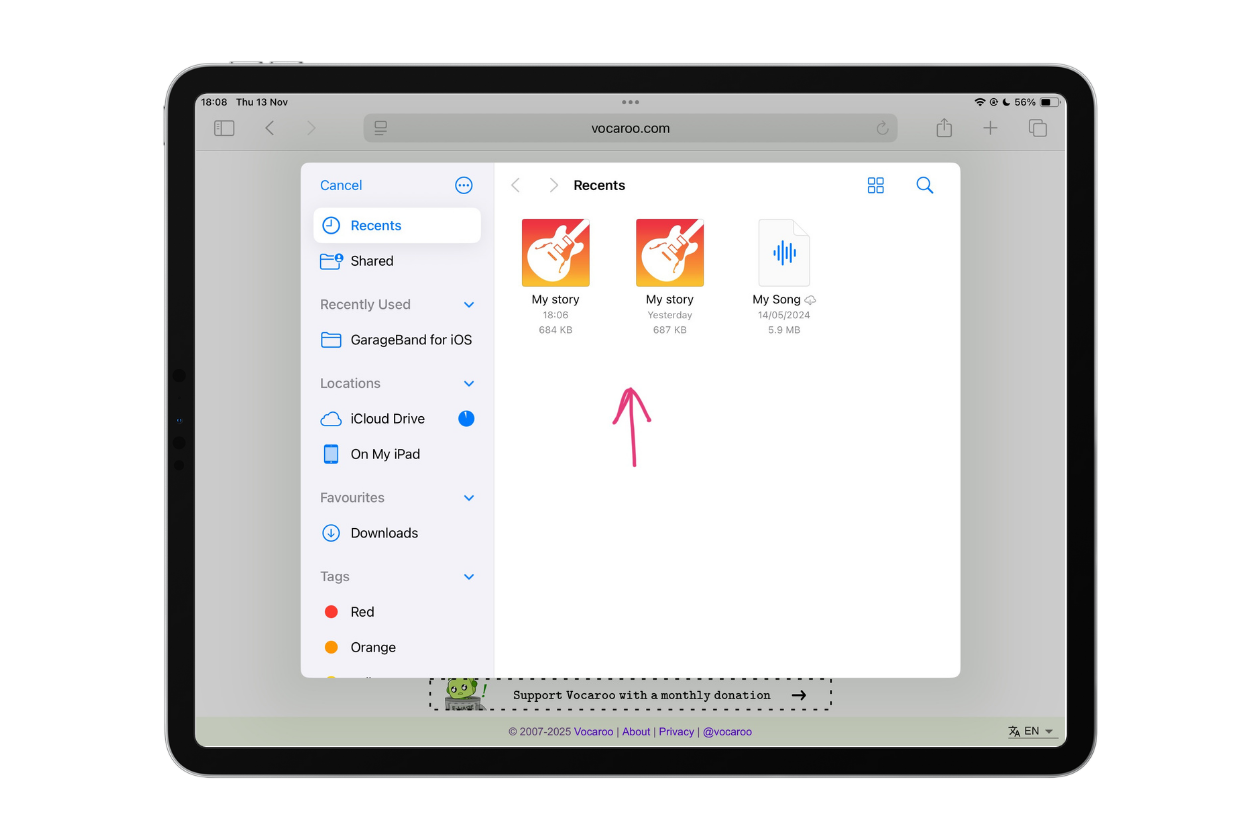
Choose the file you want to upload. 

Once the audio is uploaded, you have the following options to share from: QR code, Embed and Download. 

Session Resources: The SAMR Compass

This page is for session resources from our Planning for Effective Digital Experiences session. This session explored planning for digital learning from both a documentation and a practical application point of view. 

Session Slides

You can view a copy of the slides below.


Session Recording

Here is a recording of the session for those who wish to watch it again or who missed it. Please be aware that the session recording is edited to remove all discussion and task sections and in this case the stories from the Redefinition section of the session. This is to protect the privacy of our participants and ensure everyone feels comfortable speaking freely on mic and in the chat without worry that their comments will be made publicly available.

Microsoft Classwork in Teams : Getting Started

Microsoft’s Classwork is a handy tool designed to streamline lesson planning and content organisation for educators in Teams. It uses a module-based structure to help organise assignments, files, links, and class resources in one centralised place, offering a seamless way to guide students through a topic or unit. This guide gives details of some of the key features of Classwork and tips on how to get started.

Read more

Session Resources: AI in Education – Refresher

This page is for session resources from our AI in Education Refresher session. This session built on the success of last session’s AI in Education series, this refresher session is explored tools from the Falkirk AI in Education Starter Suite and introduced Canva Code.

Session Slides

You can view a copy of the slides below.


Additional Content

Our sessions tend to have a lot of live demonstrations within them. This section of the page outlines some of the digital tools covered in the session or signposting to some of the resources shown or mentioned in a format which can be easily revisited or passed along to colleagues who were unable to attend the session.

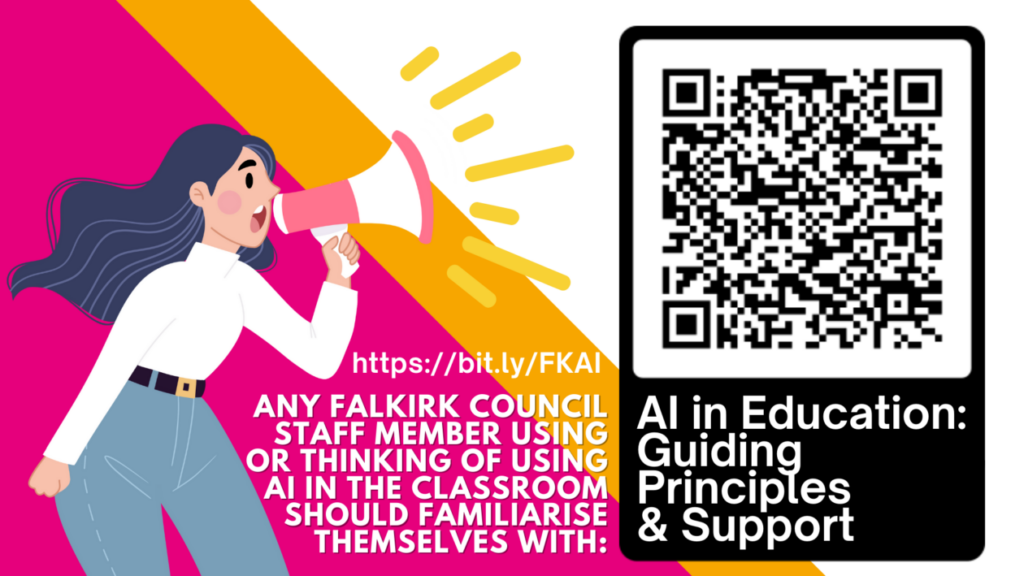
AI in Education: Guiding Principles and Support

All Falkirk Council education staff using or considering using AI in education should familiarise themselves with the AI in Education: Guiding Principles and Support information. 

AI Teacher Tools – Starter Suite

Navigating the rapidly evolving landscape of AI in education can be overwhelming for busy educators. Our starter suite offers a carefully curated collection of nine free AI-powered tools which have been assessed to ensure their educational value and ease of initial use. The hope is that this provides a practical entry point for teachers and establishments embarking on their AI journey. The document sorts the tools by educational function, gives an education focused use overview and provides quick guides for each tool.

Falkirk AI Teacher Network

Are you interested in exploring the potential of AI in education? Express your interest in joining our AI Teacher Network. By filling out this form, you’ll help us connect with like-minded educators and keep you updated on exciting opportunities, resources, and events. You will also have the opportunity to influence the use if AI in education within Falkirk. We’ll be in touch with details of how to join the Microsoft Teams space.

Session Recording

Here is a recording of the session for those who wish to watch it again or who missed it. Please be aware that the session recording is edited to remove all discussion and task sections. This is to protect the privacy of our participants and ensure everyone feels comfortable speaking freely on mic and in the chat without worry that their comments will be made publicly available.