Tag: Other

Borrowbox

BorrowBox is the digital library for Falkirk schools. Thousands of eBooks and eAudiobooks at your fingertips.

🔍 What does it do?

BorrowBox is a digital reading platform provided by the Falkirk Learning Resource Service. It allows pupils across the Falkirk to borrow and download digital books and audiobooks for free. Just like a physical library, pupils can browse the “shelves,” reserve popular titles, and return books when they are finished – all through the app on their iPad or via a web browser.

🎓 Why is it useful?

  • Instant Access to Choice: Pupils have access to a huge range of titles that might not be available in their physical school library, from the latest bestsellers to classic curriculum texts.

  • Support for Dyslexia and Visual Impairments: The eBook reader allows pupils to change the font (including a dedicated OpenDyslexic font), adjust text size, and change background colors to make reading more comfortable.

  • Audiobooks for Literacy: Audiobooks are a fantastic way to improve vocabulary and listening skills. Pupils can listen to stories while they follow along with a physical book or use them to access complex stories that might be above their current reading level.

  • Offline Reading: Once a book is downloaded, it can be read or listened to without an internet connection – perfect for reading at home or on the bus.

  • No Late Fees: Books are returned automatically at the end of the loan period, so there is never a worry about “overdue” items!

⚙️ How does it work?

1. Launch: Open the BorrowBox app on your iPad or find the Bolinda BorrowBox tile on your Glow Launchpad.

2. Sign In: Users sign in using their Glow credentials, see below for specific login guides:

Logging in on iPad

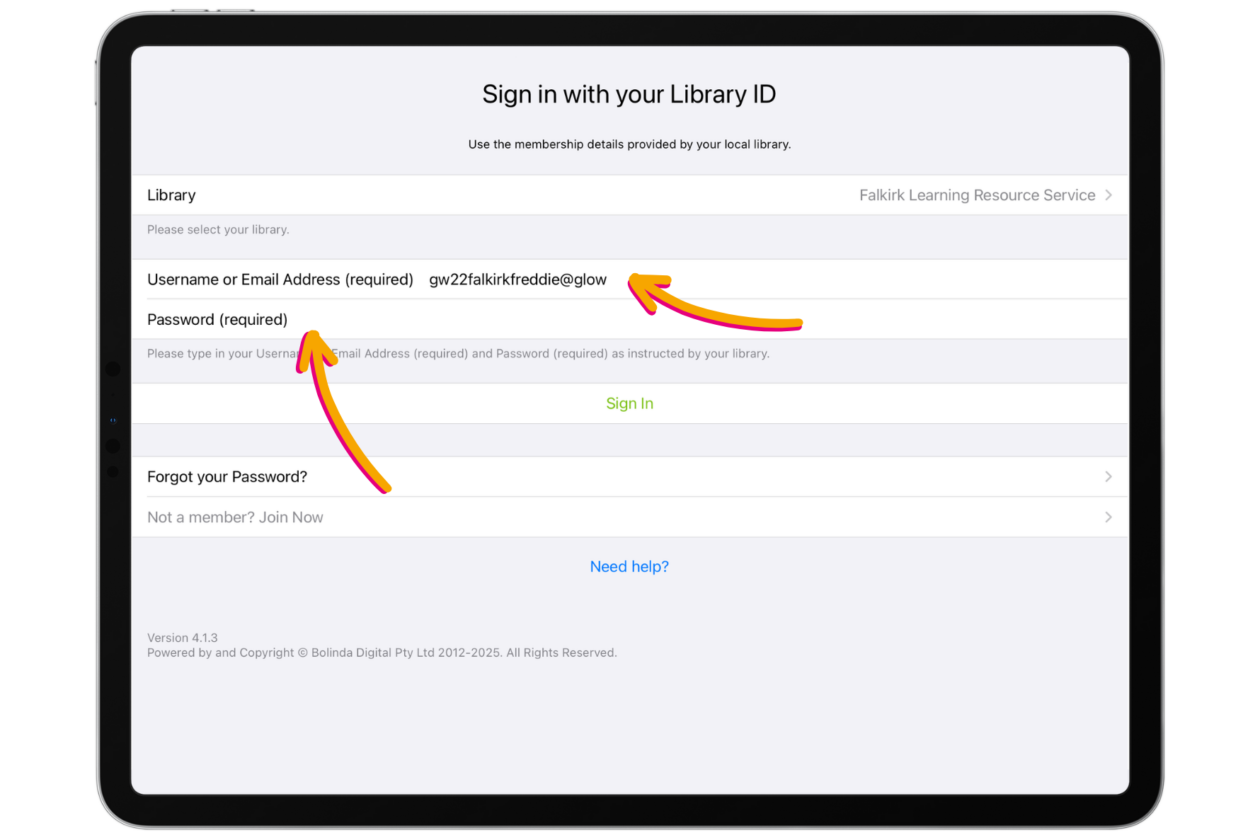
Open the Borrowbox app. Next to ‘Library’ choose ‘Falkirk Learning Resource Service’ (hint if you start typing a drop down list will appear where you can select it without typing in the whole thing).

Next to ‘username’ type in the first part of your Glow username followed by @glow (i.e. gw22falkirkfreddie@glow). Type your usual Glow password and press ‘Sign in’.
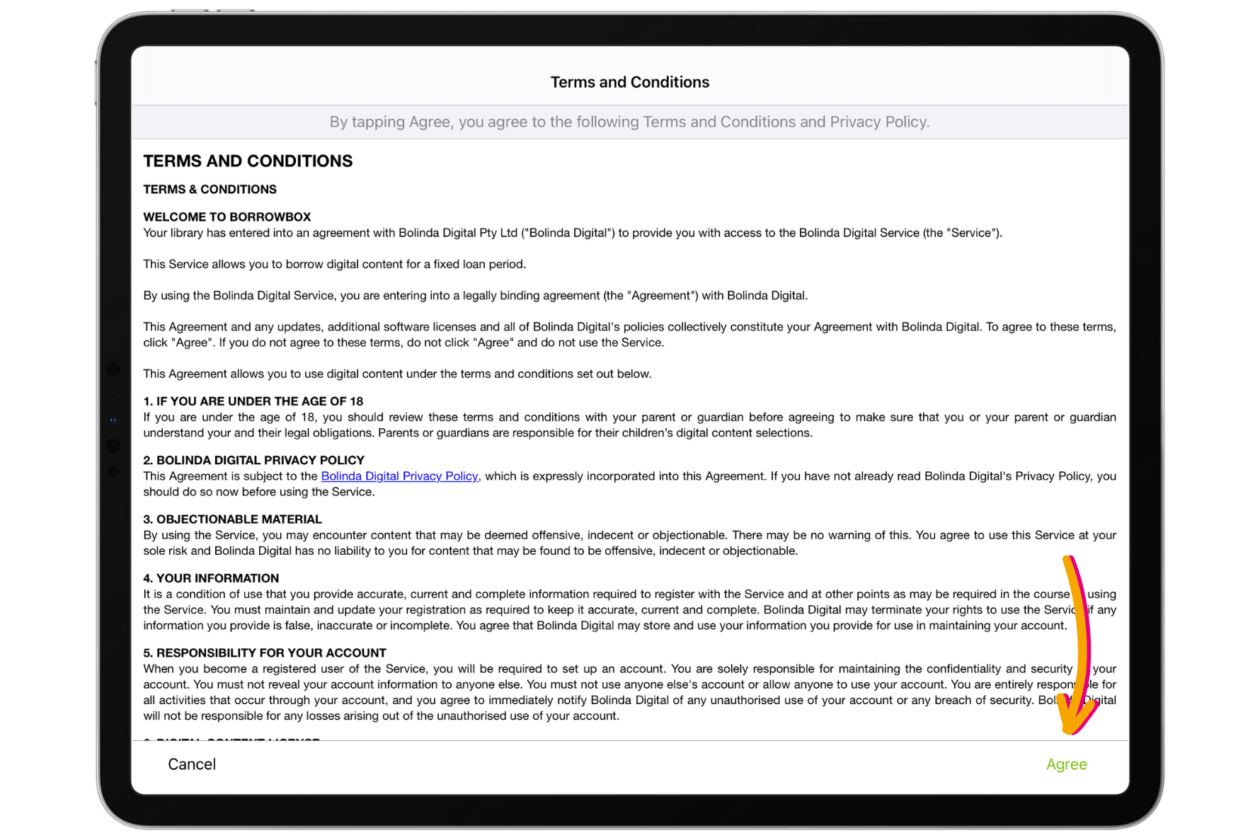
You will be asked to accept the terms and conditions of Borrowbox. Choose ‘Agree’ in the bottom right hand corner.
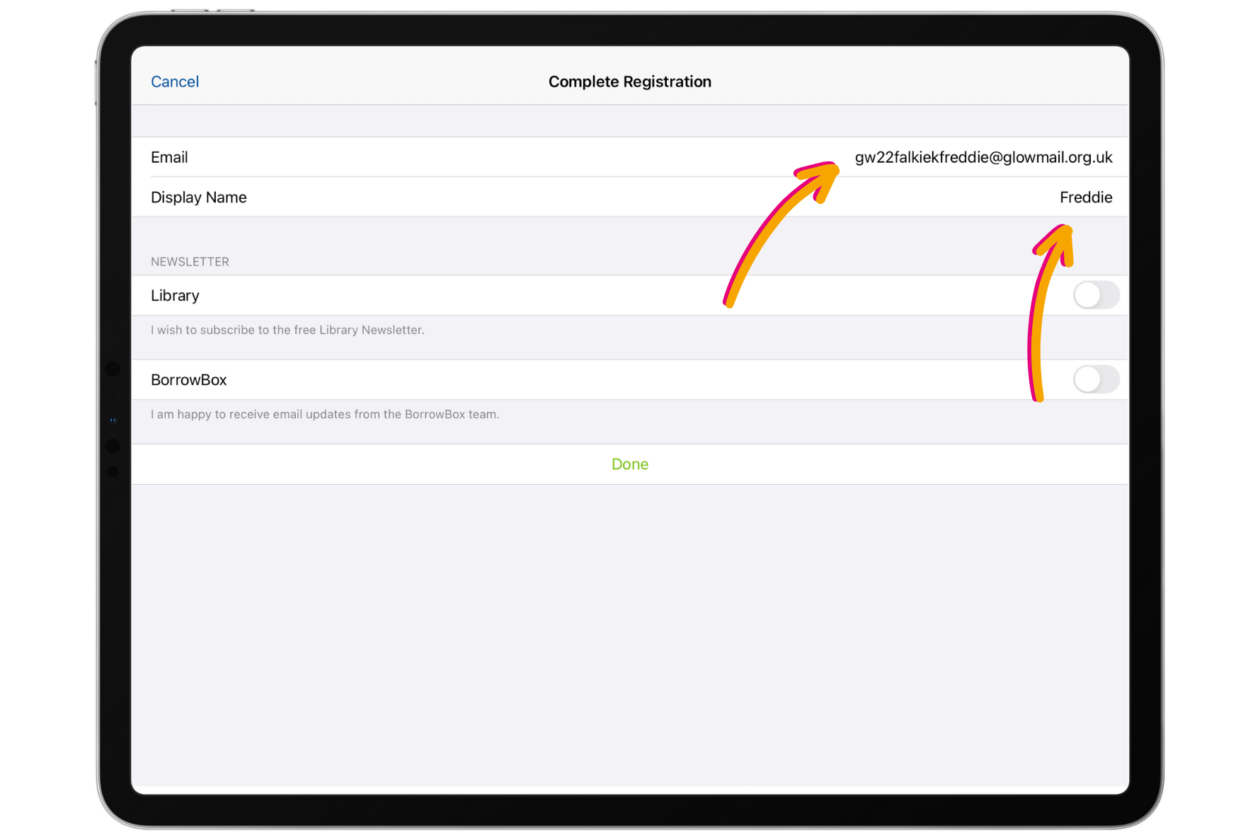
The first time you log in you’ll be asked to complete your registration. Fill in the ‘Email’ box with your full Glow email. Use your first name as your ‘Display name’. Select ‘Done’ at the bottom of the screen.
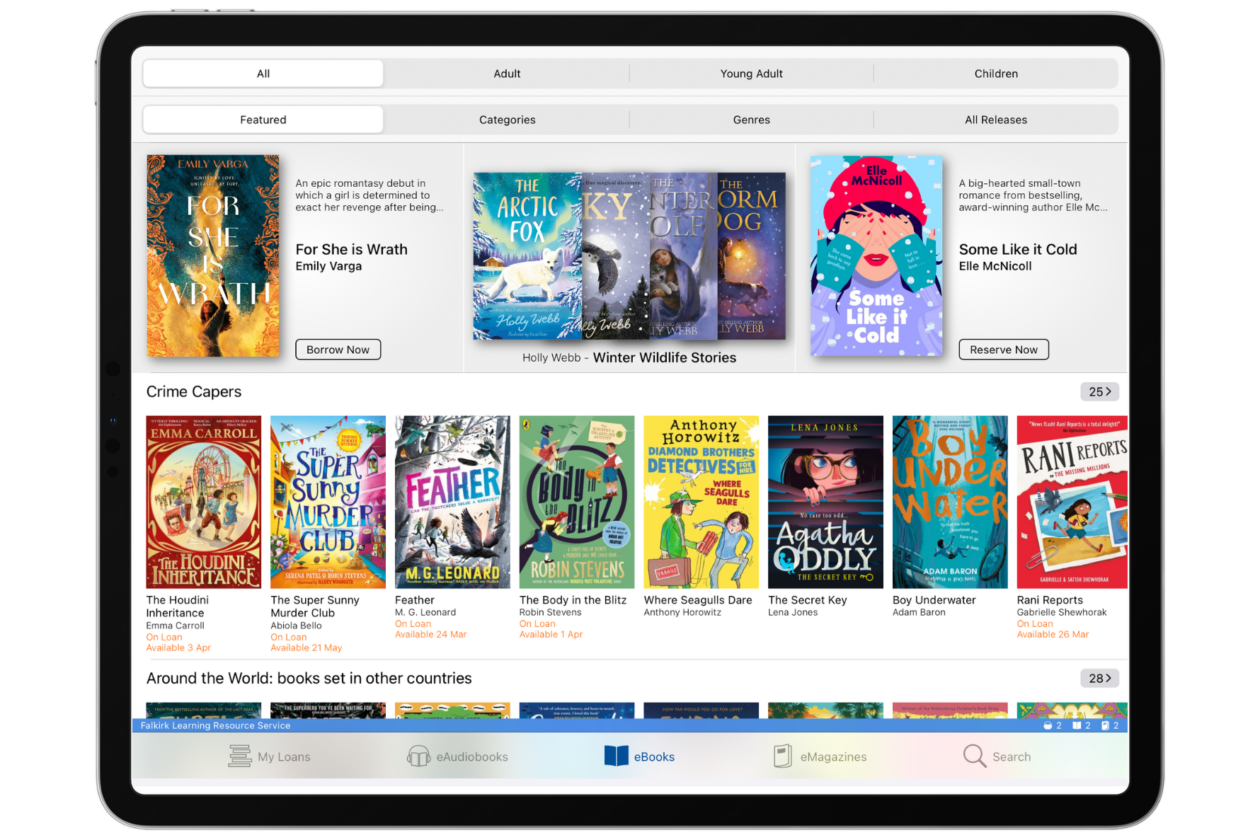
You can now use Borrowbox. Next time you log in follow the same process (you will not have to do the complete registration process again).

Logging in on Browser
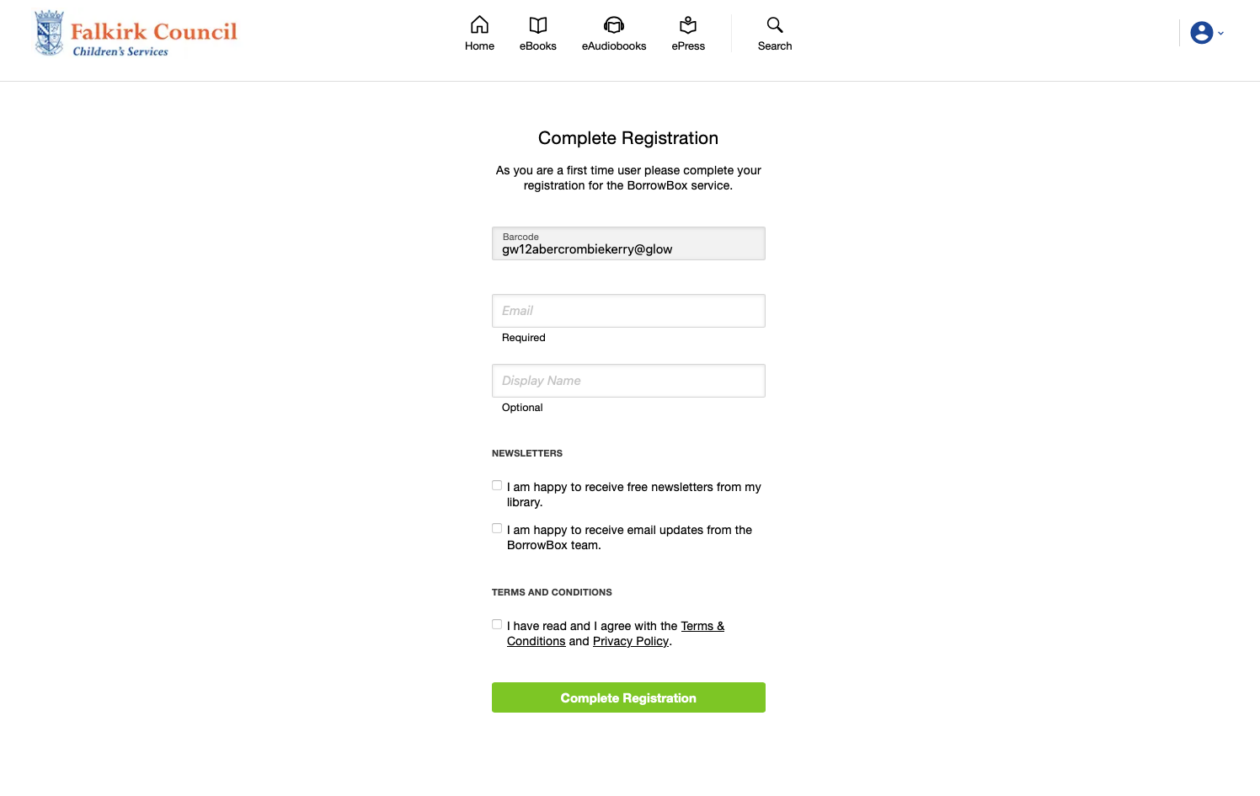
Log into Glow as normal and select the Borrowbox tile from your school launch pad. Borrowbox should open in a new tab with you logged in. You may be asked to ‘Complete registration’. Add your Glow email, choose a display name and tick the terms and conditions box. Choose ‘Complete Registration’.
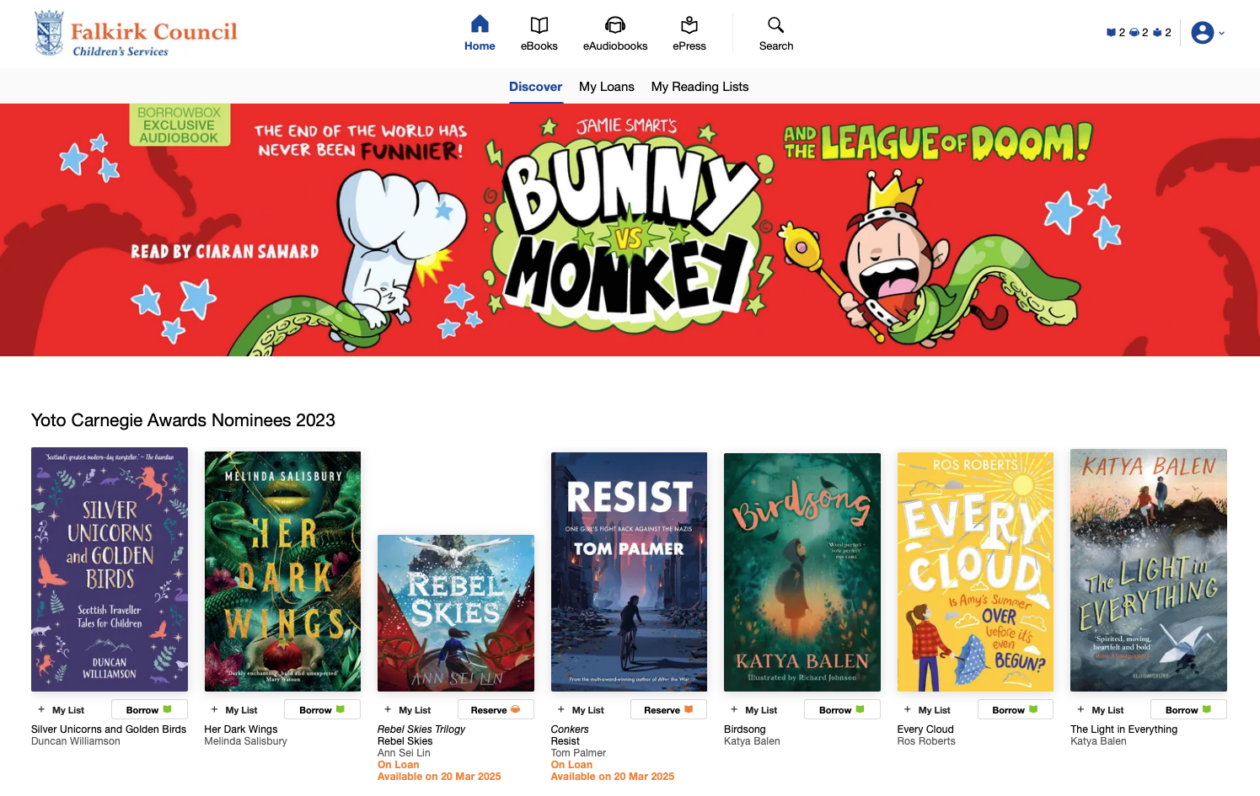
You should then be taken to the main Falkirk Learning Resource Borrowbox home page where you can begin using the service.

3. Search & Browse: Use the “Search” tab to find a specific author or the “Explore” tab to see themed collections (e.g., “First Level,” “New Releases,” or “Picture Books”).

4. Borrow: Tap on a cover and select ‘Borrow’. You can have up to 2 eBooks and 2 Audiobooks on loan at any one time.

5. Listen & Read: Your borrowed items appear in the ‘My Loans’ section. Tap a book to start reading or listening instantly.


🚀 Beyond the Basics

  • ERIC Time: Use BorrowBox as a digital alternative during “Everyone Reading In Class” time. It ensures every pupil has something they want to read, even if they forgot their physical book.

  • Customising the Experience: Show pupils how to tap the ‘Aa’ icon in an eBook. They can change the line spacing and font to suit their specific needs, helping to remove barriers to reading for pleasure.

  • Sleep & Relaxation: Audiobooks can be a great tool for “wind-down” time. The app includes a Sleep Timer that automatically stops the audio after a set time (e.g., 15 or 30 minutes).

  • For Modern Languages: Look for the “World Languages” section to find eBooks in different languages, supporting pupils with EAL or those learning a second language.

  • eMagazines: BorrowBox also provides access to digital magazines. Use these for non-fiction reading tasks or to keep up with current events and STEM news.
Book Creator

Book Creator (Web Version) is a simple way to create, read, and share interactive digital books.


🔍 What does it do?

Book Creator is an online platform where pupils build their own eBooks. They can combine text, images, video, and audio recordings. For the free version, teachers create a “Library” and invite pupils to join using a simple code. Once inside, pupils can see each other’s work (if the teacher allows it) and build books that can be read like a real flip-book.


🎓 Why is it useful?

  • Multimodal Evidence: Pupils don’t just write, they can record their voice reading their story, embed a video of a science experiment, or use the “Pen” tool to draw diagrams.

  • Accessibility Built-In: It includes features like “Read to Me” (which reads the book aloud) and Dictation, allowing pupils to “write” using their voice.

  • Real Audience: There is a huge motivational boost for pupils when they know their book will be “published” online and can be read by their parents or peers.

  • Cross-Platform: Because it’s web-based, pupils can start a book on an iPad in school and finish it on a laptop or tablet at home.


⚙️ How does it work?

  1. Launch: Go to app.bookcreator.com in Safari.

  2. Teacher Sign-In: Create and sign into your free account.

  3. Create a Library: On the Free Plan, you get 1 Library that can hold up to 40 books.

  4. Invite Pupils: Click the ‘Invite Code’ button. Pupils go to the same website, select ‘Student Sign In’, and enter their code to join your library.

  5. Build a Book: Tap the ‘New Book’ button. Add media, change colors, fonts, and page backgrounds.


🚀 Beyond the Basics

  • Instructional Manual: Pupils can create a “How-To” guide (e.g., “How to make a jam sandwich”). They can take photos of each step and record a short audio clip explaining what to do.

  • Interactive Lab Reports: Use the Video tool to capture an experiment in action. Pupils can then use the Text tool to write up their findings alongside the video evidence.

  • Personal Portfolios: Create an “About Me” book. Pupils can use the Shapes and Stickers to decorate their pages and add audio reflections on their goals for the year.

  • Visual Social Stories: Teachers can create a book with photos of school routines (e.g., “Going to the Dining Hall”) and share it with pupils who benefit from visual transitions.


💡 Top Tips for the Free Plan

  • Managing Your 40 Books: The limit is 40 books per library. Once your library is full, you can archive it or delete old books to make room for new projects.

  • Collaborative Settings: In the Library settings (the cog icon), you can toggle whether pupils can see each other’s books. Turning this ON is great for peer feedback; turning it OFF helps pupils focus on their own work.

  • Publishing Safely: You can “Publish” a book online with one click. This generates a private link that you can share with parents. You can “Unpublish” it at any time.


🔗 Teacher Quick Links

Get Help with Book Creator

Book Creator – One Pagers

AR Makr

AR Makr, the creative toolbox for Augmented Reality. Bring your drawings and photos to life in the real world.

🔍 What does it do?

AR Makr is an app that lets learners create virtual objects and place them into the world around them using the iPad camera. Pupils can “scan” a 2D drawing they have made on paper or in another app and transform it into a 3D virtual object that they can walk around, resize, and even animate within their own classroom.

🎓 Why is it useful?

  • From 2D to 3D: It helps pupils understand spatial awareness by taking flat images and placing them in a 3D environment.

  • Storytelling in the Real World: Pupils can build “AR Scenes” for example placing characters from a story onto their school playing field to film a digital retelling of a story.

  • Interactive Models: It allows for the creation of virtual museums or science models (like the solar system) that pupils can interact with without needing physical materials.

  • Built-in Recording: The app has a simple “Record” button, allowing pupils to film their AR creations and narrate their learning as they move around their virtual objects.

⚙️ How does it work?

  1. Launch: Open the AR Makr app and tap ‘Start’.

  2. Surface Scan: Move the iPad slowly to let the camera “find” a flat surface (like a desk or the floor). You will see a grid appear when it’s ready.

  3. Create an Object: Tap ‘New’ to either draw something directly with your finger, or tap the folder icon to import a photo or a drawing from your Photos library.

  4. Place: Once your object is ready, aim the circle at the grid on your desk and tap ‘Place’. You can now use your fingers to pinch and zoom to resize it.

  5. Record: Tap the camera icon on the side to take a photo of your scene, or hold the record button to capture a video of your virtual world in action.

🚀 Beyond the Basics

  • Retelling Fairy Tales: Pupils can draw the “Three Little Pigs” on paper. They use the camera to “scan” the pigs and their houses into AR Makr, then place them on the classroom floor to film a puppet show where they provide the voices.

  • Shape & Measure: Use the built-in 3D shapes in AR Makr to build a virtual tower. Pupils can use their fingers to stack cubes and spheres, discussing the properties of the shapes as they build.

  • The Solar System: Pupils can create or import images of the planets. They can place the “Sun” in the centre of the classroom and position the planets at relative distances, walking between them to understand the scale of space.

  • Virtual Timelines: Create a “Walking Timeline.” Place images of historical events in a line across the hall. As the pupil walks along the line, they film themselves explaining each event in chronological order.

  • Digital Galleries: Pupils can take photos of their physical paintings  or drawings and “hang” them on the virtual walls of the classroom, creating a digital art gallery that parents or peers can walk through using the iPad.


🔗 Teacher Quick Links

Create your own Augmented Reality Book Scene in AR Makr | iPad

Create your own Augmented Reality Snowstorm in AR Makr | iPad

Canva

Canva for Education is the all-in-one design platform for professional teaching resources and school communications.

🔍 What does it do?

Canva for Education is a premium version of Canva that is free for educators. It provides access to millions of stock images, fonts, and professional templates. While it can be used for simple posters, it is also a powerful tool for building interactive presentations, classroom newsletters, and even school websites.


🎓 Why is it useful for staff?

  • Instant Professionalism: You don’t need design skills to create high-quality work. Thousands of “Education” templates are ready-made for lesson plans, certificates, and worksheets.

  • Brand Consistency: You can set up a “Brand Kit” for your school, saving your school’s specific colors and logos so every letter or poster you make is perfectly on-brand.

  • Multimedia Hub: You can embed videos from YouTube, live links to forms, or even record your own screen directly into a Canva presentation.

  • Collaboration with Colleagues: You can share folders with other staff members. This allows you to co-design a transition project or share a pack of classroom labels across a whole department.

⚙️ How does it work?

1. Launch: Access via the Canva app on your iPad or through the web browser.

2. Verified Status: For teachers to access the “Education” version for free you need to get verified or added to an existing Canva Education ‘Team’ by an already verified member of your school staff team.

3. Choose a Template: Use the search bar for terms like “P7 Transition,” “Reading Newsletter,” or “Classroom Labels.”

4. Drag and Drop: Use your finger or mouse to move elements around. Add your own photos or choose from Canva’s library of millions of free graphics.

5. Share & Export: Tap the Share button (top right). You can “Download” as a PDF for printing, use ‘public view’ or ’embed’ to create a live viewable version of your design. You can also share custom templates with other uses and download your creations as videos. 

🚀 Beyond the Basics

  • Professional Newsletters: Move away from plain Word documents. Use the Newsletter templates to create visual updates for parents. You can even embed “Live Links” that parents can click to open permission forms or school webpages.

  • Display Packs: Search for “Classroom Decor.” You can instantly create cohesive sets of labels, birthday charts, and learning walls that all share the same color scheme and font.

  • Embed Canva Designs: Use the ’embed link’ to add live Canva designs to your school website or class blog., giving access to a live document that changes automatically when you update or amend it.
  • Instructional Videos: Use the “Present and Record” feature. You can talk through your slides, and Canva will record a small “bubble” of you speaking in the corner. This is perfect for creating “flipped learning” videos or instruction guides for parents.

  • Canva Sheets: A visual way to track and display data. Use it to create colourful class seating plans or to track (publicly available) data in a way that is far more visual and readable than a standard spreadsheet.


🔗 Teacher Quick Links

Design School – Learn Design With Canva

Canva Essentials

ClassroomScreen

With the free version of Classroomscreen teachers can create instant teacher dashboards. Manage your classroom environment with the tools you need to help the flow of learning.

🔍 What does it do?

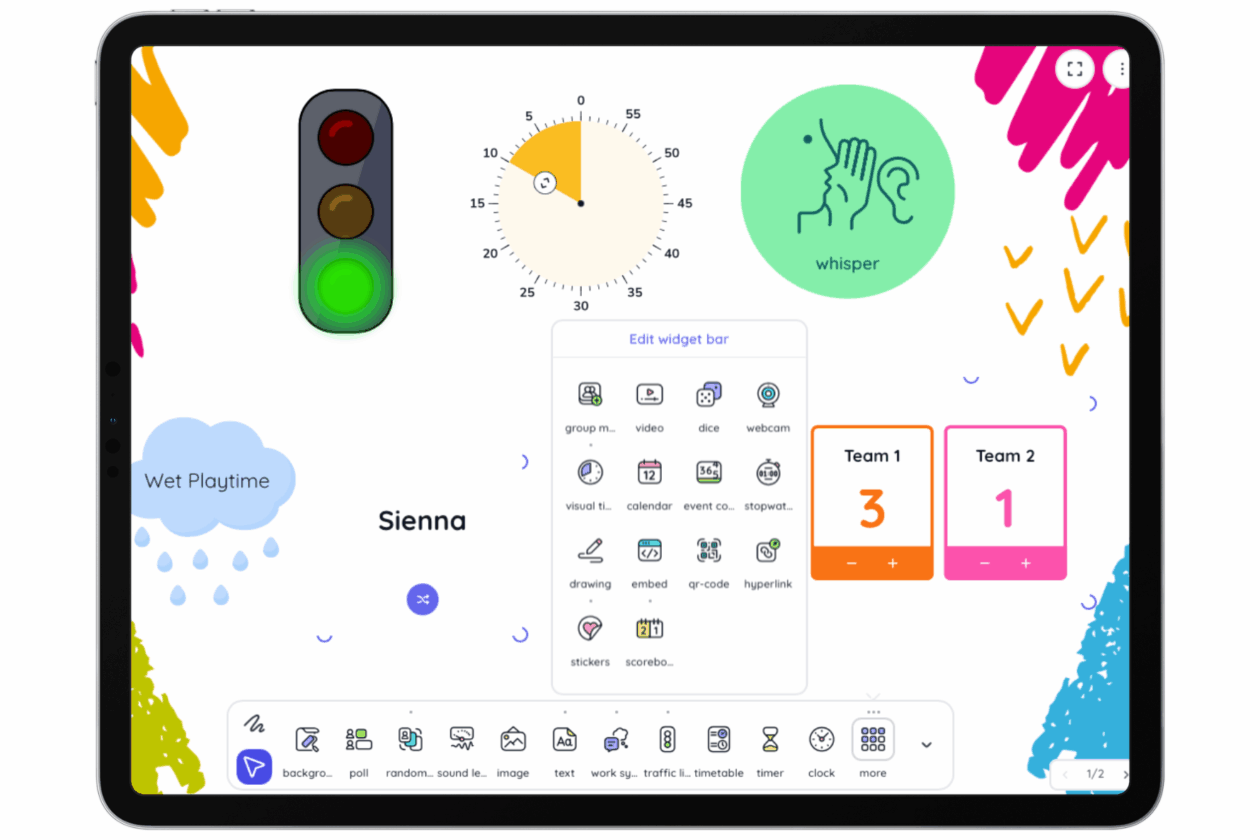
Classroomscreen is a web-based tool that puts all your essential classroom management widgets into one browser window. In the free version, you get access to the full library of 25 widgets to project on your whiteboard. While the free plan doesn’t save your screens for the next day, it is the perfect “launch and go” tool for daily routines.

🎓 Why is it useful?

  • Instant Classroom Cues: Use visual symbols (like ‘Silence’ or ‘Work Together’) to set the tone for an activity instantly.

  • Fair Participation: The Random Name Picker and Dice tools ensure every pupil has a fair chance to contribute, supporting the ‘no hands up’ approach to classroom questioning. 

  • Visual Time Tracking: The free Timer and Stopwatch help pupils build independence by managing their own time during tasks.

  • Quick Checks: Use the Poll widget for a quick “fists to five” or “smiley face” check-in at the end of a lesson to gauge pupil confidence using a join code.

⚙️ How does it work?

1. Launch: Open the web browser on your device and go to Classroomscreen.com. You can start immediately without even logging in.

2. Add Widgets: Tap the icons on the bar at the bottom to add tools. You can have multiple widgets on screen at once, just drag them with your finger to reposition.

3. Name Lists: In the free version, you can preload and save up to 3 different name lists (e.g., your three main classes). This saves you from re-typing names every lesson.

4. Annotation: Tap the Draw widget to turn part of your screen into a mini-whiteboard for quick scribbles or diagrams using your finger.

5. Refresh Warning: Be careful in the free version, if you refresh the page or close the tab, your widgets and layout will disappear. Keep the tab open throughout the lesson!


🚀 Beyond the Basics

  • Daily Focus: Use the Text Box widget to display the “Learning Intention” or “Success Criteria.” Since you can’t save screens, keep a document with your prompts ready to copy and paste in quickly.

  • Maths Starters: Open the Dice and Timer widgets. Challenge pupils to solve a mental maths problem based on the dice roll before the timer runs out.

  • Noise Monitoring: Use the Sound Level widget. It uses the iPad’s microphone to show a live bar graph of the volume in the room – perfect for keeping group work at a “whisper” level. Please note, this feature requires a microphone.

  • Visual Timetables: Use the Work Symbols alongside the Clock. Seeing the time next to a visual instruction helps pupils who struggle with transitions understand exactly what is happening and for how long.

  • Quick QR Codes: If you find a great stimulus or video, use the QR Code widget. Paste the link, and a code appears instantly on the board for pupils to scan with their own iPads.


Chrome Music Lab

Google wanted to help make learning about music a bit more accessible to everyone by using technology that’s open to everyone: the web. They built a set of experiments that let anyone explore how music works.


What does it do?

Chrome Music Lab is a free online music creation webtool from Google. It is described as “a website that makes learning music more accessible through fun, hands-on experiments” and can be used on any web-connected device through most Internet browsers, so it will work on desktop computer, laptop, tablet, or smartphone (just note that it does not work on Internet Explorer).

The YouTube video below gives an overview of what Chrome Music Lab is.

.

Why is it useful?

You can exploring different features of music and link these other areas of the curriculum. The tools can be used in open-ended ways but direct links can be made to the science and mathematics of sound/music through practical activities looking at sound waves, vibrations, oscillations, or to artists like Kandinsky and relationship to shape. Explore the different tools to see the possibilities.

.

How does it work?

You don’t need to sign up for any account, you can just start creating right away by going to Chrome Music Lab on your browser of choice.

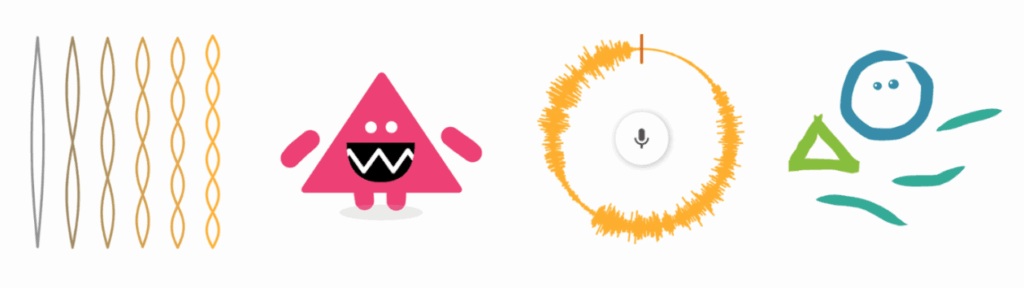
There are a range different tools: Song Maker, Rhythm, Spectrogram, Chords, Sound Waves, Arpeggios, Kandinsky, Melody Maker, Voice Spinner, Harmonics, Piano Roll, Oscillators, and Strings. Open any of these tools from the launchpad and simply click on the “About” link on each one to find out the straightforward guide to using each tool. Or just play about and have fun with each one – and then have a look at the “About” link to see what you’ve just been learning!

Each tool is visually very user-friendly and younger users could simply explore by trial and error and still gain a lot from experimenting. For those who wish to explore further they will find each tool has a wide range of permutations to be adaptable for different ages, stages and learning outcome desired.

.

Where can you learn more about Chrome Music Lab?

You can find out more about Chrome Music Lab on their about page but the easiest (and most fun) way to get to know the experiments is to try them out for yourself!

This YouTube video from Google gives a quick start guide on creating your own songs with Song Maker.

A quick YouTube search will also throw up loads of tutorials for replicating famous/popular songs in Song Maker.
.

Educator Voice

Chrome Music Lab, a hands-on music playground. Explore the science of sound through interactive experiments.

🔍 What does it do?

Chrome Music Lab is a website based collection of 14 web-based “experiments” that make learning music tactile and visual. It covers everything from basic rhythm and melody to the complex physics of sound waves and harmonics. It is designed to be played with – there are no “wrong” notes, and every interaction provides immediate visual and auditory feedback.

🎓 Why is it useful?

Instant Creativity: There is no “learning curve.” A pupil can open the Kandinsky experiment, draw a circle with their finger, and hear it turn into a sound immediately.

Visualising the Invisible: It turns abstract concepts like “frequency” and “pitch” into colourful animations. The Spectrogram allows pupils to literally “see” their own voice or the sound of a flute.

Cross-Curricular Links: It is as much a Science and Maths tool as a Music tool. It uses grids to teach patterns (Maths) and oscillators to show how air molecules move (Science).

Easy Sharing: In Song Maker, pupils can save their work as a simple web link. They don’t need to export files; they just copy the link and paste it into a Teams or Google Classroom assignment.

⚙️ How does it work?

1. Access: Open Safari and go to musiclab.chromeexperiments.com. No login required.

2. Pick an Experiment: Tap on one of the colorful cards to open the experiment. There are a range different options: Song Maker, Rhythm, Spectrogram, Chords, Sound Waves, Arpeggios, Kandinsky, Melody Maker, Voice Spinner, Harmonics, Piano Roll, Oscillators, and Strings

3. Interact: Use your finger to tap the grid, draw shapes, or drag sliders.

🚀 Beyond the Basics

  • Sound Waves in Science: Use the Oscillators experiment. Pupils can drag their finger up and down to change the pitch and see how the character’s shape changes—stretching for high sounds and squashing for low sounds.
  • Syllable Beats: Use the Rhythm experiment in Literacy. Pupils can use the different characters to “tap out” the rhythm of their name or a line of poetry, helping them understand meter and syllables.
  • Pattern Recognition: Use Song Maker. Challenge pupils to create a repeating “pattern” of colors on the grid. They can see and hear the mathematical symmetry in their music.
  • Voice Spinner: Pupils can use the microphone to record a short sound (like a “Hello” or a clap). They can then use their finger to spin the sound fast, slow, or backwards, exploring how speed affects audio.
  • Hear Art with Kandinsky: Based on the artist Wassily Kandinsky, this experiment turns drawings into music. Draw your picture, hit play and hear your image!