
Author: Miss Abercrombie

Numbers

Apple Numbers – A visual spreadsheet that turns data into interactive stories, charts, and creative organisers.


🔍 What does it do?

Unlike traditional spreadsheets, Numbers is a “free-form” canvas. You don’t start with a giant wall of cells; you start with a blank page where you can place small tables, images, and charts exactly where you want them. This makes it perfect for pupils to create lab reports, personal trackers, or interactive posters.


🎓 Why is it useful?

  • Multiple Tables on One Sheet: Pupils can have a small table for their results, a text box for their hypothesis, and a photo of their work all side-by-side.

  • Touch-First Data Entry: When you tap a cell, Numbers brings up a custom keyboard (numeric, date, or duration) designed specifically for the data you are entering, making it much easier for younger pupils to use their fingers accurately.

  • Interactive Charts: You can create “Interactive Charts” that allow pupils to use a slider to see how data changes over time – perfect for showing plant growth or weather patterns.

  • Smart Forms: You can turn any table into a “Form.” Pupils can then enter their data into a simple, clean interface that feels like a mobile app, which then populates the main spreadsheet automatically.

⚙️ How does it work?

  1. Launch: Open the Numbers app (Green icon with a white bar chart).

  2. Start with a Template: Choose from the Education section for pre-made templates like “Lab Report,” “Grade Book,” or “Attendance.

  3. Add Objects: Use the ‘+’ icon at the top to add Tables, Charts, Text Boxes, Shapes, and Media (photos or videos).

  4. Format: Tap an object, then tap the Format (Paintbrush) icon. This is where you change colors, fonts, and chart styles using your finger.

  5. Calculate: Tap a cell and select ‘Cell Action’ > ‘New Formula’ to use the built-in formula editor. It is designed to be tapped, not typed, so pupils can easily build sums.


🚀 Beyond the Basics

  • Digital Lab Report: Use a blank sheet. Pupils can record a video of their experiment and embed it directly next to their results table.

  • Character Trackers: Use a table to track a character’s emotions through a book. Pupils can use the ‘Star Rating’ or ‘Pop-up Menu’ cell types to make the data entry fun and visual.

  • Visualising Budgets: Give pupils a “Budget” of £50 to plan a party. They can add photos of items from the web and use a simple SUM formula to see their remaining balance update live.

  • Fitness Trackers: Create a simple “Daily Activity” log. Pupils can use the ‘Checkbox’ cell type to tick off when they’ve completed their daily mile or drank enough water.

  • Interactive Planners: Teachers can create “Weekly Checklists” for pupils. Because you can drag tables anywhere, you can make the planner look like a visual dashboard rather than a boring list.


🔗 Teacher Quick Links

Numbers User Guide for iPad

Get Started with Numbers on iPad

Microsoft OneDrive

Microsoft OneDrive in Glow: securely store, share, and collect files from anywhere.

🔍 What does it do?

OneDrive is the “storage heart” of Glow. Every Falkirk teacher and pupil has space to save documents, photos, and videos. Because it is cloud-based, you can start a file on your classroom PC and pick it up exactly where you left off on your iPad. It’s also the engine that allows for real-time collaboration in Word, Excel, and PowerPoint.


🎓 Why is it useful?

  • Version History: Accidents happen! If a pupil accidentally deletes their entire essay, you can use “Version History” to go back in time and restore a previous version of that document.

  • Files On-Demand: It doesn’t use up all the space on your iPad. You can see all your files, but they only download when you actually click to open them.

  • Seamless Sharing: No more emailing large attachments. Send a “view-only” or “edit” link to a colleague or pupil to work together on a single version of a file.


⚙️ How does it work?

  1. Access: Find the OneDrive tile on your Glow Launchpad or open the app on your iPad.

  2. Organise: Create folders for different subjects or terms to keep your “My Files” area tidy.

  3. Share: Select a file and click the Share icon. You can decide if the person can “Edit” or just “View,” and even set an expiry date for the link.

  4. Sync: Ensure the OneDrive app is signed in on your iPad so that your “Camera Roll” can automatically back up your classroom photos. Find out how to do this here.


🚀 Beyond the Basics

  • Shared Folders: Create a folder for your department or stage. Share it with your colleagues with “Edit” access to build a shared library of lesson plans and resources that everyone can contribute to.

  • Data Analysis: If you collect survey data using a Microsoft Form, the results are stored in your OneDrive as an Excel file. You can share this file with pupils so they can practice “Live Data” analysis in class.

  • Live Peer Editing: Have two pupils share a Word document stored in OneDrive. They can use the “Comments” feature to give each other feedback in real-time without ever leaving the document.


🔗 Teacher Quick Links

Glow Connect – OneDrive Articles

Microsoft Sway

Microsoft Sway is a digital storytelling made simple: Professional presentations, newsletters, and portfolios in minutes.

🔍 What does it do?

Microsoft Sway is a web-based storytelling app that helps you create interactive reports, personal stories, and newsletters. Unlike PowerPoint, which is slide-based, Sway is a scrolling digital canvas. You provide the content (text, images, and videos), and Sway’s built-in design engine handles the layout, ensuring it looks great on any screen- from a desktop to a smartphone.


🎓 Why is it useful?

  • No Design Skills Required: You focus on the story, Sway focuses on the design. With one click of the “Remix” button, you can instantly change the entire look and feel of your project.

  • Accessible by Design: Sways are easy to read. They include an “Accessibility View” that optimizes the screen for high contrast and screen readers, making it inclusive for all learners.

  • Modern Newsletters: It is an extremely useful tool for school newsletters in Falkirk. Parents can scroll through updates and watch embedded videos of school life directly on their phones.

  • Web-Based Sharing: You don’t “send” a Sway; you share a link. This means you can update the content even after you’ve sent the link, and everyone will see the latest version.


⚙️ How does it work?

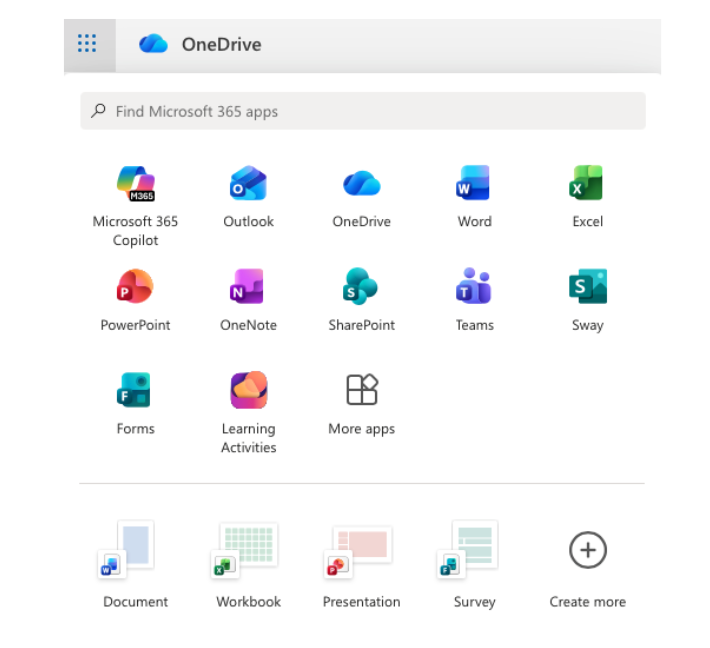
1. Launch: Access directly at sway.office.com using your Glow login details or via the waffle menu in OneDrive in Glow.

2. Start from Scratch or a Document: Click + New Blank to start fresh, or upload an existing Word or PDF document and watch Sway “transform” it into a web page automatically.

3. The Storyline: Use the “Storyline” to add “Cards.” There are cards for text, images, video, and even “Stacks” (groups of photos that you can tap to flip through).

4. Design & Remix: Switch to the Design tab to see your work. Click Styles and then Remix! to cycle through different fonts, colors, and scroll directions (Vertical or Horizontal).

5. Share: Click the Share button. For school newsletters, ensure you select “Anyone with a link” so parents can view it without needing a Glow login.


🚀 Beyond the Basics

  • Digital Portfolios: Pupils can use Sway to curate their best work over a term. They can embed audio recordings of them reflecting on their writing alongside photos of their physical work.

  • Interactive Reports: Instead of a poster, pupils can create a scrolling report. Use the “Comparison” card to show “Before and After” photos of an experiment using a slider.

  • Virtual Trips: Create a Sway about a country or historical period. Embed Google Maps (using an embed code) and YouTube videos to create an immersive research hub for the class.

  • For Admin: Create a “Living Document” for staff or pupils. Because it’s a web link, you can update the school calendar or policies in the Sway throughout the year without having to re-send emails.

Microsoft Forms

Microsoft Forms is an easy way to create surveys, quizzes, and polls with built-in Practice Mode and Data Insights.

🔍 What does it do?

Microsoft Forms is a web-based tool for gathering information and assessing learning. It allows you to create interactive quizzes and surveys that work on any device. In a Falkirk classroom, it can be used as a go-to tool for “check-ins” and low-stakes testing providing instant feedback to both the teacher and the pupil.

🎓 Why is it useful?

  • Instant Assessment: Create a “Check for Understanding” quiz at the end of a lesson to see exactly which pupils have grasped the concept.

  • Low-Stakes Learning (Practice Mode): This new feature allows pupils to try questions multiple times, see correct answers instantly, and receive encouraging feedback, turning a “test” into a learning activity.

  • Smart Data Insights: Forms doesn’t just show you “who got what”, it automatically identifies “Hard Questions” where a large percentage of the class struggled, helping you plan what to re-teach.

  • Self-Marking: Quizzes can be auto-graded, giving pupils immediate results and saving you hours of manual marking for certain types of assessment.

⚙️ How does it work?

1. Launch: Access directly at forms.office.com using your Glow login details or via the waffle menu in OneDrive in Glow.

2. Create: Click + New Quiz (to add correct answers and points) or + New Form (for surveys).

3. Enable Practice Mode: Go to Settings (…) and toggle on Practice Mode. This allows pupils to see if they are right or wrong immediately after answering each question.

4. Present Mode: Use the Present button in class to show live, anonymous results (like a word cloud or bar chart) as pupils submit their answers in real-time.

5. Review: Click the Responses tab to see a summary of the data and open it in Excel for a detailed breakdown.

🚀 Beyond the Basics

  • Practice Mode for self paced learning: Turn any quiz into a revision tool. Pupils get instant feedback and can “try again,” which helps build confidence and independence.

  • Branching Logic in Literacy: Use the “Branching” feature to create a digital “Choose Your Own Adventure” story. Depending on the choice a pupil makes, the form sends them to a different page of the narrative.

  • Live Data in Science: Open a Form in Present Mode during an experiment. As pupils enter their findings, the charts on your board update live, allowing for an immediate class discussion on the results.

  • Accessibility with Immersive Reader: Every Form has Immersive Reader built-in. Pupils can tap the icon next to any question to have it read aloud, translated, or broken into syllables.


Quick Links

Microsoft Forms for Education

Microsoft Forms Quick Start Guide

Support: Changes to Microsoft Desktop Apps Download

Due to Microsoft global licensing changes, from the 1st August 2024 Glow users will no longer be able to download the desktop applications through their Glow account. This page provides information on how to download Microsoft Office Apps via your Falkirk Council credentials. It also provides alternatives to Microsoft products that you may wish to consider. For more information from Glow directly please visit this post on the Glow Knowledge Hub. 

Read more