
Digital Technology
What is it?
“We make highly effective use of digital technologies to enrich children’s learning and teaching. We have a well-considered approach to our use of digital technologies and take into account children’s developmental stages. Children learn about and use a wide variety of digital technologies in a safe and creative way to support and extend their learning.”
(A Quality Improvement Framework for Early Learning and Childcare Sectors, Sept 2025, p40).
Key messages:
- Provide the children with a wide range of digital technology experiences in line with the Curriculum for Excellence Experiences and Outcomes.

- Ensure practice aligns with the SBC Early Years Digital Technology Principles as outlined in the iPad Pedagogy of Play document.
- Critically evaluate how you use iPads in your setting & ensure you align with National Guidance.

- iPad-use should be introduced carefully and strategically.
- Create a digital strategy for the setting & work towards embedding this into practice.
- Practitioners engage in on-going digital professional learning.
- Showbie is used as per setting policy / ELC showbie framework. See the Showbie Portal Page for further guidance on how you can use Showbie effectively in ELC.
- Practitioners should know where to go to get technical support in SBC.
- Staff & learners can talk about & regularly demonstrate how they look after the iPad devices.
- Cyber resilience & internet safety – this should be both taught to children and discussions around this embedded into the life of the setting.
- Digital tools can be used for self-evaluation of practice, assessment & planning.
- Use digital technology tools to effectively collaborate as a team.
- Use Accessibility tools support children to use iPad devices more independently.
- Enable the children leadership opportunities in using digital.
Ways we can do this:
Wide range of Digital Technology experiences – use the SBC ELC digital audit to improve practice (learners should experience a range of digital technology experiences, using a range of resources). Use this to audit use of digital in the setting and ensure that a breadth of experiences, interactions & resources are provided for the children (including early coding, Cyber-Resilience & Internet Safety). Draw up some next steps after completing the audit.
Digital Technology Early Years Principles – Digital technology should enhance (NOT replace) what practitioners already do in Nursery. Games are only to be used occasionally (as these are not open-ended and offer extrinsic reward) and are supported by quality interactions. iPads should be used in an open-ended & creative way.
Critically Evaluate use of iPads – For Scottish Guidance quotes to support Self-Evaluation in Digital Technology, see the Digital “Supporting your Self-Evaluation” page.
Consider questions such as – What is the purpose of digital technology here? Does it add value? Is Digital Technology enriching the learning experience for this child? Does it support independence, curiosity and creativity? Is the child leading the learning? Is it extending a child’s observed area of interest? Does it support collaboration? Does it support high quality interactions with others or is it inhibiting these? Is it supporting the children to be mobile in their use of Digital Technology? The iPad should not take away from the child’s free-play and intrinsically-motivated Nursery experience. For further questions, see the Evaluative Questions in Appendix 1 in the iPad Pedagogy of Play document.
“Importantly, there is a need to constantly evaluate their purpose and be mindful that digital technologies are not dominant in a young child’s life.”
Realising the Ambition, Education Scotland, 2020, p. 79
iPad-use – See the iPad Demos Portal page for bite-size videos on how you can use your iPad to support Learning and Teaching in your setting.
Practitioners should support children to use basic tools on the iPad. iPad devices are used to create not consume content (e.g. videos & games). iPad basic tools can be embedded into responsive & intentional plans, such as Timer/Stopwatch, Camera, Photos, 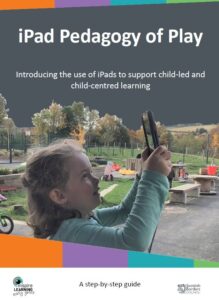 Clips, Maps, Magnifier, Voice Memos, Notes. Practitioners should model the use of these apps for the children and teach skills (such as take & view a photo, zooming in and out of the photo, scanning a QR code with support & using the speech to text keyboard feature). Practitioners can also use more advanced apps such as iMovie, Keynote/Pages/Numbers, book creator, Garageband & Freeform to support learning, as detailed on the bite-sized iPad Demos Portal page.
Digital Strategy – Put together a digital strategy that outlines the setting’s vision and values around using Digital Technology in the setting. It can be useful for the setting to nominate a Digital Lead Practitioner, who can share their learning & experiences with colleagues. They
-
-
-
-
- may have an Apple Teacher accreditation
- can become familiar with the Apple Everyone Can Create guide – Early Learners
- engage with Education Scotland Digital Support & developments (e.g. using the Digilearn Website (ELCC) & the pre-recorded webinar recordings).
-
-
-
The strategy should align with the SBC Early Years Digital Technology Principles as outlined in the iPad Pedagogy of Play.
All practitioners should be aware of the strategy.
Digital Professional Learning – Practitioners should engage in a range of continued professional development, using resources such as the iPad Pedagogy of Play self-paced document, the Inspire Website, through online demo videos such as the iPad demo videos on the Early Level Portal & the links at the bottom of the “resources” section for this page.
Showbie – Use Showbie to engage parents in their child’s learning, either through using large “Communities” for information-sharing & group learning or small family “communities” for personal, private, 2-way communication. Practitioners can also use the Classes function to document individual learning. Encourage parents to engage with Showbie & where possible share learning from home. Practitioners should model how to use Showbie with learners so that learners know what Showbie is & that their learning is documented here. Practitioners should regularly support children to share to & reflect on their learning through Showbie. Where suitable, Showbie QR codes can be printed out & used regularly by staff & learners. See the Showbie Portal Page for further information.
Technical support – practitioners can get support from CGI, on the Inspire Website, and through the Inspire Support email.
Caring for the hardware – Staff & learners can talk about & regularly demonstrate how they look after the iPads, some settings scribe these conversations & agreements to form a digital technology risk assessment. (Cyber Resilience and Internet safety could also be included in this risk assessment.)
Cyber Resilience & Internet Safety – Through daily interactions, staff & learners talk about how to stay safe using iPads (e.g. passwords, staying safe on websites etc). See resources page for links & resources for CRIS, including links to the Bongles storybook from Education Scotland to support children’s learning in this area.
Self-evaluation, assessment & planning – practitioners can use the Numbers app to collate data for assessment (e.g. Developmental overviews), the Keynote app for self-evaluation floorbooks & tools such as Showbie, Pages & Teams for planning. Practitioners should have the Early Level Portal icon on their Home Screen to enable them to gain easy access to best practice & materials for self-evaluation. Use other apps for self-evaluation, such as a Freeform board and using iBooks for highlighting and annotating key documents.
Collaboration – The staff team can use apps such as Onedrive & Teams to collaborate with shared documents using Glow email addresses. The collaboration feature on Apple apps  also enables practitioners to collaborate on documents in real time on their iPad, using their Apple ID. Tap the sharing arrow icon, selecting “collaborate” (not “send a copy”) & select an app through which to share the document (for example ,you can use Messages & insert the practitioner Apple ID).
Accessibility tools – Staff use a range of accessibility features on the iPad to support a range of children & families’ learning needs. See this playlist to see some of the accessibility features available. Example include, using Speech to text on the keyboard, supporting bilingual learners, enabling spoken content & using the Voice notes & “Speak” tools on Showbie. Key to child-led play, exploration & iPads being used as part of continuous provision in the setting’s spaces is guided access. This enables the iPad to be locked into one app & also freezes use of certain icons.
Children leadership – the setting has nominated several learners as digital leads who support other learners & staff with the use of an ipad.
For more ways to use iPads in a Nursery setting see the following pages: