HTML – Images

To add a picture to a HTML page we use the <img> tag. This tag creates a holding space for the image to be included on the page. This tag does not need to be closed.

The tag uses a number of attributes but two of them are required.  SRC tells the browser the location and file name of the image file (its source). ALT is the alternative text that is displayed if the picture fails to load.

Homer at computer

So the HTML code to display the image above is

<img src=”HScomp.jpg” alt=”Homer at computer”>

This assumes that the image is in the same folder as the HTML file.

If the image is the wrong size then you can use the height and width attributes to scale the picture.

<img src=”HScomp.jpg” alt=”Homer at computer” width=200>

Would make the image 200 pixels wide while keeping the aspect ratio correct by automatically scaling the height by the correct percentage.
Scratch – Calculations using a loop

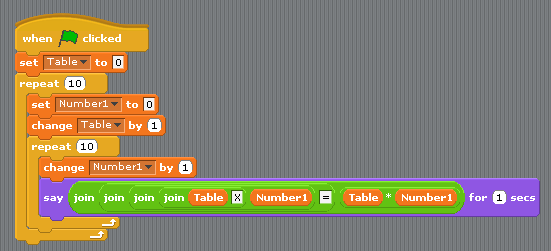
Today we recapped performing calculation within and using a loop. We started off redoing the 6 times table task, before improving it to display all the times tables from 1 to 10.

TimesTable

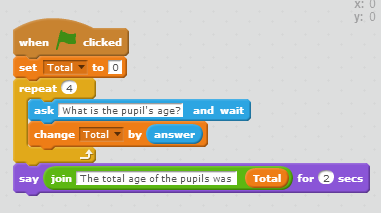
We then created a program that took in 4 ages and displayed the total only using one user created variable

Age

These two programs make use of loops to reduce the number of programming lines, this making the program more efficient.


Using a message box to make a choice

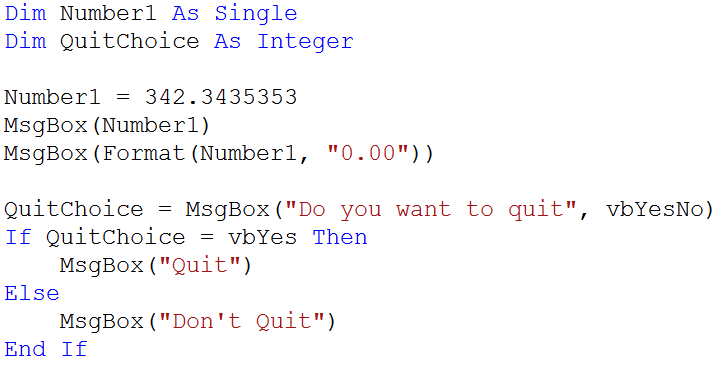
It is possible to use a MsgBox to make a choice in your program. You first of all assign a integer variable to the MsgBox then you change the buttons attributes to vbYesNo. vbYesNo is a VB constant that represents a value, the use of the constant means that you do not need to memories the number, vbYes and vbNo are other examples of these VB constants. An IF statement is then used to make the selection.

N5

Align and Float Images

These notes were prepared using this article.

  • When an image is aligned it is just moved on the page to the left, centre or right. This just effects the position of the image and not the reaction of the text surrounding it. The inline version is given below.
    • <div style=”text-align: center”><img src=”your-image.png” width=”100″ /></div>
  • When an image is floated it can either be on the right or the left of the page. The text is forced to wrap around it. The inline version is given below.
    • <img style=”float: right” src=”page1.gif” />

Using the box model it is possible to float other sections of the page, such as the <NAV> area.

You can find more information on CSS Floats, from the links on the page or here.

HTML 5 Skeleton

<!DOCTYPE html>
<html>
<head>
<title> TITLE </title>
<meta charset=”UTF-8″/>
</head>
<body>
<h1>Page Heading</h1>
<nav>
<ul>
<li><a href=”page1.html”>Page 1</a></li>
</ul>
</nav>
<p>Paragraph text.</p>
</body>
</html>

Creating Web Pages

  • Create the HTML skeleton
  • Save multiple copies one for each page – DO NOT USE SPACES, DO NOT USE CAPITALS
  • Add head/title and heading to each page
  • Add <NAV> links to each page – TEST
  • Add Text to each page – TEST
  • Add Graphics to each page – TEST
  • Add inline CSS to make it look pretty
  • TEST all pages, hyperlinks and graphics.