Microsoft OneNote, the digital ring-binder that organises your entire classroom in one place.
🔍 What does it do?
OneNote is a powerful digital notebook that allows you to capture text, handwriting, audio, and images on an infinite canvas. While it works as a personal notebook, its real power in Falkirk is the Class Notebook – a shared version of OneNote used within Microsoft Teams where teachers can distribute digital resources, see pupil work in real-time, and provide instant feedback.
🎓 Why is it useful?
-
Organisation: Think of it as a physical folder with infinite dividers. You can have sections for different subjects, and pages for every lesson, all of which stay synced across iPads, PCs, and Glow.
-
Classroom Management: Within a Class Notebook, you have a “Teacher-Only” space to prep lessons, a “Content Library” where pupils can view resources, and “Private Notebooks” where each pupil does their work (which only you can see).
-
Live Feedback: You can open a pupil’s page while they are working and leave a digital sticker, a handwritten note, or a voice recording. This “over the shoulder” feedback is instant and impactful.
-
Multimedia Evidence: Pupils can take a photo of their physical work (like a poster or a maths jotter), “print” it onto a page, and then record their voice explaining their thinking.
⚙️ How does it work?
1. Access OneNote: Access directly at OneNote.office.com using your Glow login details or via the waffle menu in OneDrive in Glow.
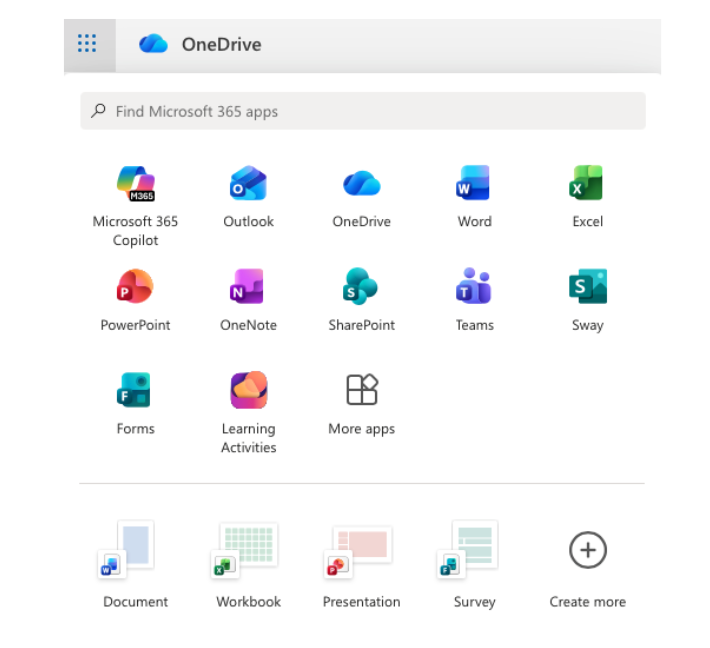
2. Access Class Notebook: It is best to set this up through Microsoft Teams (by adding a ‘Class Notebook’ tab). This automatically creates folders for every pupil in your class.
3. Distribute Pages: Create a lesson in your Content Library, then use the ‘Class Notebook’ tab to “Distribute Page” to everyone. It appears in their notebooks instantly.
4. Review Student Work: Use the ‘Review Student Work’ button to quickly flip through every pupil’s response to a specific task without having to open individual files.
🚀 Beyond the Basics
-
Immersive Reader: Built directly into OneNote. Pupils can click ‘View’ > ‘Immersive Reader’ to have any text read aloud, translated, or changed to a high-contrast background. There is also a picture dictionary for dual coding.
-
Maths Assistant: Pupils can write an equation with their finger or stylus. OneNote can solve the equation and, more importantly, generate a Practice Quiz based on that specific problem type.
-
Dictation: Pupils can use the ‘Dictate’ button to “write” their stories using their voice helping remove the barrier of a blank page.
-
Feedback Audio Notes: Instead of typing, record a 30-second audio clip of your feedback. Research shows pupils find voice feedback more personal and easier to understand.
-
Formative Assessment – Reflect: You can now insert a Reflect poll directly onto a OneNote page to check how pupils are feeling about their learning that day.
🔗 Teacher Quick Links
Microsoft Getting Started with OneNote Class Notebook






 15 Simulations to Gamify Your Class
 29 Games Kids Can Play to Try Engineering
 More Online Learning Simulations