This is A test of the iCab iOS browser. It allow file upload so I can chose this picture from my iPad camera roll. Worth the £1.49p hat tip David Baugh ADE HTTP://www.digitalcreator.org/divined/?p=1194
Category: blogging
-
ICab test
-
iPad glow blogging easier with tabs

Tabs by denn
Attribution-NonCommercial-ShareAlike LicenseIt is a lot easier to blog with an iPad on this more recent version of Safari which has tabbed browsing.
One of the problems with glow blogs is their lack of support for the MetaWeblogAPI so that the many blogging apps on iOS do not work.
One of the problems blogging with an iOS device is the lack of support for file uploads in web browsers.
This mean if you want to use an image in a blog post you need to use one previously uploaded to the web. Here I have searched Flickr with A flickr CC search toy which finds safe images that you can legally use and provides an HTML snippet to insert the image with the attribution.
The new safari with tabs makes it easy to write a post in one tab and search for an image in the other. Remember that Mobile safari does not support the wysiwyg editing of posts you need to switch to the HTML editor.
Hopefully when we hear of the next ‘version’ of glow it will include the ability to use the MetaWeblogAPI in glow blogs. -
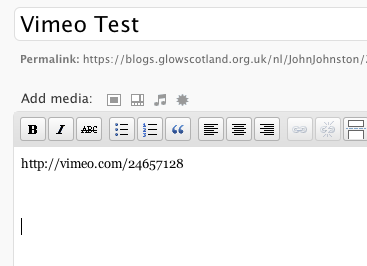
Vimeo Test
All I did was this:
-
Talking about Blogging
 Today Morag is talking to a group of NLC Head Teachers about e-Portfolios.I am blogging about it. blogging is easy, I would expect a longer and better piece of writing by a primary 6!
Today Morag is talking to a group of NLC Head Teachers about e-Portfolios.
I am blogging about it. blogging is easy, I would expect a longer and better piece of writing by a primary 6! -
Blogsy an iPad blogging App

Blogsy is a new iPad blog editor that has a lot of useful features. It allow you to blog photos from Flickr and a couple of other photo sites, video from YouTube and also to load a webpage and drag images into the post.
You type in a code view:
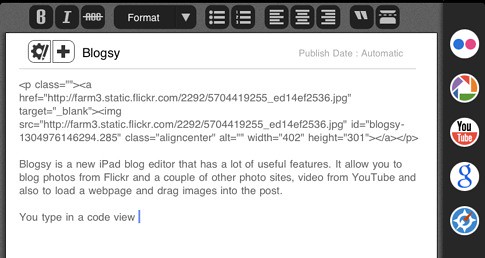
And then swipe to a preview combined with some text formatting and the drag and drop interface. You swipe again to go back to the code view. The text formatting works in both views.
You can also use the built in browser to add links to as well as photos from other sites.
A wee problem is that the app doesn’t upload photos to your blog but hotlinks the ones dragged in. This might give problems if the image is removed and also does not attribute the images in any way.
Blogsy works with wordpress.com, self hosted wordpress blogs and blogger ones. I could not get it to work with my pivot blog although pivot supports the MetaWeblogAPI.
I am going to try to post this to a wordpress and blogger blogs using the settings (a couple of test blogs). I got an error trying to post to blogger. Since the HTML links to images and is nice & clean I’ll post it to My World Wide Wall Display blog by copying the HTML and pasting into Safari. Pivot’s mobile interface is nice
.
If Glow blogs get the metaweblogAPI sorted out this could be a useful app for class blogging in Scotland.
pasting into the web interface works in a glow blog.
-
iPad Glow blogging
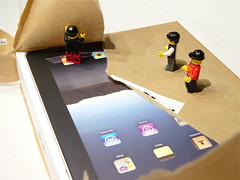
iPad unpacking by ntr23
Attribution-NonCommercial-ShareAlike Licensethis is a quick test of blogging to a glow blog from an iPad.
It seem to work out ok. The only problem is that you cannot use the wysiwyg editor. I expected that to mean you couldn’t just put in a return and expect a new line and expect a new line. This would mean putting in <p> tags which would be a bit of a hassle. Fortunately it turns out that wordpress puts paragraph breaks in.
The other potential problem is posting images. Safari on iOS does not support file upload. This is easily enough worked around by embedding images from Flickr. In this post I used my simple Flickr search to find and embed an image with attribution.
It would be simple enough to use an app to upload a file to Flickr and then embed it.
I’ve written this post in the word press dashboard but I might, in the future, type the post in the notes app and paste it into the word press editor to have a wee bit more space. I would certainly not count out the iPad as a blogging tool. (the ipad 2 announced this week looks like an even more compelling device than this one).
-
This Morning I was mostly Blogging
 This morning I was in Sikeside Primary introducing the Primary sixes and sevens to blogging.
We created a couple of blogs: Sikeside Sixes and Sikeside Sevens I then worked with the classes in turn covering resizing images and posting text and images to the blogs. The children were well prepared with photos and notes about recent events in school.
There are now quite a number of glow blogs in North Lanarkshire and it is interesting to see the variety of ways pupils and teachers are blogging.
NL teachers can get in touch if they want a wee hand starting to blog.
-
Sonic Pics at Thornlie
After a morning of Glow Busting I am showing P 7-6 how to use SonicPics to make slides shows for their blog.
-
Posting NLC podcast videos to glow blog
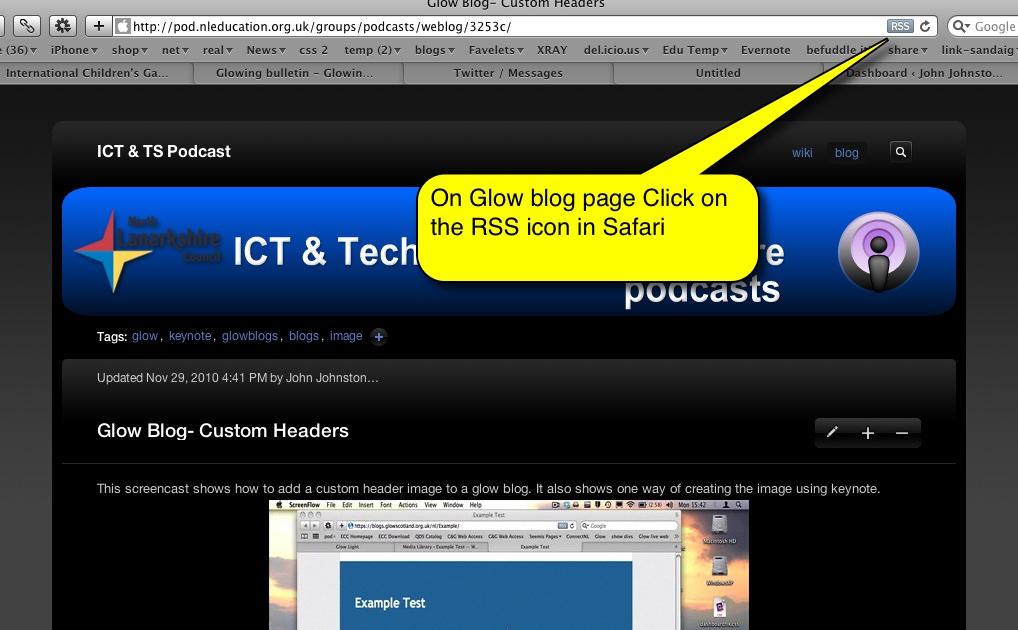
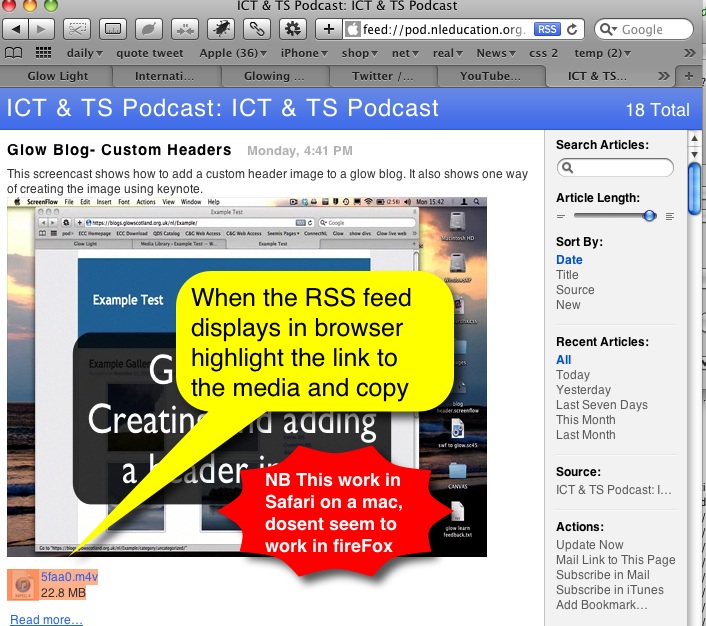
Glow blogs provide an easy way to post to the web. You can post text, audio & video. The only limit is the upload file size which is limited to 5mbs. This is fine for audio but you need to keep video short and small. There is a way around this. You can have a podcast set up on the NLC Podcast server where is is very easy to post audio and video file of up to 50mb. Here is a screencast showing how easy it is: Uploading a podcast even easier than using a glow blog.
Once it is there is is simple to post this to your blog:
These instructions are for Safari (tested on v5)
- Go to your podcast server blog where you video si published
- Click on the RSS link in the address bar
- When Safari displays the feed, highlight the link to the media file and copy
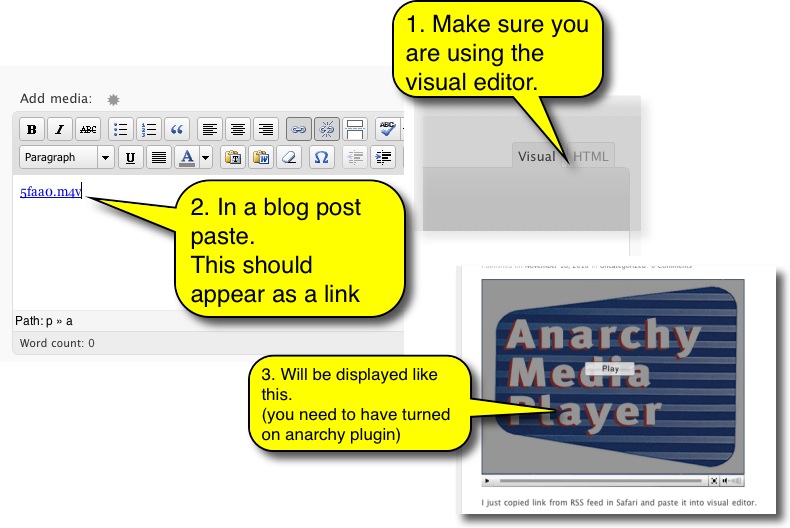
- Go to youe glow blog Dashboard, create a new post. Click in the editing box. Paste.
- The video link will appear in the editing field. When published the video will show. (you need to have the anarchy plugin turned on)
Here are some pictures of the process. click the first thumbnail and then on the left to move on.


and here is an example movie, this one shows how to create a header for your blog using Keynote.
-
Example Movie from podcast server
I just copied link from RSS feed in Safari and paste it into visual editor.