
For conveying information quickly we all rely on signs and symbols every day, whether it’s finding toilets, exits, stairs or lifts in unfamiliar public buildings, or signs on roads warning of dangers ahead. Read more

MathsBot.com – a series of free online tools, created by Maths teacher Jonathan Hall, which can be used to support teaching mathematics. There are tools to support mathematics teaching at all stages whether primary school or high school. These are designed to be used in a teaching situation where a teacher is using the tools directly with learners to help explain concepts, or to provide interactive activities with a class, a group or individual learners.
With the free version of Classroomscreen teachers can create instant teacher dashboards. Manage your classroom environment with the tools you need to help the flow of learning.
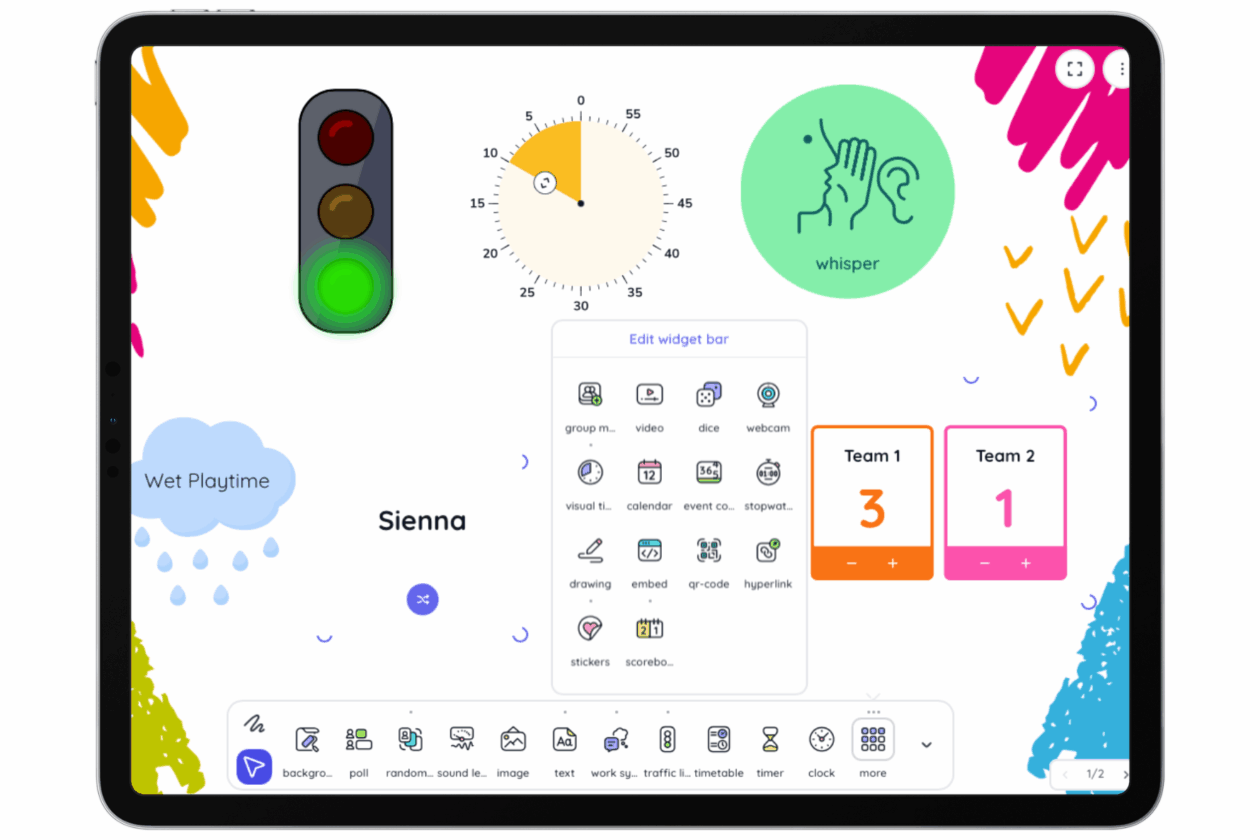
Classroomscreen is a web-based tool that puts all your essential classroom management widgets into one browser window. In the free version, you get access to the full library of 25 widgets to project on your whiteboard. While the free plan doesn’t save your screens for the next day, it is the perfect “launch and go” tool for daily routines.
Instant Classroom Cues: Use visual symbols (like ‘Silence’ or ‘Work Together’) to set the tone for an activity instantly.
Fair Participation: The Random Name Picker and Dice tools ensure every pupil has a fair chance to contribute, supporting the ‘no hands up’ approach to classroom questioning.
Visual Time Tracking: The free Timer and Stopwatch help pupils build independence by managing their own time during tasks.
Quick Checks: Use the Poll widget for a quick “fists to five” or “smiley face” check-in at the end of a lesson to gauge pupil confidence using a join code.
1. Launch: Open the web browser on your device and go to Classroomscreen.com. You can start immediately without even logging in.
2. Add Widgets: Tap the icons on the bar at the bottom to add tools. You can have multiple widgets on screen at once, just drag them with your finger to reposition.
3. Name Lists: In the free version, you can preload and save up to 3 different name lists (e.g., your three main classes). This saves you from re-typing names every lesson.
4. Annotation: Tap the Draw widget to turn part of your screen into a mini-whiteboard for quick scribbles or diagrams using your finger.
5. Refresh Warning: Be careful in the free version, if you refresh the page or close the tab, your widgets and layout will disappear. Keep the tab open throughout the lesson!
Daily Focus: Use the Text Box widget to display the “Learning Intention” or “Success Criteria.” Since you can’t save screens, keep a document with your prompts ready to copy and paste in quickly.
Maths Starters: Open the Dice and Timer widgets. Challenge pupils to solve a mental maths problem based on the dice roll before the timer runs out.
Noise Monitoring: Use the Sound Level widget. It uses the iPad’s microphone to show a live bar graph of the volume in the room – perfect for keeping group work at a “whisper” level. Please note, this feature requires a microphone.
Visual Timetables: Use the Work Symbols alongside the Clock. Seeing the time next to a visual instruction helps pupils who struggle with transitions understand exactly what is happening and for how long.
Quick QR Codes: If you find a great stimulus or video, use the QR Code widget. Paste the link, and a code appears instantly on the board for pupils to scan with their own iPads.
 So what is green-screen?
Essentially it’s using software or an app to combine different images or video so that one appears as if part of the other. The green screen part makes use of chroma-key feature of the app so that anyone standing in front of a green screen will appear in the video with the green screen not seen at all, but replaced by another chosen background image or video. Wikipedia gives a much fuller explanation here: https://en.wikipedia.org/wiki/Chroma_key.
With an iPad, and a green screen app (such as the Doink green screen iPad app) and with anything in the background which is green (whether frieze paper on the wall or green sheeting, or specially made green screen fabric on a frame) you are ready to go.
Have a look at the Sway below for examples of videos created by pupils using the DoInk green screen iPad app, along with how-to guides to starting to use it yourself. And then it’s creativity on the part of your learners in the classroom – for further inspiration have a look at the DoInk green screen app blog to see how others have shared about using green screen film-making in the classroom.
Chrome Music Lab, a hands-on music playground. Explore the science of sound through interactive experiments.
Chrome Music Lab is a website based collection of 14 web-based “experiments” that make learning music tactile and visual. It covers everything from basic rhythm and melody to the complex physics of sound waves and harmonics. It is designed to be played with – there are no “wrong” notes, and every interaction provides immediate visual and auditory feedback.
Instant Creativity: There is no “learning curve.” A pupil can open the Kandinsky experiment, draw a circle with their finger, and hear it turn into a sound immediately.
Visualising the Invisible: It turns abstract concepts like “frequency” and “pitch” into colourful animations. The Spectrogram allows pupils to literally “see” their own voice or the sound of a flute.
Cross-Curricular Links: It is as much a Science and Maths tool as a Music tool. It uses grids to teach patterns (Maths) and oscillators to show how air molecules move (Science).
Easy Sharing: In Song Maker, pupils can save their work as a simple web link. They don’t need to export files; they just copy the link and paste it into a Teams or Google Classroom assignment.
1. Access: Open Safari and go to musiclab.chromeexperiments.com. No login required.
2. Pick an Experiment: Tap on one of the colorful cards to open the experiment. There are a range different options: Song Maker, Rhythm, Spectrogram, Chords, Sound Waves, Arpeggios, Kandinsky, Melody Maker, Voice Spinner, Harmonics, Piano Roll, Oscillators, and Strings.
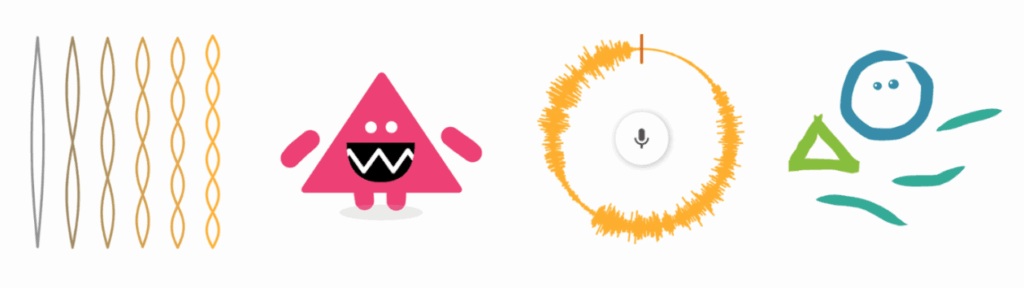
3. Interact: Use your finger to tap the grid, draw shapes, or drag sliders.
So you’ve got iPads in your classroom? Where to start? Have a look at the Sway presentation below for a guide to some help to getting going with using an iPad in the classroom to support learning and teaching.
And if you’re wondering how iPads are being used in classrooms then have a look at the Sway presentation which collates some of the Tweets shared by Falkirk schools about how iPads are being used to support learning and teaching across the curriculum at all stages.
 Apple Education has provided a quick guide to “30 Time-Saving Tips for Teachers” – an at-a-glance list of tips which may be helpful to teachers in using iPads in learning and teaching. Each tip on the infographic has a link to a fuller description and how-to guide, so if one of the tips resonates with you, then just click on the link for a step-by-step guide to how to use the iPad feature.
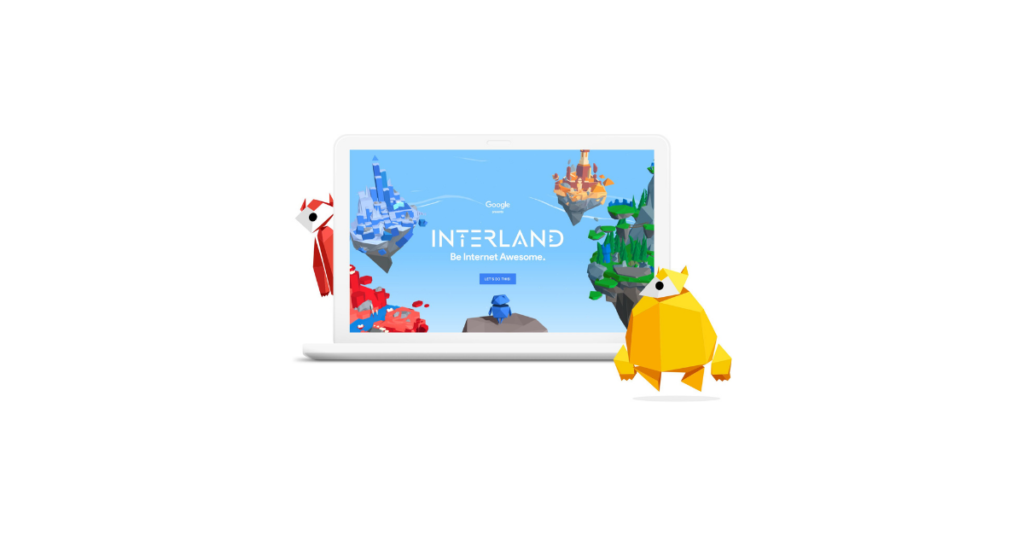
“Be Internet Legends” is a free internet safety educational resource for pupils aged 7-11 years-old, created by Google along with Parent Zone.

Microsoft PowerPoint Online presentations and digital storytelling, optimised for the web and accessibly any time, any where.
PowerPoint Online is the web-based version of Microsoft’s presentation software. It allows you to create, edit, and share slideshows directly in your browser. While it is simpler than the desktop app, it is built for the modern classroom offering real-time collaboration, automatic cloud saving to OneDrive, and unique web-only features like “Presenter Coach.”
Collaborative Creativity: Multiple pupils can work on a single deck at once, making it ideal for group projects or a “Whole Class Book” where every child gets one slide to showcase their work.
Auto-Design: The built-in Designer tool under the ‘Design’ tab on iPad uses smart technology to suggest professional layouts, icons, and themes based on your text.
Rehearse with Coach: Use Rehearse with Coach under the ‘Slide Show’ tab to practice your presentation and get instant feedback.
Always Saved: “AutoSave” is always on. If a device loses power or a browser tab is closed, the work is safe in the cloud.
Launch: Access via the PowerPoint tile on your Glow Launchpad, through your OneDrive or via the iPad app or directly at powerpoint.office.com using your Glow credentials.
Choose a Theme: Start with a template or a blank slate.
Insert Content: Use the Insert tab to add images, videos, or “Online Pictures” which are automatically filtered for Creative Commons (copyright-safe) use. On iPad you can also draw directly onto slides using the ‘Draw’ tab. Don’t forget ‘Animations’ and ‘Transitions’!
Collaborate: Click the Share button (top right) to invite others using their Glow username. You can see their cursor moving and see exactly what they are adding in real-time.
Present: Click Present to show your work or deliver your lesson (via Apple TV). You can use the pencil icon when presenting to make annotations which can be saved upon exiting the presentation.
Presenter Coach: This is a game-changer for public speaking. Pupils can tap Rehearse with Coach. The iPad listens to them speak and gives private, real-time feedback on their pace, “filler words” (like um and ah), and even their body language.
Designer: Instead of searching for clip-art, just type your bullet points. Tap the Designer button, and PowerPoint will suggest high-end, visual layouts that match your topic.
For Quick Videos: Use the Export feature to turn your slideshow into an MP4 video. This is great for creating simple “Instructional Videos” or digital stories.
