
With the free version of Classroomscreen teachers can create instant teacher dashboards. Manage your classroom environment with the tools you need to help the flow of learning.
🔍 What does it do?
Classroomscreen is a web-based tool that puts all your essential classroom management widgets into one browser window. In the free version, you get access to the full library of 25 widgets to project on your whiteboard. While the free plan doesn’t save your screens for the next day, it is the perfect “launch and go” tool for daily routines.
🎓 Why is it useful?
-
Instant Classroom Cues: Use visual symbols (like ‘Silence’ or ‘Work Together’) to set the tone for an activity instantly.
-
Fair Participation: The Random Name Picker and Dice tools ensure every pupil has a fair chance to contribute, supporting the ‘no hands up’ approach to classroom questioning.
-
Visual Time Tracking: The free Timer and Stopwatch help pupils build independence by managing their own time during tasks.
-
Quick Checks: Use the Poll widget for a quick “fists to five” or “smiley face” check-in at the end of a lesson to gauge pupil confidence using a join code.
⚙️ How does it work?
1. Launch: Open the web browser on your device and go to Classroomscreen.com. You can start immediately without even logging in.
2. Add Widgets: Tap the icons on the bar at the bottom to add tools. You can have multiple widgets on screen at once, just drag them with your finger to reposition.
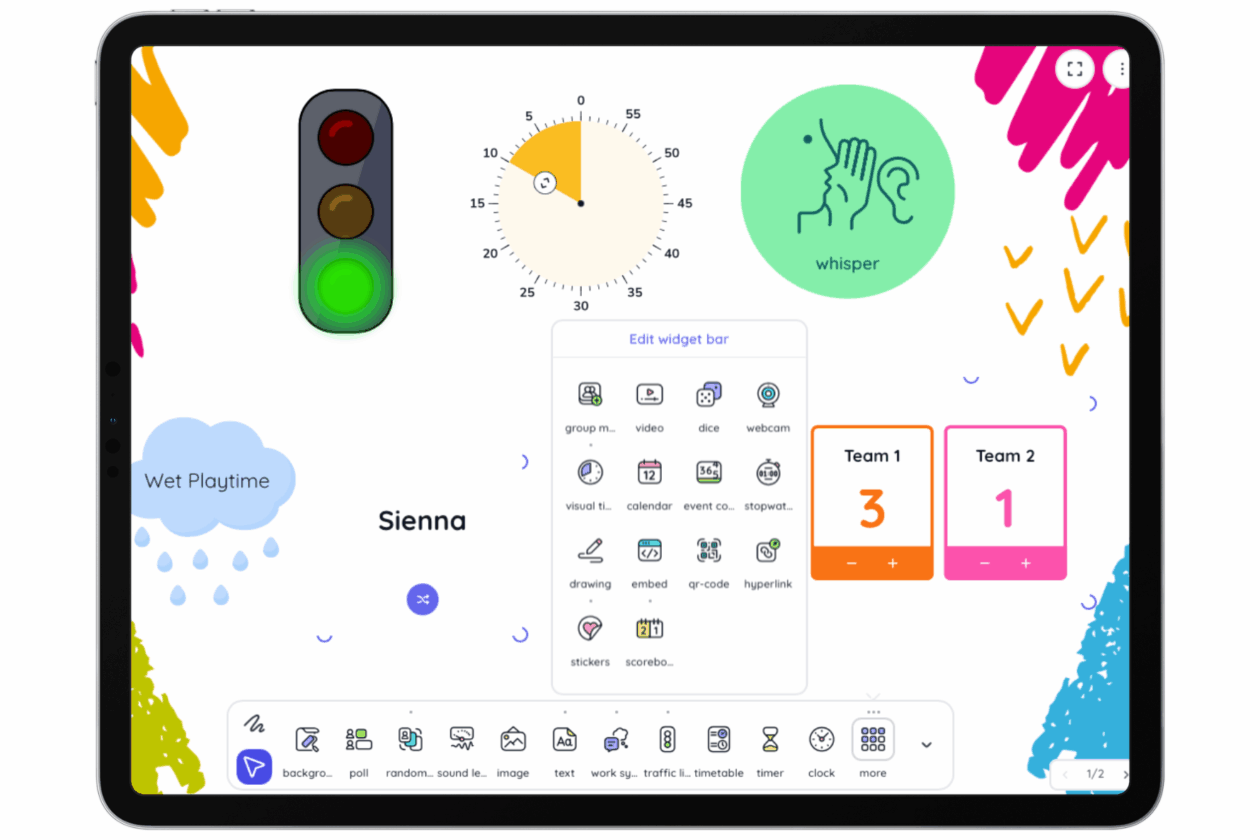
3. Name Lists: In the free version, you can preload and save up to 3 different name lists (e.g., your three main classes). This saves you from re-typing names every lesson.
4. Annotation: Tap the Draw widget to turn part of your screen into a mini-whiteboard for quick scribbles or diagrams using your finger.
5. Refresh Warning: Be careful in the free version, if you refresh the page or close the tab, your widgets and layout will disappear. Keep the tab open throughout the lesson!
🚀 Beyond the Basics
-
Daily Focus: Use the Text Box widget to display the “Learning Intention” or “Success Criteria.” Since you can’t save screens, keep a document with your prompts ready to copy and paste in quickly.
-
Maths Starters: Open the Dice and Timer widgets. Challenge pupils to solve a mental maths problem based on the dice roll before the timer runs out.
-
Noise Monitoring: Use the Sound Level widget. It uses the iPad’s microphone to show a live bar graph of the volume in the room – perfect for keeping group work at a “whisper” level. Please note, this feature requires a microphone.
-
Visual Timetables: Use the Work Symbols alongside the Clock. Seeing the time next to a visual instruction helps pupils who struggle with transitions understand exactly what is happening and for how long.
-
Quick QR Codes: If you find a great stimulus or video, use the QR Code widget. Paste the link, and a code appears instantly on the board for pupils to scan with their own iPads.
