Supporting Every Learner with Read&Write for iPad


A big thanks to everyone who attended our Supporting Every Learner with Read&Write for iPad session this week. Emma from Everway did a wonderful job of taking us through this fantastic resource.

The recording from the session can be found accessing the link below.

Everway Read&Write for iOS Webinar

We will be moving the recording over to our YouTube channel soon. The session slides can also be accessed here.

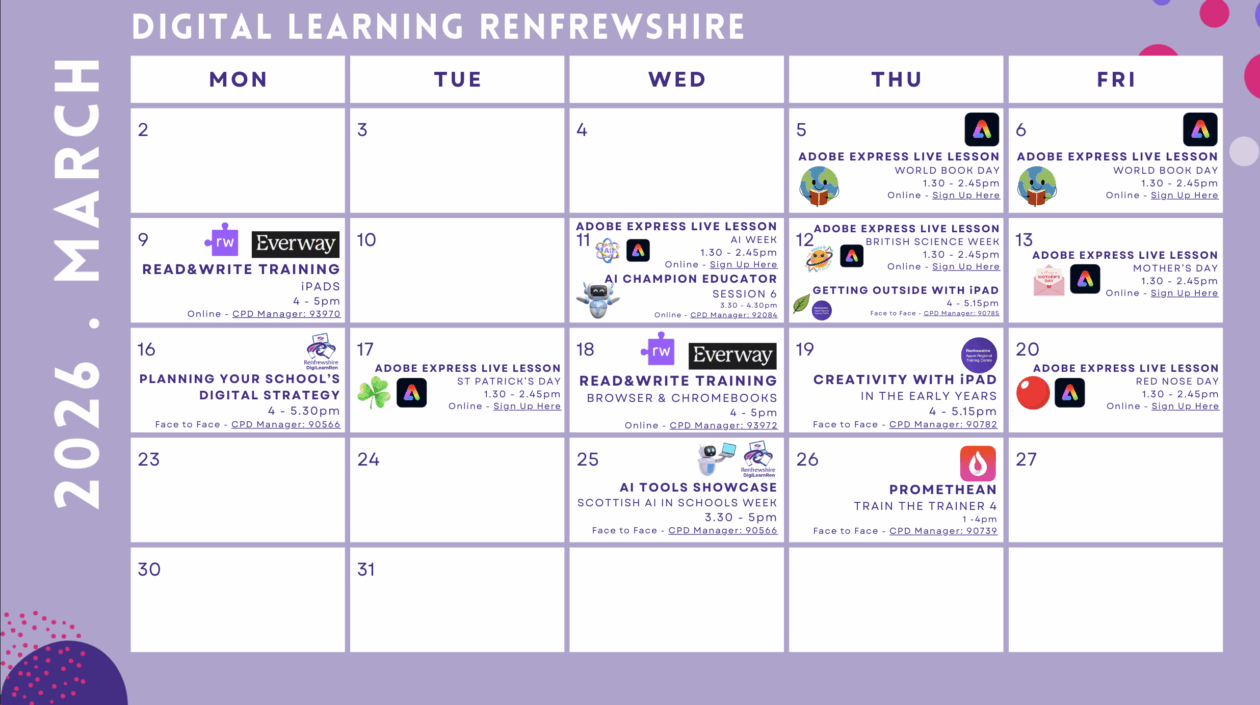
Read&Write for iPad – 9 March, Course ID: 93970

Join us for an engaging virtual session showcasing how Read&Write for iPad can support inclusion and accessibility across the curriculum. You’ll see how the combination of our dedicated writing app and our specialist keyboard helps learners build confidence in reading and writing – anytime, anywhere. We will explore how Read&Write supports a wide range of needs including literacy challenges and EAL.

We’ll look at key features like text-to-speech, word prediction, dictionaries, and translation, demonstrating how they can be embedded into everyday classroom activities to boost independence and engagement.

Ideal for schools using iPads in learning environments, this session will leave you with actionable ideas to help every learner thrive.

Sign up via CPD Manager, Course ID: 93970.

Sector Needs Engagement


As we begin to look forward to next session, an important part of this work is capturing staff needs. This year, we have asked staff to complete surveys, used Professional Learning sessions discussion to capture thoughts, along-side school/ELCC visits. To make sure this feedback is accurate, we would like to invite staff to come along to a face-to-face meeting to discuss the needs of their establishment alongside their own needs. We have some suggestions around what that could look like based on the current feedback and want to make sure we are hitting the right notes for your sector.

We have identified 2 dates for these sessions:

  • Tuesday 3 March from 4.00 – 5.00 pm for Early Years practitioners and Primary Staff
  • Wednesday 4 March from 4.00 – 5.00 pm for Secondary staff

If you are able to attend the relevant session on the above dates please complete this form by 25 February.

Once I have identified numbers of attendees, I will confirm the venue.

Sector Needs Engagement – Fill in form

Thank-you in advance for your support with ensuring that our Digital Learning Strategy aligns with your needs.

Set a recovery email address in Glow

This functionality is available to both adult users and learners within Glow and can be found within their Glow profile.

What is a recovery email address?

It is a secondary email address (different from your primary Glow email address) used solely for account recovery purposes.

Why is it important to have a recovery email address?

  • Having a recovery email address registered is important because it acts as a primary safety net for maintaining access to your Glow account.
  • It enables you to recover your account if you forget your password, get locked out, or if your account is compromised.

Think of a recovery email as your digital spare key. If you ever forget your password or get locked out of your account, this is the fastest and safest way to get back in.

Glow Connect Post

  • The news post below outlines how users can set up a Glow recovery email address and reinforces that this should be a non-Glow email address.

Setting a Glow recovery email address – Glow Connect

Read&Write for Windows – in Class and in Exams 25/02/26

Join us on 25 February at 4.00 pm for an informative online session exploring how Read&Write for Windows can be used to support learners every day in the classroom and during exams. We’ll walk through key tools that help boost reading, writing, and confidence for students with literacy challenges or English as an additional language. You’ll also see how Read&Write can be used in exams, helping reduce reliance on human readers and scribes, while meeting access arrangement requirements.

Whether you’re looking to create a more inclusive learning environment or ensure equity during assessments, this session will offer practical demonstrations and guidance you can use right away. Sign up via CPD Manager, Course ID: 93954.

Change to resetting Glow passwords

As part of our ongoing information security improvements, we would like to inform you of a change when resetting a users password.

What’s changing?

  • When you reset a users password, you will no longer be able to tick the box that allows users to log on using the password you have reset the account to.
  • This means that all users will be prompted to create a new password, once their password has been reset.

When is this change happening?

RM will implement this change on the Monday 2nd March 2026

Why is it important to create your own password?

  • When an administrator resets a password, there are no complexity checks which may result in very simple passwords being set for an individual or even a whole class.
  • Every Glow user should create their own password that is difficult for other people to guess but easy for them to remember.
  • To help young people and children to stay safe online we want to make sure they understand what makes a strong password when using Glow.

Glow Password Guidance

  • The Glow Connect links below can be used to support Glow users with information about this change, guidance outlining how to create a strong password, how to reset passwords and how to stay safe online.
  • Password Guidance – Glow Connect
Report a Glow concern
Cookie policy  Privacy policy