
On this page you will find a programme of Clicker skills tutorials and learning opportunities in using Clicker 8 at Early Level.
In each section, you will find an  Over to you… activity. You may wish to look at them all before you choose which activities to complete. Some of the skills are applicable beyond Early Level.
If you would like accreditation for completion of the Professional Learning, please complete and submit the tasks found in the Over To You… sections. These can be completed and sent to your ATSS contact individually as you complete them or in a bundle at the end.
The content of the tutorials may not exactly match the level of the children you work with, but the Clicker skills you will learn will be transferrable. Whatever the activity, try to think, ‘How could I use this tomorrow..?’
You can, of course, choose to simply watch and learn without completing any tasks , but it is really worthwhile completing the tasks to give you some practice.
Before we begin- Saving Clicker Documents and Sets
How do we save our work in Clicker? What’s the difference between a Clicker Document and a Clicker Set? It’s a good idea to try to wrap your head around the difference from the get go…
There are 2 types of file in Clicker.
- Documents– that the children create that they can save and open later
- Sets– that the teacher creates to support the children’s writing
To make things easier, in Fife we use the Room Folder system to save and access files. You can change the default Home location to a Room Folder, or any location you wish.
Section 1: Sentence Sets
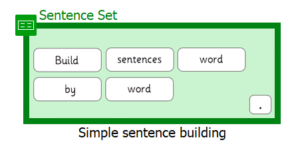 Sentence Sets are one of the Writing Grids. They are sentence building grids, that can be differentiated in lots of different ways.
Aim: to create a Sentence Set that can be differentiated to support different levels of ability.
Understanding sentences and how they work is a really important part of early literacy. Clicker Sentence Sets enable you to quickly create sentence building activities on any topic, tailored to support each child’s individual needs.
The Sentence Set used in the following tutorial may not be suitable for your age and stage but the way it functions will be.
Over to you…
- Create a new Sentence Set
- Edit some cells to personalise the Set
- Try changing the settings, for example word order or changing the style of sentence model, to create different levels of support for the same sentences
- Save each Sentence Set to a location of your choice (remember to save the Set, you need to be in the Clicker Set tab at the top!)
Section 2: Matching Sets
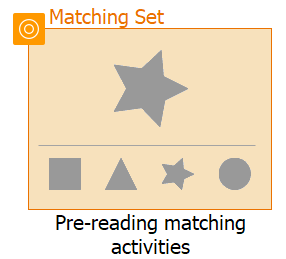 Matching sets are used to practice matching pictures, words and sounds. These can be completely customised for different purposes.
Aim: to create a Matching Set to support an area of the curriculum of your choice.
Matching Sets are a Clicker Set highly adaptable to your needs. Clicker bills them as ‘pre-reading matching activities’ but they can be used for so much more. They give instant feedback to learners and can be differentiated easily. They are also great for using on the smartboard.
Over to you…
- Go to Clicker Set > New > More > Matching Set
- Choose a curricular area (you may want to choose number or phonics, like in the tutorial)
- Create 2 different types of Matching Sets. Try renaming pictures to have the titles you want. You can choose to use Clicker’s voice, or you may wish to record your own voiceovers.
- Differentiate through choice- have only 2 Choices per page on one, and more Choices for the other
- Save both Sets to a location of your choice (remember to save the Set you need to be in the Clicker Set tab at the top!)
Section 3: Talk Sets
 Talk Sets allow the child to record their voice. This is particularly useful for children who are not ready for printed text yet, or to self assess their spoken word.
Aim: to create Talk Sets to allow learners to practice speech.
There are 3 types of Talk Set:
- Listen and Say– listen to sounds, a word or words and say what you hear
- Talk About– talk about a picture
- Tell the Story– recount a story, report or set of instructions in sequence
Talk Sets are great for all children to practice talking targets but are also good for EAL learners, practicing new vocabulary, or as part of a SALT programme.
It allows learners to:
- Practice words and extend vocabulary
- describe an image in their own words
- retell a sequence
- give an opinion
- to self-assess pronunciation
Over to you…
- Go to Clicker Set > New > More > Talk Set
- Choose which type of Talk Set would be most useful to begin with for your setting
- Add pictures. Try renaming pictures to have the titles you want. You can choose to use Clicker’s voice, or you may wish to record your own voiceovers.
- Save your Talk Set to a location of your choice (remember to save a Set, you need to be in the Clicker Set tab at the top!)
Section 4: LearningGrids
Aim: to familiarise yourself with the Learning Grids resource.
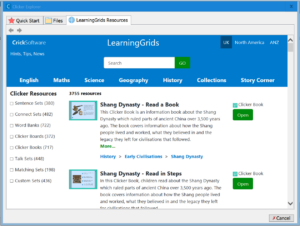 The LearningGrids tab can be found when you first open Clicker or by clicking on the yellow Explorer folder icon. LearningGrids contains nearly 4,000 pre-prepared Clicker Sets and resources.
LearningGrids is a fantastic way to search for your next class/group lesson. It is an online space where you can find thousands of Clicker Sets already made!
Once you have chosen a Set from LearningGrids you can then edit it to make it perfect to use for your class or group lesson. Remember Clicker isn’t just for writing… there are Sets in LearningGrids for most curricular areas. Go have a look around…
Section 5: Planning Boards
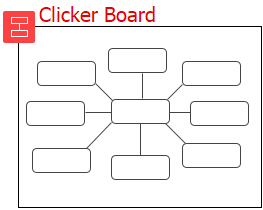 Planning Boards are a quick and easy way to construct a mind map. They can include images, sounds and text that can be moved around the board. They could also be used for choice boards, such as gathering pupil voice, or for a whole class KWL topic web.
Aim: to edit a Planning Board from LearningGrids that allows children to make choice and share opinion.
Planning Boards can be used in a variety of ways…
- to record a pupil’s voice on a subject
- to share opinions and ideas
- making choices
- sequencing
- planning and organising
- as a teaching tool
Over to you…
- Go to LearningGrids
- Search for a Clicker Board (remember you can filter on the left hand side) you want to play with- maybe choose ‘Our Favourite Colours’ like I did
- Add a new tab on the right hand side, or right click on an existing one and choose duplicate, and create a Board for another colour
- Change pictures within existing cells, try adding new cells and copy and pasting existing cells
- Save your Board to a location of your choice (remember to save the Board (which is a Clicker Set), you need to be in the Clicker Set tab at the top!)
Section 6: Clicker Books
 LearningGrids has over 700 Clicker Books ready to download and use. Clicker Books can be read using the Clicker voices, or you can record your own voice. Lots of the books in LearningGrids have follow up activities. You can create your own Clicker Books as an interactive record of class trips or events, capturing the voices of your learners.
Aim: to adapt or create a Clicker Book to use with learners.
Clicker Books allows you to create digital texts that can include words, pictures sound and even video.
Clicker Books can support with many areas of the curriculum, including:
listening skills
- Simply listening to a story
- to practice words
- control over the text is provided with sound buttons
voice record buttons can be added to allow learners to respond to a story
Talking skills
- telling news
- recalling a visit
- sharing something they have done or are interested in
- recounting a story
- creating a book of their own, including their own pictures
TOP TIP!
Clicker LearningGrids has over 700 books. It may be a good idea to begin with a book you can edit, rather than starting one from scratch…
Over to you…
Make a book or adapt a book from Learning Grids for you to read to your group
-
- Remember you look at any of the videos again- in Clicker 8 if you have a webcam you can take a picture or make a video
- If you are using a Learning Grids outline with pictures instead of or as well as add a recording of you reading the story
- Remember to personalise it – say what do you think happens next for example or use your children’s names
- It could be about something you did in Nursery, add photos if you have them
- Give them an activity to do- draw a picture of what you think happens next or at the end