
On this page you will find a programme of Clicker skills tutorials and learning opportunities in using Clicker 8 as a Teaching Tool. In each section, you will find an  Over to you… activity. You may wish to look at them all before you choose which activities to complete. Some of the skills are applicable across different CfE levels.
If you would like accreditation for completion of the Professional Learning, please complete and submit the tasks found in the Over To You… sections. These can be completed and sent to your ATSS contact individually as you complete them or in a bundle at the end.
The content of the tutorial may not exactly match the level of the children you work with, but the Clicker skills you will learn will be transferrable. Whatever the activity, try to think, ‘How could I use this tomorrow..?’
You can, of course, choose to simply watch and learn without completing any tasks , but it is really worthwhile completing the tasks to give you some practice.
Before we begin- Saving Clicker Documents and Sets
How do we save our work in Clicker? What’s the difference between a Clicker Document and a Clicker Set? It’s a good idea to try to wrap your head around the difference from the get go…
There are 2 types of file in Clicker.
- Documents– that the children create that they can save and open later
- Sets– that the teacher creates to support the children’s writing
To make things easier, in Fife we use the Room Folder system to save and access files. You can change the default Home location to a Room Folder, or any location you wish.
Section 1: Learning Grids
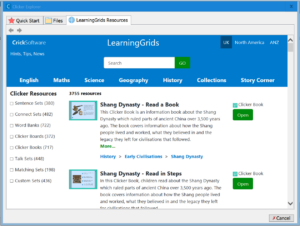 The LearningGrids tab can be found when you first open Clicker or by clicking on the yellow Explorer folder icon. LearningGrids contains nearly 4,000 pre-prepared Clicker Sets and resources.
How to Repurpose an existing grid: Colourful Semantics example
Please remember that these are the colours used by Speech & Language Therapy in Fife, not the ones you get in the Learning Grids resource.

Over to you:
- Go on to LearningGrids Online
- use search
- edit cells and put alternative text in using shift and click
- add and change a picture cell
- try randomising cells
- try Guided Order
- using it with your class as a teaching tool and then differentiating the work using Clicker supports for some children
- save your grid in a room folder
Section 2: Planning Boards
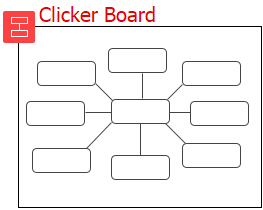 Planning Boards are a quick and easy way to construct a mind map. They can include images, sounds and text that can be moved around the board. They could also be used for choice boards, such as gathering pupil voice, or for a whole class KWL topic web.
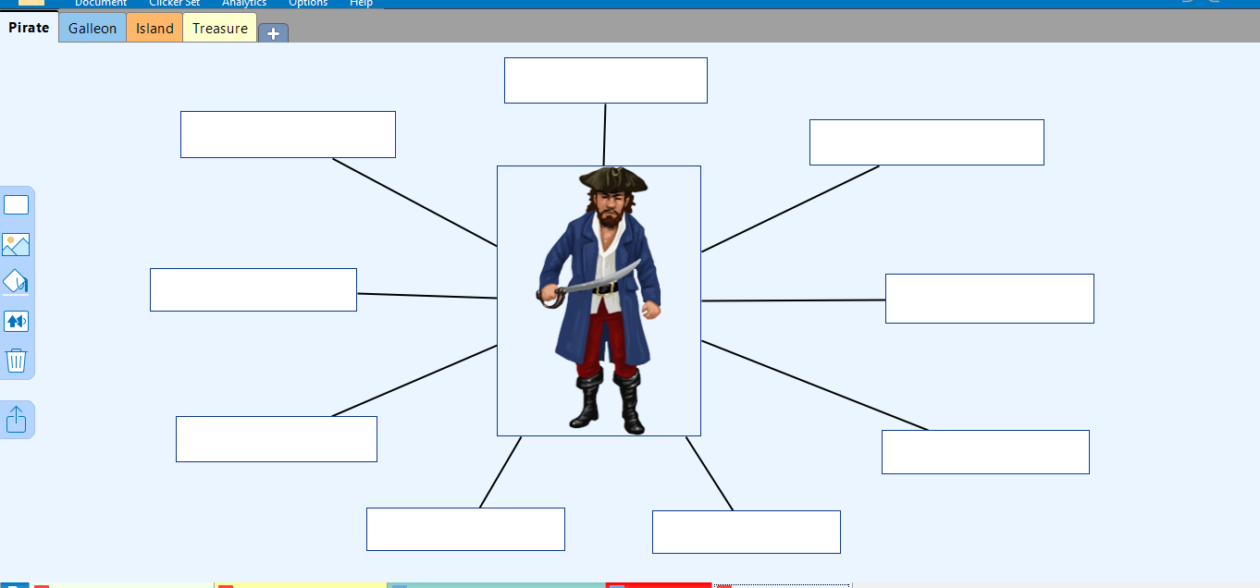
Aim: to use a Planning Board with your class
Clicker Planning Boards can be used, by an individual or as a teaching tool on the smartboard, for a variety of reasons, including:
- gathering words and ideas
- supporting children with spelling
- organising ideas
- as a reminder of the task
- as a planning tool
- increase vocabulary
- consolidating learning
- making choices
- comparing information for Maths, Science, History or Geography topic
Over to you:
- Create a Planning Board
- add a cell and add picture and text to the cell
- use the spelling supports
- add more cells and links
- change size of cell
- add different type of cell including a record cell
- rename board
- add picture in the background
- label picture changing cell background and colour
- add a web image or photo you or the children have taken
- make a Wordbank from your board
Section 3: Clicker Books
 LearningGrids has over 700 Clicker Books ready to download and use. Clicker Books can be read, using the Clicker voices, or you can record your own voice. Lots of the books in LearningGrids have follow up activities. You can create your own Clicker Books as an interactive record of class trips or events, capturing the voices of your learners.
Aim: to create a book or download a book from Learning grids and edit it to read with a group or your class then use that book to make a template of a book that your class can create (remember there are examples of this on Learning grids)
Over to you:
- Create a Clicker Book from a template or download one from Learning Grids
- add text and pictures
- a photograph or a video from webcam or attached camera
- resize, change background colour, text colour
- add pages and choose or make your own layout and sort pages
- add read and record buttons
- save your work
Section 4: Supports within Clicker Docs
Aim: to plan an activity relating to your class topic, allowing learners who need support with reading and writing to use Clicker’s built in supports.
In this section we will look at creating a topic activity using:
- Predictor
- Spellchecker
- Voice notes
- Cloze
- Writing Sets
- Hyperlink
Writing Grids
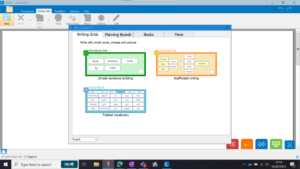
- scaffold child’s writing
- model sentence structure
- can be customised for individual needs
- pictures and photos can be added for visual support
- child can listen to what they have written being read
- build confidence
Over to you:
(remember all the supports available to the learner within a document)
- select suitable information with video from the web
- Open a document in clicker
- Insert a date and add text (remember clicker can read it to them)
- Embed a hyperlink to a video to support learning
- Add voice notes to support learning
- Add sound buttons so a pupil could record their answers and/or a writing grid
Section 5: Using Analytics to assess writing
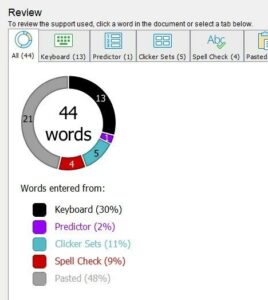 Clicker has a built in analytics tool that can help you see how the document was drafted and help plan next steps.
Section 5: Using a Talk Set or a Matching Set
Aim: to create a set that you can use with your class or a group
Over to you:
- choose the right set to create for your class or a group
- know what the purpose of the set is and the outcomes you want
- adding pictures and/or photographs
- changing the order of pictures
- changing sounds and putting in your own recording(for a match set)
- depending on the set, choosing how many recordings you can have
- saving your set in a room folder
- adapting your set for a different class or group