
Microsoft PowerPoint Online presentations and digital storytelling, optimised for the web and accessibly any time, any where.
🔍 What does it do?
PowerPoint Online is the web-based version of Microsoft’s presentation software. It allows you to create, edit, and share slideshows directly in your browser. While it is simpler than the desktop app, it is built for the modern classroom offering real-time collaboration, automatic cloud saving to OneDrive, and unique web-only features like “Presenter Coach.”
🎓 Why is it useful?
-
Collaborative Creativity: Multiple pupils can work on a single deck at once, making it ideal for group projects or a “Whole Class Book” where every child gets one slide to showcase their work.
-
Auto-Design: The built-in Designer tool under the ‘Design’ tab on iPad uses smart technology to suggest professional layouts, icons, and themes based on your text.
-
Rehearse with Coach: Use Rehearse with Coach under the ‘Slide Show’ tab to practice your presentation and get instant feedback.
-
Always Saved: “AutoSave” is always on. If a device loses power or a browser tab is closed, the work is safe in the cloud.
⚙️ How does it work?
-
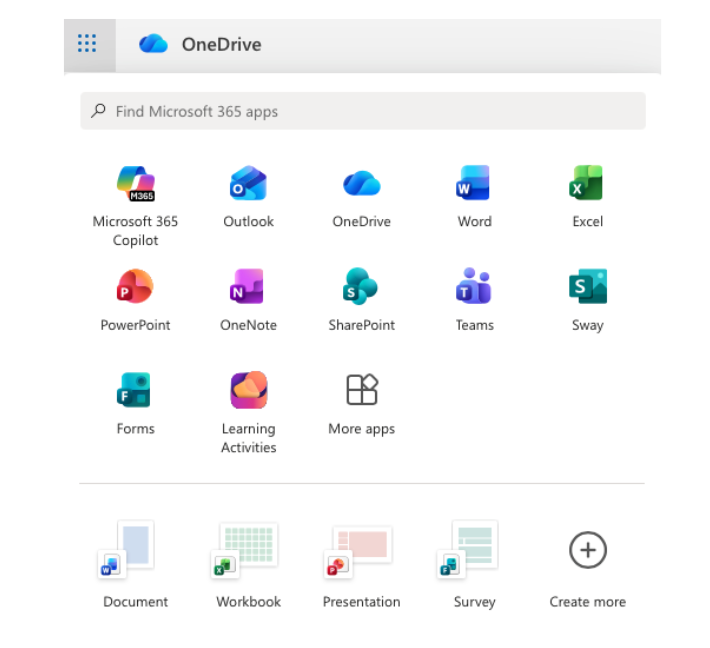
Launch: Access via the PowerPoint tile on your Glow Launchpad, through your OneDrive or via the iPad app or directly at powerpoint.office.com using your Glow credentials.
-
Choose a Theme: Start with a template or a blank slate.
-
Insert Content: Use the Insert tab to add images, videos, or “Online Pictures” which are automatically filtered for Creative Commons (copyright-safe) use. On iPad you can also draw directly onto slides using the ‘Draw’ tab. Don’t forget ‘Animations’ and ‘Transitions’!
-
Collaborate: Click the Share button (top right) to invite others using their Glow username. You can see their cursor moving and see exactly what they are adding in real-time.
-
Present: Click Present to show your work or deliver your lesson (via Apple TV). You can use the pencil icon when presenting to make annotations which can be saved upon exiting the presentation.
🚀 Beyond the Basics
-
Presenter Coach: This is a game-changer for public speaking. Pupils can tap Rehearse with Coach. The iPad listens to them speak and gives private, real-time feedback on their pace, “filler words” (like um and ah), and even their body language.
-
Designer: Instead of searching for clip-art, just type your bullet points. Tap the Designer button, and PowerPoint will suggest high-end, visual layouts that match your topic.
-
For Quick Videos: Use the Export feature to turn your slideshow into an MP4 video. This is great for creating simple “Instructional Videos” or digital stories.