Author: Miss Abercrombie

Google Slides

Google Slides is a collaborative presentation tool: build, edit, and present together in real-time.

🔍 What does it do?

Google Slides is a web-based presentation app that lets pupils create professional-looking slideshows. Slides is built for collaboration. Multiple pupils can work on the same slide deck at the exact same time, making it a “go-to” tool for group projects and class-wide contributions.

🎓 Why is it useful?

  • Real-Time Teamwork: Every pupil in a group can have their own assigned slides within one file. They can see each other’s updates live, which encourages peer support and collective effort.

  • Automatic Cloud Saving: No “Save” button required. All changes are instantly synced to the pupil’s Glow Google Drive, so work is never lost.

  • Compatibility: Slides works on any device. A pupil can start a presentation on their school iPad and finish it on a home laptop just by logging into Glow.

  • Simplified Tools: The interface is clean and intuitive, focusing on the core elements of a great presentation: text, images, shapes, and basic transitions.

⚙️ How does it work?

  1. Launch: Open the Google Slides app on your iPad or login to Google Slides on your internet browser.

  2. Sign In: Use your Glow email (e.g., gw15smithjohn@fa.glow.scot) and use your normal Glow password.

  3. Create: Tap the ‘+’ icon and select ‘New presentation’ or ‘Choose template’ (great for school reports and science projects).

  4. Insert Content: Use the menus at the top of the screen to add Text, Images, Shapes, and Lines.

  5. Present: Tap the ‘Play’ icon at the top to present directly from your iPad to a classroom screen via Apple TV.

  6. Classroom: If using Slides with Google Classroom you can directly create an assignment that is based in Slides by going to ‘classwork’ > ‘+create’ >  ‘assignment’ > ‘+create’ and selecting Slides. From there you can choose whether learners can view the Slide deck, edit it as one group or make a copy for each student. If you want to add a scaffolded Slide deck with information or instructions already in it, it is the same process but instead of clicking ‘+create’ as the last step, click ‘upload’ and choose the Slide deck you have already made to support learners.  

🚀 Beyond the Basics

  • Group Anthologies: Create one “Class Book” slide deck. Assign each pupil a single slide to write and illustrate a short poem or character description. By the end of the lesson, the class has a shared digital book.

  • Data Presentations: After collecting data in Google Sheets, pupils can copy their charts and paste them into Slides to explain their findings to the class.

  • Collaborative Lab Reports: A lab group can share one deck. One pupil inserts photos of the experiment, another types the method, and a third writes the conclusion.

  • Interactive Choice Boards: Teachers can create a “Menu” slide where shapes link to other slides in the deck. Pupils tap a topic to jump straight to that information.

  • Accessibility Check: Use the ‘Speaker Notes’ area for pupils to script their presentation. This helps those who might be nervous about speaking or need extra prompts during their turn.


💡 Top Tips for the Free Version

  • App vs. Browser: The iPad app is perfect for adding content and basic editing. For advanced features (like adding YouTube videos or detailed theme editing), open Slides in Safari and “Request Desktop Website.”

  • Grid View: Tap the icon in the bottom left that looks like a four-square grid. This shows every slide in the deck at once – perfect for a teacher to quickly see which pupils are working on which slides.

  • Offline Mode: If working out of wifi range (perhaps in the school playground), tap the ‘three dots’ on your file in the main menu and toggle ‘Available offline’. Your edits will sync back to Glow as soon as you reconnect.

🔗 Teacher Quick Links

Google Slides Training and Help

Google Docs

Google Docs: write, edit, and share ideas together in real-time.

🔍 What does it do?

Google Docs is an online word processor that allows pupils to create reports, essays, and stories. Its most powerful feature is “Live Collaboration” – multiple pupils can work on the same document simultaneously, seeing each other’s changes as they happen. It removes the need for “saving” and “emailing versions,” as everything is stored live in the cloud via Glow.

🎓 Why is it useful?

  • Instant Collaboration: Perfect for group writing projects. Pupils can be in different parts of the classroom (or in other locations) and contribute to the same piece of work at once.

  • Voice Typing (Accessibility): Pupils who struggle with typing can use the “Dictation” feature (via the iPad keyboard) to turn their speech into text directly on the page.

  • Version History: (Accessible via browser version) Teachers can see exactly who contributed what to a group project and “roll back” the document if something is accidentally deleted.

  • Feedback Loop: Teachers and peers can highlight text and leave Comments, allowing for a digital dialogue about the work without changing the original text.

⚙️ How does it work?

  1. Launch: Open the Google Docs app on iPad or login to Google Docs on your internet browser.

  2. Sign In: Use your Glow email (e.g., gw15smithjohn@fa.glow.scot) and use your normal Glow password.

  3. Create: Tap the ‘+’ icon to start a new document or pick from a template like “Report” or “Letter.”

  4. Share: Use the Share button to add collaborators or send a link to the Google Doc.

  5. Classroom: If using Docs with Google Classroom you can directly create an assignment that is based in Docs by going to ‘classwork’ > ‘+create’ >  ‘assignment’ > ‘+create’ and selecting Docs. From there you can choose whether learners can view the Doc, edit it as one group or make a copy for each student. If you want to add a scaffolded Doc with information or instructions already in it, it is the same process but instead of clicking ‘+create’ as the last step, click ‘upload’ and choose the Doc you have already made to support learners.  

🚀 Beyond the Basics

  • Collaborative Storytelling: Start a “Pass the Story” activity. One pupil writes the introduction, a second writes the problem, and a third writes the resolution—all in the same Doc at the same time.

  • Structured Reports: Use the ‘Insert Table’ feature to help pupils organize their research into categories like “Climate,” “Culture,” and “History.”

  • Smart Chips: Type ‘@’ to bring up a menu that lets you quickly insert smart chips, files or building blocks like dates, drop downs, links to other Google files. This helps pupils keep their resources organised in one place.

  • Suggested Edits: Teach pupils how to use “Suggesting” mode (under the ‘three dots’). This allows them to propose changes to a partner’s work that the original author can choose to ‘Accept’ or ‘Reject.’

  • Meeting Minutes: Teachers can use the built-in “Meeting Notes” template which automatically pulls in the date and participants, making it easy to share notes with a department instantly via Glow.


💡 Top Tips for Google Docs

  • Reading Mode: If a document is long, pupils can change the ‘Print Layout’ toggle in the menu to see how it will look on paper, or keep it in mobile view for easier reading on the iPad.

  • The ‘Explore’ Tool: While the iPad app is streamlined, opening Docs in Safari allows you to use the “Explore” feature to research topics and find images without ever leaving the document.

  • Offline Working: Tap the ‘three dots’ on a file in the main list and select ‘Available offline’. This is vital for pupils who may not have reliable Wi-Fi at home but want to finish their homework.


🔗 Teacher Quick Links

Google Docs Training and Help

Google Sheets

Google Sheets in Glow is a digital spreadsheet, Organize data, perform calculations, and visualise results in real-time.

🔍 What does it do?

Google Sheets is a cloud-based spreadsheet tool. It allows pupils to collect data, use formulas to perform calculations (from simple addition to complex statistics), and turn those numbers into clear, colorful charts. Because it is part of Glow, pupils can work together on the same sheet at the same time, seeing each other’s edits instantly.

🎓 Why is it useful?

  • Single Sign-On: Pupils log in with their Glow credentials, automatically saving all work to their secure Google Drive.

  • Real-Time Collaboration: Entire groups can contribute to one data set. For example, a whole class can input their height or eye color into one shared sheet to create a “class profile.”

  • Mathematical Accuracy: It teaches pupils the logic of formulas. Instead of just doing a sum, they learn how to “tell the computer” to do the work, a vital STEM skill.

  • Automatic Saving: There is no “Save” button. Every change is tracked, and pupils can use Version History (on the web version) to go back if they make a mistake.

⚙️ How does it work?

  1. Launch: Open the Google Sheets app on your iPad or login to Google Sheets on your internet browser.

  2. Sign In: Tap ‘Sign In’ and enter your Glow email (e.g., gw15smithjohn@fa.glow.scot) and use your normal Glow password.

  3. Create: Tap the ‘+’ icon to start a new spreadsheet or choose a template like a “To-do list” or “Budget.”

  4. Enter Data: Tap a cell and use the keyboard to type numbers or text. Tap the ‘fx’ bar at the bottom to enter a formula (starting with =).

  5. Share: Use the Share button to add collaborators or send a link to the sheet.

  6. Classroom: If using Sheets with Google Classroom you can directly create an assignment that is based in Sheets by going to ‘classwork’ > ‘+create’ >  ‘assignment’ > ‘+create’ and selecting Sheets. From there you can choose whether learners can view the Sheet, edit it as one group or make a copy for each student. If you want to add a scaffolded Sheet with data or instructions already in it, it is the same process but instead of clicking ‘+create’ as the last step, click ‘upload’ and choose the Sheet you have already made to support learners.  


🚀 Beyond the Basics

  • Budgeting Challenges: Give pupils a “Virtual £100.” They use a Sheet to list items they want to buy, using the =SUM() formula to keep track of their total and ensure they don’t go over budget.

  • Experiment Results: When doing a “Dissolving” or “Growth” experiment, pupils record their daily measurements in a Sheet. They can then highlight the data and tap + > Chart to instantly create a line graph showing the change over time.

  • Spelling Checkers: Pupils can build their own self-marking spelling tests. Using simple “IF” statements, they can program a cell to turn green and say “Correct!” when the word is spelled right.

  • Demographic Charts: Research populations or climate data. Pupils can use Conditional Formatting to automatically colour cells (e.g., Red for hot temperatures, Blue for cold) to spot patterns in the data visually.

  • Checklists & Visual Organisers: Teachers can create a “Digital Planner” for pupils. Using Checkboxes (found in the ‘Insert’ menu), pupils can tick off their tasks as they complete them, giving them a sense of progress and structure.


💡 Top Tips for the Google Sheets

  • App vs. Browser: The iPad App is best for quick data entry and basic charts. For more complex features (like advanced conditional formatting or Pivot Tables), open Sheets in the Safari browser and “Request Desktop Website.”

  • Offline Access: Pupils can tap the ‘three dots’ on a file and toggle ‘Available Offline’ if using the Sheet outside of school wifi range (when outdoor learning for example). They can keep working, and it will sync back to Glow once they are back online.

  • Clean Data: Use the ‘Sort and Filter’ tools (under the ‘three dots’ menu) to help pupils organise messy data sets without needing to re-type everything.


🔗 Teacher Quick Links

Google Sheets Training and Help

Book Creator

Book Creator (Web Version) is a simple way to create, read, and share interactive digital books.


🔍 What does it do?

Book Creator is an online platform where pupils build their own eBooks. They can combine text, images, video, and audio recordings. For the free version, teachers create a “Library” and invite pupils to join using a simple code. Once inside, pupils can see each other’s work (if the teacher allows it) and build books that can be read like a real flip-book.


🎓 Why is it useful?

  • Multimodal Evidence: Pupils don’t just write, they can record their voice reading their story, embed a video of a science experiment, or use the “Pen” tool to draw diagrams.

  • Accessibility Built-In: It includes features like “Read to Me” (which reads the book aloud) and Dictation, allowing pupils to “write” using their voice.

  • Real Audience: There is a huge motivational boost for pupils when they know their book will be “published” online and can be read by their parents or peers.

  • Cross-Platform: Because it’s web-based, pupils can start a book on an iPad in school and finish it on a laptop or tablet at home.


⚙️ How does it work?

  1. Launch: Go to app.bookcreator.com in Safari.

  2. Teacher Sign-In: Create and sign into your free account.

  3. Create a Library: On the Free Plan, you get 1 Library that can hold up to 40 books.

  4. Invite Pupils: Click the ‘Invite Code’ button. Pupils go to the same website, select ‘Student Sign In’, and enter their code to join your library.

  5. Build a Book: Tap the ‘New Book’ button. Add media, change colors, fonts, and page backgrounds.


🚀 Beyond the Basics

  • Instructional Manual: Pupils can create a “How-To” guide (e.g., “How to make a jam sandwich”). They can take photos of each step and record a short audio clip explaining what to do.

  • Interactive Lab Reports: Use the Video tool to capture an experiment in action. Pupils can then use the Text tool to write up their findings alongside the video evidence.

  • Personal Portfolios: Create an “About Me” book. Pupils can use the Shapes and Stickers to decorate their pages and add audio reflections on their goals for the year.

  • Visual Social Stories: Teachers can create a book with photos of school routines (e.g., “Going to the Dining Hall”) and share it with pupils who benefit from visual transitions.


💡 Top Tips for the Free Plan

  • Managing Your 40 Books: The limit is 40 books per library. Once your library is full, you can archive it or delete old books to make room for new projects.

  • Collaborative Settings: In the Library settings (the cog icon), you can toggle whether pupils can see each other’s books. Turning this ON is great for peer feedback; turning it OFF helps pupils focus on their own work.

  • Publishing Safely: You can “Publish” a book online with one click. This generates a private link that you can share with parents. You can “Unpublish” it at any time.


🔗 Teacher Quick Links

Get Help with Book Creator

Book Creator – One Pagers

Numbers

Apple Numbers – A visual spreadsheet that turns data into interactive stories, charts, and creative organisers.


🔍 What does it do?

Unlike traditional spreadsheets, Numbers is a “free-form” canvas. You don’t start with a giant wall of cells; you start with a blank page where you can place small tables, images, and charts exactly where you want them. This makes it perfect for pupils to create lab reports, personal trackers, or interactive posters.


🎓 Why is it useful?

  • Multiple Tables on One Sheet: Pupils can have a small table for their results, a text box for their hypothesis, and a photo of their work all side-by-side.

  • Touch-First Data Entry: When you tap a cell, Numbers brings up a custom keyboard (numeric, date, or duration) designed specifically for the data you are entering, making it much easier for younger pupils to use their fingers accurately.

  • Interactive Charts: You can create “Interactive Charts” that allow pupils to use a slider to see how data changes over time – perfect for showing plant growth or weather patterns.

  • Smart Forms: You can turn any table into a “Form.” Pupils can then enter their data into a simple, clean interface that feels like a mobile app, which then populates the main spreadsheet automatically.

⚙️ How does it work?

  1. Launch: Open the Numbers app (Green icon with a white bar chart).

  2. Start with a Template: Choose from the Education section for pre-made templates like “Lab Report,” “Grade Book,” or “Attendance.

  3. Add Objects: Use the ‘+’ icon at the top to add Tables, Charts, Text Boxes, Shapes, and Media (photos or videos).

  4. Format: Tap an object, then tap the Format (Paintbrush) icon. This is where you change colors, fonts, and chart styles using your finger.

  5. Calculate: Tap a cell and select ‘Cell Action’ > ‘New Formula’ to use the built-in formula editor. It is designed to be tapped, not typed, so pupils can easily build sums.


🚀 Beyond the Basics

  • Digital Lab Report: Use a blank sheet. Pupils can record a video of their experiment and embed it directly next to their results table.

  • Character Trackers: Use a table to track a character’s emotions through a book. Pupils can use the ‘Star Rating’ or ‘Pop-up Menu’ cell types to make the data entry fun and visual.

  • Visualising Budgets: Give pupils a “Budget” of £50 to plan a party. They can add photos of items from the web and use a simple SUM formula to see their remaining balance update live.

  • Fitness Trackers: Create a simple “Daily Activity” log. Pupils can use the ‘Checkbox’ cell type to tick off when they’ve completed their daily mile or drank enough water.

  • Interactive Planners: Teachers can create “Weekly Checklists” for pupils. Because you can drag tables anywhere, you can make the planner look like a visual dashboard rather than a boring list.


🔗 Teacher Quick Links

Numbers User Guide for iPad

Get Started with Numbers on iPad

Microsoft OneDrive

Microsoft OneDrive in Glow: securely store, share, and collect files from anywhere.

🔍 What does it do?

OneDrive is the “storage heart” of Glow. Every Falkirk teacher and pupil has space to save documents, photos, and videos. Because it is cloud-based, you can start a file on your classroom PC and pick it up exactly where you left off on your iPad. It’s also the engine that allows for real-time collaboration in Word, Excel, and PowerPoint.


🎓 Why is it useful?

  • Version History: Accidents happen! If a pupil accidentally deletes their entire essay, you can use “Version History” to go back in time and restore a previous version of that document.

  • Files On-Demand: It doesn’t use up all the space on your iPad. You can see all your files, but they only download when you actually click to open them.

  • Seamless Sharing: No more emailing large attachments. Send a “view-only” or “edit” link to a colleague or pupil to work together on a single version of a file.


⚙️ How does it work?

  1. Access: Find the OneDrive tile on your Glow Launchpad or open the app on your iPad.

  2. Organise: Create folders for different subjects or terms to keep your “My Files” area tidy.

  3. Share: Select a file and click the Share icon. You can decide if the person can “Edit” or just “View,” and even set an expiry date for the link.

  4. Sync: Ensure the OneDrive app is signed in on your iPad so that your “Camera Roll” can automatically back up your classroom photos. Find out how to do this here.


🚀 Beyond the Basics

  • Shared Folders: Create a folder for your department or stage. Share it with your colleagues with “Edit” access to build a shared library of lesson plans and resources that everyone can contribute to.

  • Data Analysis: If you collect survey data using a Microsoft Form, the results are stored in your OneDrive as an Excel file. You can share this file with pupils so they can practice “Live Data” analysis in class.

  • Live Peer Editing: Have two pupils share a Word document stored in OneDrive. They can use the “Comments” feature to give each other feedback in real-time without ever leaving the document.


🔗 Teacher Quick Links

Glow Connect – OneDrive Articles

Microsoft Sway

Microsoft Sway is a digital storytelling made simple: Professional presentations, newsletters, and portfolios in minutes.

🔍 What does it do?

Microsoft Sway is a web-based storytelling app that helps you create interactive reports, personal stories, and newsletters. Unlike PowerPoint, which is slide-based, Sway is a scrolling digital canvas. You provide the content (text, images, and videos), and Sway’s built-in design engine handles the layout, ensuring it looks great on any screen- from a desktop to a smartphone.


🎓 Why is it useful?

  • No Design Skills Required: You focus on the story, Sway focuses on the design. With one click of the “Remix” button, you can instantly change the entire look and feel of your project.

  • Accessible by Design: Sways are easy to read. They include an “Accessibility View” that optimizes the screen for high contrast and screen readers, making it inclusive for all learners.

  • Modern Newsletters: It is an extremely useful tool for school newsletters in Falkirk. Parents can scroll through updates and watch embedded videos of school life directly on their phones.

  • Web-Based Sharing: You don’t “send” a Sway; you share a link. This means you can update the content even after you’ve sent the link, and everyone will see the latest version.


⚙️ How does it work?

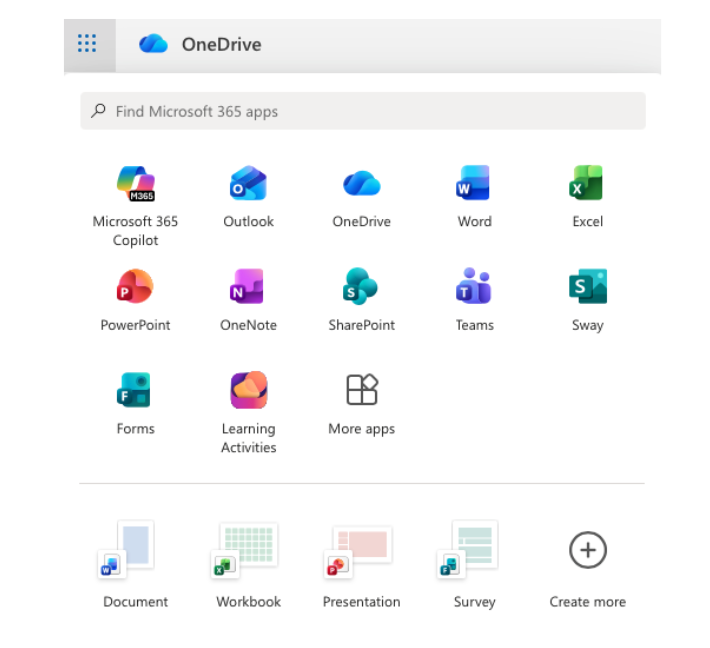
1. Launch: Access directly at sway.office.com using your Glow login details or via the waffle menu in OneDrive in Glow.

2. Start from Scratch or a Document: Click + New Blank to start fresh, or upload an existing Word or PDF document and watch Sway “transform” it into a web page automatically.

3. The Storyline: Use the “Storyline” to add “Cards.” There are cards for text, images, video, and even “Stacks” (groups of photos that you can tap to flip through).

4. Design & Remix: Switch to the Design tab to see your work. Click Styles and then Remix! to cycle through different fonts, colors, and scroll directions (Vertical or Horizontal).

5. Share: Click the Share button. For school newsletters, ensure you select “Anyone with a link” so parents can view it without needing a Glow login.


🚀 Beyond the Basics

  • Digital Portfolios: Pupils can use Sway to curate their best work over a term. They can embed audio recordings of them reflecting on their writing alongside photos of their physical work.

  • Interactive Reports: Instead of a poster, pupils can create a scrolling report. Use the “Comparison” card to show “Before and After” photos of an experiment using a slider.

  • Virtual Trips: Create a Sway about a country or historical period. Embed Google Maps (using an embed code) and YouTube videos to create an immersive research hub for the class.

  • For Admin: Create a “Living Document” for staff or pupils. Because it’s a web link, you can update the school calendar or policies in the Sway throughout the year without having to re-send emails.

Microsoft Forms

Microsoft Forms is an easy way to create surveys, quizzes, and polls with built-in Practice Mode and Data Insights.

🔍 What does it do?

Microsoft Forms is a web-based tool for gathering information and assessing learning. It allows you to create interactive quizzes and surveys that work on any device. In a Falkirk classroom, it can be used as a go-to tool for “check-ins” and low-stakes testing providing instant feedback to both the teacher and the pupil.

🎓 Why is it useful?

  • Instant Assessment: Create a “Check for Understanding” quiz at the end of a lesson to see exactly which pupils have grasped the concept.

  • Low-Stakes Learning (Practice Mode): This new feature allows pupils to try questions multiple times, see correct answers instantly, and receive encouraging feedback, turning a “test” into a learning activity.

  • Smart Data Insights: Forms doesn’t just show you “who got what”, it automatically identifies “Hard Questions” where a large percentage of the class struggled, helping you plan what to re-teach.

  • Self-Marking: Quizzes can be auto-graded, giving pupils immediate results and saving you hours of manual marking for certain types of assessment.

⚙️ How does it work?

1. Launch: Access directly at forms.office.com using your Glow login details or via the waffle menu in OneDrive in Glow.

2. Create: Click + New Quiz (to add correct answers and points) or + New Form (for surveys).

3. Enable Practice Mode: Go to Settings (…) and toggle on Practice Mode. This allows pupils to see if they are right or wrong immediately after answering each question.

4. Present Mode: Use the Present button in class to show live, anonymous results (like a word cloud or bar chart) as pupils submit their answers in real-time.

5. Review: Click the Responses tab to see a summary of the data and open it in Excel for a detailed breakdown.

🚀 Beyond the Basics

  • Practice Mode for self paced learning: Turn any quiz into a revision tool. Pupils get instant feedback and can “try again,” which helps build confidence and independence.

  • Branching Logic in Literacy: Use the “Branching” feature to create a digital “Choose Your Own Adventure” story. Depending on the choice a pupil makes, the form sends them to a different page of the narrative.

  • Live Data in Science: Open a Form in Present Mode during an experiment. As pupils enter their findings, the charts on your board update live, allowing for an immediate class discussion on the results.

  • Accessibility with Immersive Reader: Every Form has Immersive Reader built-in. Pupils can tap the icon next to any question to have it read aloud, translated, or broken into syllables.


Quick Links

Microsoft Forms for Education

Microsoft Forms Quick Start Guide