
Immersive Reader is a free tool that implements proven techniques to improve reading and writing for people, regardless of their age or ability.


Microsoft Teams is a digital hub for your classroom: one place for communication, assignments, and learning insights.
Microsoft Teams is a digital workspace that brings together everything a class needs. It combines group chat (Posts), file storage, and a powerful assignment system. In Falkirk, it serves as a virtual learning environment which is an extension of the physical classroom pupils log in to see their tasks, complete assignments, and collaborate on shared documents.
Centralised Learning: No more hunting for files. With the Classwork tab, you can group assignments, links,and OneNote pages into organized modules (e.g., “Week 1: The Victorians”).
Learning Accelerators: Teams now includes specialised tools like Reading Progress and Search Progress that help pupils build core skills while giving you automated data on their performance.
Wellbeing Checks: Use the Reflect tool to quickly gauge how your pupils are feeling, helping you support their social and emotional needs alongside their academic learning.
Paperless Assignments: Set tasks, provide rubrics, and give feedback all within the app. You can even see the “Student View” to ensure your instructions are clear before you click ‘Assign’.
Launch: Find the Teams tile on your Glow Launchpad or log into the app version.
Create a Class: Click ‘Join or create a team’ and ensure you select the ‘Class’ type (this gives you the Assignments and Class Notebook features).
Organise with Classwork: Use the Classwork tab to create “Modules.” Drag and drop files and assignments into these folders so pupils have a clear path to follow.
Set an Assignment: Go to the Assignments tab. You can attach any file (Word, PowerPoint, Whiteboard) and choose to give “Each student their own copy” to work on.
Check Insights: Click the Insights tab to see at a glance who has been active, who has turned in work, and even how the class “mood” is trending via Reflect.
Reading Progress: Assign a reading passage. Pupils record themselves reading it, and Teams automatically marks their fluency, accuracy, and “mispronunciations,” saving you hours of 1-to-1 assessment time.
Search Progress: Instead of just asking for a report, use Search Progress. It tracks how pupils search the web, showing you which sources they trusted and why, helping you teach information literacy.
Reflect: Schedule a weekly “check-in.” Pupils choose a “Feelings Monster” that represents their mood. It’s a private, safe way for them to tell you if they are struggling.
Channel Moderation: If the ‘Posts’ area gets too busy, you can change the settings so that only you can start new threads, while pupils can only reply. This keeps your announcements from being buried!
Live Captions: During a virtual meeting or lesson, pupils can turn on Live Captions to see what you are saying as text on the screen—essential for pupils with EAL or hearing impairments.

Virtual Reality, or VR, provides a means to have an experience of a location or object (whether real or imaginary) through a mobile device, often viewed through a headset, in such a way that when the viewer moves around they see the virtual view moving with them. Read more


Microsoft Educator Centre is a site which provides free on-demand personalised learning for teachers in exploring the use of digital technologies to support learning and teaching – learning at a pace which suits each teacher on the topics they find most useful to them, at the time they need it.

A digital portfolio or e-portfolio can take several forms, and have different purposes. Whether it’s a place to share a learning journey, record notable achievements, provide a platform for a learner’s reflections on progress, or to link to records/artefacts/evidence stored elsewhere of skills, examples of work or achievements, or chart future goals and stepping stones to objectives. It may provide opportunity for feedback by peers of learners or educators, and it can provide a means for a learner to collate aspects of their digital footprint as they journey through life.

Probably the best known Wiki is Wikipedia, ranked in the top ten of all websites, attracting hundreds of millions of visitors a month to the reference articles by tens of thousands of contributors. And, in a nutshell, that’s an illustration of what sets a wiki apart from other websites, blogs and online spaces – a wiki provides the facility for creation and editing of an online space by multiple users, with a transparent trail of edits for all who visit, making changes (and who made them) visible to all, and providing the facility to set alerts to changes made on the wiki so that anyone can be notified of changes as soon as they are made.

Want to share video of school activity with parents/carers and the wider community? It’s an often-made request from schools about how to best do that.


Microsoft OneNote, the digital ring-binder that organises your entire classroom in one place.
OneNote is a powerful digital notebook that allows you to capture text, handwriting, audio, and images on an infinite canvas. While it works as a personal notebook, its real power in Falkirk is the Class Notebook – a shared version of OneNote used within Microsoft Teams where teachers can distribute digital resources, see pupil work in real-time, and provide instant feedback.
Organisation: Think of it as a physical folder with infinite dividers. You can have sections for different subjects, and pages for every lesson, all of which stay synced across iPads, PCs, and Glow.
Classroom Management: Within a Class Notebook, you have a “Teacher-Only” space to prep lessons, a “Content Library” where pupils can view resources, and “Private Notebooks” where each pupil does their work (which only you can see).
Live Feedback: You can open a pupil’s page while they are working and leave a digital sticker, a handwritten note, or a voice recording. This “over the shoulder” feedback is instant and impactful.
Multimedia Evidence: Pupils can take a photo of their physical work (like a poster or a maths jotter), “print” it onto a page, and then record their voice explaining their thinking.
1. Access OneNote: Access directly at OneNote.office.com using your Glow login details or via the waffle menu in OneDrive in Glow.
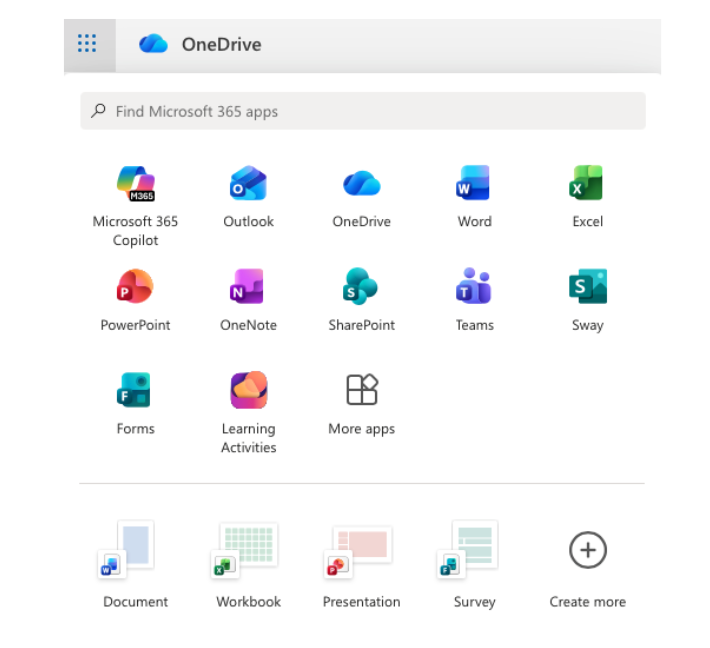
2. Access Class Notebook: It is best to set this up through Microsoft Teams (by adding a ‘Class Notebook’ tab). This automatically creates folders for every pupil in your class.
3. Distribute Pages: Create a lesson in your Content Library, then use the ‘Class Notebook’ tab to “Distribute Page” to everyone. It appears in their notebooks instantly.
4. Review Student Work: Use the ‘Review Student Work’ button to quickly flip through every pupil’s response to a specific task without having to open individual files.
Immersive Reader: Built directly into OneNote. Pupils can click ‘View’ > ‘Immersive Reader’ to have any text read aloud, translated, or changed to a high-contrast background. There is also a picture dictionary for dual coding.
Maths Assistant: Pupils can write an equation with their finger or stylus. OneNote can solve the equation and, more importantly, generate a Practice Quiz based on that specific problem type.
Dictation: Pupils can use the ‘Dictate’ button to “write” their stories using their voice helping remove the barrier of a blank page.
Feedback Audio Notes: Instead of typing, record a 30-second audio clip of your feedback. Research shows pupils find voice feedback more personal and easier to understand.
Formative Assessment – Reflect: You can now insert a Reflect poll directly onto a OneNote page to check how pupils are feeling about their learning that day.
 15 Simulations to Gamify Your Class – this post by Jacqui Murray lists and describes a variety of online tools which let learners interact with a situation and make choices, which lead to different options depending on their choices. These include historical situations, life choices, enterprise activities and science and technology scenarios where the learner has to understand the situations, make choices based on their knowledge, then to see what happens based on their choice. Jacqui Murray has also helpfully added further suggestions and tips for teachers using these simulation tools in a classroom context.
 29 Games Kids Can Play to Try Engineering – a post by Richard Byrne describing and linking to several online game simulations with an engineering focus on the Try Engineering website. This website also includes 114 lesson plans on a host of engineering themes, including those associated with the simulation games.
 More Online Learning Simulations– a post by Larry Ferlazzo listing and describing a range of online learning simulations with a focus on finance or economy at different stages, as well as providing a link to a further post by him of additional simulations sites.
