

Freeform is an infinite digital canvas for visual brainstorming and project planning.
🔍 What does it do?
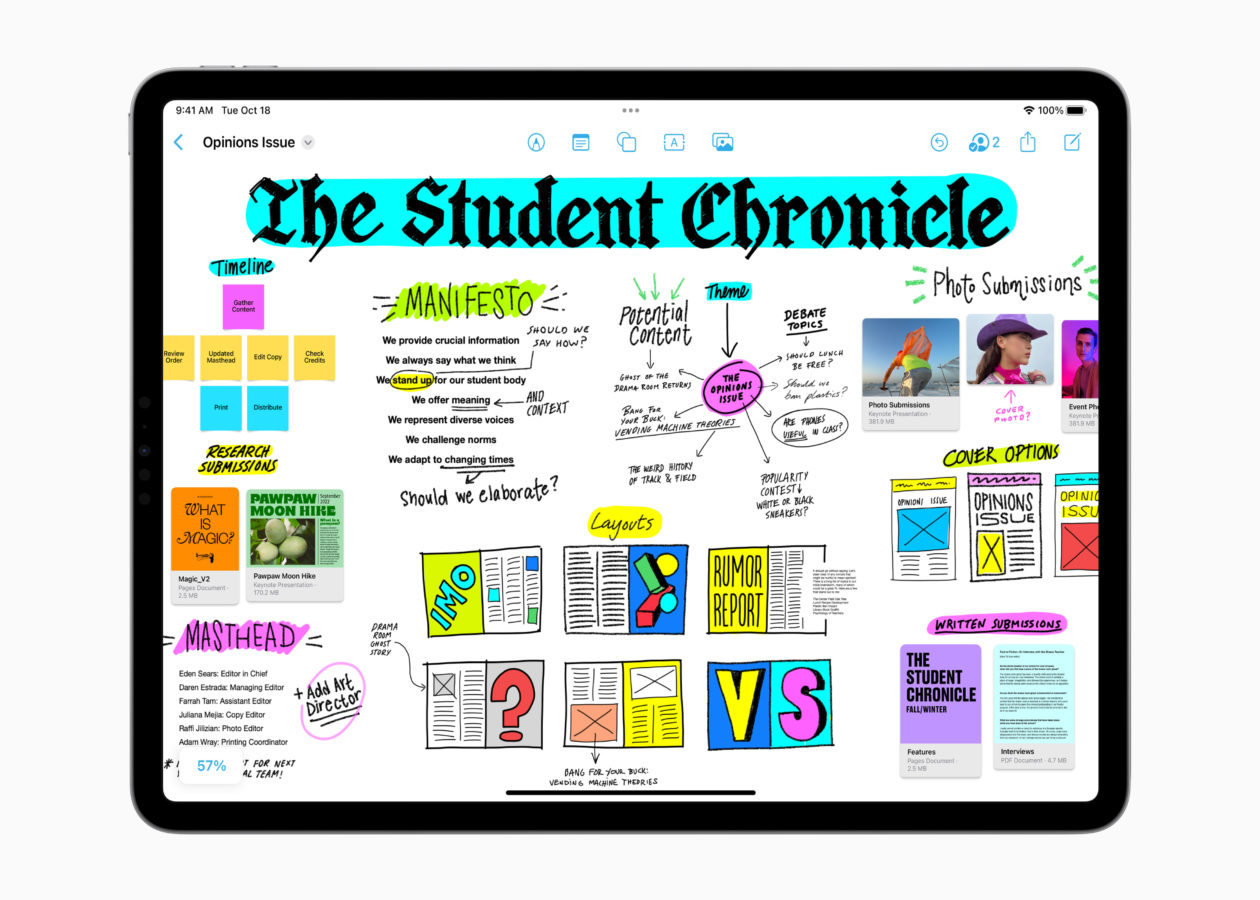
Freeform is an “infinite whiteboard” app that comes built into the iPad on models running iPad OS 16.2 and above. Unlike a document or a slide deck, there are no page breaks or borders. You can add text, photos, videos, PDFs, web links, and hand-drawn sketches anywhere on the canvas. As you add more content, the board simply expands in every direction.
🎓 Why is it useful?
-
Total Creative Freedom: Because the canvas is infinite, pupils don’t have to worry about running out of space or fitting their ideas into a specific layout.
-
Multimedia Hub: You can “drop” almost any file onto a board. This makes it perfect for gathering research, as pupils can keep their notes, photos, and YouTube videos all in one viewable space.
-
Real-Time Collaboration: Up to 100 people can work on the same board at once. You can see everyone’s cursors moving and see ideas grow in real-time – ideal for whole-class “thought-dumps.”
-
Built-in Tools: It uses the same familiar Apple markup tools as “Notes,” making it easy for pupils to sketch, annotate images, or highlight text.
⚙️ How does it work?
-
Launch: Find the Freeform app icon on your iPad home screen (White icon with a blue/orange squiggle).
-
Start a Board: Tap the ‘New Board’ icon (square with a pencil) to begin.
-
Add Content: Use the icons at the top to add Sticky Notes, Shapes, Text Boxes, or Photos/Files.
-
Zoom and Pan: Use two fingers to pinch and zoom out to see the whole board, or drag to move to a different area of the canvas.
-
Collaborate: Tap the Share button (box with an arrow) to invite others to edit the board with you via a link. There are two options for sharing, ‘Collaborate’ and ‘Send Copy’. ‘Send Copy’ will send a carbon copy to others which they can then use for themselves (you will not see changes). ‘Collaborate’ allows you to choose between users being able to make changes or view only. When you send using ‘Collaborate’ always use ‘Anyone with the Link’. We recommend that you use the Notes option to share Freeform boards, simply select your collaboration options then hit the Notes icon, this will automatically create a note with the link which you can Airdrop to learners – this method is generally found to be more reliable than directly airdropping from the share panel.
🚀 Beyond the Basics
-
Storyboarding: Use the “Shapes” tool to create comic-strip boxes. Pupils can draw their scenes, add text for dialogue, and even drop in sound recordings of their characters speaking.
-
Project Planning: Use the infinite space to map out a complex experiment. Pupils can take photos of each stage of their build and “connect” them with arrows to show the process.
-
Multimedia Revision: Create a revision board on a topic like “The Wars of Independence.” Embed links to BBC Bitesize, drop in PDFs of primary sources, and add sticky notes with key dates.
-
Mood Boards: Pupils can gather inspiration from the web, crop images directly on the board, and use the markup tools to sketch colour palettes or textures alongside their found images.
-
Visual Scaffolding: Teachers can create a “Pre-filled Board” with prompts, sentence starters, and images, then share it as a template for pupils to build upon.
🔗 Teacher Quick Links
Where can you learn more about Freeform?
Get Started with Freeform on iPad
How to Use Freeform – Apple Support
Jacob’s Quick Tips – A Complete Guide to Freeform
