Just do this:
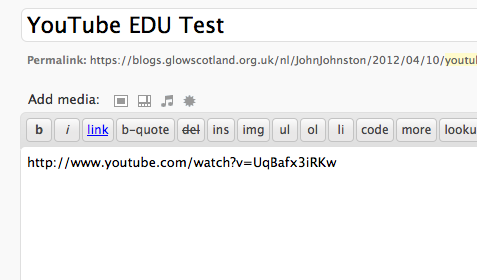
Just do this:

This is A test of the iCab iOS browser. It allow file upload so I can chose this picture from my iPad camera roll. Worth the £1.49p hat tip David Baugh ADE HTTP://www.digitalcreator.org/divined/?p=1194

Tabs by denn
Attribution-NonCommercial-ShareAlike License
It is a lot easier to blog with an iPad on this more recent version of Safari which has tabbed browsing.
One of the problems with glow blogs is their lack of support for the MetaWeblogAPI so that the many blogging apps on iOS do not work.
One of the problems blogging with an iOS device is the lack of support for file uploads in web browsers.
This mean if you want to use an image in a blog post you need to use one previously uploaded to the web. Here I have searched Flickr with A flickr CC search toy which finds safe images that you can legally use and provides an HTML snippet to insert the image with the attribution.
The new safari with tabs makes it easy to write a post in one tab and search for an image in the other. Remember that Mobile safari does not support the wysiwyg editing of posts you need to switch to the HTML editor.
Hopefully when we hear of the next ‘version’ of glow it will include the ability to use the MetaWeblogAPI in glow blogs.
All I did was this:
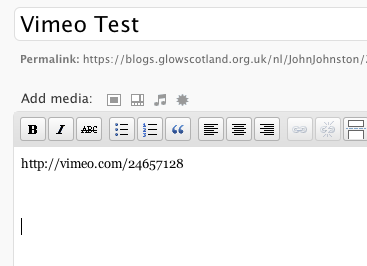
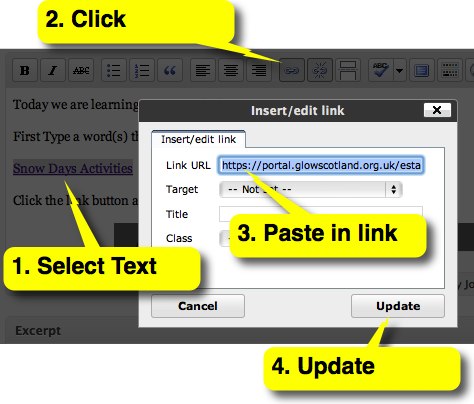 Today we are learning to put in a link.
First Type a word(s) that you want to use as the link:
Click the link button and paste in a URL. Hit Update. & Publish.
Glow blogs provide an easy way to post to the web. You can post text, audio & video. The only limit is the upload file size which is limited to 5mbs. This is fine for audio but you need to keep video short and small. There is a way around this. You can have a podcast set up on the NLC Podcast server where is is very easy to post audio and video file of up to 50mb. Here is a screencast showing how easy it is: Uploading a podcast even easier than using a glow blog.
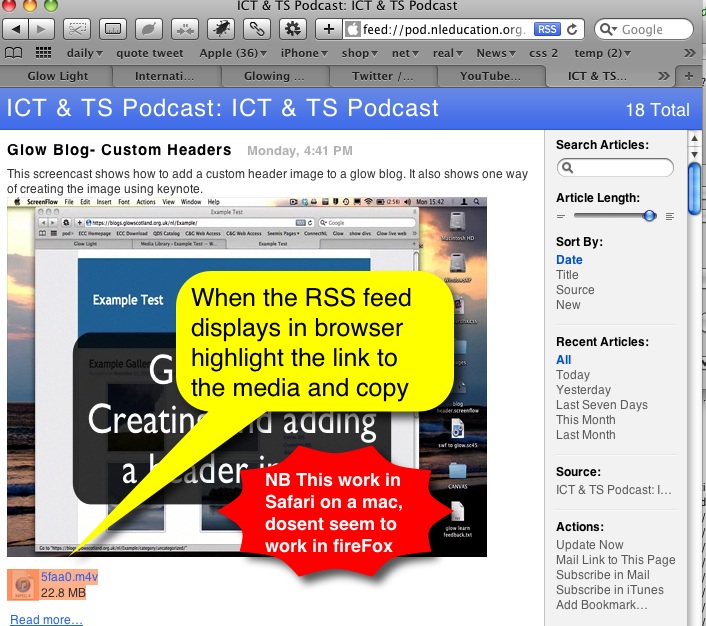
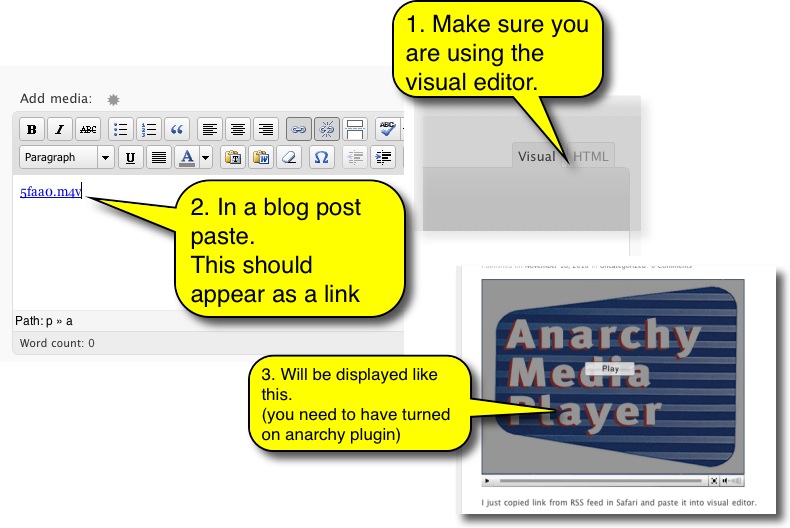
Once it is there is is simple to post this to your blog:
These instructions are for Safari (tested on v5)
Here are some pictures of the process. click the first thumbnail and then on the left to move on.
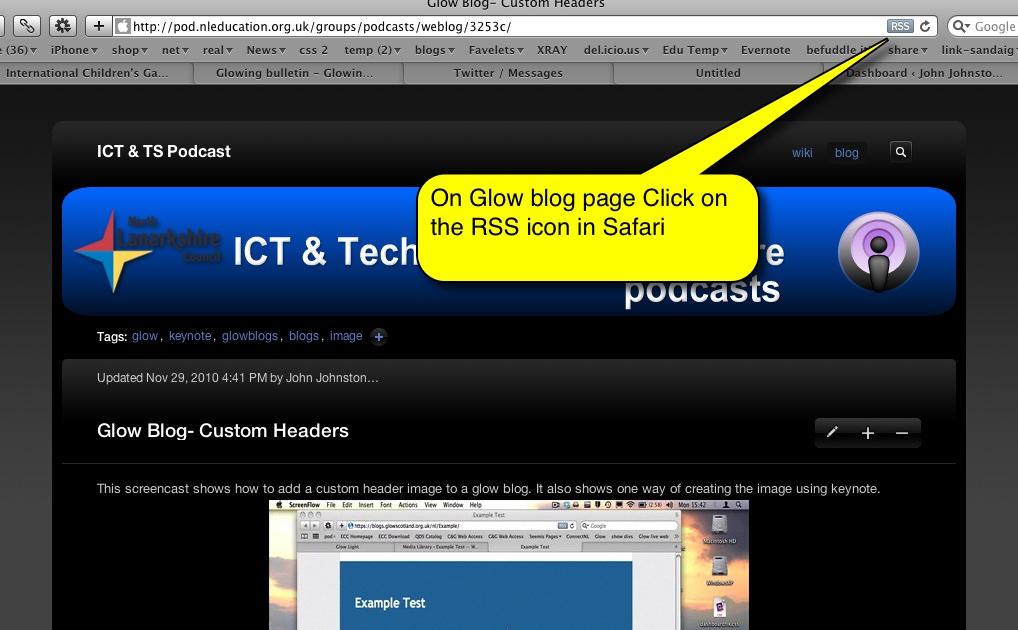
and here is an example movie, this one shows how to create a header for your blog using Keynote.
Here I have uploaded a video and an image file
The video’s file name is slides.mov
the images file name is slides.mov.jpg
the slides.mov.jpg image replaces the default Anarchy splash screen.
Music in video by Kevin MacLeod Licensed under Creative Commons “Attribution 3.0