Paste in the url to a shared project:

Paste in the url to a shared project:
Paste URL into block editor, uses the Pinterest block:
Update 30 Aug 2023, the embed of pdf seems to have stopped working in the classic editor. We have a couple of workarounds, below the classic section. In general we are now recommending the block editor.
In the classic editor you can paste a link to a PDF into your blog and it will be linked:
If you upload a pdf using the Add Media it will insert a link like this:PDF Embed
The embed from Google docs still works so you could use that, details on the main help blog.
Use the Dear Flip plugin, it creates a flipbook from an uploaded PDF, We have some examples.
Use the block editor, the pdf below is embed via the block editor. You need to enable this editor in settings. You can set allow users to switch. Details of how to enable the block editor on the help blog. You then add a Files Block to the post and choose your pdf.
We have more info on the File Block and there is documentation on WordPress.org: File Block.
github gists (code snippits) can be shown by pasting the url to the gist, works for public and secret gists. This is the css for the list of embed links on the homepage of this blog. The list of links is provided by the Display Posts plugin.
The list is produced with the following shortcode:
[display-posts posts_per_page="100" orderby="title" order="ASC" wrapper="div" wrapper_class="embedlinks"]
After activation the Display Posts plugin.
There is a kindle embed above I just pasted the link https://www.amazon.co.uk/gp/product/B08BLSGLR3 on its own line
Just paste in the link to Sound Cloud, https://soundcloud.com/michael-timmons-music/hanshin-railway-line-1 gives:
On a giphy page copy the link to the gif from the copy link button. Add this in the classic editor by Adding Media and then insert from url. With the block editor you can add an image block and inser from url.

Giphy may be blocked on some school networks.
The gif block which requires Jetpack to be turned on, allows you to search for a gif or paste in a url.
or add an image block and insert from url. Once you have done that you can import the image usie the Add to Media library on the block toolbar:
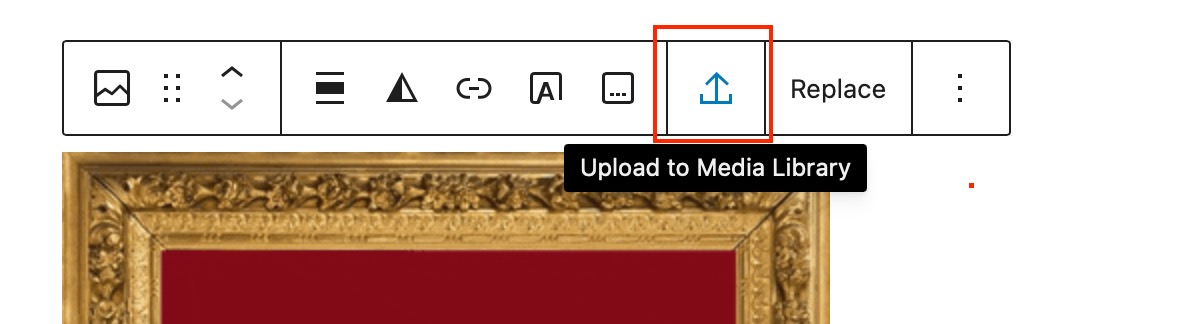
You are responsible for any attribution needed. I’ve used the caption of the image below.
You can now embed Apple Keynote files stored in iCloud on Glow Blogs. Just share, allow access via a link and paste the link in to a glow blog post or page.
First you need to make sure the Jetpack plugin is activated and the shortcode module is turned on.
Paste the embed code into the Editor, the editor must be switched to Text mode:
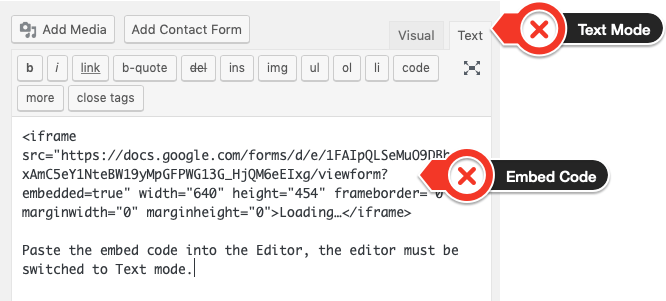
After saving the iframe will change into a shortcode:

If you are using the Block Editor, use the custom html block. Paste in the iFrame Code. This will not change to the short code until you save draft or publish. Here is a very short screencast showing the process.
Just paste the share url into the blog editor. Above I used: https://drive.google.com/file/d/1FlPiSYCO-0SEI9qczZ_pxspSZNOPGK5e/view?usp=sharing