
Logging in on iPad
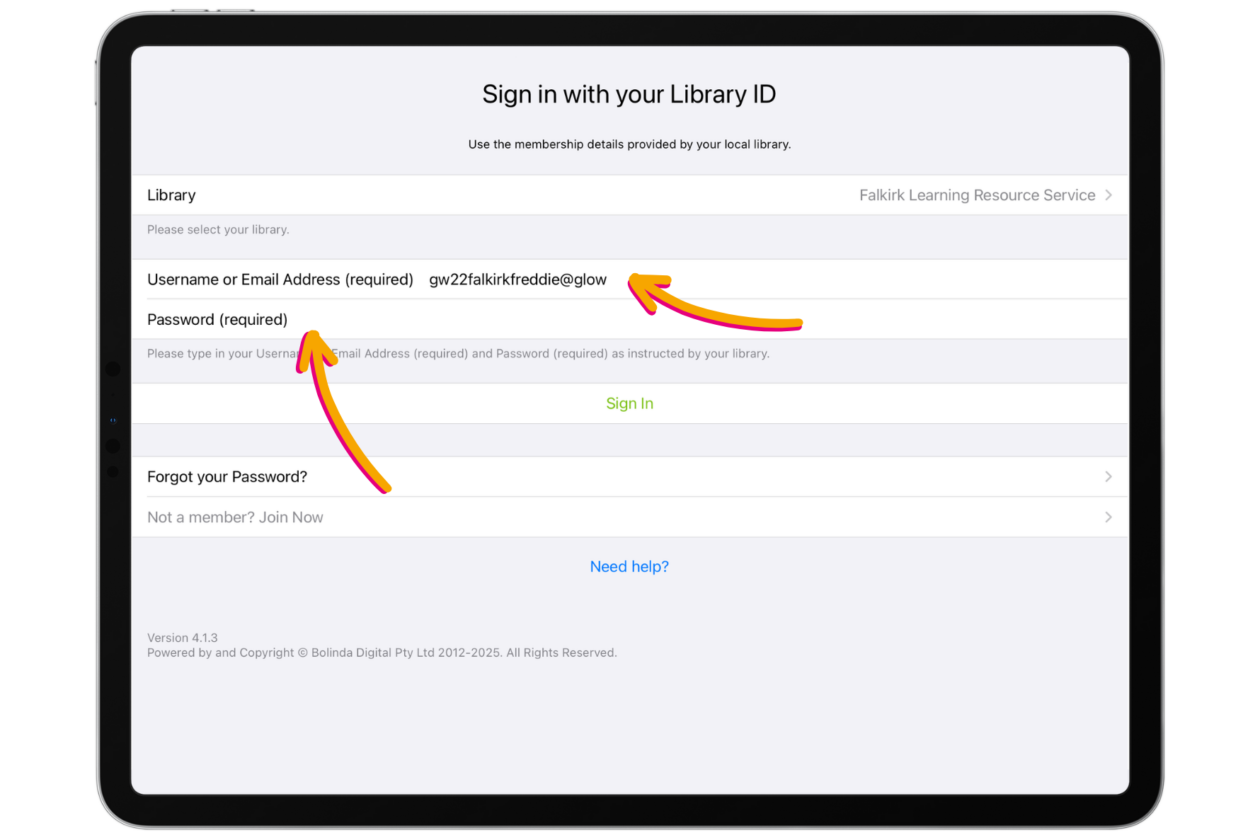
Open the Borrowbox app. Next to ‘Library’ choose ‘Falkirk Learning Resource Service’ (hint if you start typing a drop down list will appear where you can select it without typing in the whole thing).
Next to ‘username’ type in the first part of your Glow username followed by @glow (i.e. gw22falkirkfreddie@glow). Type your usual Glow password and press ‘Sign in’.
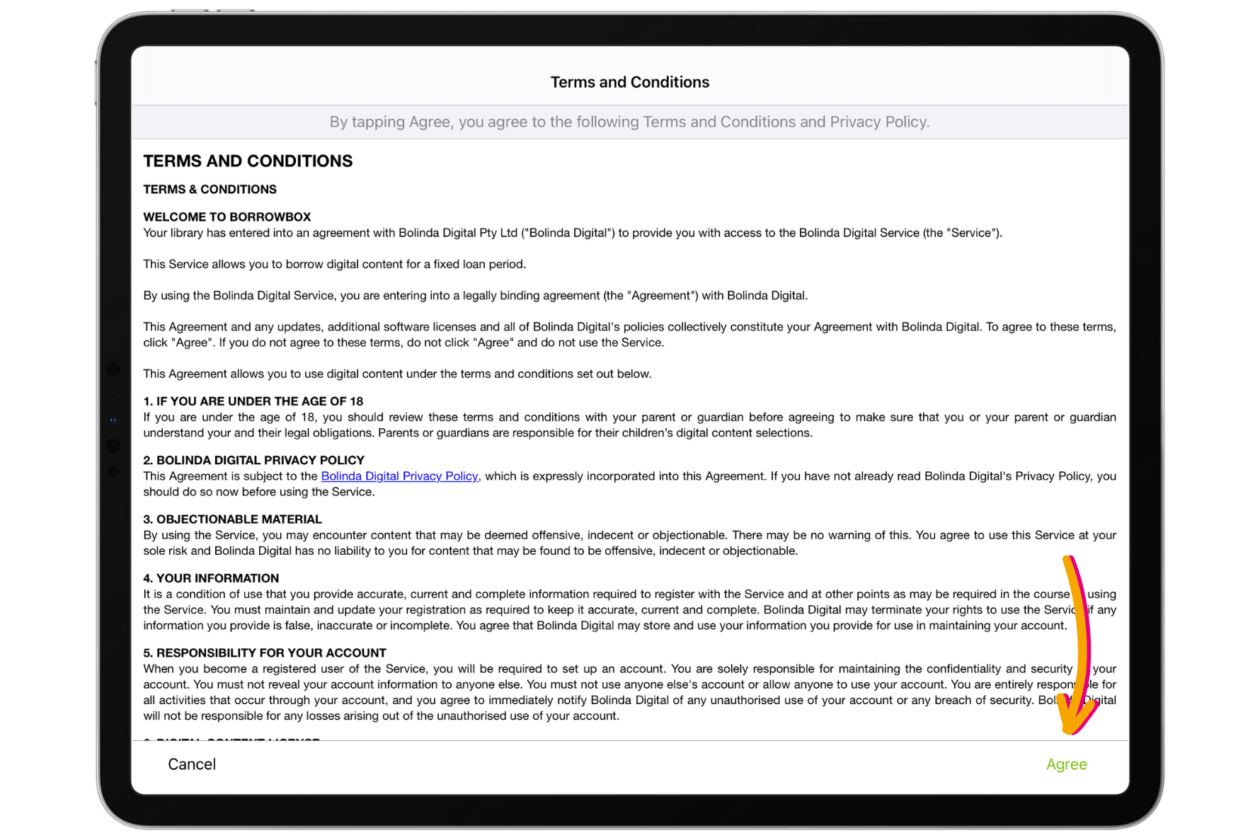
You will be asked to accept the terms and conditions of Borrowbox. Choose ‘Agree’ in the bottom right hand corner.
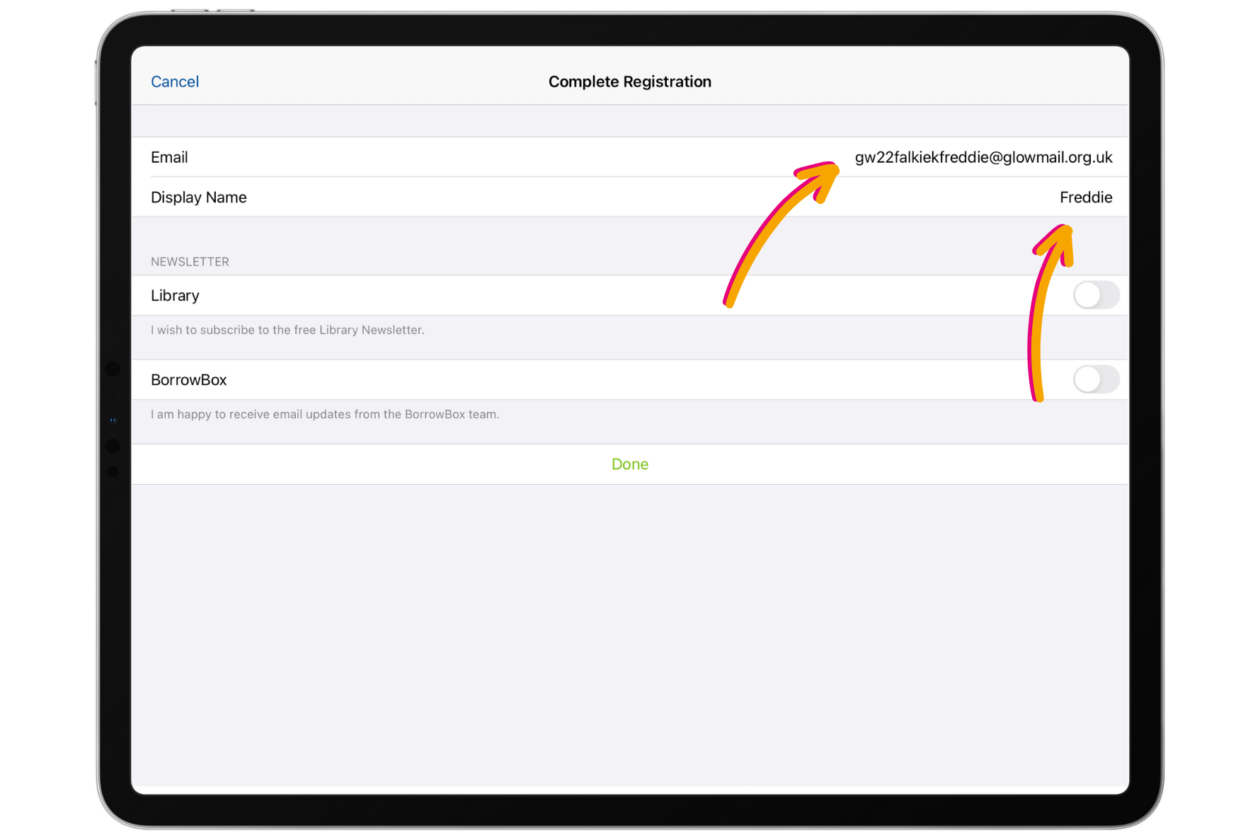
The first time you log in you’ll be asked to complete your registration. Fill in the ‘Email’ box with your full Glow email. Use your first name as your ‘Display name’. Select ‘Done’ at the bottom of the screen.
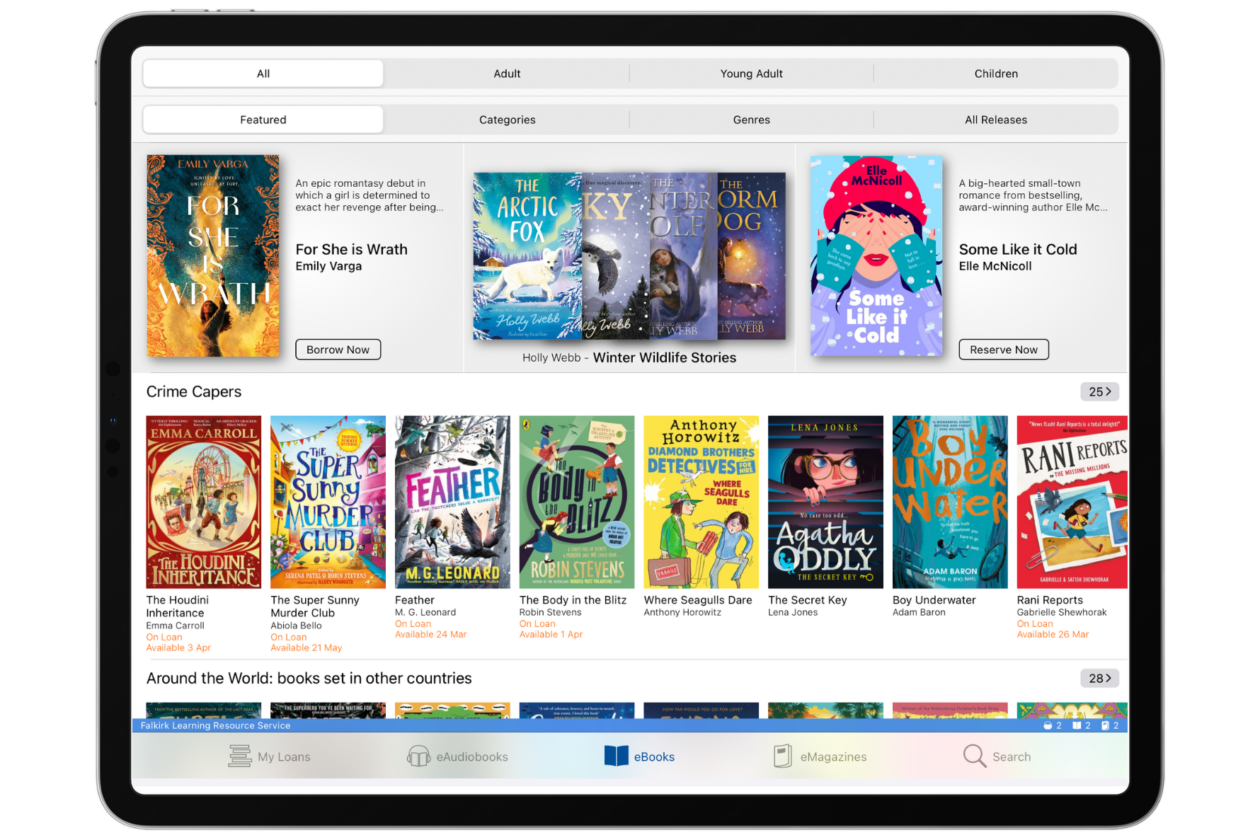
You can now use Borrowbox. Next time you log in follow the same process (you will not have to do the complete registration process again).
Logging in on Browser
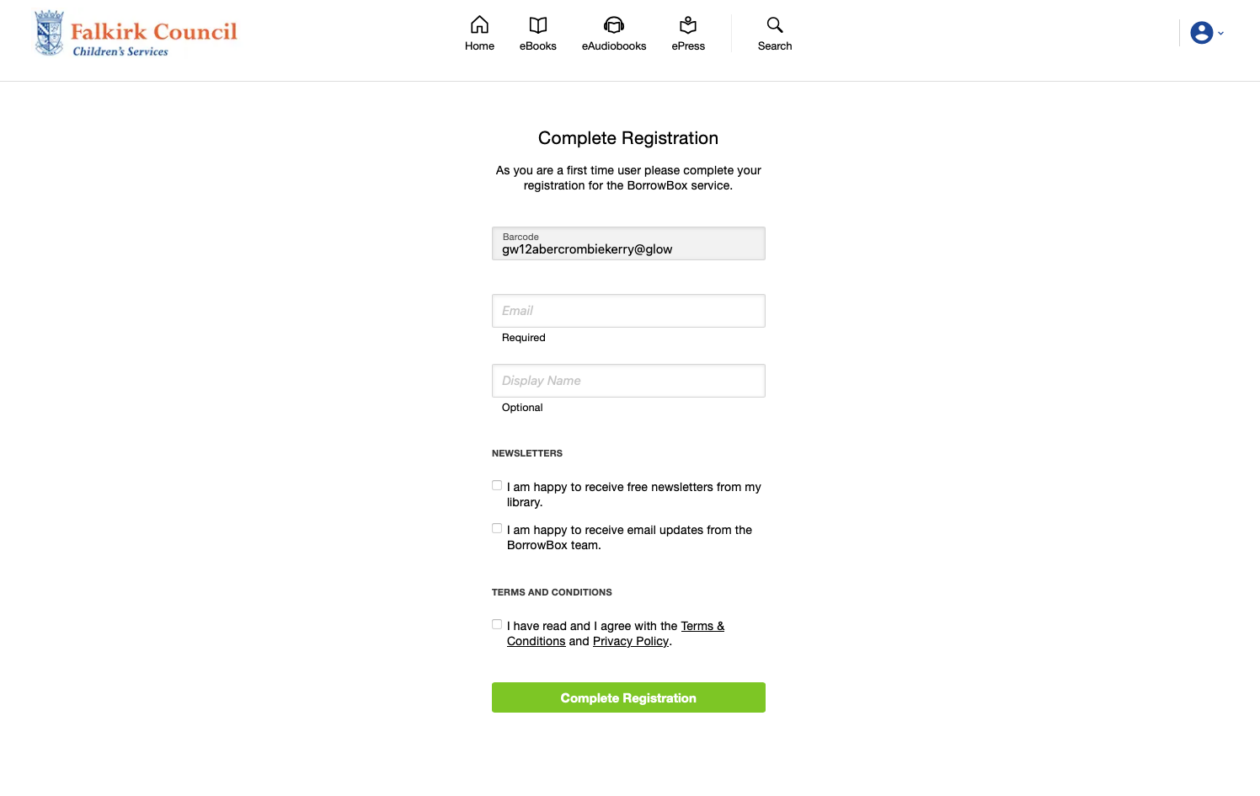
Log into Glow as normal and select the Borrowbox tile from your school launch pad. Borrowbox should open in a new tab with you logged in. You may be asked to ‘Complete registration’. Add your Glow email, choose a display name and tick the terms and conditions box. Choose ‘Complete Registration’.
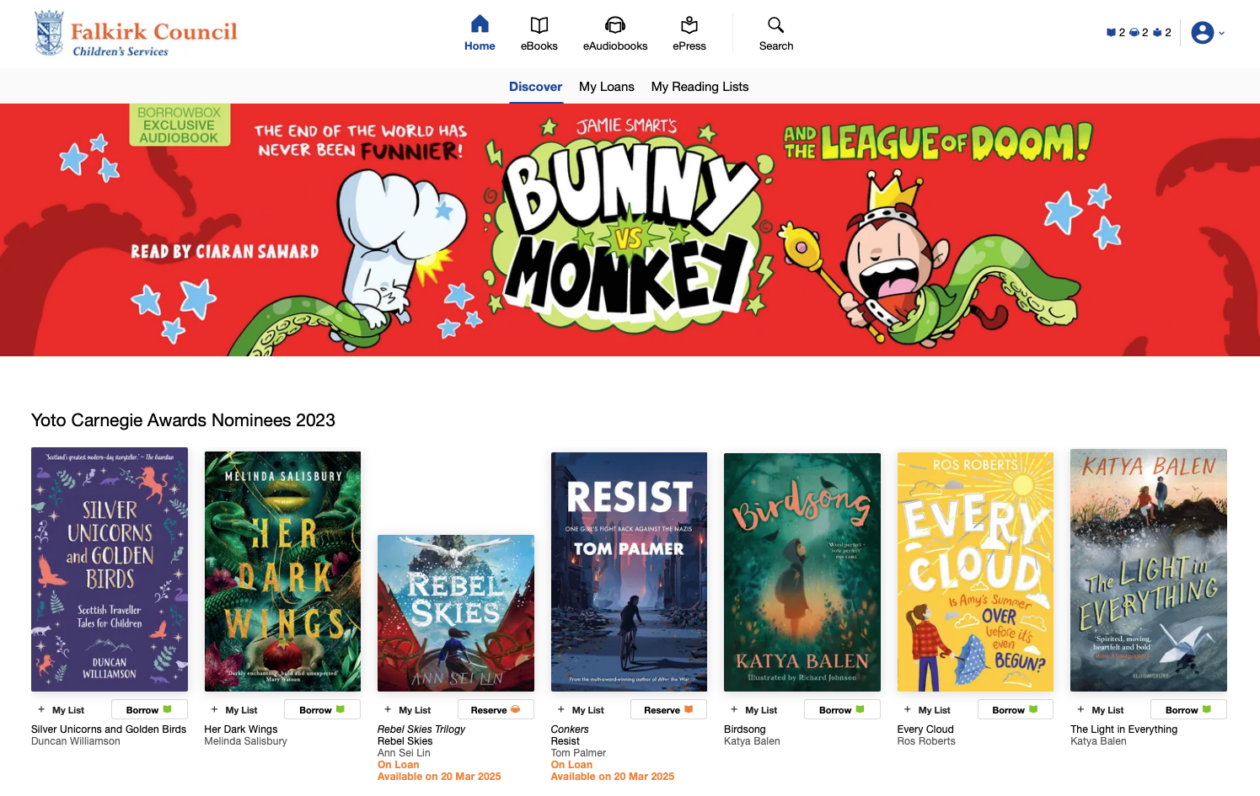
You should then be taken to the main Falkirk Learning Resource Borrowbox home page where you can begin using the service.
3. Search & Browse: Use the “Search” tab to find a specific author or the “Explore” tab to see themed collections (e.g., “First Level,” “New Releases,” or “Picture Books”).
4. Borrow: Tap on a cover and select ‘Borrow’. You can have up to 2 eBooks and 2 Audiobooks on loan at any one time.
5. Listen & Read: Your borrowed items appear in the ‘My Loans’ section. Tap a book to start reading or listening instantly.
🚀 Beyond the Basics
-
ERIC Time: Use BorrowBox as a digital alternative during “Everyone Reading In Class” time. It ensures every pupil has something they want to read, even if they forgot their physical book.
-
Customising the Experience: Show pupils how to tap the ‘Aa’ icon in an eBook. They can change the line spacing and font to suit their specific needs, helping to remove barriers to reading for pleasure.
-
Sleep & Relaxation: Audiobooks can be a great tool for “wind-down” time. The app includes a Sleep Timer that automatically stops the audio after a set time (e.g., 15 or 30 minutes).
-
For Modern Languages: Look for the “World Languages” section to find eBooks in different languages, supporting pupils with EAL or those learning a second language.
-
eMagazines: BorrowBox also provides access to digital magazines. Use these for non-fiction reading tasks or to keep up with current events and STEM news.
