

Microsoft Forms is an easy way to create surveys, quizzes, and polls with built-in Practice Mode and Data Insights.
🔍 What does it do?
Microsoft Forms is a web-based tool for gathering information and assessing learning. It allows you to create interactive quizzes and surveys that work on any device. In a Falkirk classroom, it can be used as a go-to tool for “check-ins” and low-stakes testing providing instant feedback to both the teacher and the pupil.
🎓 Why is it useful?
-
Instant Assessment: Create a “Check for Understanding” quiz at the end of a lesson to see exactly which pupils have grasped the concept.
-
Low-Stakes Learning (Practice Mode): This new feature allows pupils to try questions multiple times, see correct answers instantly, and receive encouraging feedback, turning a “test” into a learning activity.
-
Smart Data Insights: Forms doesn’t just show you “who got what”, it automatically identifies “Hard Questions” where a large percentage of the class struggled, helping you plan what to re-teach.
-
Self-Marking: Quizzes can be auto-graded, giving pupils immediate results and saving you hours of manual marking for certain types of assessment.
⚙️ How does it work?
1. Launch: Access directly at forms.office.com using your Glow login details or via the waffle menu in OneDrive in Glow.
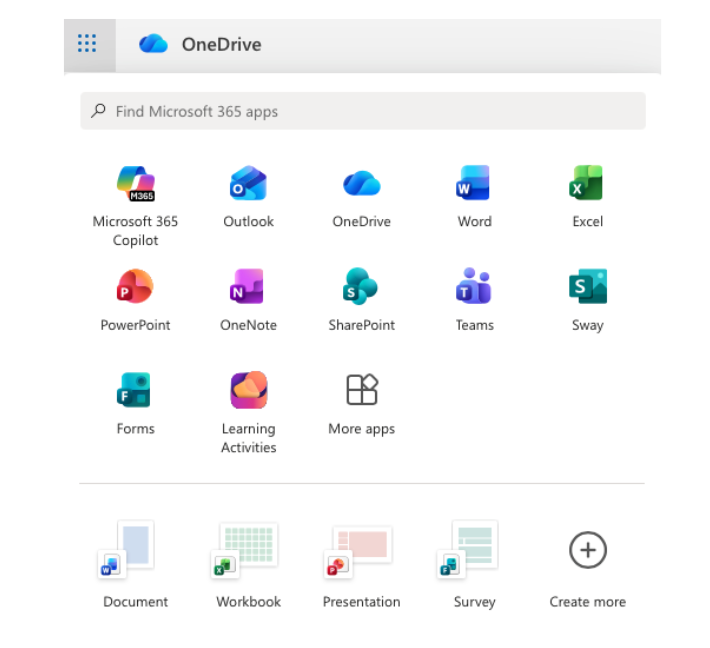 2. Create: Click + New Quiz (to add correct answers and points) or + New Form (for surveys).
3. Enable Practice Mode: Go to Settings (…) and toggle on Practice Mode. This allows pupils to see if they are right or wrong immediately after answering each question.
4. Present Mode: Use the Present button in class to show live, anonymous results (like a word cloud or bar chart) as pupils submit their answers in real-time.
5. Review: Click the Responses tab to see a summary of the data and open it in Excel for a detailed breakdown.
🚀 Beyond the Basics
-
Practice Mode for self paced learning: Turn any quiz into a revision tool. Pupils get instant feedback and can “try again,” which helps build confidence and independence.
-
Branching Logic in Literacy: Use the “Branching” feature to create a digital “Choose Your Own Adventure” story. Depending on the choice a pupil makes, the form sends them to a different page of the narrative.
-
Live Data in Science: Open a Form in Present Mode during an experiment. As pupils enter their findings, the charts on your board update live, allowing for an immediate class discussion on the results.
-
Accessibility with Immersive Reader: Every Form has Immersive Reader built-in. Pupils can tap the icon next to any question to have it read aloud, translated, or broken into syllables.
